> ## Documentation Index
> Fetch the complete documentation index at: https://docs.juicebox.ai/llms.txt
> Use this file to discover all available pages before exploring further.
# ATS Integrations
> Learn how to export profiles, connect your ATS or CRM, and export with or without contact information.
## ATS + CRM
Juicebox integrates with 50+ ATS and CRM systems, as well as Google and Outlook. To view a current list of available integrations, open the “Integrations” tab on the left hand menu of [Juicebox](https://app.juicebox.ai/).
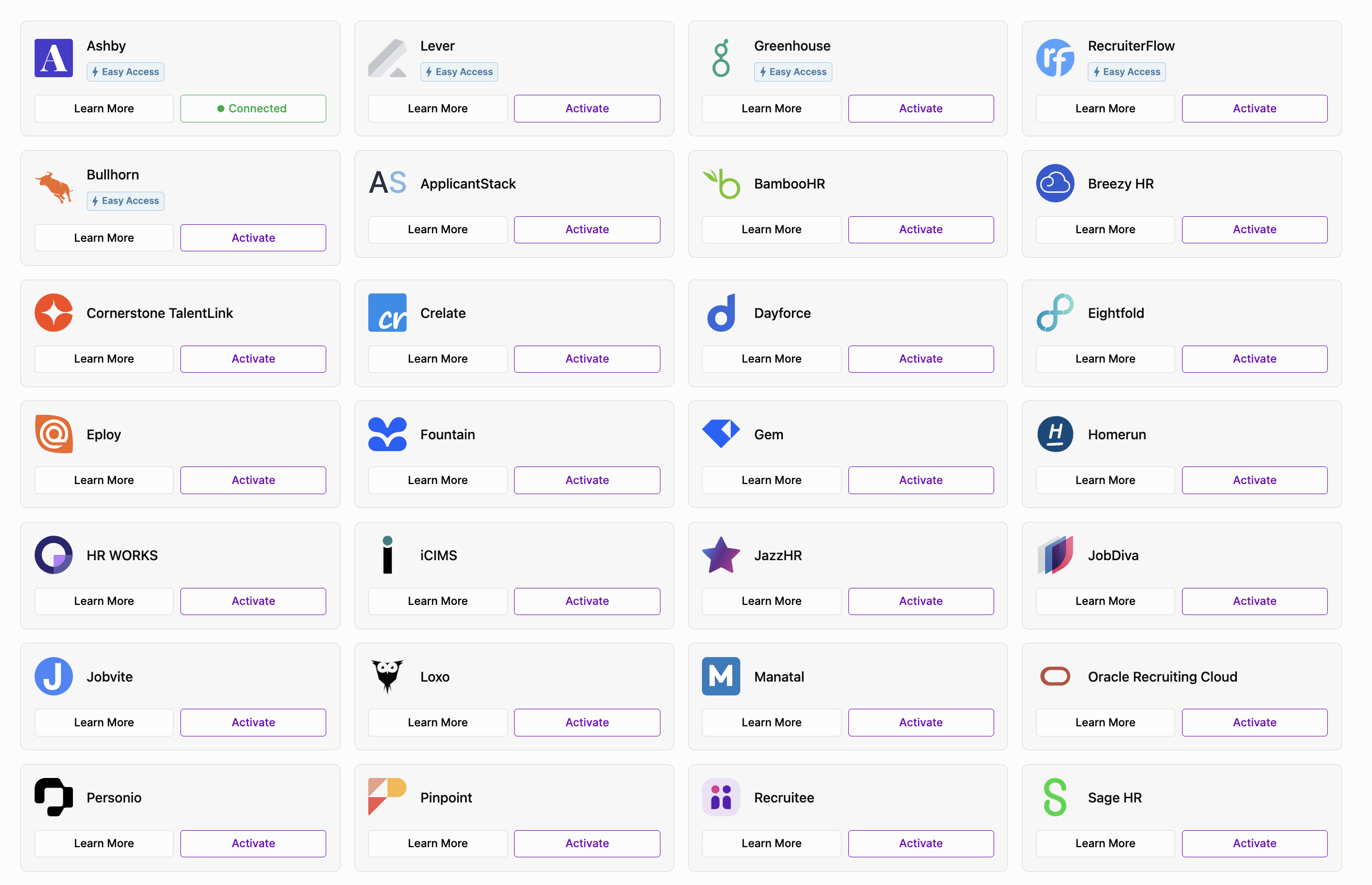
*Note: the screenshot above shows an excerpt of all available integrations.*
Integrating with your ATS or CRM allows for three primary features:
1. **Import Project from ATS**: Import a job description from your ATS into Juicebox to automatically kick off a search using the job description. This also includes linking your Juicebox project to an ATS job, which makes exporting profiles to your ATS easier.
2. **Export Profiles to ATS**: Save profiles directly into your ATS, including contact details, current company and job, profile URLs, and more. On some plans, this can be customized further based on your preferred fields. Juicebox also has the ability to auto-export jobs to your ATS, including exporting all shortlisted profiles or exporting only interested profiles.
3. **Rediscovery**: Filter and view profiles already in your ATS within Juicebox, including filtering by tags, jobs, and stage. Avoid reaching out to the same profile twice, and instantly view your relationship history. To learn more about Rediscovery, visit the Talent Rediscovery article [here](/talent-rediscovery).
ATS integrations are used for providing the above described services, only. Juicebox **does not** use customer data for our candidate/profile database in any way.
### Profile Deduplication
When profiles already exist in your ATS or CRM, they will be shown as such within Juicebox. Profiles that already exist in your ATS will show an icon next to them in the search results. You’ll also see a box at the top of the profile card with additional details.
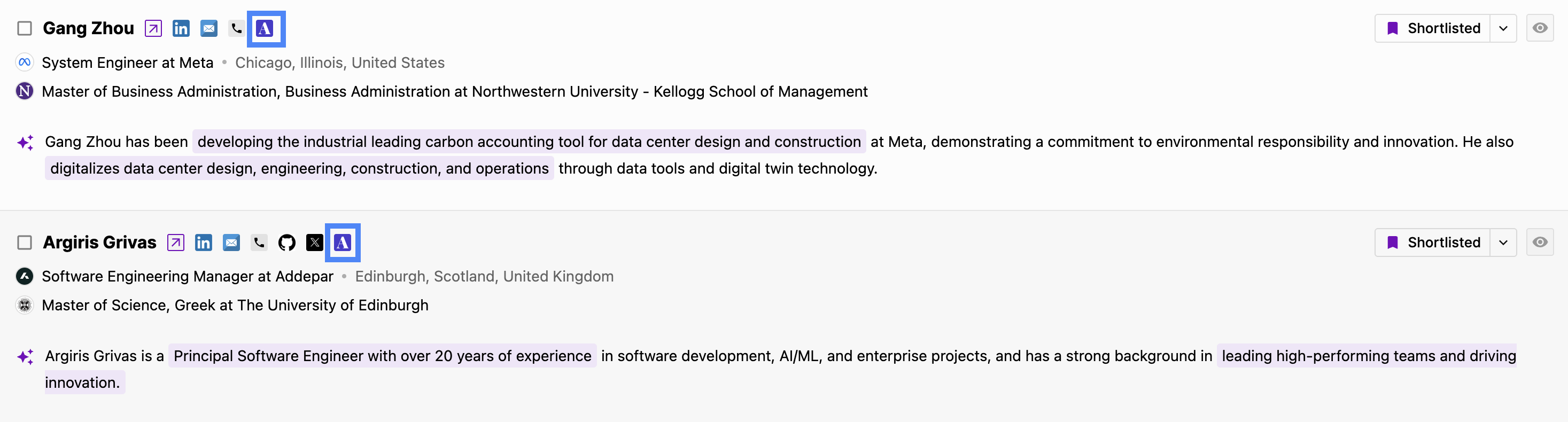
*ATS icons for profile deduplication in the search. If the ATS logo is highlighted in a dotted line, Juicebox was able to find a partial match for that candidate using their first and last name. Full logos without a dotted line represent a full candidate match across names and platforms.*
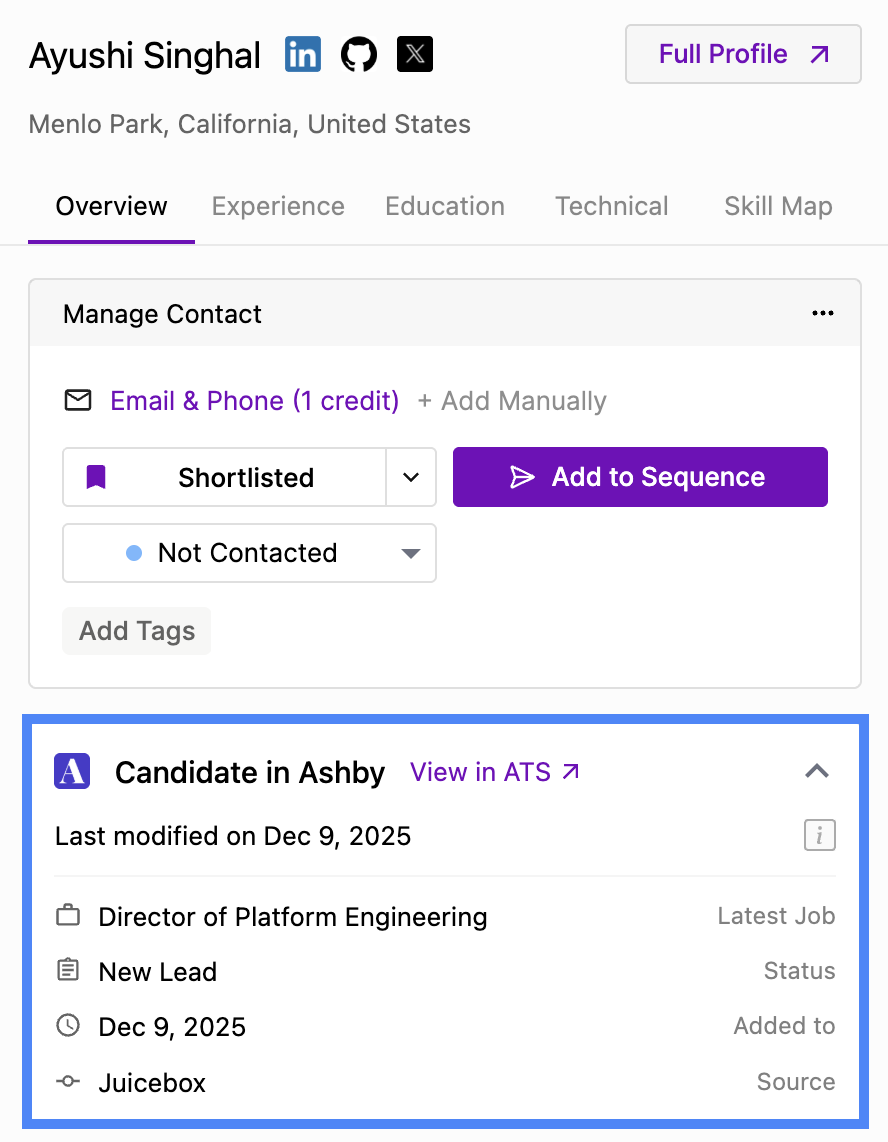
*Expanded view showing additional details about the candidate’s profile in your ATS.*
### Import a Job from ATS
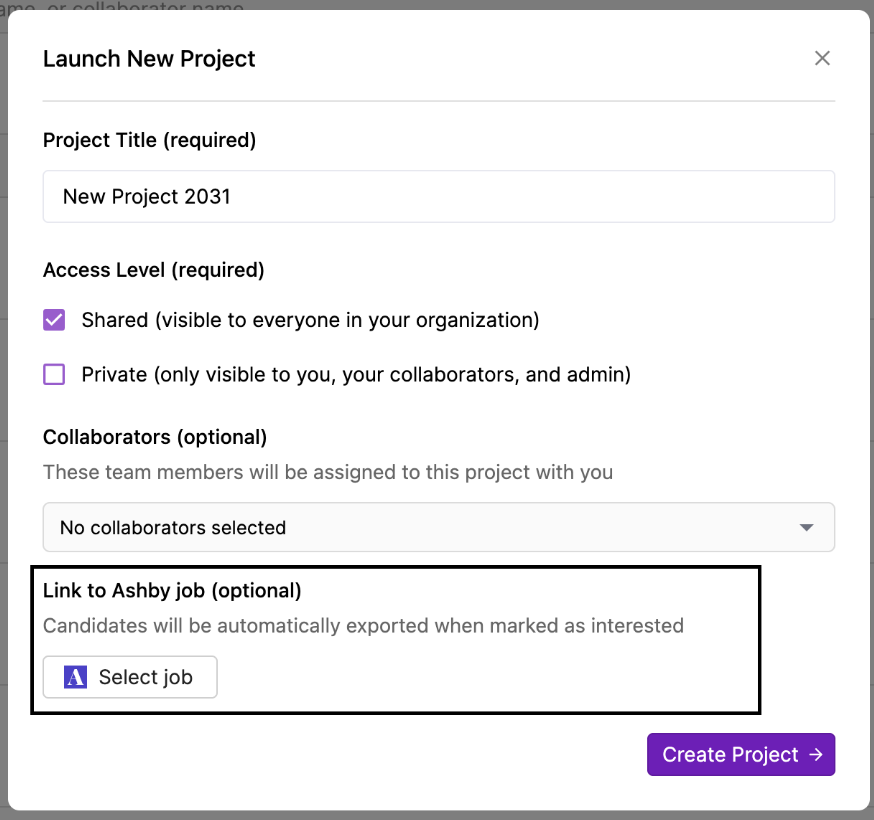
If your ATS is connected, you will be able to see jobs from the ATS when first creating a project. You can select a job to automatically import it and start a search with the associated job description.
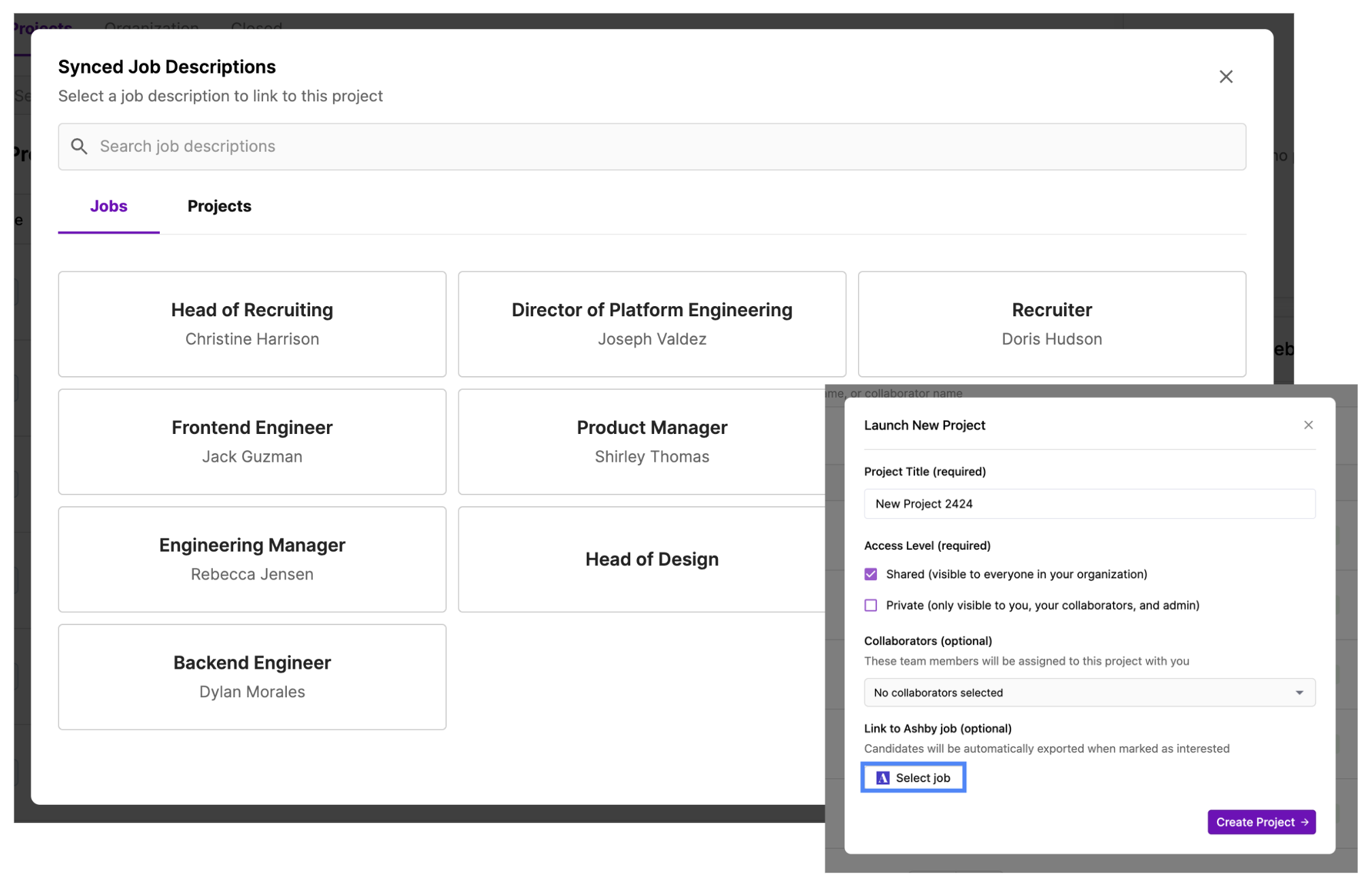
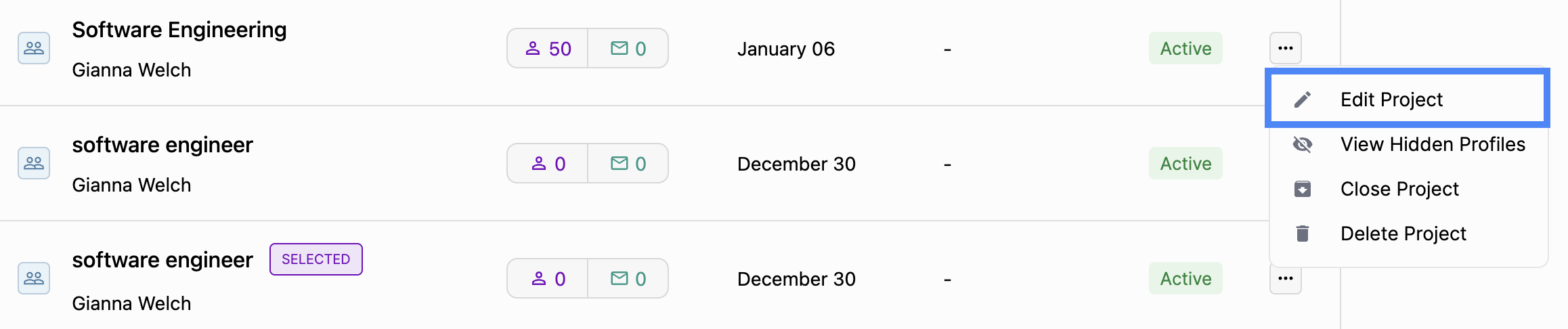
To link a project after creation, select “…” next to the project > Edit Project > Select Job.
### Exporting to a Specific Job
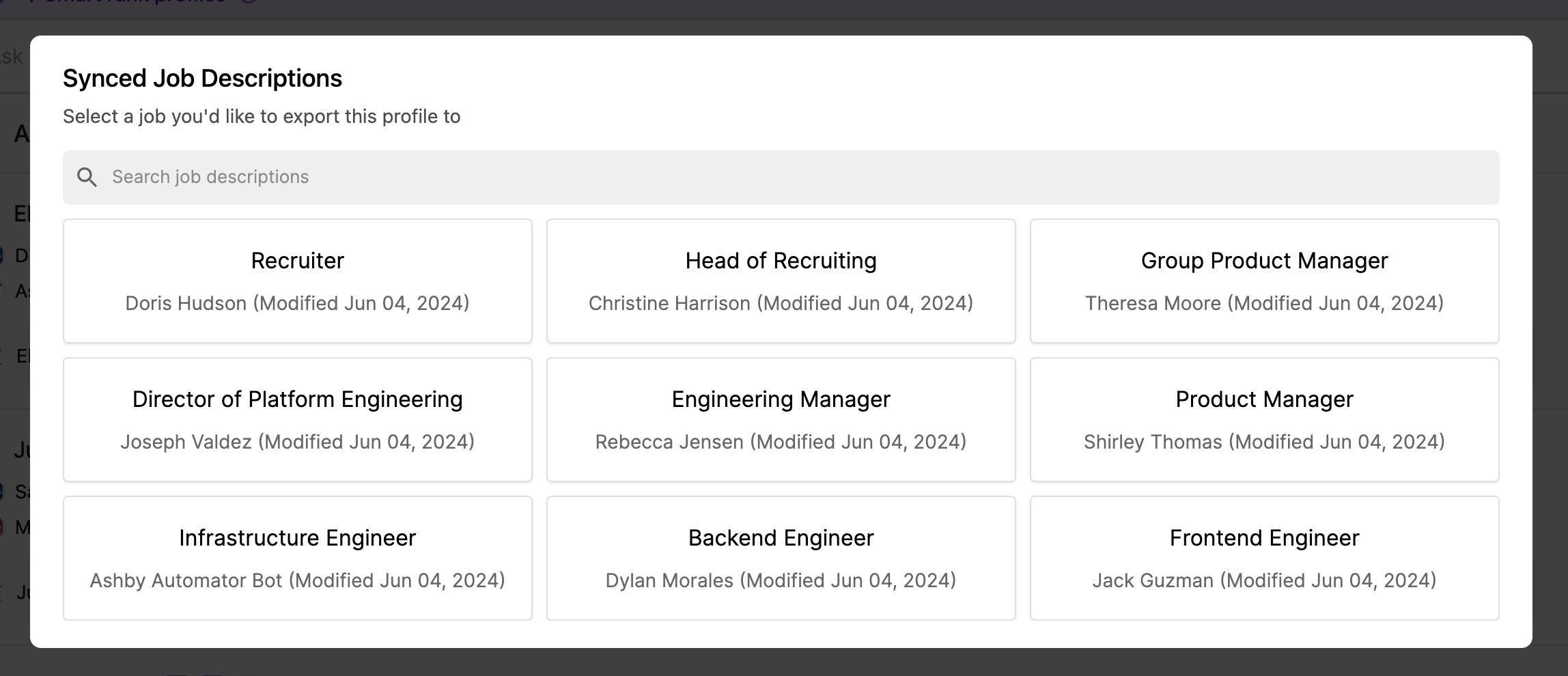
With some ATS integrations, you have the option to export to a specific job. After selecting “Export to ATS”, you can select the specific job you’d like to export to. Profiles will enter the first candidate stage — often, this is the “lead” stage in your ATS.
*Contact your Juicebox Account Executive to determine whether your integration supports exporting to a specific job.*
### One-Click Re-Export
Once you've exported at least one profile to an ATS integration, you’ll see a “1-Click Export” button with the ATS icon appear on subsequent profiles. This allows you to export new profiles in bulk directly to your job/project without needing to reselect it each time.
This feature works with any supported integration and streamlines high-volume exports.
Note: If the “1-Click Export” button isn’t visible, it means no profile has been exported yet in the current session.
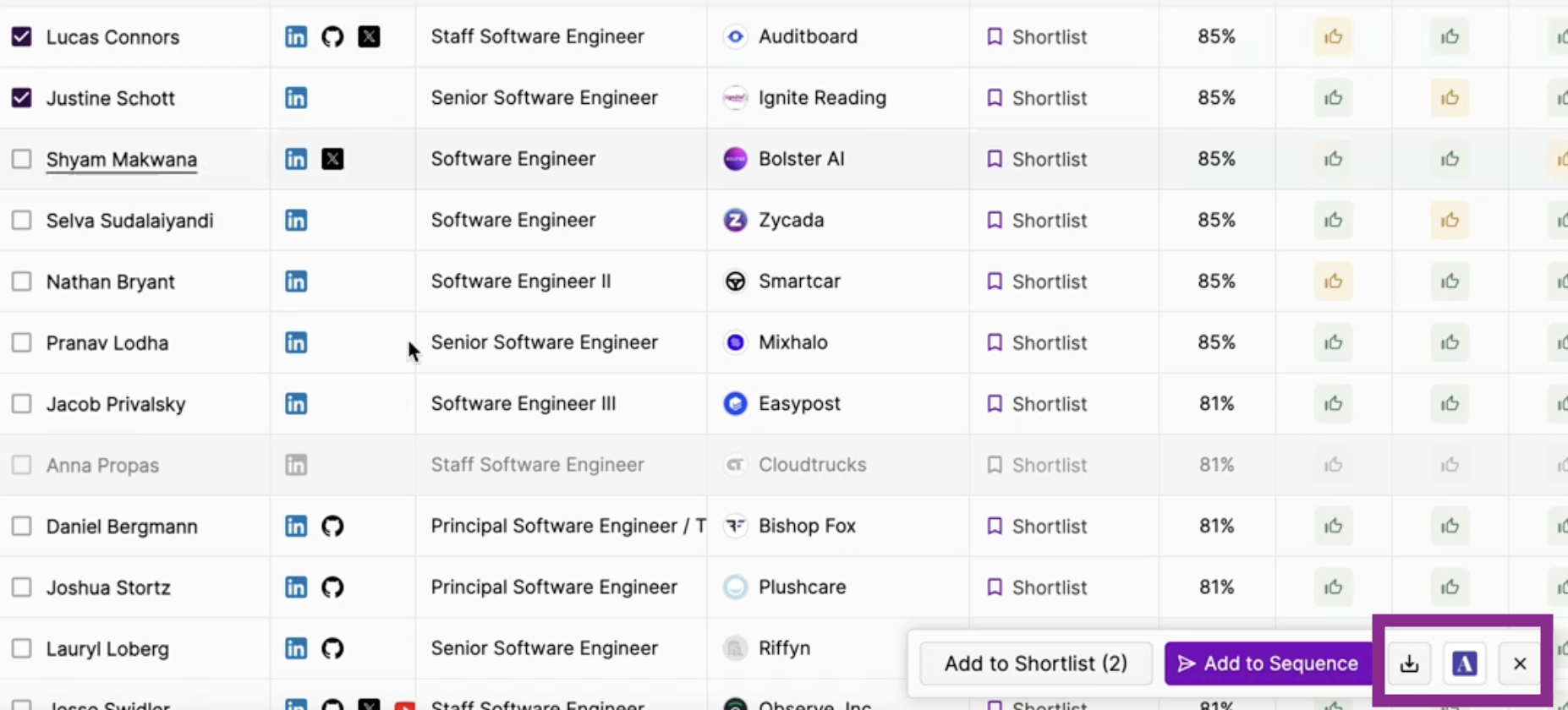
*Export profiles to a role or project in your ATS directly from Results.*
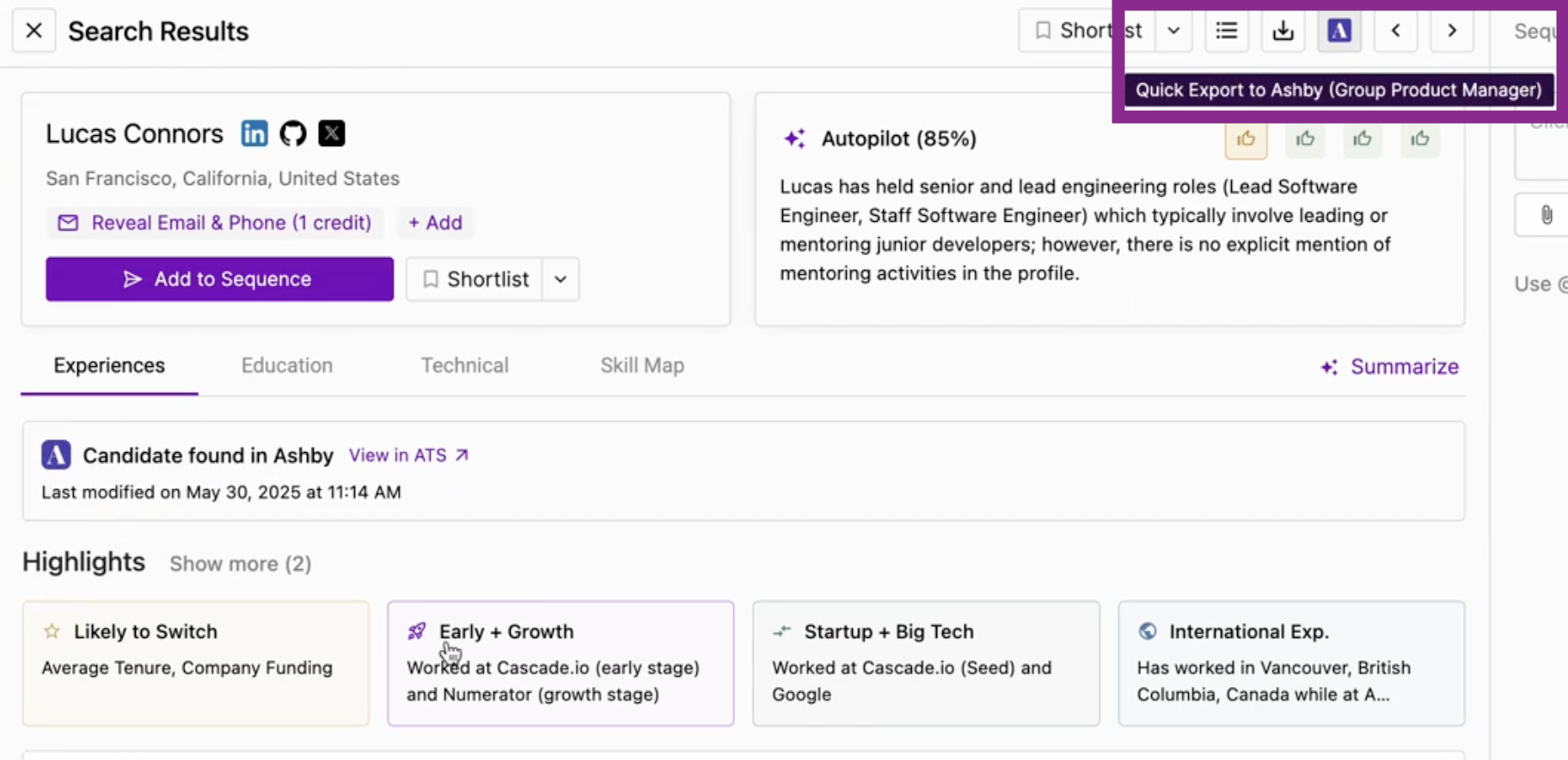
*Export profiles from the profile view directly to your previous ATS project.*
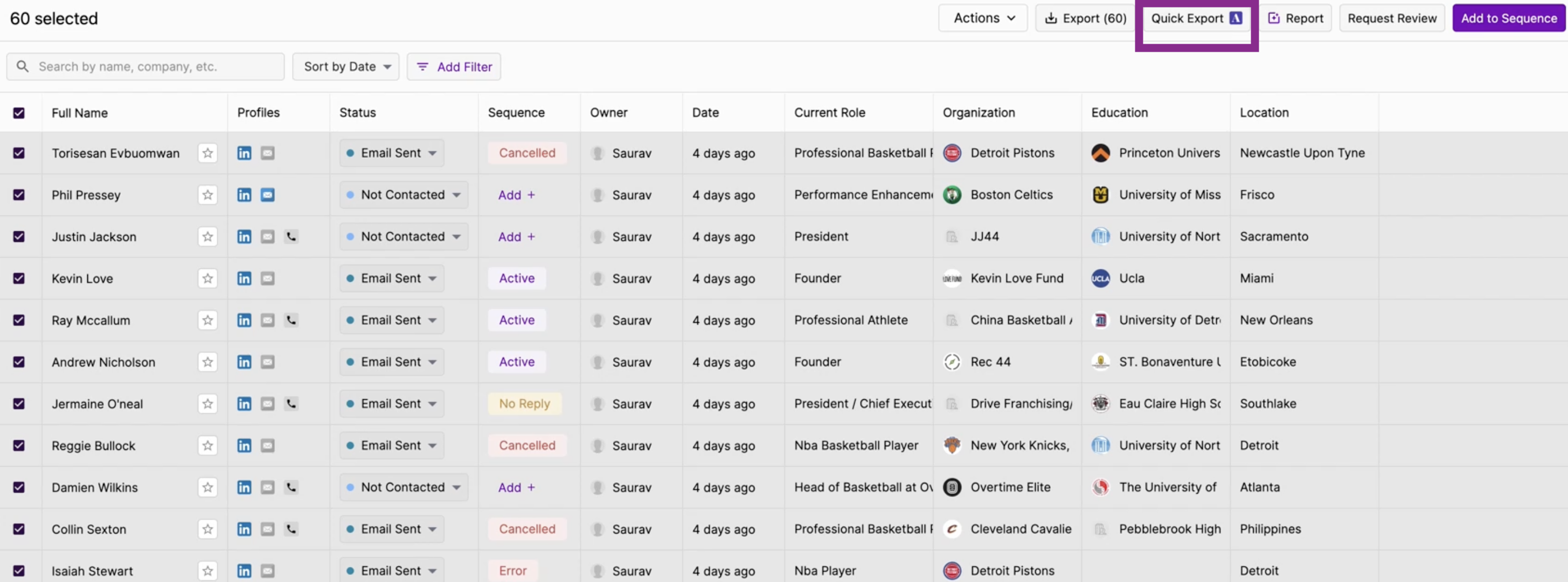
*Export profiles in bulk directly to your previous ATS project.*
### Auto-Export
Auto-Export to ATS lets you seamlessly connect your Juicebox projects or AI Agents directly to your ATS jobs or projects.
With this, candidates are automatically pushed into your ATS based on your preferred workflow — whether that’s the moment a candidate is shortlisted in a Juicebox project, contacted, or once they’ve responded with positive interest.
Please note, there is a 5 second delay between when the trigger action takes place and when the export initiates to give the user a grace period to cancel. An auto-export can be cancelled by undoing the action that initiated the export (ie, unshortlisting or removing "interested" status).
**Setup**: [Organization-level ATS settings](https://app.juicebox.ai/account?tab=ats):
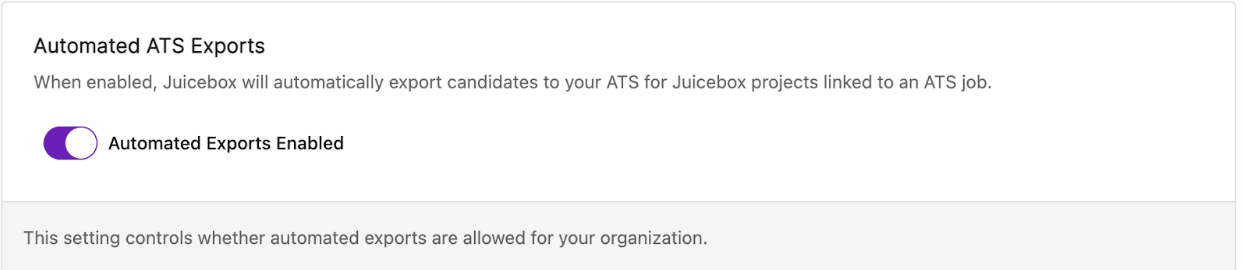
The **Automated ATS Exports** (disabled by default) toggle will enable/disable auto-exports for any project in the org.
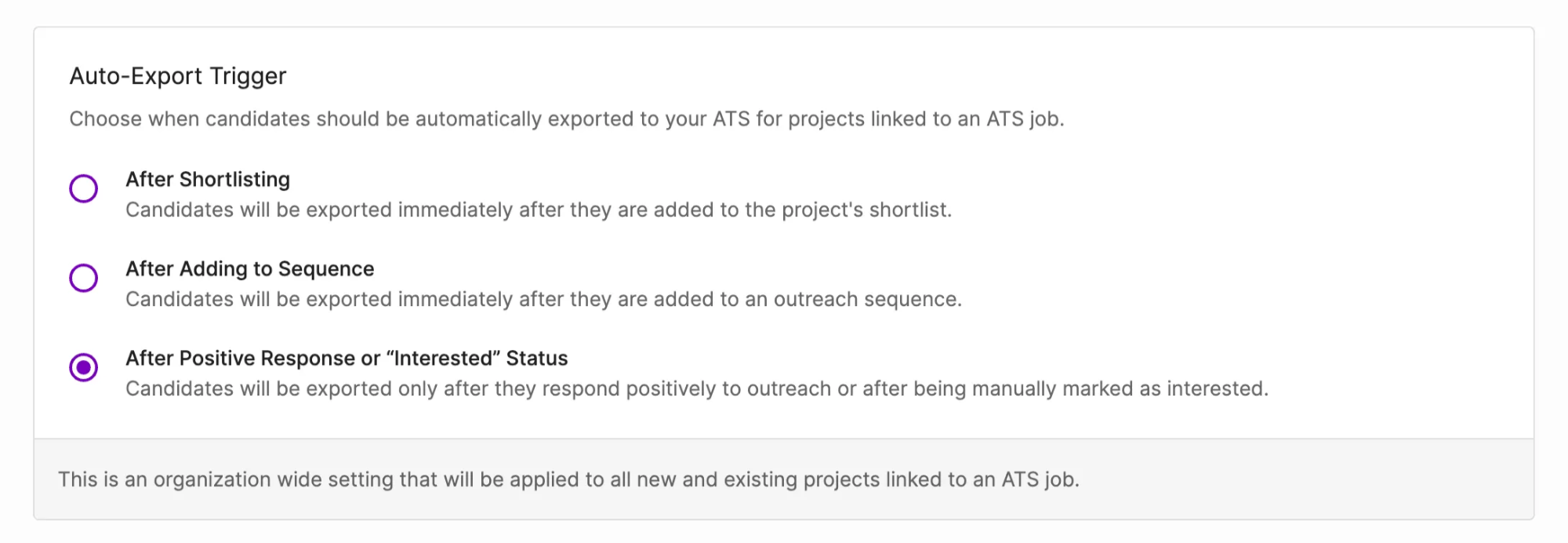
The **Auto-Export Trigger** setting determines when to export a candidate(s) for all projects linked to an ATS job, with the current trigger points being:
* **After Shortlisting:** candidates will be exported immediately after they are added to the project’s shortlist. This includes adding to the shortlist, importing to the shortlist, or adding to a sequence from the project.
* **After Adding to Sequence:** candidates will be exported immediately after they are added to an outreach sequence.
* **After Positive Response or “Interested” Status** (Default): candidates will be exported only after they respond positively to outreach, or after being manually marked as interested.
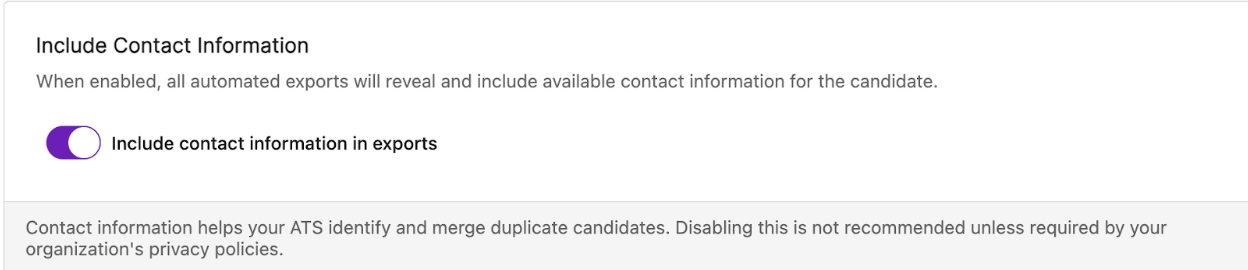
**Include Contact Information** (Enabled by default) will automatically reveal candidate emails and phone numbers, and export with them included. We recommend keeping this setting active to avoid duplicate profiles in your ATS.
**Project-level Job Linking** allows for the ability to link to an ATS job, as well as an interview stage, when creating or editing projects or agents. For Ashby, you can also link to a sourcing project instead.
### Activating an Integration
Most integrations can be set up in a self-serve capacity. To do so, please select the “Activate Integration” field and follow the steps in the pop-up window. After successfully connecting your ATS or CRM, your account manager will reach out to you with next steps, if necessary.
**Supported Plans:** ATS and CRM integrations are included on the [Business](https://juicebox.ai/pricing) plan. Contact [sales@juicebox.work](mailto:sales@juicebox.work) for more details.
### ATS Integrations (Two-Way)
To view the most up-to-date integration list, please use the “Integrations” tab on the left-hand menu of your [Juicebox](https://app.juicebox.ai/) account.
Supported Applicant Tracking Systems (**ATS**) as of Feb 2026:
| Ashby | Lever | Greenhouse |
| ----------------------- | ---------------------- | --------------- |
| RecruiterFlow | Bullhorn | ApplicantStack |
| BambooHR | Breezy HR | Spott |
| Crelate | Dayforce | Eightfold |
| Eploy | Fountain | Gem |
| Homerun | HR Works | iCIMS |
| JazzHR | JobDiva | Jobvite |
| Loxo | Manatal | Taleo |
| Personio | Pinpoint | Recruitee |
| Sage HR | Salesforce | SmartRecruiters |
| Spark Hire Recruit | UKG Pro | Zoho Recruit |
| SAP SuccessFactors | Workable | Workday |
| Oracle Recruiting Cloud | Cornerstone TalentLink | Teamtailor |
Please note: new integrations are being continuously added by the team. Contact your Juicebox sales contact with any questions, or enter your requested integration [here](https://xmy7g1zp2xj.typeform.com/to/i4aINVTD).
### CRM Integrations (Two-Way)
To view the most up-to-date integration list, please use the “Integrations” tab on the left-hand menu of your [Juicebox](https://app.juicebox.ai/) account.
Supported Customer Relationship Management systems (**CRM**) as of Feb 2026:
| Salesforce | HubSpot | Affinity |
| ---------- | ------- | -------- |
Note: CRM integration functionality is more constrained than ATS integrations. Please contact the sales team to learn more.
**Juicebox does not use customer CRM or ATS data to train AI models. More details in the [Trust Center.](https://juicebox.work/trust)**