> ## Documentation Index
> Fetch the complete documentation index at: https://docs.juicebox.ai/llms.txt
> Use this file to discover all available pages before exploring further.
# How do I remove users from my workspace?
> Free up a seat by removing a user from your Juicebox workspace.
Removing a user from your workspace frees up their seat so another user can take it, but it does not reduce the total number of seats in your billing plan — you will still be charged for the same number of seats. To reduce the number of seats you're paying for, see [How can I reduce the number of seats I'm paying for?](/help/plans/reduce-seats)
To remove a user:
1. Click **Account Settings**.
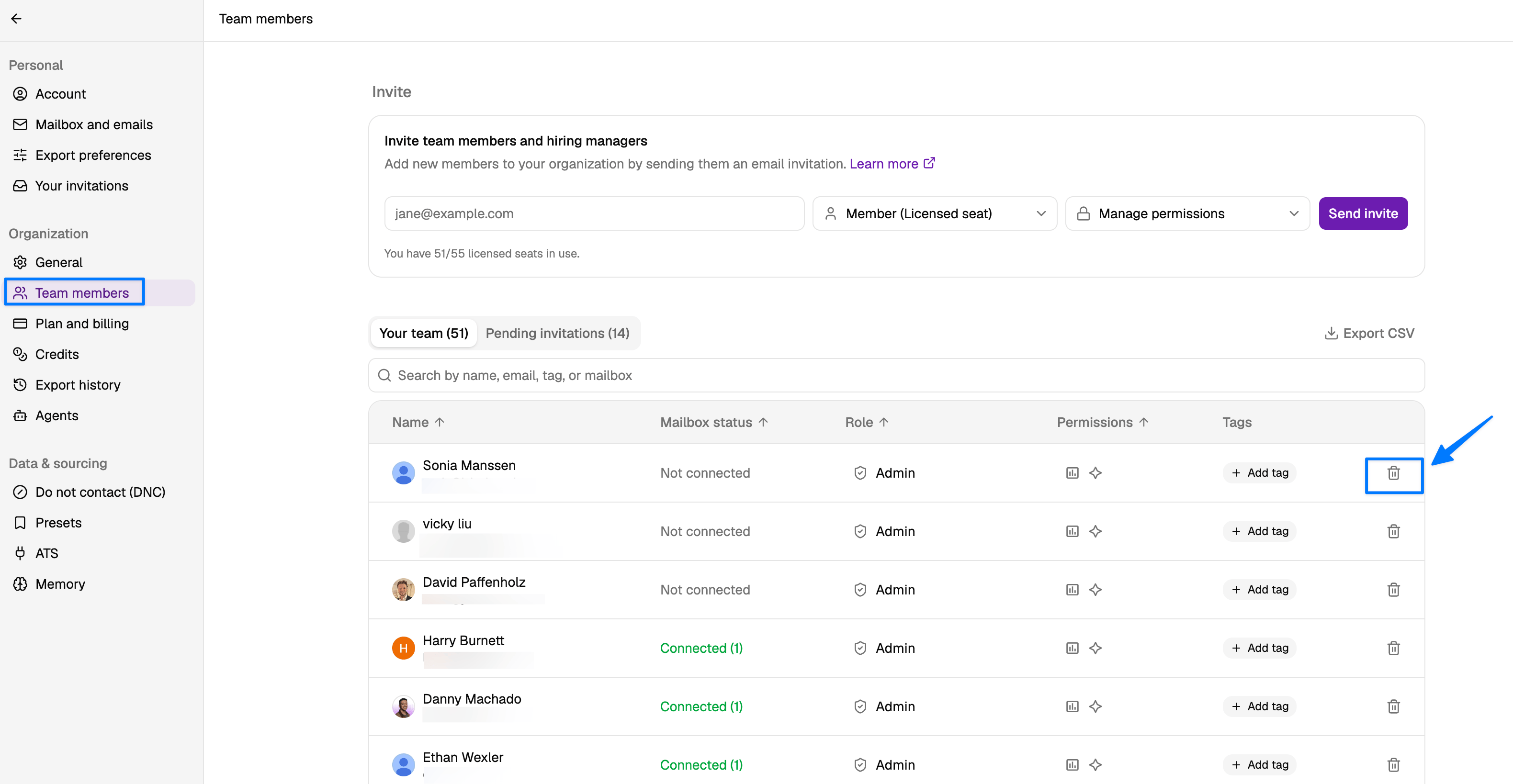
2. Click **Team members**.
3. Find the user you'd like to remove from the workspace and click the trashcan icon to remove them.
 After removing a user, their seat becomes available for another team member to use. Simply invite the new user and they will automatically take the freed-up seat without requiring a plan upgrade.