> ## Documentation Index
> Fetch the complete documentation index at: https://docs.juicebox.ai/llms.txt
> Use this file to discover all available pages before exploring further.
# Account Roles and Permissions
> Understand the Admin, Read-Only Admin, Licensed Seat, and Hiring Manager roles.
Juicebox has multiple roles and permissions, depending on the account type and configuration.
## Default roles in Juicebox
Roles are organized into four permission levels: **Admin, Read-Only Admin, Licensed Seat, and Hiring Manager**. The most commonly assigned role is **Licensed Seat**, which provides full access to Juicebox's core sourcing workflows, including candidate search, project creation and management, candidate review, shortlisting, and outreach execution.
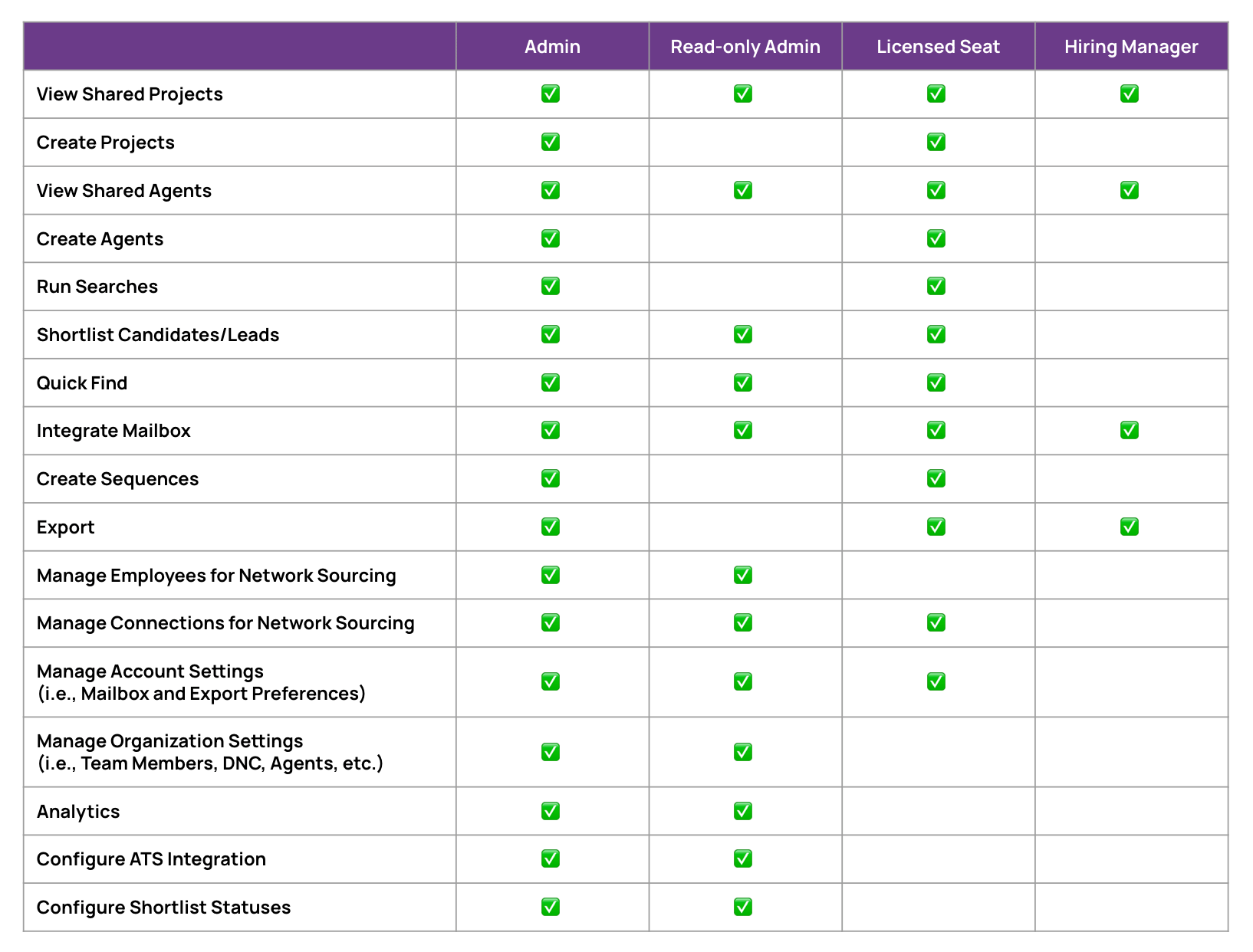 The Read-Only Admin and Hiring Manager licenses are view-only, and will not be able to perform any sourcing or outreach activity across candidates or the platform. Learn more about [Hiring Manager seats](/hiring-managers).
## Special permissions: Agents, tags and analytics
An admin license (including read-only) can grant individual team members access to agents and/or analytics. To manage permissions:
1. Click on your name in the bottom left > **Account Settings**.
2. Navigate to [Team members](https://app.juicebox.ai/account?tab=org).
3. Select the settings gear icon for the profile you'd like to change permissions for (first icon under **Actions**).
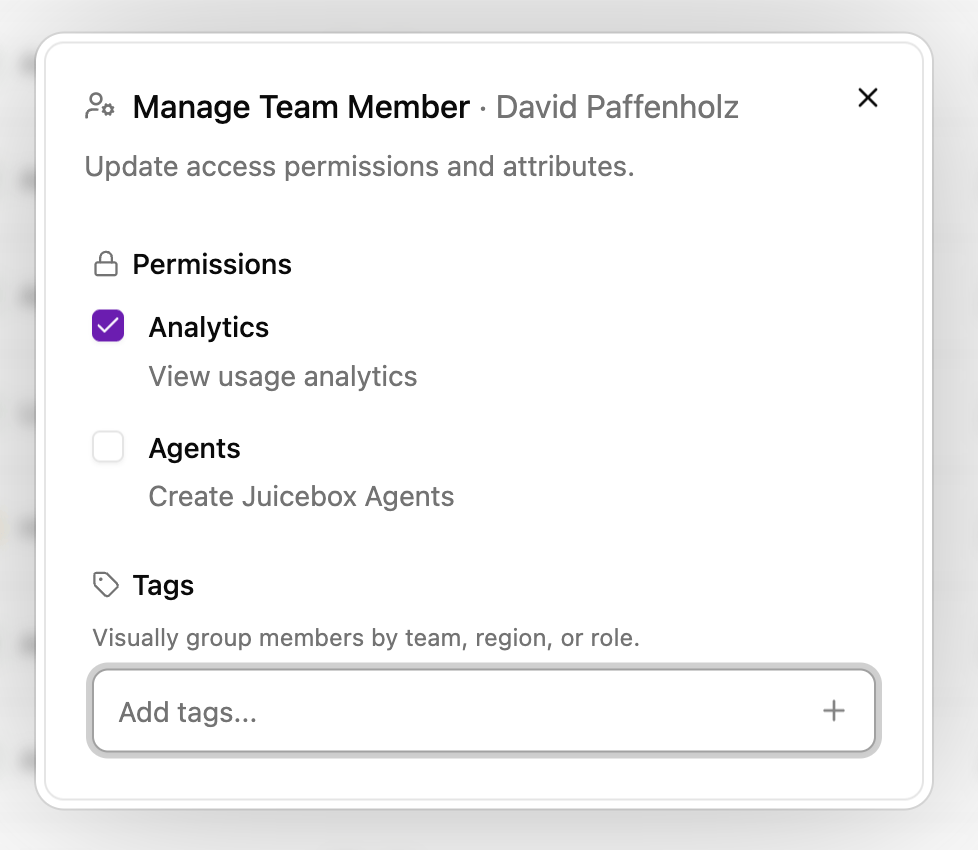
4. Select or unselect **Analytics** or **Agents**, or assign a tag to any team member as needed.
The Read-Only Admin and Hiring Manager licenses are view-only, and will not be able to perform any sourcing or outreach activity across candidates or the platform. Learn more about [Hiring Manager seats](/hiring-managers).
## Special permissions: Agents, tags and analytics
An admin license (including read-only) can grant individual team members access to agents and/or analytics. To manage permissions:
1. Click on your name in the bottom left > **Account Settings**.
2. Navigate to [Team members](https://app.juicebox.ai/account?tab=org).
3. Select the settings gear icon for the profile you'd like to change permissions for (first icon under **Actions**).
4. Select or unselect **Analytics** or **Agents**, or assign a tag to any team member as needed.
 To change who the admin is, see [Change the admin user](/help/account/change-admin-user).