> ## Documentation Index
> Fetch the complete documentation index at: https://docs.juicebox.ai/llms.txt
> Use this file to discover all available pages before exploring further.
# Carerix Integration Set-up
> Connect Carerix to Juicebox.
 ## About the integration
Connect Carerix to Juicebox to import jobs and start searches from their job descriptions. You can also export profiles with resumes to a selected job. Existing candidates can be identified in Juicebox and used for rediscovery, subject to the access granted to the connection.
## Before you start
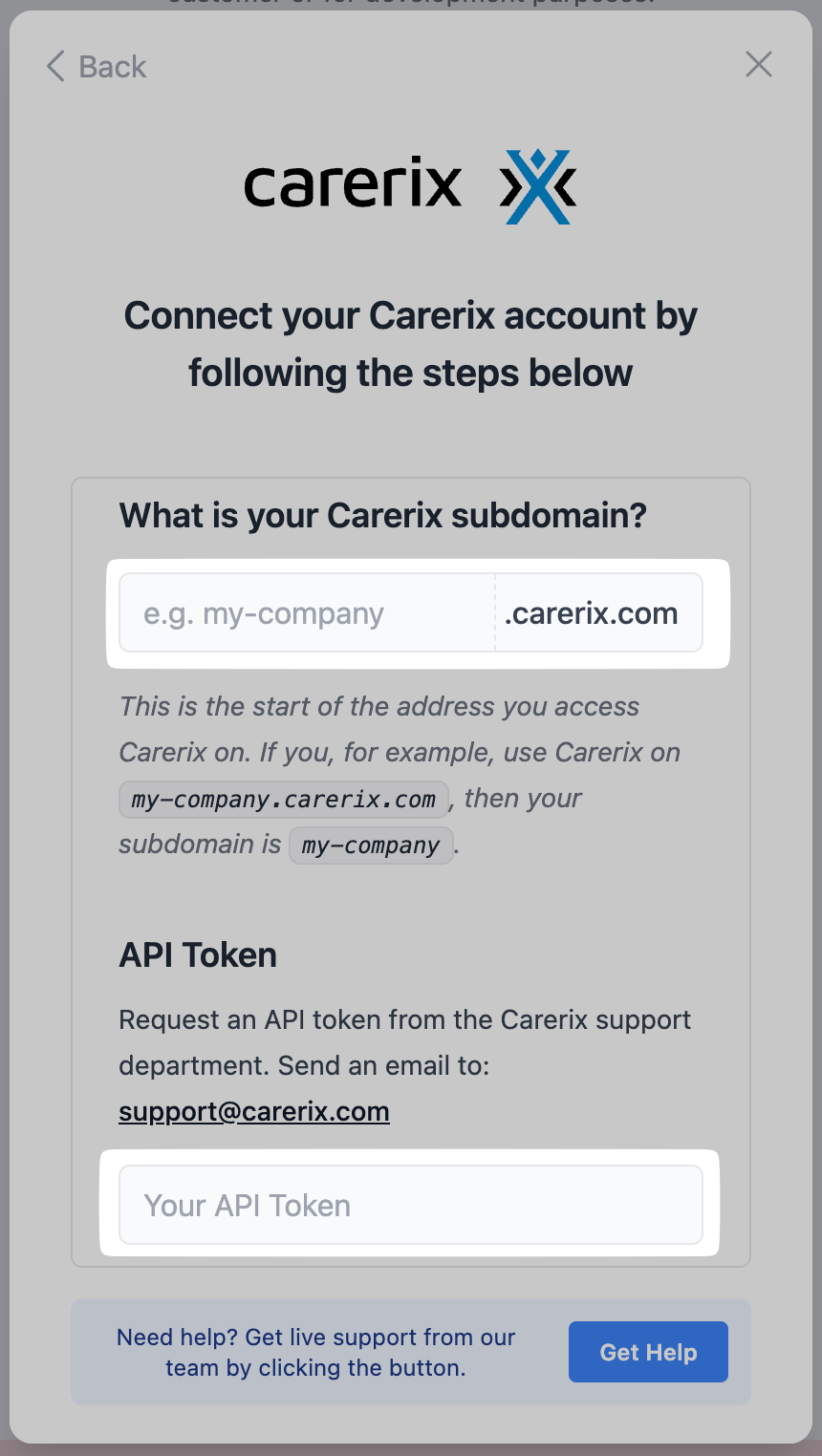
Find the subdomain used to access Carerix. For `my-company.carerix.com`, the subdomain is `my-company`.
Open **Integrations** in Juicebox, select **Carerix**, and choose **Activate**. Keep the connection window open while completing the steps below. If the integration is not visible, ask [Juicebox Support](mailto:support@juicebox.ai) to confirm access for your account.
The screenshots show vendor settings or the connection window provided by Kombo. Use the credentials, source labels, permissions, and URLs from your own connection; screenshot values are examples.
## Request the API token
Email [Carerix support](mailto:support@carerix.com) to request an API token for your Juicebox integration through Kombo. Include your Carerix subdomain.
## Enter the connection details
Paste the subdomain and API token into the matching fields in Juicebox and complete setup.
## About the integration
Connect Carerix to Juicebox to import jobs and start searches from their job descriptions. You can also export profiles with resumes to a selected job. Existing candidates can be identified in Juicebox and used for rediscovery, subject to the access granted to the connection.
## Before you start
Find the subdomain used to access Carerix. For `my-company.carerix.com`, the subdomain is `my-company`.
Open **Integrations** in Juicebox, select **Carerix**, and choose **Activate**. Keep the connection window open while completing the steps below. If the integration is not visible, ask [Juicebox Support](mailto:support@juicebox.ai) to confirm access for your account.
The screenshots show vendor settings or the connection window provided by Kombo. Use the credentials, source labels, permissions, and URLs from your own connection; screenshot values are examples.
## Request the API token
Email [Carerix support](mailto:support@carerix.com) to request an API token for your Juicebox integration through Kombo. Include your Carerix subdomain.
## Enter the connection details
Paste the subdomain and API token into the matching fields in Juicebox and complete setup.
 ## Confirm the integration
Finish the connection window and return to Juicebox. Confirm that the connection has completed, then allow the initial sync to populate your data.
* Check that the expected jobs appear in Juicebox.
* Find a known candidate and confirm that the information available matches your configured access.
* Export a test profile with a resume to a selected job, then verify the application in Carerix.
If validation fails, check the credentials, account or region, and permission list shown in the connection window. Contact Juicebox Support if the expected data is still missing.
## Using the integration
Start from an imported job on the [Projects](/projects) page to create a search linked to that job.
To send a profile to Carerix, follow the [export steps](/exports) and select the connected ATS and intended job.
Learn how to work with existing candidates in [Talent Rediscovery](/talent-rediscovery).
## Support
For help, contact [support@juicebox.ai](mailto:support@juicebox.ai). For an overview of available workflows, see [ATS Integrations](/ats-integrations).
ATS-side setup reference: [Kombo’s Carerix connection guide](https://help.kombo.dev/hc/en-us/articles/22346577290769-Carerix-ATS-How-do-I-link-my-account).
## Confirm the integration
Finish the connection window and return to Juicebox. Confirm that the connection has completed, then allow the initial sync to populate your data.
* Check that the expected jobs appear in Juicebox.
* Find a known candidate and confirm that the information available matches your configured access.
* Export a test profile with a resume to a selected job, then verify the application in Carerix.
If validation fails, check the credentials, account or region, and permission list shown in the connection window. Contact Juicebox Support if the expected data is still missing.
## Using the integration
Start from an imported job on the [Projects](/projects) page to create a search linked to that job.
To send a profile to Carerix, follow the [export steps](/exports) and select the connected ATS and intended job.
Learn how to work with existing candidates in [Talent Rediscovery](/talent-rediscovery).
## Support
For help, contact [support@juicebox.ai](mailto:support@juicebox.ai). For an overview of available workflows, see [ATS Integrations](/ats-integrations).
ATS-side setup reference: [Kombo’s Carerix connection guide](https://help.kombo.dev/hc/en-us/articles/22346577290769-Carerix-ATS-How-do-I-link-my-account).