> ## Documentation Index
> Fetch the complete documentation index at: https://docs.juicebox.ai/llms.txt
> Use this file to discover all available pages before exploring further.
# Greenhouse Integration Set-up
> Enable the two-way integration between Greenhouse Recruiting and Juicebox.
Juicebox's integration with Greenhouse Recruiting allows you to:
1. **Import Project from ATS**: Import a job description from Greenhouse into Juicebox to automatically kick off a search using the job description. This also includes linking your Juicebox project to an ATS job, which makes exporting profiles to your ATS easier. More details [here](/projects).
2. **Export Profiles to ATS**: Save profiles directly into Greenhouse, including contact details, current company and job, profile URLs, and more. On some plans, this can be customized further based on your preferred fields. Juicebox also has the ability to auto-export to your ATS, including exporting all shortlisted profiles or exporting only interested profiles.
3. **Import Candidates**: View profiles already in Greenhouse within Juicebox. Avoid reaching out to the same profile twice, and instantly view your relationship history.
4. **Rediscovery**: Filter for and view profiles already in Greenhouse within Juicebox, including filtering by tags, jobs, and stage. Learn more about [Talent Rediscovery](/talent-rediscovery).
## Setting up the integration on Greenhouse
To configure the Juicebox integration, you'll need to create a Harvest API key. Follow the steps in [Greenhouse's article](https://support.greenhouse.io/hc/en-us/articles/5888163769883) to create the key, and verify that the permissions below are selected when configuring the Juicebox integration.
### Credentials
In the *Create New Credential* box, make the following selections:
* **API Type:** Harvest
* **Partner:** Juicebox or Custom
* **Description:** Juicebox Harvest API Key
### Permissions
Verify that the following permissions are selected for the Juicebox integration:
| Resource | Permissions |
| -------------------- | ------------------------------------------------------------------------------------------------------------ |
| Users | Get: List Users |
| Jobs | Get: Retrieve Job · Get: List Jobs |
| Job Posts | Get: List Job Posts for Job · Get: List Job Posts |
| Tags | Get: List Candidate Tags |
| Candidates | Get: Retrieve Candidate · Get: List Candidates · Post: Add Candidate · Post: Add Note · Post: Add Attachment |
| Scheduled Interviews | Get: List Interviews · Get: List Interviews for Application |
| Applications | Get: Retrieve Application · Post: Add Attachment to Application · Post: Move Application |
| Job Stages | Get: List Job Stages |
| Offers | Get: List Offers |
| Sources | Get: List Sources |
| Rejection Reasons | Get: List Rejection Reasons |
## Setting up the integration on Juicebox
Once you have completed the previous steps and received your Harvest API key, head to the Juicebox platform. On the left-hand sidebar, navigate to the **Integrations** tab and select **Greenhouse**.
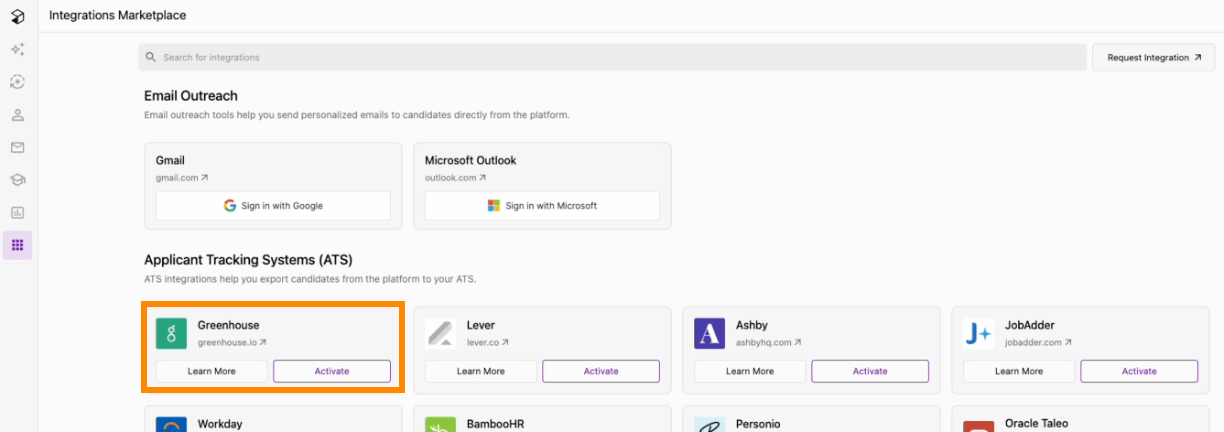 Once you click **Activate**, a pop-up window will appear which guides you through the integration steps. Next to reviewing data permissions, the most important step is to enter your Harvest API key.
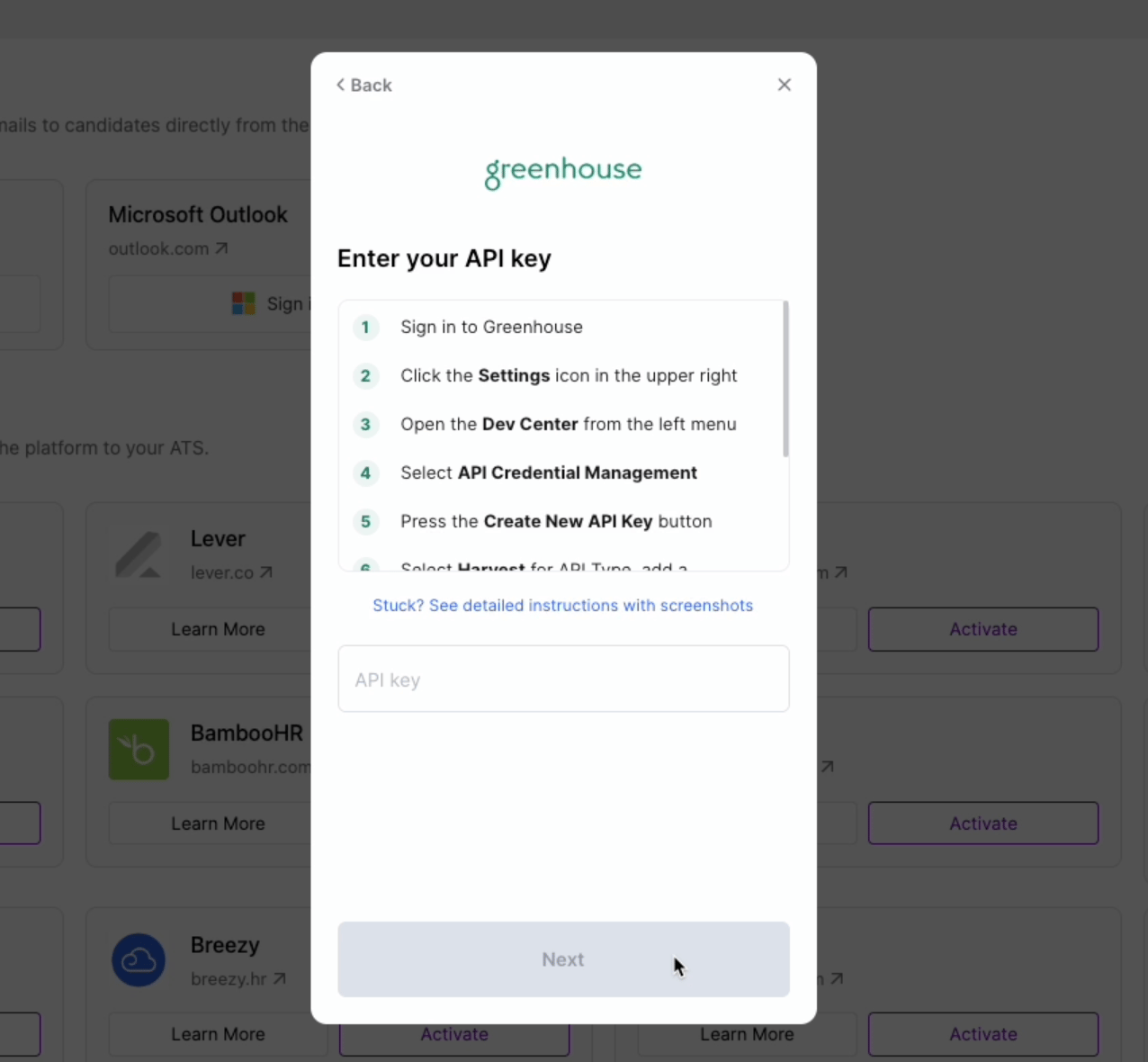 Once the API key has been accepted, continue to follow the instructions provided by Juicebox to set up the correct permissions, audit log user, source, Job Board token, and Greenhouse webhooks.
## Using the Juicebox integration with Greenhouse Recruiting
There are three main functionalities for the Juicebox integration with Greenhouse.
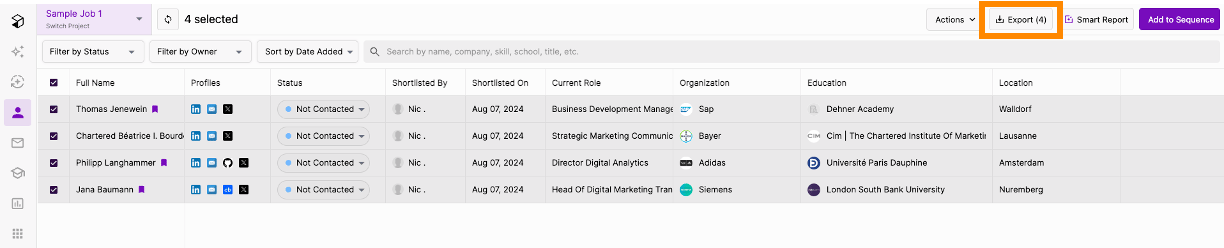
First, you can export comprehensive candidate profiles, including contact information and work and educational experience, from Juicebox to Greenhouse. To do this, simply select one or more profiles and click the export icon. A pop-up window will appear, allowing you to choose the specific job in Greenhouse to which you want to add the candidates.
Once the API key has been accepted, continue to follow the instructions provided by Juicebox to set up the correct permissions, audit log user, source, Job Board token, and Greenhouse webhooks.
## Using the Juicebox integration with Greenhouse Recruiting
There are three main functionalities for the Juicebox integration with Greenhouse.
First, you can export comprehensive candidate profiles, including contact information and work and educational experience, from Juicebox to Greenhouse. To do this, simply select one or more profiles and click the export icon. A pop-up window will appear, allowing you to choose the specific job in Greenhouse to which you want to add the candidates.
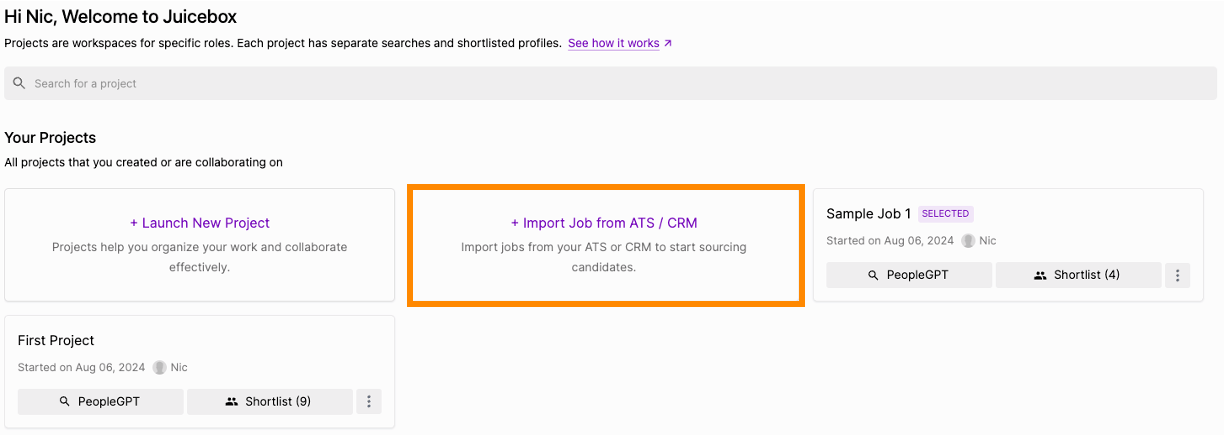
 Second, you can import a job from Greenhouse Recruiting into the Juicebox platform. This allows you to search using the job description. To import a job, navigate to the **Projects** tab on the left-hand sidebar and select **Import job from ATS / CRM**.
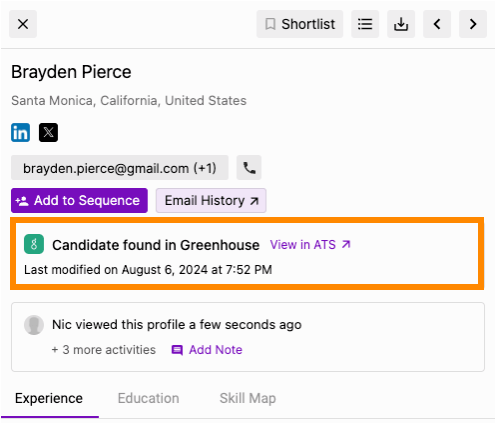
 Third, you can easily verify if a candidate on Juicebox already exists in your Greenhouse account. Simply click on any profile, and if the candidate is already registered in your ATS, a note will appear to inform you.
 ## Additional resources
For an overview of all integration features — including auto-export triggers and profile deduplication — see [ATS Integrations](/ats-integrations). For additional information or troubleshooting not covered here, reach out to [support@juicebox.ai](mailto:support@juicebox.ai).
## Additional resources
For an overview of all integration features — including auto-export triggers and profile deduplication — see [ATS Integrations](/ats-integrations). For additional information or troubleshooting not covered here, reach out to [support@juicebox.ai](mailto:support@juicebox.ai).