> ## Documentation Index
> Fetch the complete documentation index at: https://docs.juicebox.ai/llms.txt
> Use this file to discover all available pages before exploring further.
# Oracle Taleo Integration Set-up
> Enable the two-way integration between Oracle Taleo and Juicebox.
## About the integration
Juicebox's integration with Oracle Taleo allows you to:
1. **Export Profiles to Oracle Taleo**: Save profiles directly into Oracle Taleo, including contact details, current company and job, profile URLs, and more.
1. **\[Configurable] Auto-Export:** Juicebox has the ability to auto-export profiles to your ATS with configurable triggers, including after shortlisting, after adding to a sequence, or after an interested response.
2. **Custom Integration Fields:** On some plans, integration fields can be customized further based on your preferred fields.
2. **Link Oracle Taleo Jobs to Juicebox**
1. **Import Job Descriptions**: Import a job description from Oracle Taleo into Juicebox to automatically kick off a search using the job description.
2. **Simplify Exports:** When exporting a profile from Juicebox to the ATS, it will automatically be connected to the correct job in the ATS. More details [here](/projects).
3. **View Profiles in Oracle Taleo**: View profiles already in Oracle Taleo within Juicebox. Avoid reaching out to the same profile twice, and instantly view your relationship history.
### Start a project via the Oracle Taleo integration
Open the projects page and select **Import Job from ATS / CRM**. You will then see your Oracle Taleo jobs and can select the corresponding option.
### Export profiles to Oracle Taleo
Follow the regular [export](/exports) steps and select **Export to Oracle Taleo** on either an individual profile or a bulk export. After exporting, you will see the profile created in your Oracle Taleo account.
### View profiles already in Oracle Taleo
Juicebox will tag profiles that already exist in Oracle Taleo. You will see the last modified date, as well as the option to view the profile directly in Oracle Taleo by clicking the **View in ATS** button.
## Create a service user in Taleo
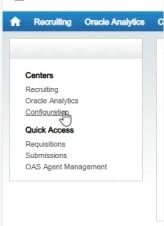
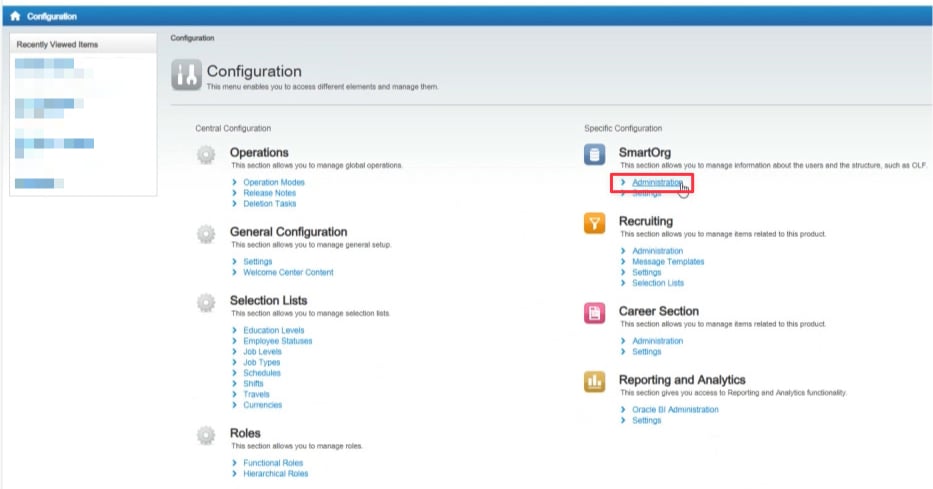
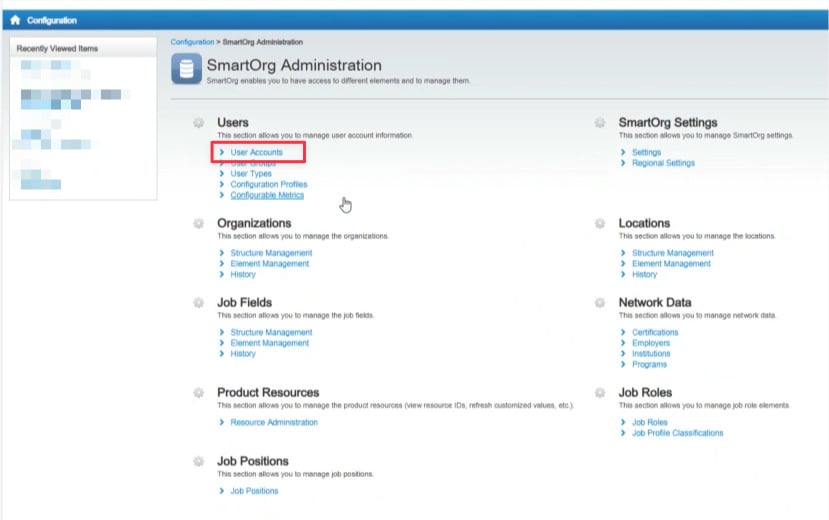
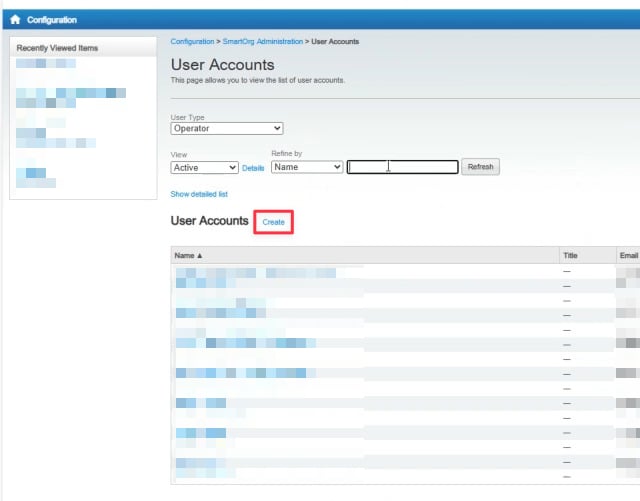
To connect your Oracle Taleo instance, create a new service user in the Taleo Administration Panel. Follow the screenshots below in order:
1. Open the user accounts section of the Taleo Administration Panel.
 2. Create the new service user account.
 3. Fill in the account details.
 4. Complete the user setup.
 ## Setting up the integration
1. Navigate to the **Integrations** tab on the Juicebox platform.
2. Select **Taleo** and click **Activate**. You can also use the search bar at the top.
3. Follow the instructions in the connection pop-up, entering the service user's credentials.
4. After you have clicked through the remaining pages of the pop-up, the configuration will be completed. If successful, you will see a green **Connected** button in your Integrations marketplace.
Congratulations! You have successfully integrated Oracle Taleo and Juicebox.
It may take a few minutes for all data to sync between Juicebox and Oracle Taleo.
## Support
For an overview of all integration features, see [ATS Integrations](/ats-integrations). If you're facing any issues with your integration, contact our support team at [support@juicebox.ai](mailto:support@juicebox.ai).
## Setting up the integration
1. Navigate to the **Integrations** tab on the Juicebox platform.
2. Select **Taleo** and click **Activate**. You can also use the search bar at the top.
3. Follow the instructions in the connection pop-up, entering the service user's credentials.
4. After you have clicked through the remaining pages of the pop-up, the configuration will be completed. If successful, you will see a green **Connected** button in your Integrations marketplace.
Congratulations! You have successfully integrated Oracle Taleo and Juicebox.
It may take a few minutes for all data to sync between Juicebox and Oracle Taleo.
## Support
For an overview of all integration features, see [ATS Integrations](/ats-integrations). If you're facing any issues with your integration, contact our support team at [support@juicebox.ai](mailto:support@juicebox.ai).