> ## Documentation Index
> Fetch the complete documentation index at: https://docs.juicebox.ai/llms.txt
> Use this file to discover all available pages before exploring further.
# P&I Loga Integration Set-up
> Connect P&I Loga to Juicebox.
 ## About the integration
Connect P\&I Loga to Juicebox to import jobs and start searches from their job descriptions. You can also export profiles with resumes to a selected job. This connector does not provide full-database candidate reading for rediscovery.
## Before you start
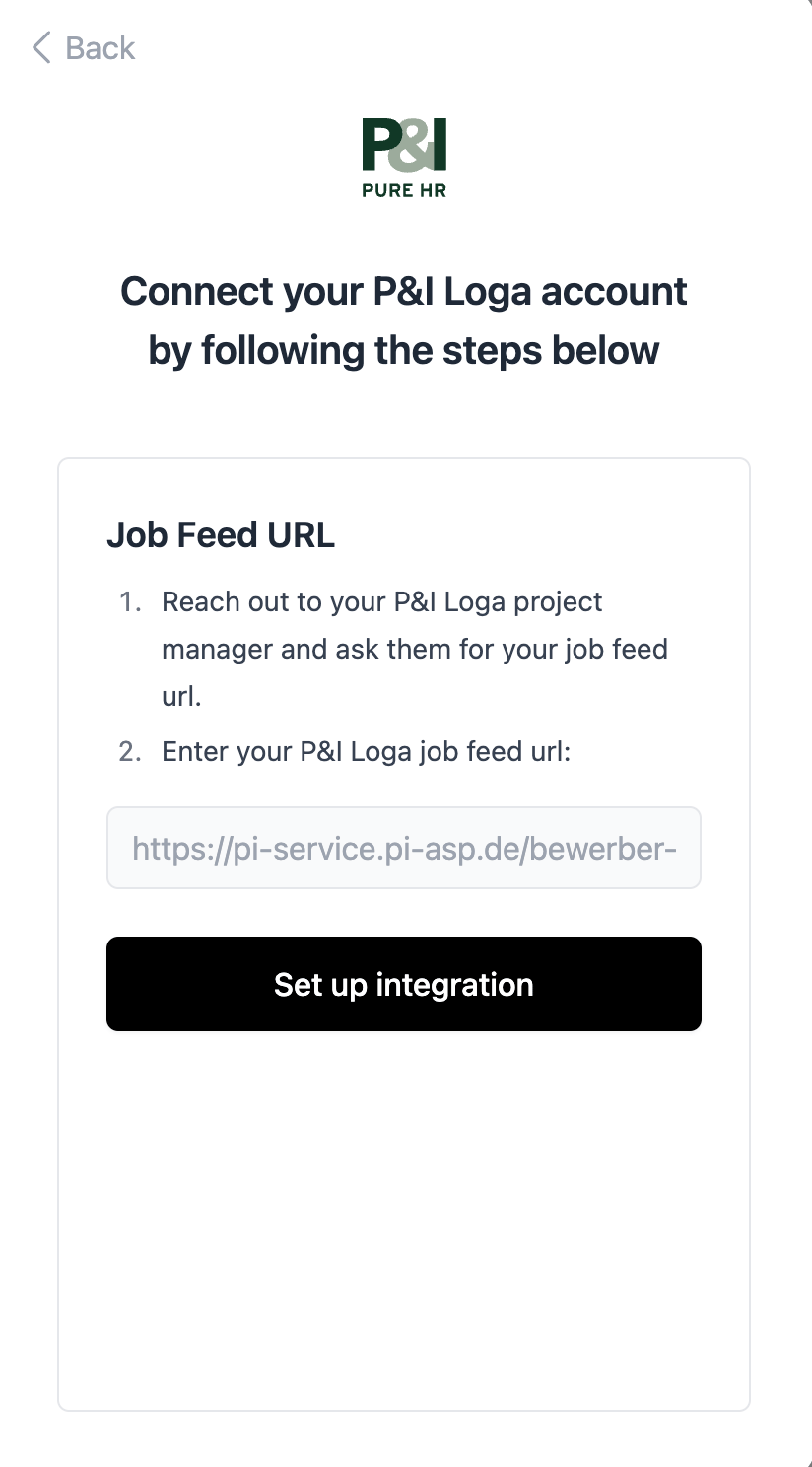
Ask your P\&I Loga project manager to create or provide the **XML job feed URL** for your organization’s integration.
Open **Integrations** in Juicebox, select **P\&I Loga**, and choose **Activate**. Keep the connection window open while completing the steps below. If the integration is not visible, ask [Juicebox Support](mailto:support@juicebox.ai) to confirm access for your account.
The screenshots show vendor settings or the connection window provided by Kombo. Use the credentials, source labels, permissions, and URLs from your own connection; screenshot values are examples.
## Connect the XML job feed
After P\&I Loga confirms that the feed is ready, paste the full XML job feed URL into Juicebox and complete setup. Check that it returns the jobs your team expects to use.
## About the integration
Connect P\&I Loga to Juicebox to import jobs and start searches from their job descriptions. You can also export profiles with resumes to a selected job. This connector does not provide full-database candidate reading for rediscovery.
## Before you start
Ask your P\&I Loga project manager to create or provide the **XML job feed URL** for your organization’s integration.
Open **Integrations** in Juicebox, select **P\&I Loga**, and choose **Activate**. Keep the connection window open while completing the steps below. If the integration is not visible, ask [Juicebox Support](mailto:support@juicebox.ai) to confirm access for your account.
The screenshots show vendor settings or the connection window provided by Kombo. Use the credentials, source labels, permissions, and URLs from your own connection; screenshot values are examples.
## Connect the XML job feed
After P\&I Loga confirms that the feed is ready, paste the full XML job feed URL into Juicebox and complete setup. Check that it returns the jobs your team expects to use.
 ## Confirm the integration
Finish the connection window and return to Juicebox. Confirm that the connection has completed, then allow the initial sync to populate your data.
* Check that the expected jobs appear in Juicebox.
* Export a test profile with a resume to a selected job, then verify the application in P\&I Loga.
If validation fails, check the credentials, account or region, and permission list shown in the connection window. Contact Juicebox Support if the expected data is still missing.
## Using the integration
Start from an imported job on the [Projects](/projects) page to create a search linked to that job.
To send a profile to P\&I Loga, follow the [export steps](/exports) and select the connected ATS and intended job.
## Support
For help, contact [support@juicebox.ai](mailto:support@juicebox.ai). For an overview of available workflows, see [ATS Integrations](/ats-integrations).
ATS-side setup reference: [Kombo’s P\&I Loga connection guide](https://help.kombo.dev/hc/en-us/articles/27559457965841-P-I-Loga-ATS-How-do-I-link-my-account).
## Confirm the integration
Finish the connection window and return to Juicebox. Confirm that the connection has completed, then allow the initial sync to populate your data.
* Check that the expected jobs appear in Juicebox.
* Export a test profile with a resume to a selected job, then verify the application in P\&I Loga.
If validation fails, check the credentials, account or region, and permission list shown in the connection window. Contact Juicebox Support if the expected data is still missing.
## Using the integration
Start from an imported job on the [Projects](/projects) page to create a search linked to that job.
To send a profile to P\&I Loga, follow the [export steps](/exports) and select the connected ATS and intended job.
## Support
For help, contact [support@juicebox.ai](mailto:support@juicebox.ai). For an overview of available workflows, see [ATS Integrations](/ats-integrations).
ATS-side setup reference: [Kombo’s P\&I Loga connection guide](https://help.kombo.dev/hc/en-us/articles/27559457965841-P-I-Loga-ATS-How-do-I-link-my-account).