> ## Documentation Index
> Fetch the complete documentation index at: https://docs.juicebox.ai/llms.txt
> Use this file to discover all available pages before exploring further.
# Welcome to the Jungle Integration Set-up
> Connect Welcome to the Jungle to Juicebox.
## About the integration
Connect Welcome to the Jungle to Juicebox to import job descriptions into your searches and identify profiles that already exist in your ATS.
You can also export profiles to a selected Welcome to the Jungle job.
If Welcome to the Jungle is not visible in your Juicebox Integrations tab, contact [Juicebox Support](mailto:support@juicebox.ai) to confirm availability for your account.
## Before you start
Your Welcome to the Jungle account needs API access. Kombo's connection guide lists **Pro+** and **Master** as eligible plans; confirm your current plan's eligibility with your Welcome to the Jungle account manager.
You will also need your **Organization Reference** and the API credentials supplied by Welcome to the Jungle.
## Request API access
1. Open **Integrations** in Juicebox, select **Welcome to the Jungle**, and click **Activate**.
2. Find the **Required scopes** shown in the connection pop-up. Keep this list open while preparing your request.
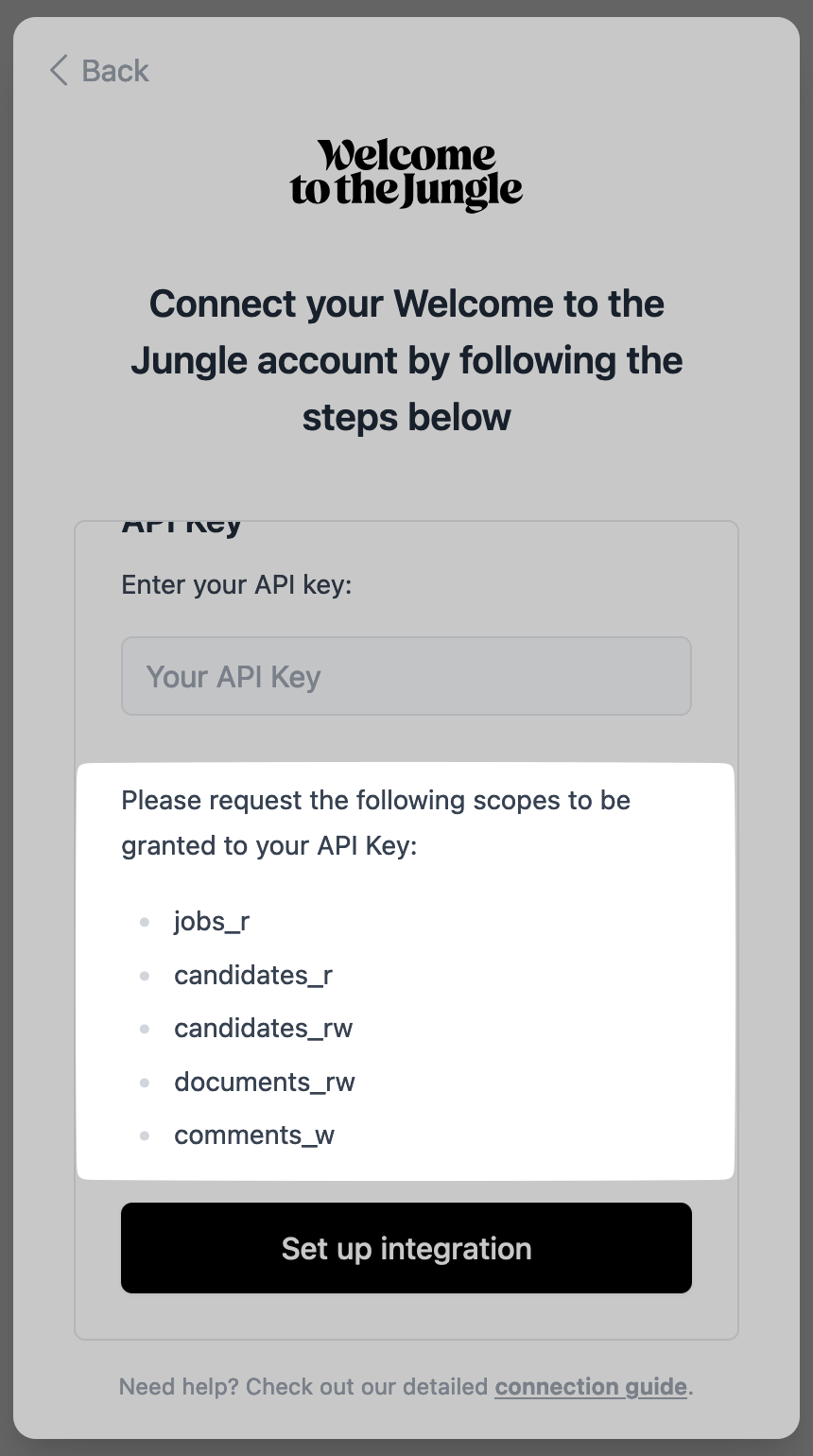 3. Ask Welcome to the Jungle support to enable API access for your Juicebox integration with the complete scope list shown in your pop-up. The list is specific to your connection; do not substitute a list from a screenshot.
4. Ask support to provide your **Organization Reference** and the credentials needed to connect.
## Setting up the integration
1. Once Welcome to the Jungle has enabled access, return to the Juicebox connection pop-up.
2. Enter the Organization Reference and API credentials in the corresponding fields.
3. Ask Welcome to the Jungle support to enable API access for your Juicebox integration with the complete scope list shown in your pop-up. The list is specific to your connection; do not substitute a list from a screenshot.
4. Ask support to provide your **Organization Reference** and the credentials needed to connect.
## Setting up the integration
1. Once Welcome to the Jungle has enabled access, return to the Juicebox connection pop-up.
2. Enter the Organization Reference and API credentials in the corresponding fields.
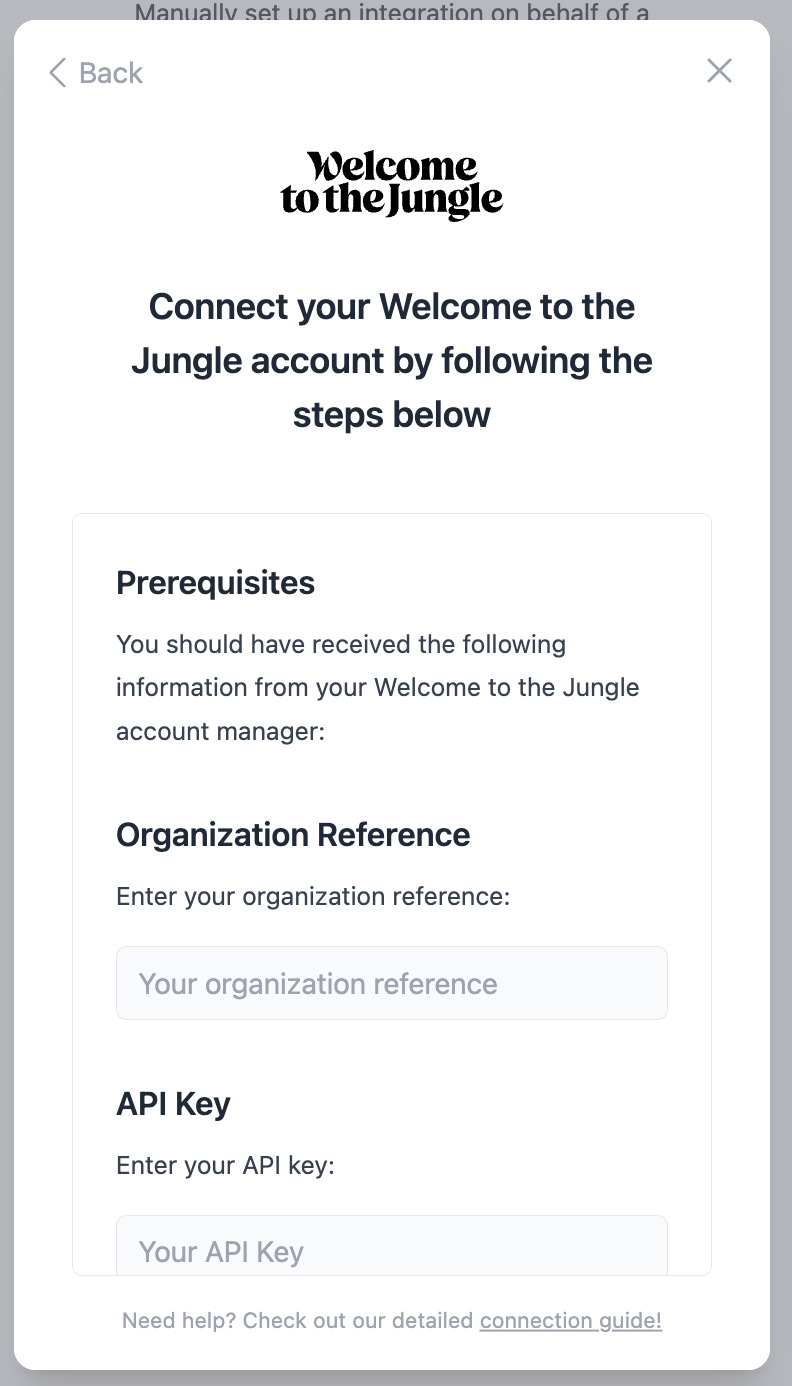 3. Complete the remaining prompts, then return to Juicebox and confirm that the integration shows **Connected**.
## Confirm the integration
After the initial sync, check that your expected jobs appear and that an existing Welcome to the Jungle candidate is identified in Juicebox.
If access is rejected, ask your Welcome to the Jungle contact to confirm that API access is enabled for the correct organization and includes every scope requested in the connection pop-up.
## Using the integration
To start a search from a job, open **Projects** and select **Import Job from ATS / CRM**, then choose the relevant Welcome to the Jungle job.
Juicebox identifies profiles that already exist in Welcome to the Jungle, helping your team check for existing records before reaching out.
To send a profile to Welcome to the Jungle, follow the [export steps](/exports) and choose the Welcome to the Jungle export option for the linked job. Confirm that the profile appears in Welcome to the Jungle after the export completes.
The initial sync can take time. Data may continue to appear after the connection is established. If you do not see the expected records, contact Juicebox Support.
## Support
For an overview of integration features, see [ATS Integrations](/ats-integrations). If you need help, contact [support@juicebox.ai](mailto:support@juicebox.ai).
For illustrated ATS-side instructions, see [the Welcome to the Jungle connection guide from Kombo](https://help.kombo.dev/hc/en-us/articles/18402550319121).
3. Complete the remaining prompts, then return to Juicebox and confirm that the integration shows **Connected**.
## Confirm the integration
After the initial sync, check that your expected jobs appear and that an existing Welcome to the Jungle candidate is identified in Juicebox.
If access is rejected, ask your Welcome to the Jungle contact to confirm that API access is enabled for the correct organization and includes every scope requested in the connection pop-up.
## Using the integration
To start a search from a job, open **Projects** and select **Import Job from ATS / CRM**, then choose the relevant Welcome to the Jungle job.
Juicebox identifies profiles that already exist in Welcome to the Jungle, helping your team check for existing records before reaching out.
To send a profile to Welcome to the Jungle, follow the [export steps](/exports) and choose the Welcome to the Jungle export option for the linked job. Confirm that the profile appears in Welcome to the Jungle after the export completes.
The initial sync can take time. Data may continue to appear after the connection is established. If you do not see the expected records, contact Juicebox Support.
## Support
For an overview of integration features, see [ATS Integrations](/ats-integrations). If you need help, contact [support@juicebox.ai](mailto:support@juicebox.ai).
For illustrated ATS-side instructions, see [the Welcome to the Jungle connection guide from Kombo](https://help.kombo.dev/hc/en-us/articles/18402550319121).