> ## Documentation Index
> Fetch the complete documentation index at: https://docs.juicebox.ai/llms.txt
> Use this file to discover all available pages before exploring further.
# How do I set up the Juicebox + Slack integration?
> Connect the Juicebox app to your Slack workspace and link individual projects to Slack channels.
Setting up the Juicebox + Slack integration is a two-part process:
1. A Slack admin connects the Juicebox app to your Slack workspace.
2. Anyone can then link individual Juicebox projects to specific Slack channels.
## Before you start
* You must be a **Slack workspace admin** to complete the initial connection.
* We recommend signing into Slack in your browser before starting. If you aren't signed in, the OAuth flow is harder to complete. Sign in at [slack.com/signin](https://slack.com/signin).
## Part 1: Connect the Juicebox app to your Slack workspace
1. Head to the **Integrations** tab in Juicebox: [app.juicebox.ai/?tab=integrations](https://app.juicebox.ai/?tab=integrations).
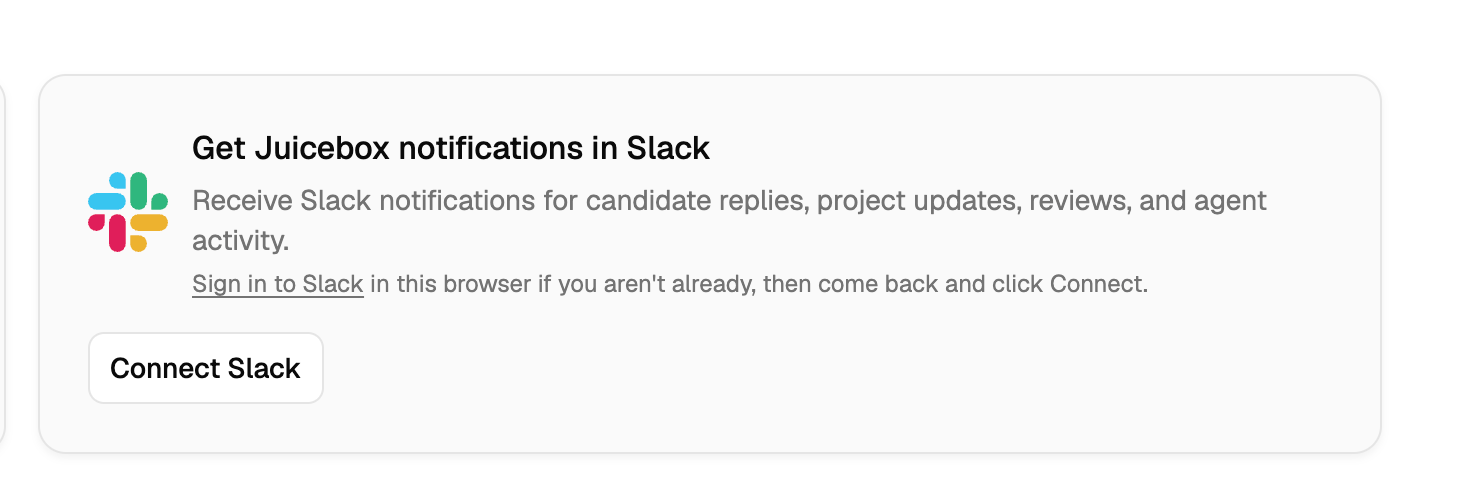
2. Find the **Get Juicebox notifications in Slack** card and select **Connect Slack**.
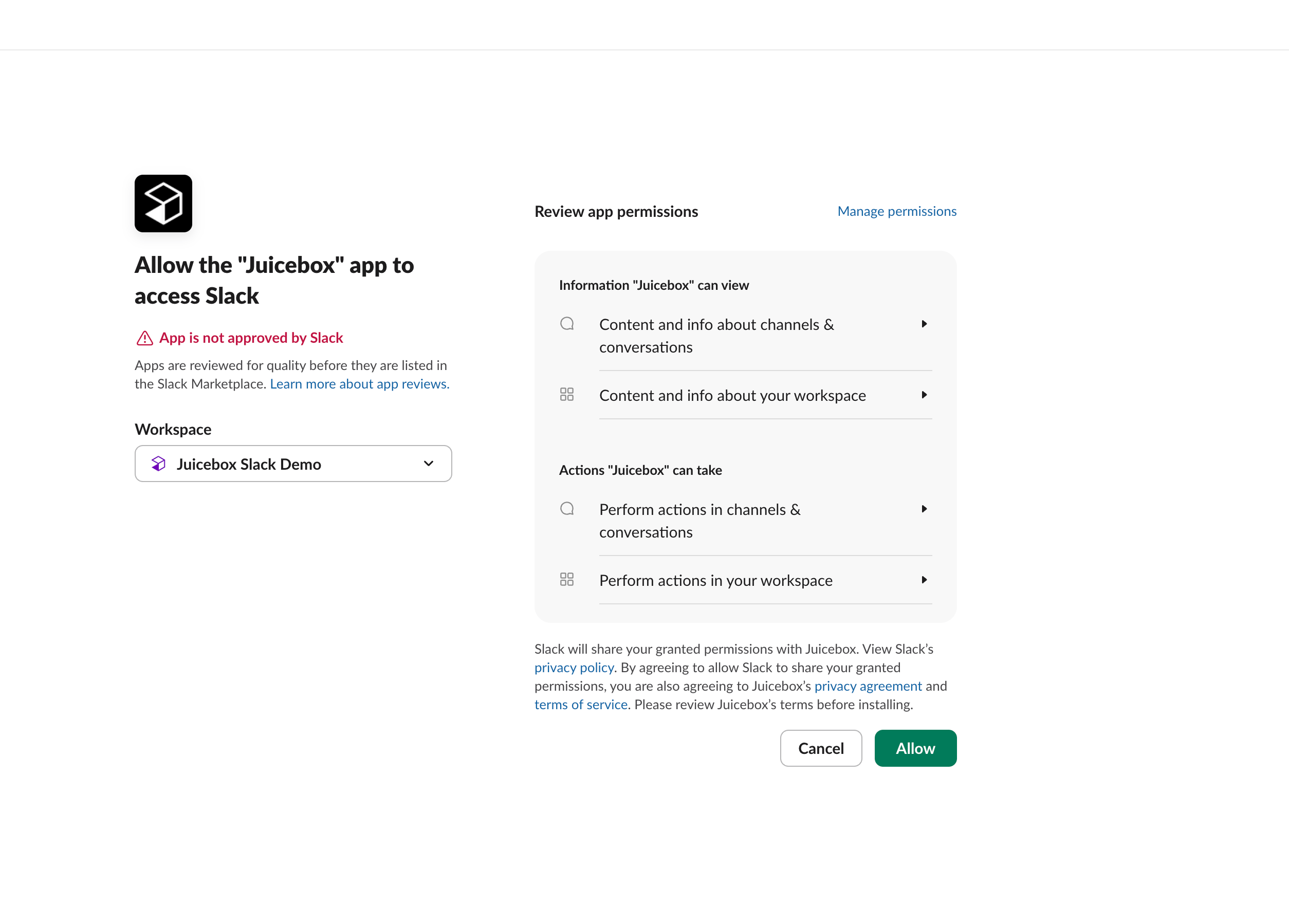
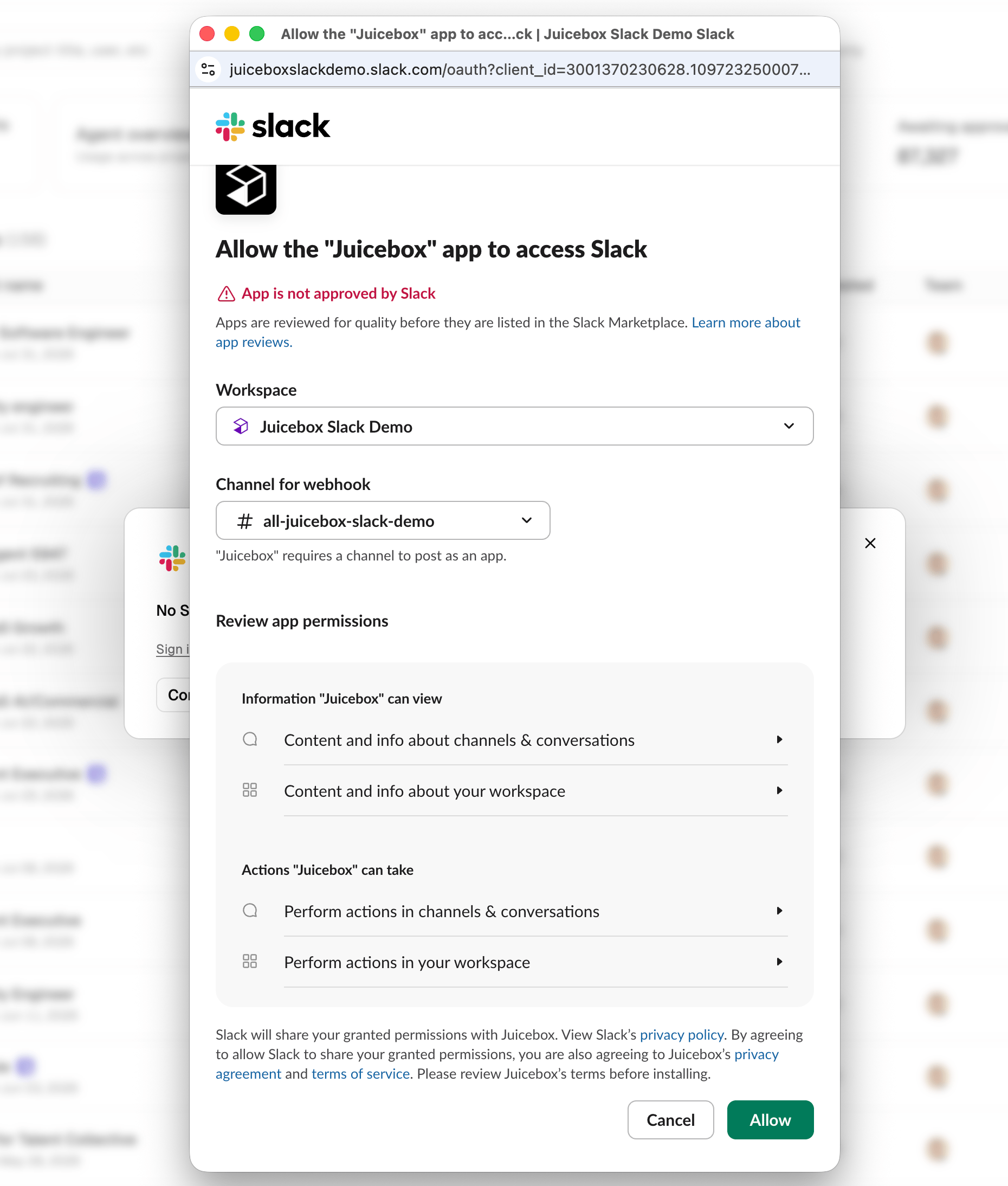
 3. You'll be redirected to Slack's native permission page. Confirm the correct workspace is selected in the **Workspace** dropdown, review the permissions, and click **Allow**.
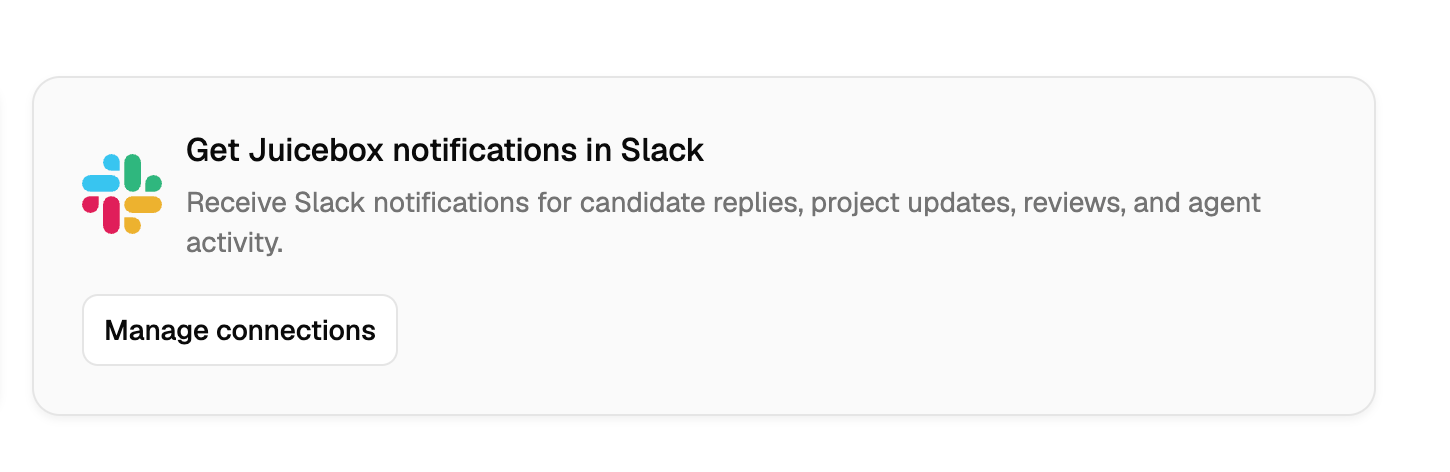
 4. You'll be redirected back to Juicebox. The connection card now shows **Manage connections** — admin setup is done.
 ## Part 2: Add Juicebox to a Slack channel
To use Juicebox inside Slack, add the app to each channel where you want it to post and respond.
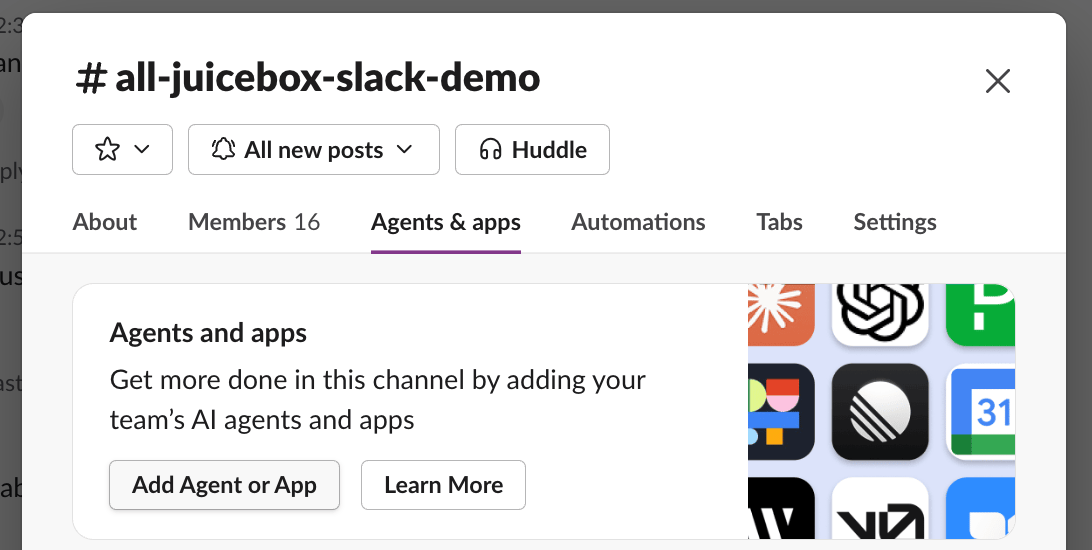
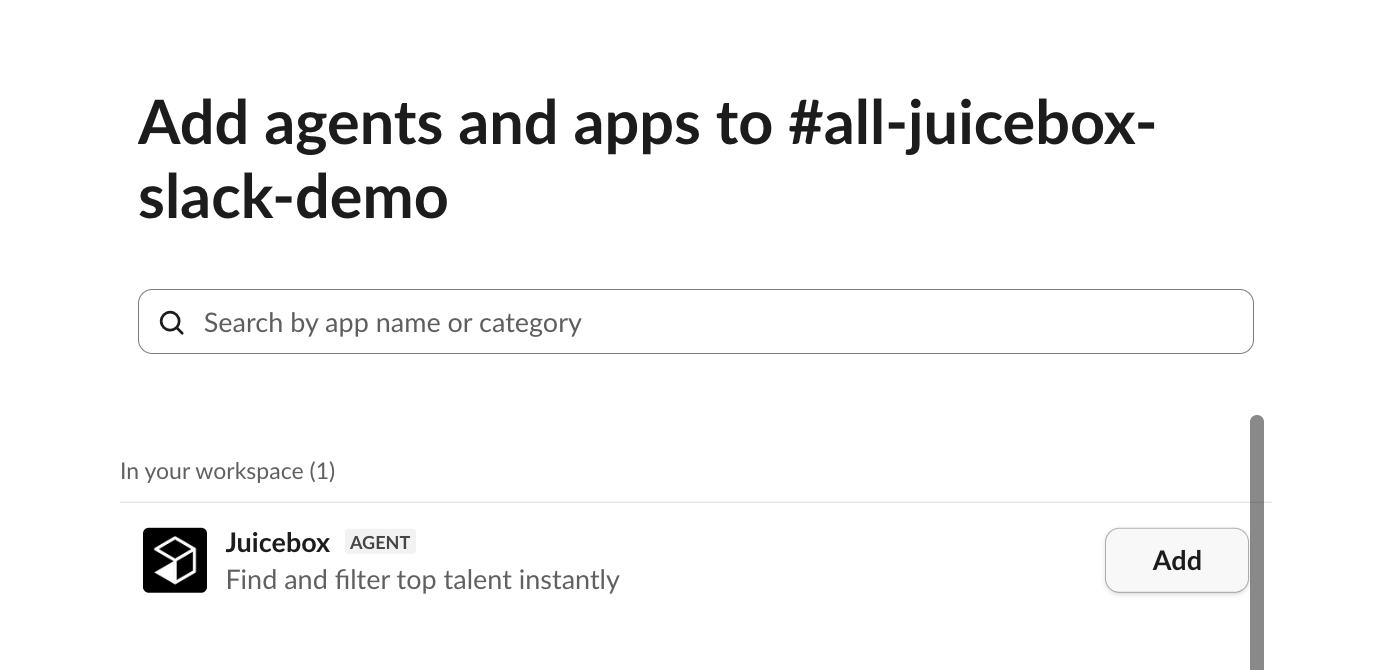
1. In Slack, open the channel and select the channel name at the top to open channel details. Go to the **Agents & apps** tab and select **Add Agent or App**.
## Part 2: Add Juicebox to a Slack channel
To use Juicebox inside Slack, add the app to each channel where you want it to post and respond.
1. In Slack, open the channel and select the channel name at the top to open channel details. Go to the **Agents & apps** tab and select **Add Agent or App**.
 2. Find **Juicebox** in the list and select **Add**.
 ## Part 3: Link a Juicebox project to a Slack channel
Once the app is connected, you can link each Juicebox project to the Slack channel where the team collaborates on that role.
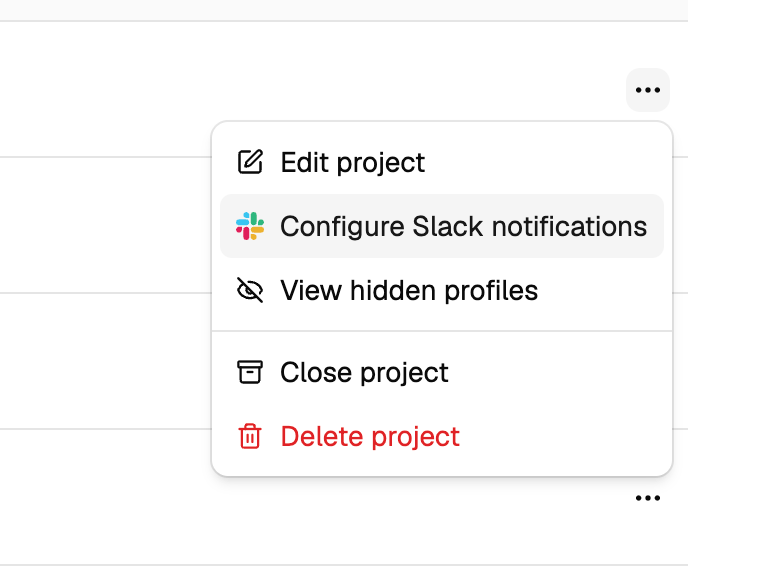
1. On the **Projects** page, open the project's **…** menu and select **Configure Slack notifications**.
## Part 3: Link a Juicebox project to a Slack channel
Once the app is connected, you can link each Juicebox project to the Slack channel where the team collaborates on that role.
1. On the **Projects** page, open the project's **…** menu and select **Configure Slack notifications**.
 2. In the **Slack notifications** modal, choose one of two options:
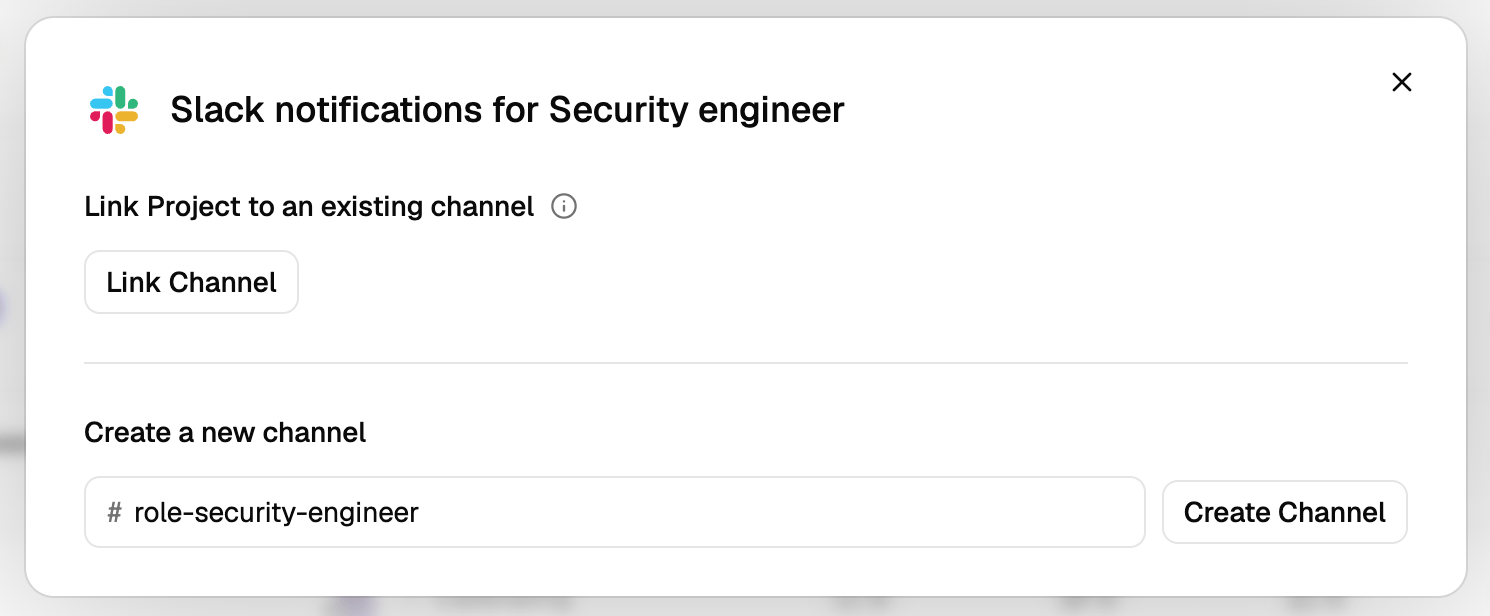 * **Link Project to an existing channel** — select **Link Channel** to connect the project to a Slack channel that already exists.
* **Create a new channel** — enter a channel name (a suggested name based on the project role is prefilled) and select **Create Channel** to have Juicebox create the channel for you.
3. If you chose **Link Channel**, a Slack page opens. Choose the channel you want notifications posted to under **Channel for webhook** and select **Allow**.
* **Link Project to an existing channel** — select **Link Channel** to connect the project to a Slack channel that already exists.
* **Create a new channel** — enter a channel name (a suggested name based on the project role is prefilled) and select **Create Channel** to have Juicebox create the channel for you.
3. If you chose **Link Channel**, a Slack page opens. Choose the channel you want notifications posted to under **Channel for webhook** and select **Allow**.
 Repeat Part 3 for each project you want linked to Slack.
Still running into issues? Reach out via the in-app support button or email [support@juicebox.ai](mailto:support@juicebox.ai).
Repeat Part 3 for each project you want linked to Slack.
Still running into issues? Reach out via the in-app support button or email [support@juicebox.ai](mailto:support@juicebox.ai).