> ## Documentation Index
> Fetch the complete documentation index at: https://docs.juicebox.ai/llms.txt
> Use this file to discover all available pages before exploring further.
# Network Sourcing
Discover and engage more candidates by leveraging your company’s professional network
**Note:** Network Sourcing is currently only available for Business plan users.
## **Network Sourcing Overview**
Network Sourcing enables recruiters to identify and engage candidates via their company’s existing professional network. By mapping employee connections and inferred overlaps, teams can filter searches to surface candidates who may already have a relationship with someone internally - making it easier to prioritize warm introductions and drive more effective, higher-converting outreach.
With Network Sourcing, you will be able to utilize an employee’s professional network using two different sources:
1. **Connections:** These are the direct connections uploaded by team members. Once added, they can be used to identify or filter candidates who may already have an existing relationship with someone at your company.
2. **Overlaps:** These are inferred relationships Juicebox automatically identifies based on an employee’s shared work or education history. We analyze factors such as overlapping tenure, company or school size, or team alignment within a company to surface candidates employees *may* know.
Overlaps are automatically generated by Juicebox and are available without any additional setup. Connections, however, must be individually requested and uploaded by your team and **will not** automatically populate or refresh.
To download your Connections, please refer to our LinkedIn Connections help article [here](https://help.juicebox.work/articles/1079804348-how-do-i-export-my-linkedin-connections-to-juicebox).
## **Why use Network Sourcing?**
Network Sourcing helps your team hire faster and more effectively by prioritizing candidates you already have a path to.
Instead of starting every search cold, Network Sourcing surfaces candidates who are connected to your employees or have likely known them in the past. This gives recruiters a built-in advantage, helping generate:
* **Warmer outreach conversations:** Candidates are more likely to recognize shared connections, making initial messages feel more personal and credible.
* **Higher response and engagement rates:** Referrals and shared networks significantly increase the likelihood of replies compared to cold outreach.
* **Improved candidate quality and signal:** Connections and overlaps often indicate prior collaboration, similar environments, or relevant experience, helping you focus on stronger-fit talent earlier.
* **Faster hiring cycles:** With warmer leads and higher-quality candidates, teams spend less time sourcing and more time progressing qualified prospects through the pipeline.
## Setting up Network Sourcing
In order to fully utilize the Network Sourcing workflow, please follow the below steps:
#### 1. Select your company’s domain (Admins only)
To set up Network Sourcing for your team, please navigate to the Network tab on the left-hand menu.
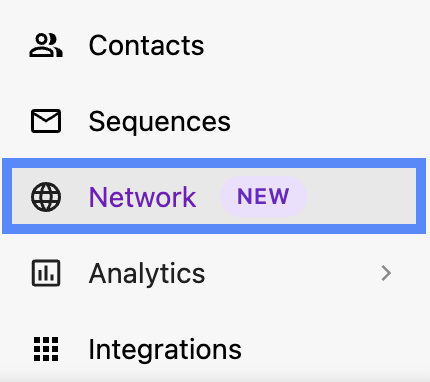
Once opened, you’ll be prompted to select and connect your company’s LinkedIn page. This is used to generate your initial employee list.
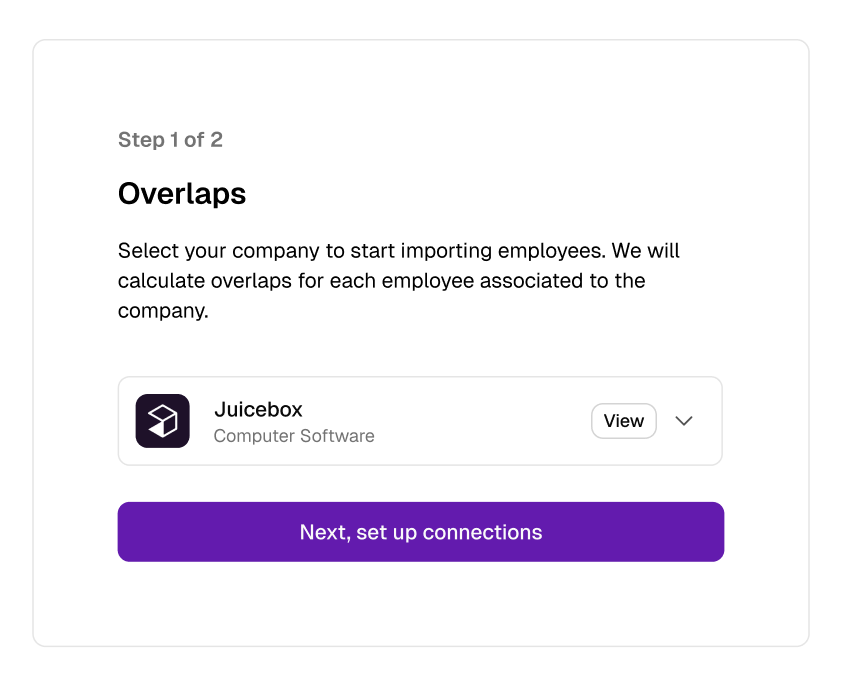
Please ensure the correct company is selected in this step, as this **cannot** be changed.
#### 2. Import your employee list
Then, you can invite your Google Workspace or Microsoft 365 admin to grant Juicebox access to your employees’ email address.
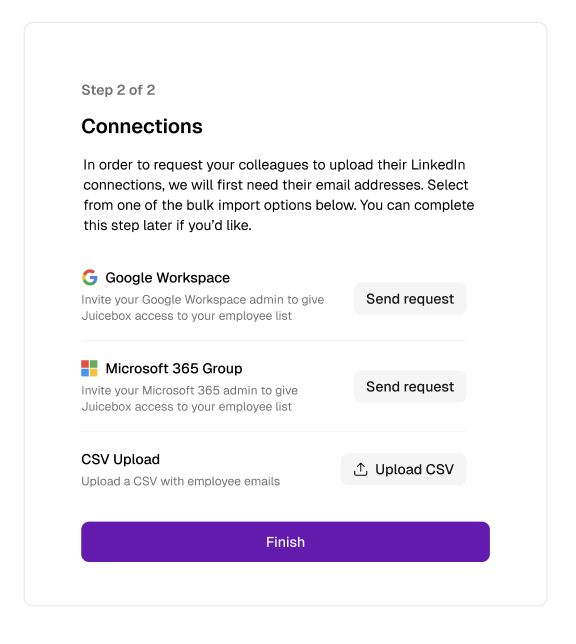
Please note, this step is optional but **strongly recommended** to fully leverage the Network Sourcing workflow. Juicebox will only use an employee’s name and email address, and **does not** access or utilize any additional information associated with that employee under any circumstances.
If this step is skipped, you **will not** be able to reach out to your teammates in Juicebox to request their connections or make a warm intro.
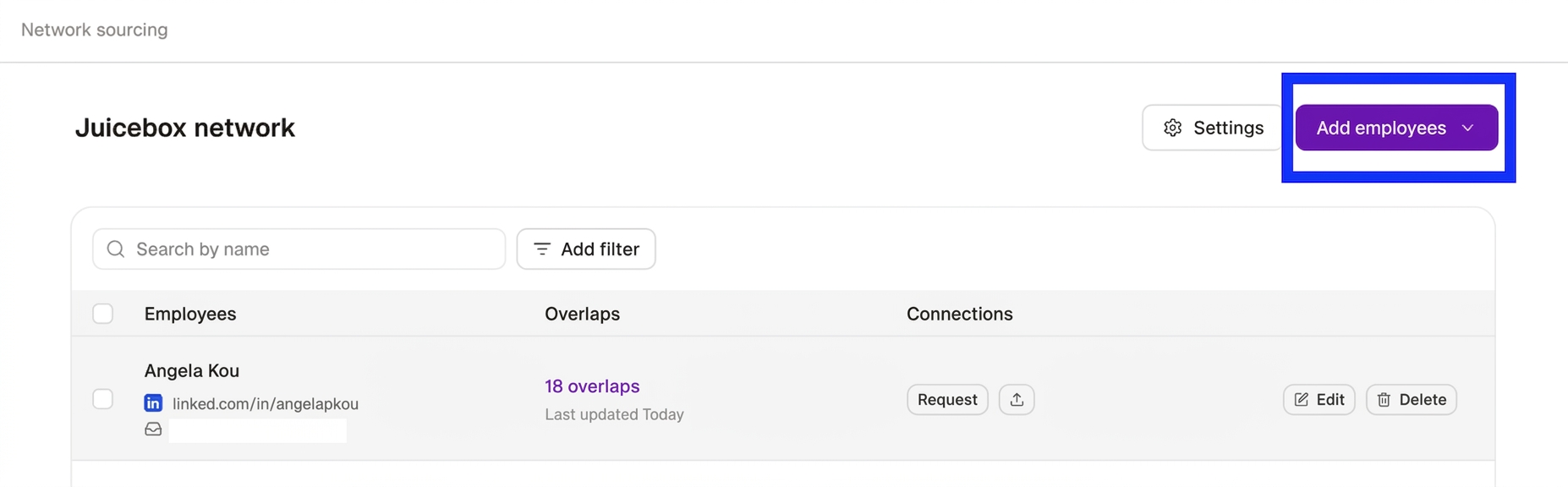
If your workspace is not currently supported or your IT admin would rather upload this information via a static CSV file, you can select **Add employees** in the top right corner of the Network page. This is also a great route to take if there is a one-off employee you’d like to add to the database!
#### 3. Keeping your data fresh
After your IT admin grants Juicebox access to your Google or Microsoft workspace, you can **Connect** the employee list at any time to keep it up to date. If employees need to be edited or removed, you can also update their profile by selecting **Edit** or **Delete** next to their Juicebox employee record.

## Requesting Connections
To begin using your teammates’ connections, you can select **Request connections** next to the employee’s record to email them directly, or choose **Request all** at the top of the Network page to send those requests in bulk!

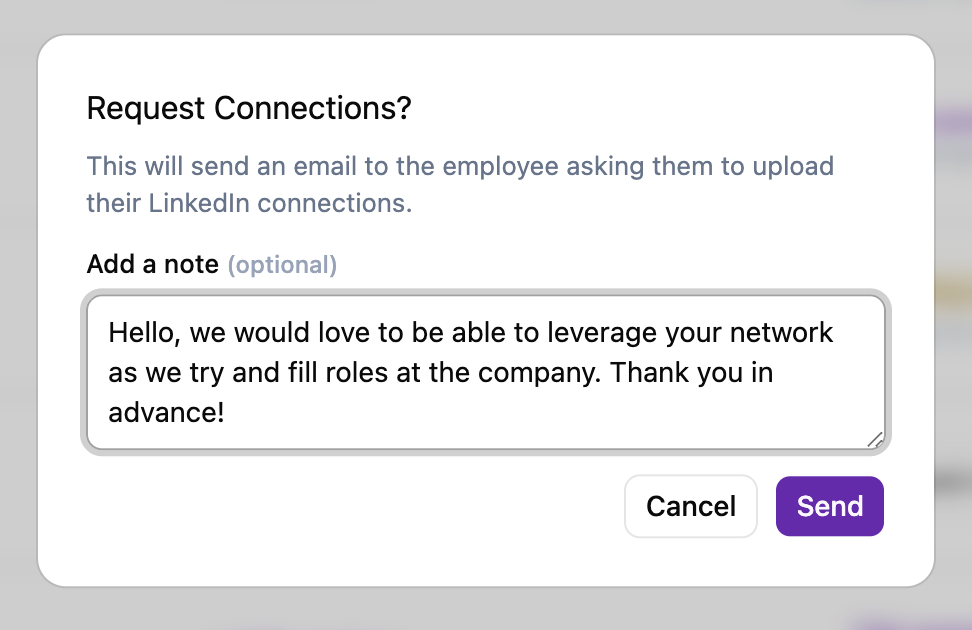
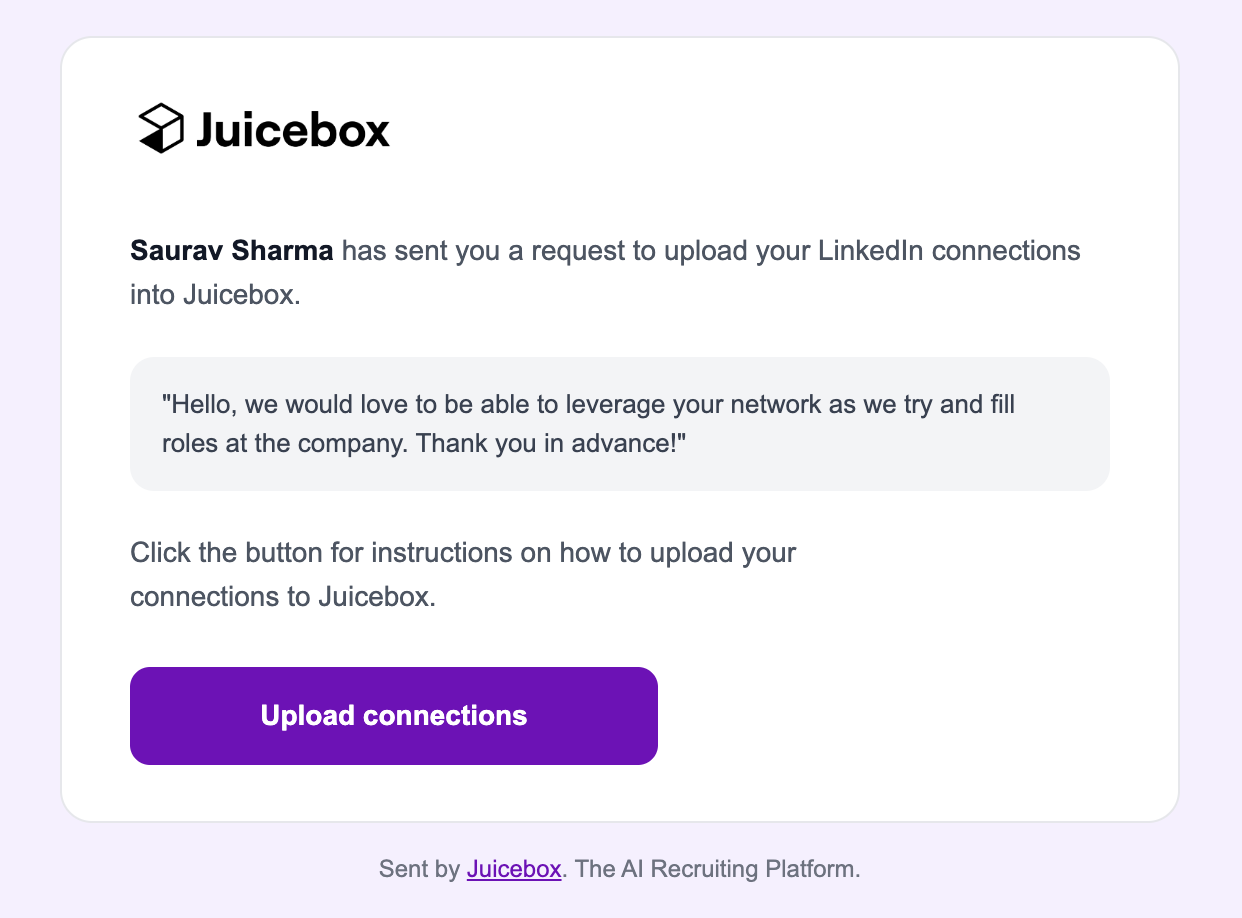
After connections are requested, each employee will receive an email from Juicebox, where they can upload their connections file directly!
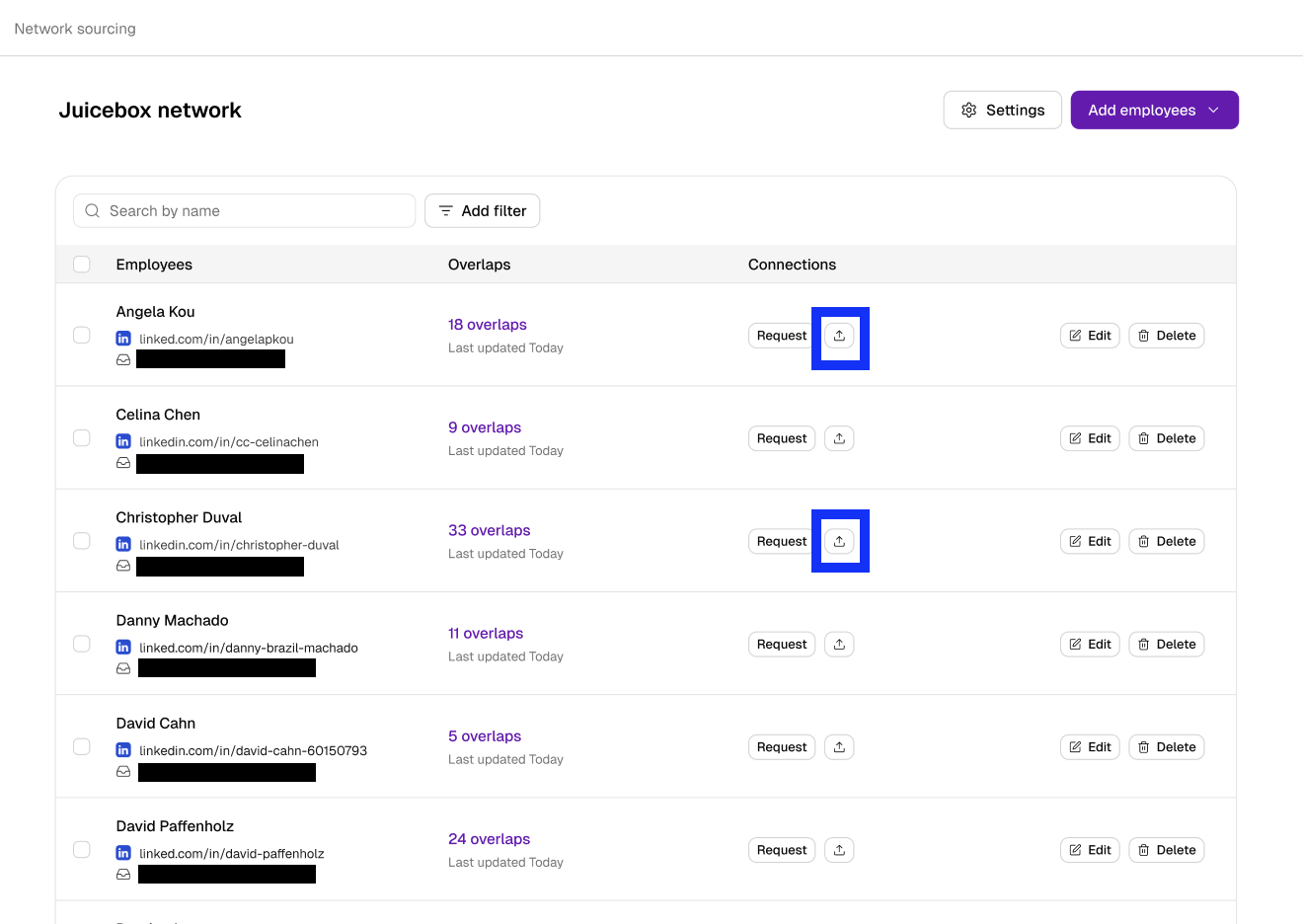
If you have their connections file (or your own connections) ready to go, you can upload it directly into Juicebox by selecting **Upload** next to the employee’s record (or your own).
## Leveraging your Company’s Network
Now that your teammates’ overlaps and connections are available, you can begin sourcing through those networks across your projects, searches, or directly from the Network page! To see each option, please refer to the guide below:
#### **1. Filter by network**
Within the Juicebox General filters, there will be an option to **Filter by Network.** Here, you will be able to select whether you want to filter by LinkedIn connections, Overlaps or both, and across all employees or only a select few.
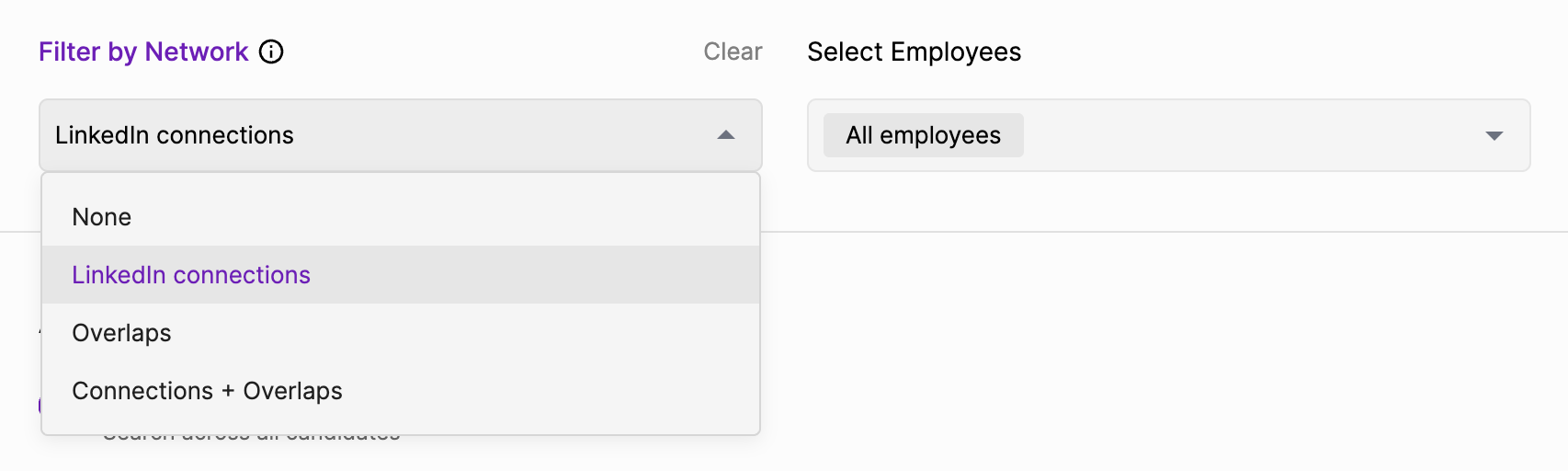
These filters can also be applied by typing “search across my network” or “search across “X’s network” within your prompt.
#### **2. Viewing mutuals**
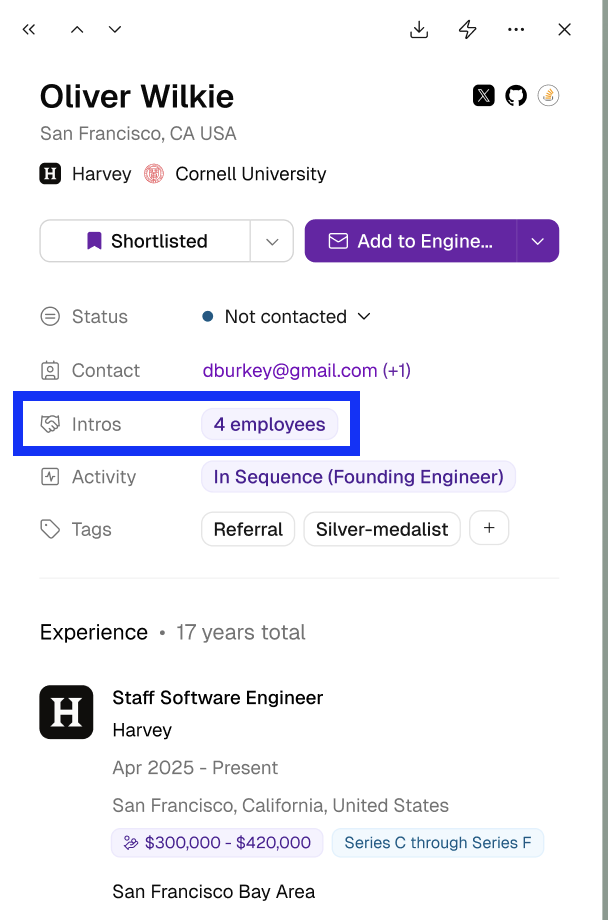
Profiles in Juicebox with an overlap or connection will display a Network indicator, allowing you to see which employees they are connected to or overlap with.
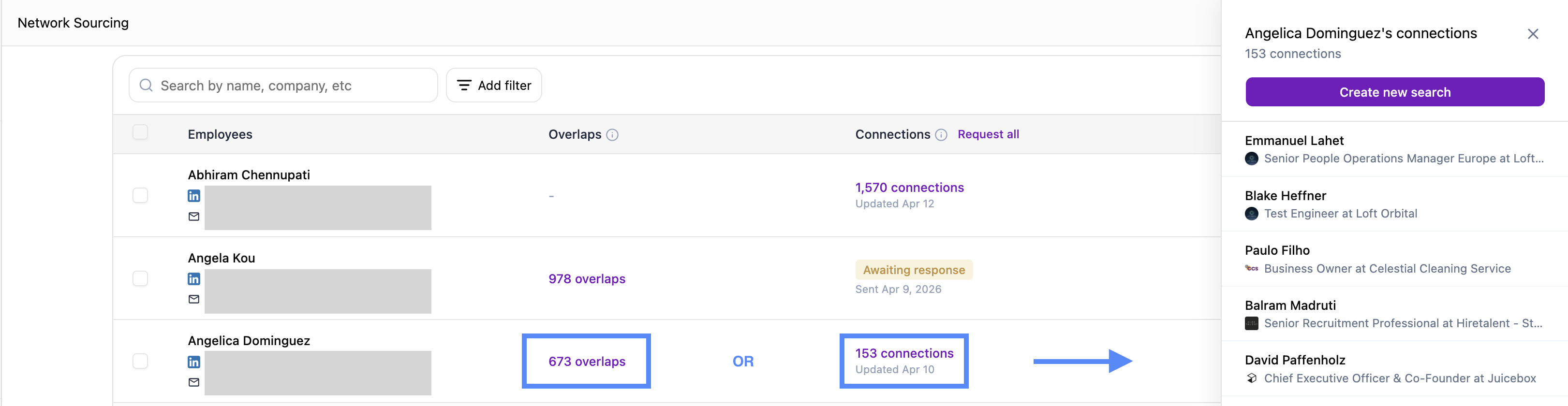
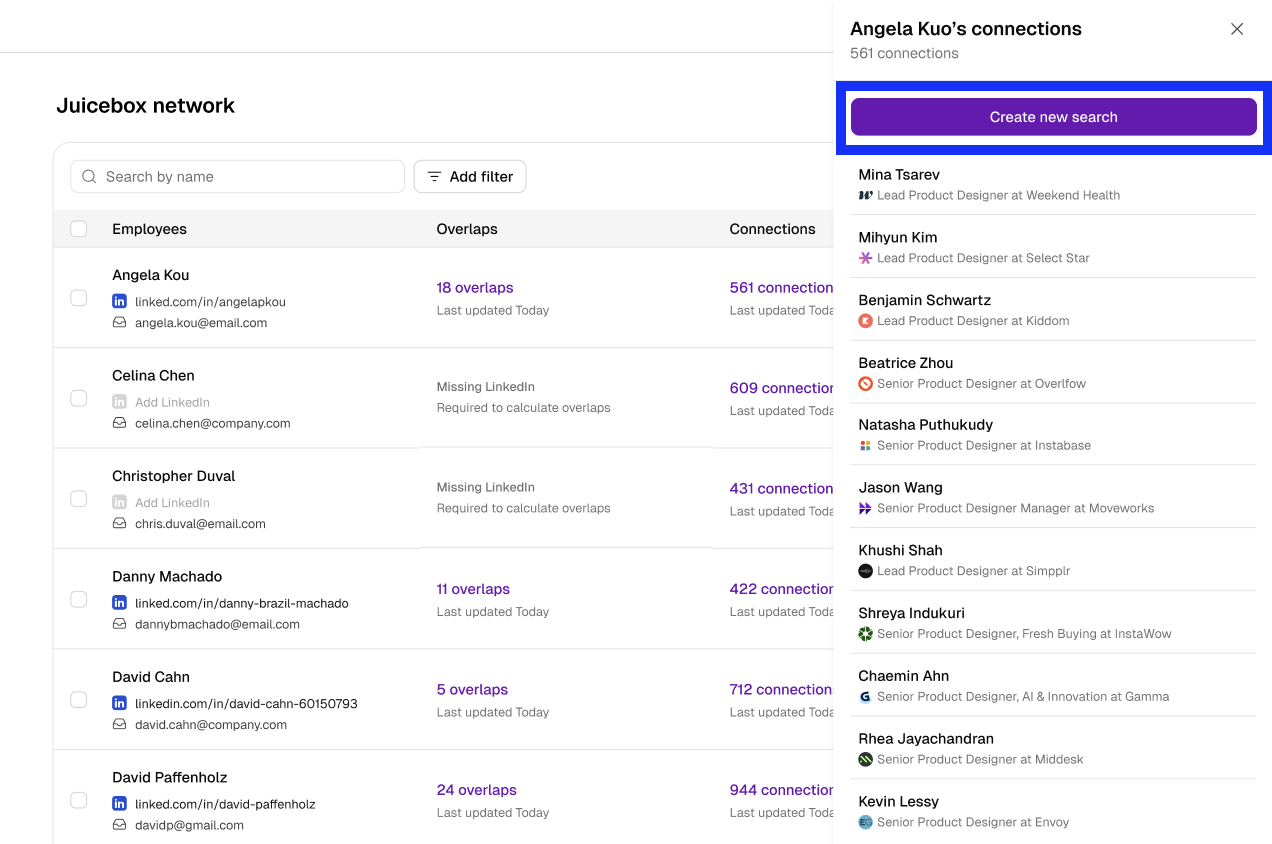
From the Network page, we can also select any employee’s overlaps or connections to view all overlaps/connections in one. Once the overlaps or connections pop up on the right, you can select **Create new search** to view the full list within a project.
#### **3. Requesting introductions**
If a candidate is qualified for one of your open roles, and they are a mutual of an employee, the next step would be to ask that employee for a referral!
From the candidate’s profile, we can select “X intro paths” via the Network indicator (referenced above) to see who is connected to that candidate, and how. If multiple employees are a mutual, you will be able to see all employees listed, plus a summary overview, on the left hand side of the picture below.
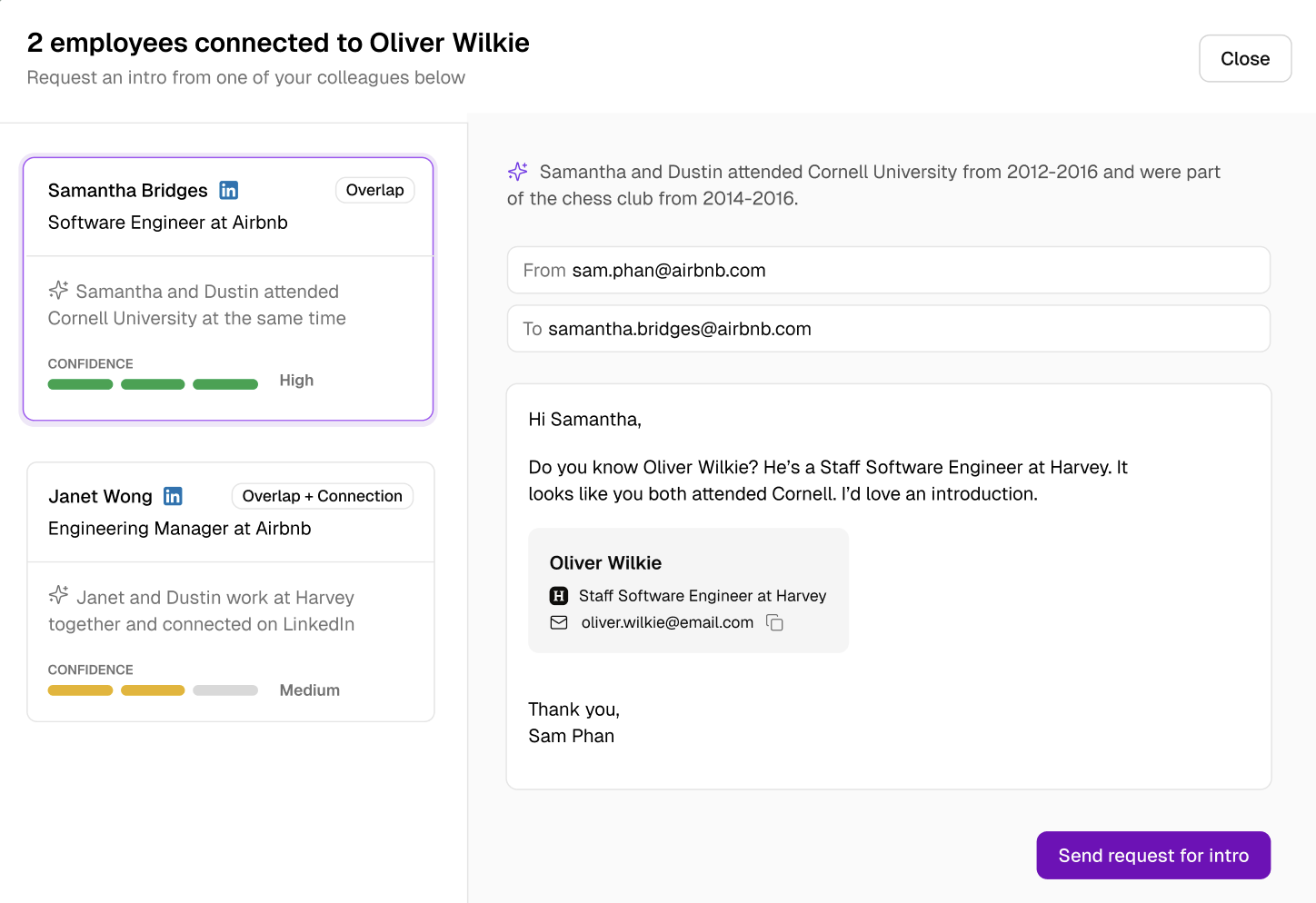
After **Send request for intro** has been selected, the employee selected will receive an email from your own email address asking for an introduction.
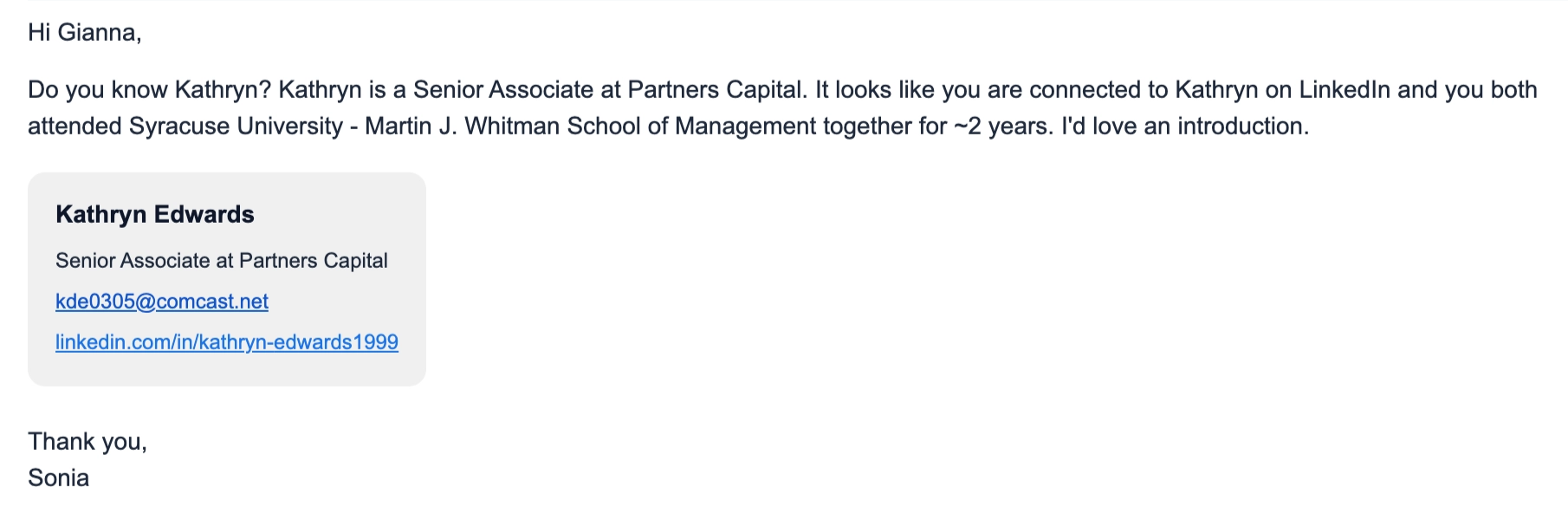
From here, you can coordinate with that employee on the candidate introduction and officially add them to your pipeline!
#### **4. Start a search from someone’s network**
You can also use the Network page itself as a starting point for sourcing. Select any employee's overlap or connection count to open a full list of their network on the right-hand side.
From there, select Create search from overlaps or Create search from connections to instantly launch a new search scoped to that employee's network within your active project.
## Use network snippets to personalize outreach
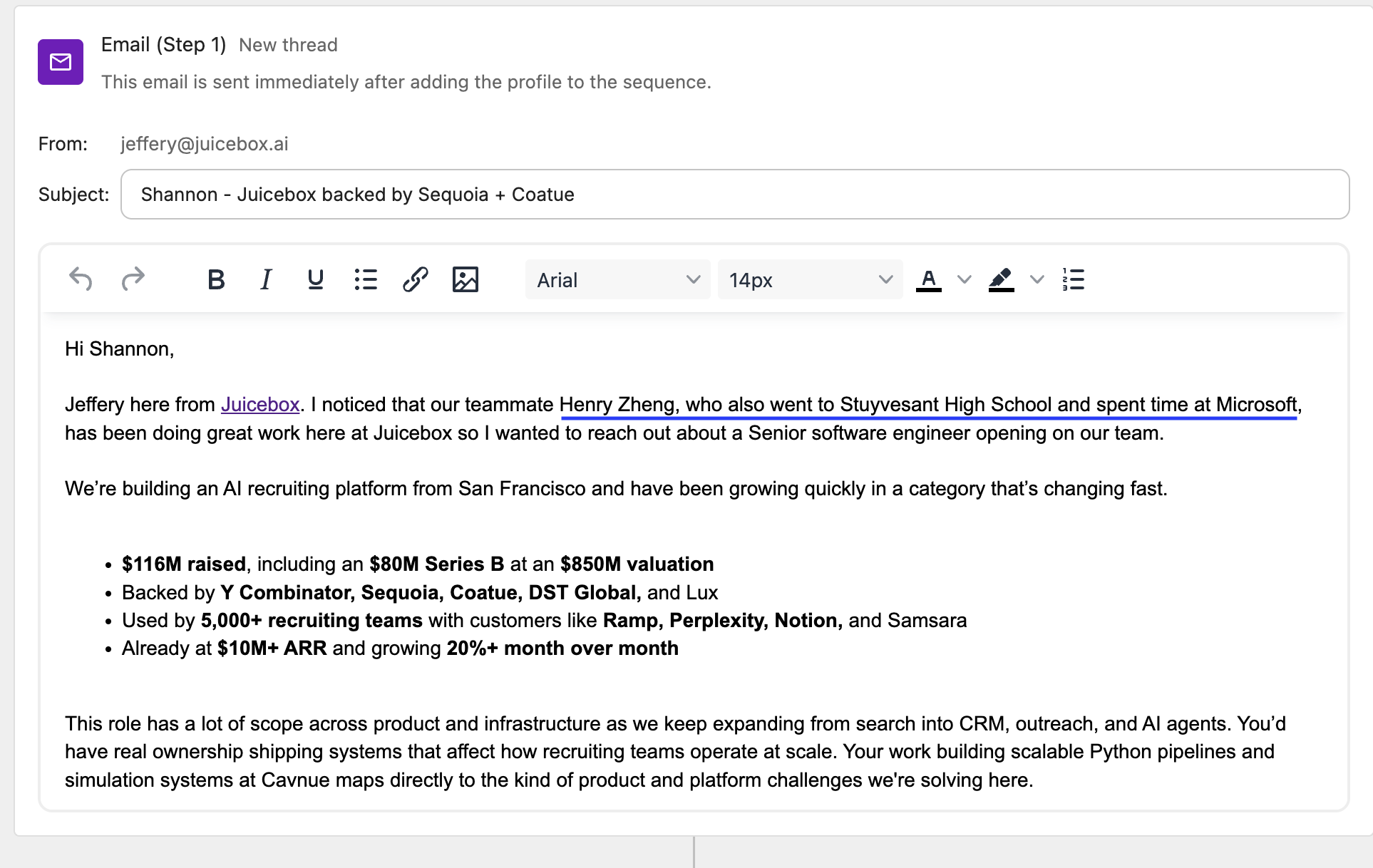
When a candidate shares a connection, employer, or school with one of your employees, Juicebox will automatically generate a personalized snippet you can include in your sequence emails.
The snippet surfaces the shared context, ie. a mutual teammate, overlapping company tenure, or university, so your outreach feels warm and relevant from the first touch.
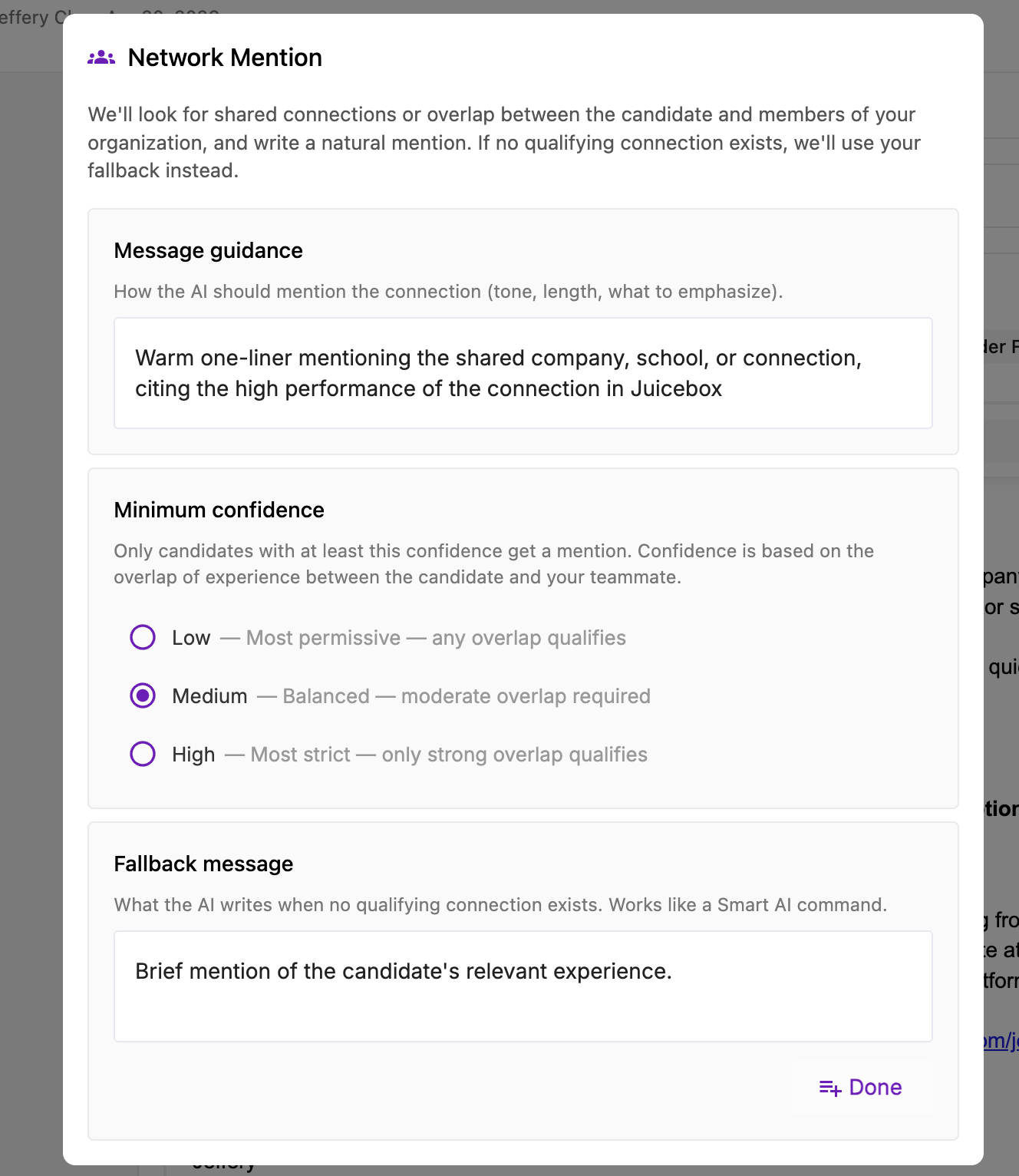
Inside a sequence email step, press **`/`** and choose **Network Mention** to insert this warm-intro reference at your cursor without leaving the editor. See [Inline composer](/sequences#inline-composer-slash-menu) for the full list of composer actions.
## Network Sourcing Definitions
* **Connections:** These are the direct LinkedIn connections uploaded by team members. Once added, they can be used to identify or filter candidates who may already have an existing relationship with someone at your company.
* **Overlaps:** These are inferred relationships Juicebox will automatically identify based on an employee’s shared work or education history. We analyze factors such as overlapping tenure, company or school size, or team alignment within a company to surface candidates employees *may* know.
* **Confidence scores:** Each overlap will be assigned a confidence score in order to identify the strength of that overlap:
* **High:** These represent the strongest and most meaningful signals, where there is a high likelihood the candidate is closely connected to a teammate or has worked with them directly.
* **Medium:** These are solid signals indicating a shared experience, though the relationship may be less direct or less recent.
* **Low:** These represent weaker or more indirect signals, where a connection may exist but is less certain or more distant.