> ## Documentation Index
> Fetch the complete documentation index at: https://docs.juicebox.ai/llms.txt
> Use this file to discover all available pages before exploring further.
# Reporting Stale Profiles
> Learn how to flag stale or inaccurate profiles directly from Juicebox so our team can review and update the data.
Learn how to flag stale or inaccurate profiles directly from Juicebox so our team can review and update the data.
### Reporting a Profile
If you come across a profile that looks incorrect, outdated, broken, or fake, you can report it directly in Juicebox. Your reports help us keep profile data accurate for everyone.
To report a profile:
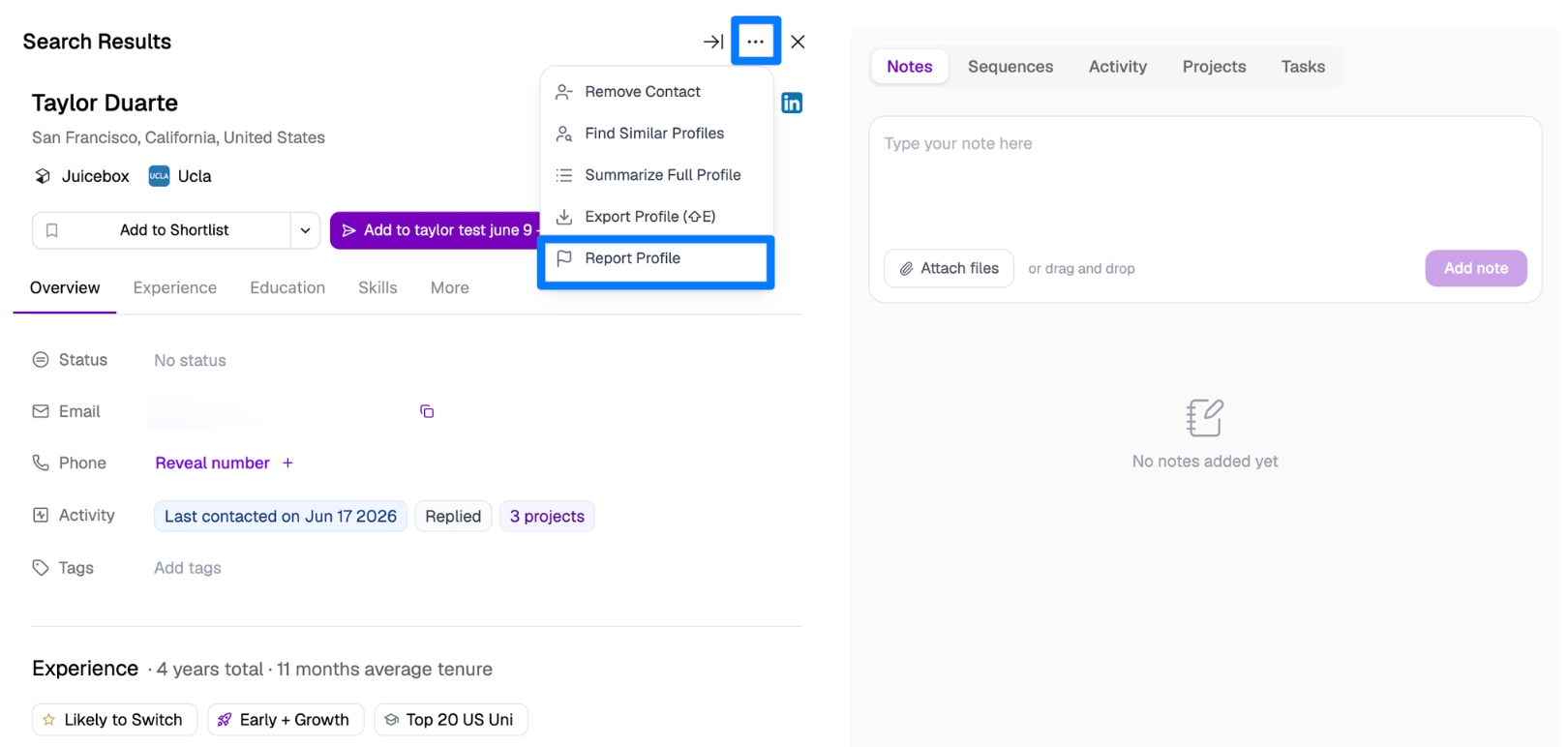
1. Open the profile in the contact sidebar.
2. Click the **•••** (more options) menu at the top of the sidebar.
3. Select **Report Profile**.
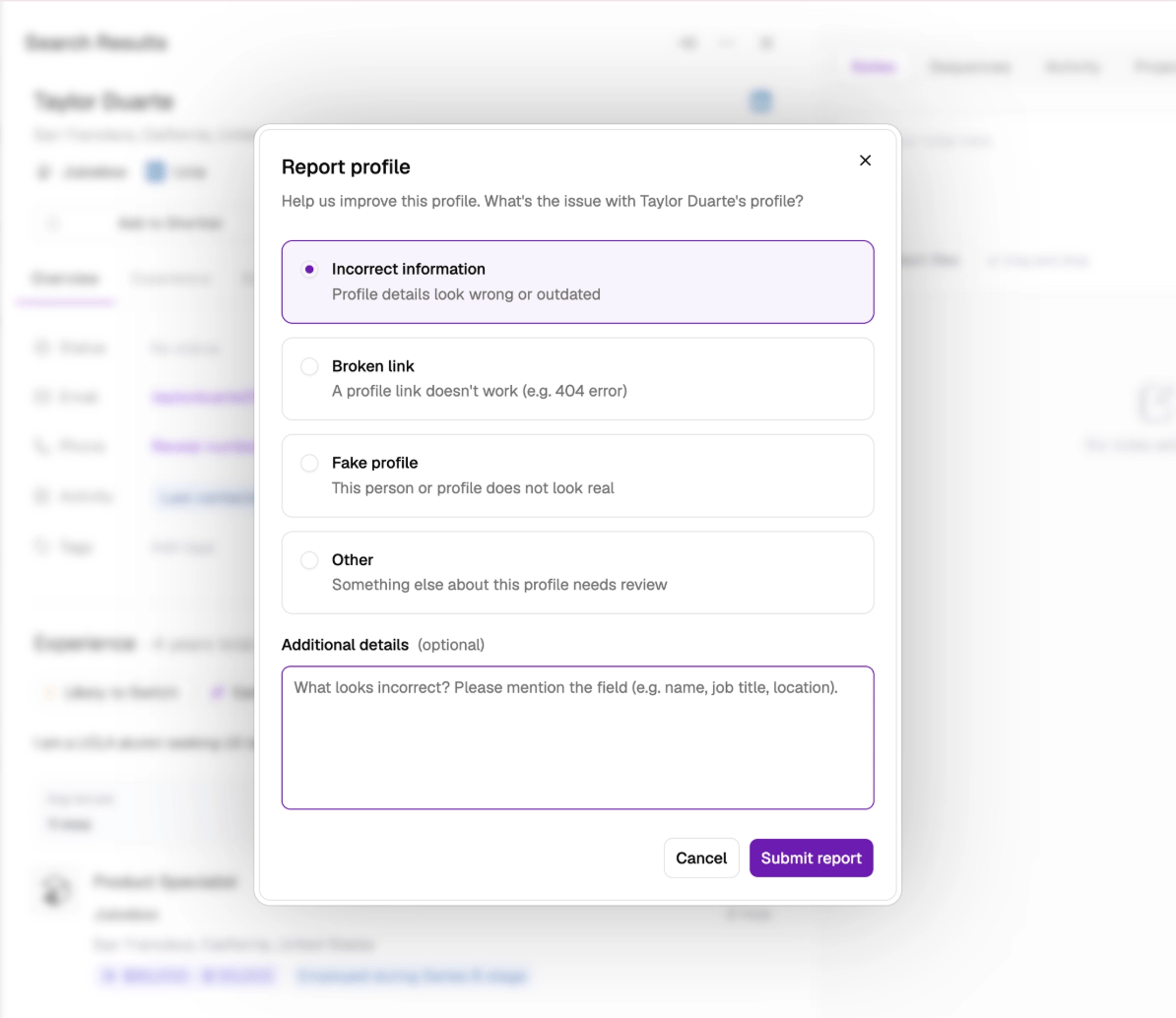
4. Choose the issue that best describes the problem:
* **Incorrect information** — profile details look wrong or outdated
* **Broken link** — a profile link doesn't work (e.g. a 404 error)
* **Fake profile** — the person or profile does not look real
* **Other** — something else about the profile needs review
5. Optionally, add details to help us investigate — for incorrect information, please mention the specific field (e.g. name, job title, location).
6. Click **Submit report**. You'll see a confirmation once your report has been submitted.
 ### How Often Data Is Refreshed
Juicebox refreshes data on an ongoing basis to keep profiles as current as possible:
* **Profiles** are updated continuously, ranging from daily to monthly depending on the profile.
* **Enriched profile data**, such as GitHub, research, and compensation data, is refreshed on an independent cadence.
Profiles are also refreshed **on demand: w**henever the Agent sources a profile, and whenever you report a profile. Reporting a profile triggers a data check, and in most cases the profile is automatically updated within 24 hours (some cases can take longer to resolve).
### AI Trust
Please visit our [AI Trust Center](https://juicebox.ai/trust) for more details.
### How Often Data Is Refreshed
Juicebox refreshes data on an ongoing basis to keep profiles as current as possible:
* **Profiles** are updated continuously, ranging from daily to monthly depending on the profile.
* **Enriched profile data**, such as GitHub, research, and compensation data, is refreshed on an independent cadence.
Profiles are also refreshed **on demand: w**henever the Agent sources a profile, and whenever you report a profile. Reporting a profile triggers a data check, and in most cases the profile is automatically updated within 24 hours (some cases can take longer to resolve).
### AI Trust
Please visit our [AI Trust Center](https://juicebox.ai/trust) for more details.