> ## Documentation Index
> Fetch the complete documentation index at: https://docs.juicebox.ai/llms.txt
> Use this file to discover all available pages before exploring further.
# Search for Candidates in Juicebox
> Learn how to use Juicebox most effectively.
## Introduction
Juicebox uses AI to understand your searches, configure filters, and support a full natural-language prompt, giving you real-life superpowers in searching through 800mm+ profiles.
## How to search in Juicebox
To search for candidates most effectively, please follow this method:
**Step 1:** Create a new project
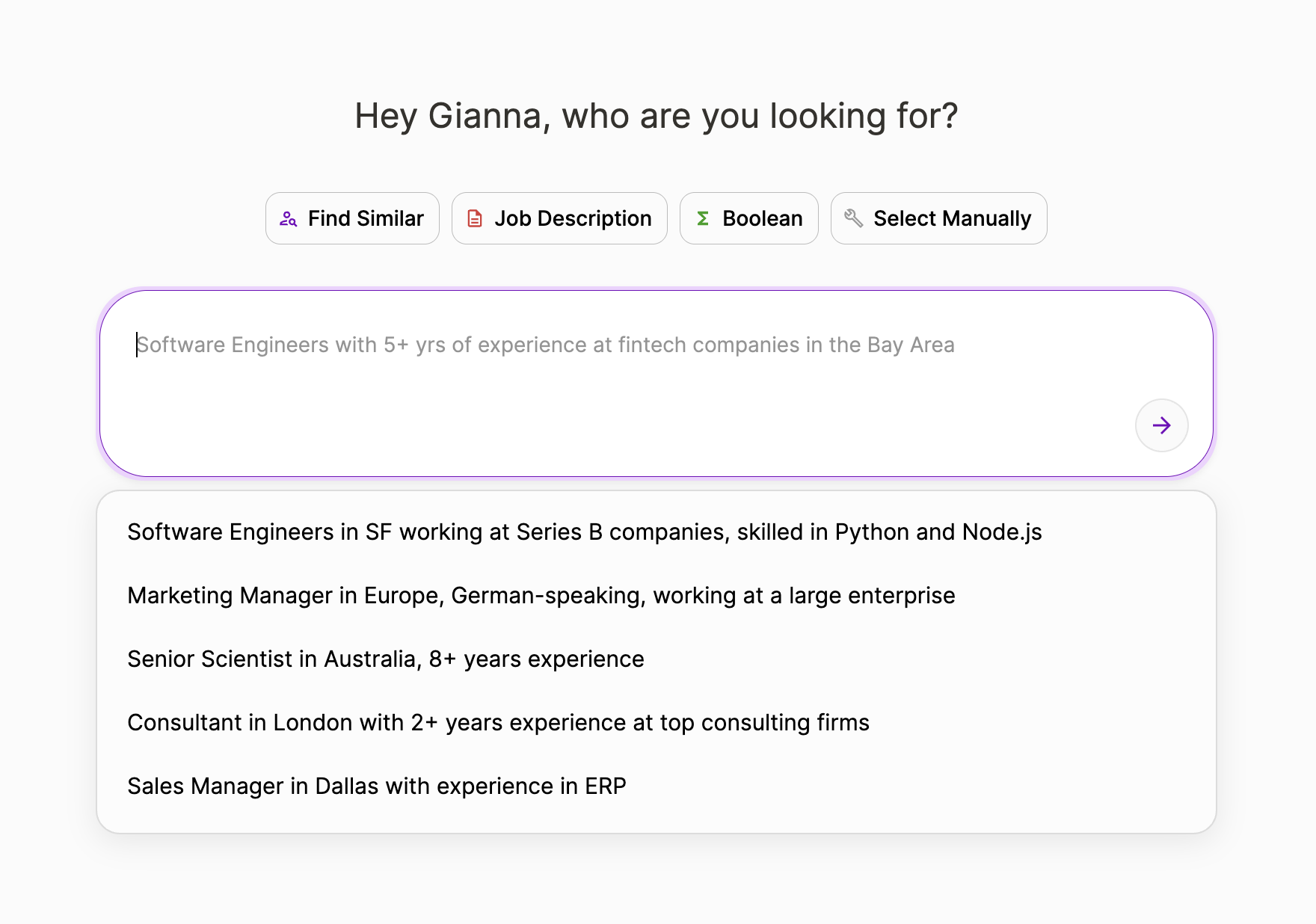
**Step 2:** Describe the type of candidate you are looking for using your natural language. The **more** details or context here, the better!
**Step 3:** Run your prompt to review the filters and criteria populated
**Step 4:** Click “Run Search” to review ranked search pool
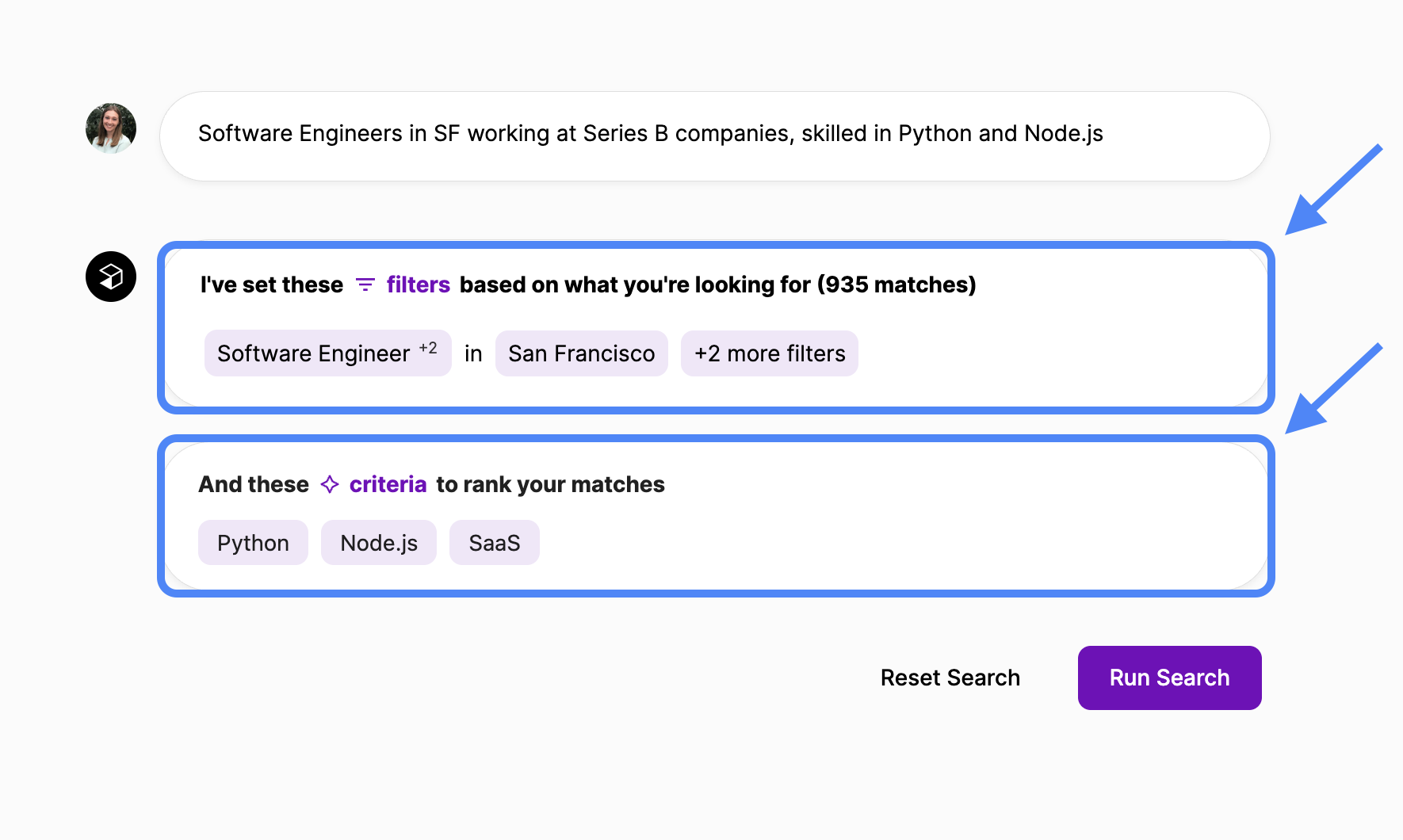
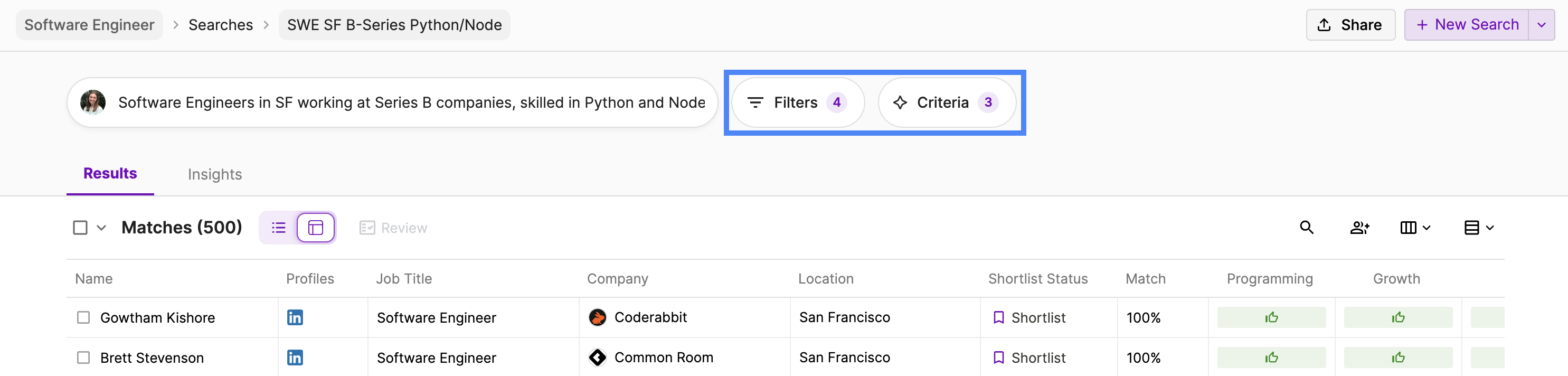
**Reminder:** To **narrow** your search, edit your project’s filters. To **rank** your search, edit your project’s criteria.
## Reviewing Results
Once you run your results, candidates will appear in a ranked view, giving you the best matched candidates right off the bat. Each profile will receive a score against the set criteria, and will be shown as:
1. **Good Match (Green thumbs up):** signifies that the criteria are fulfilled, either through explicit mention on the candidate’s profile or through AI inference.
2. **Potential fit (Yellow thumbs up):** suggests that the criteria are likely met but with some ambiguity, or that there is some evidence missing. \*\*
3. **Not a match (Red stop sign):** indicates that there is no evidence that the criteria are met based on the information available. \*\*

To gain deeper insight into an individual candidate or action on multiple candidates at once, switch between the Classic and Table views.
### **Classic View**
Use Juicebox’s classic view to individually review candidates and their match analysis.
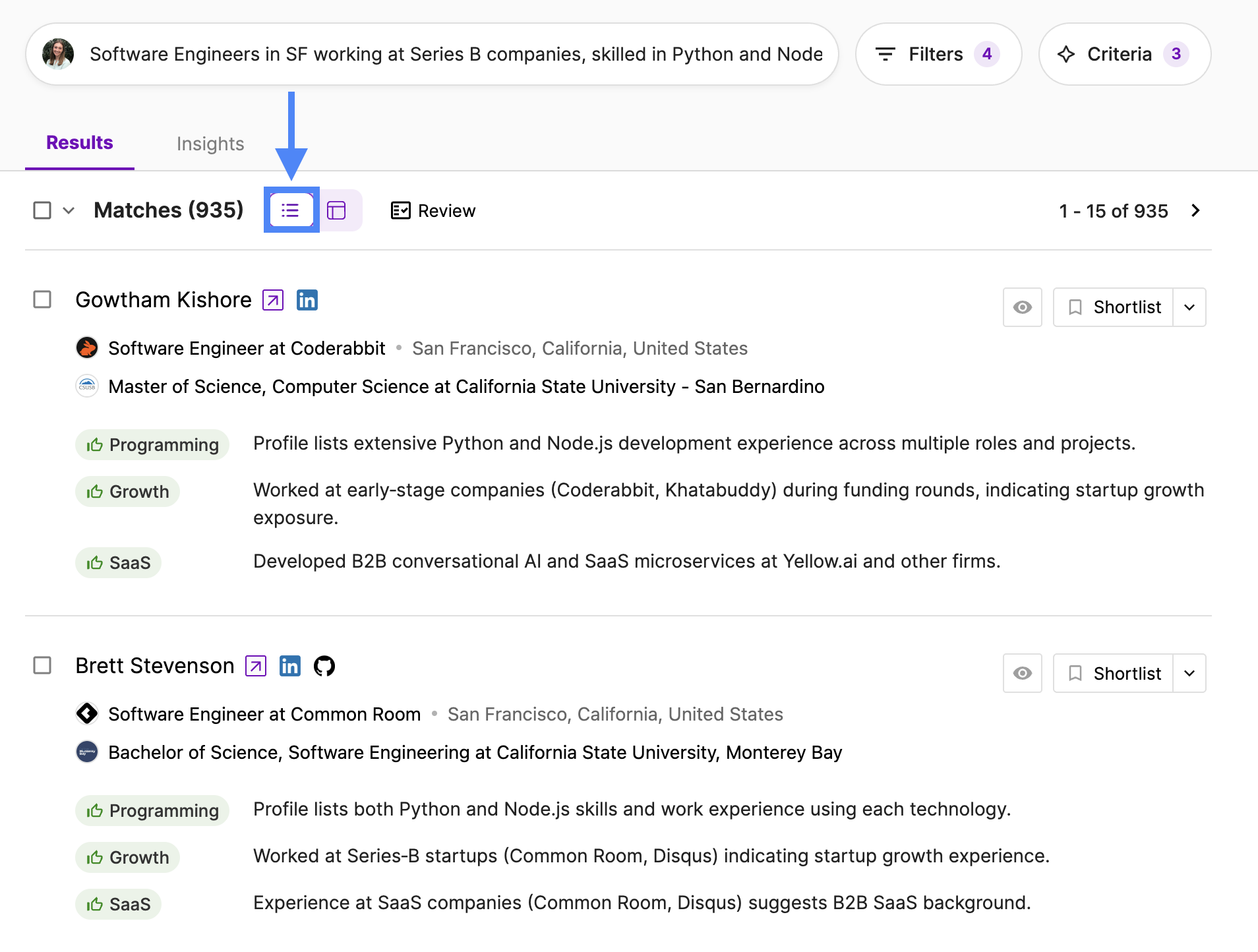
To learn more about a candidate:
1. Click on the candidate’s name to review their full profile
2. **Recommended:** Select Review at the top to open a side-by-side view of the candidate’s background and Juicebox’s match analysis. Interact with each criterion to see exactly where that experience appears within the candidate’s profile.
### **Table View**
Use Juicebox’s table view to efficiently review and select a larger set of candidates alongside a snapshot of their match analysis.
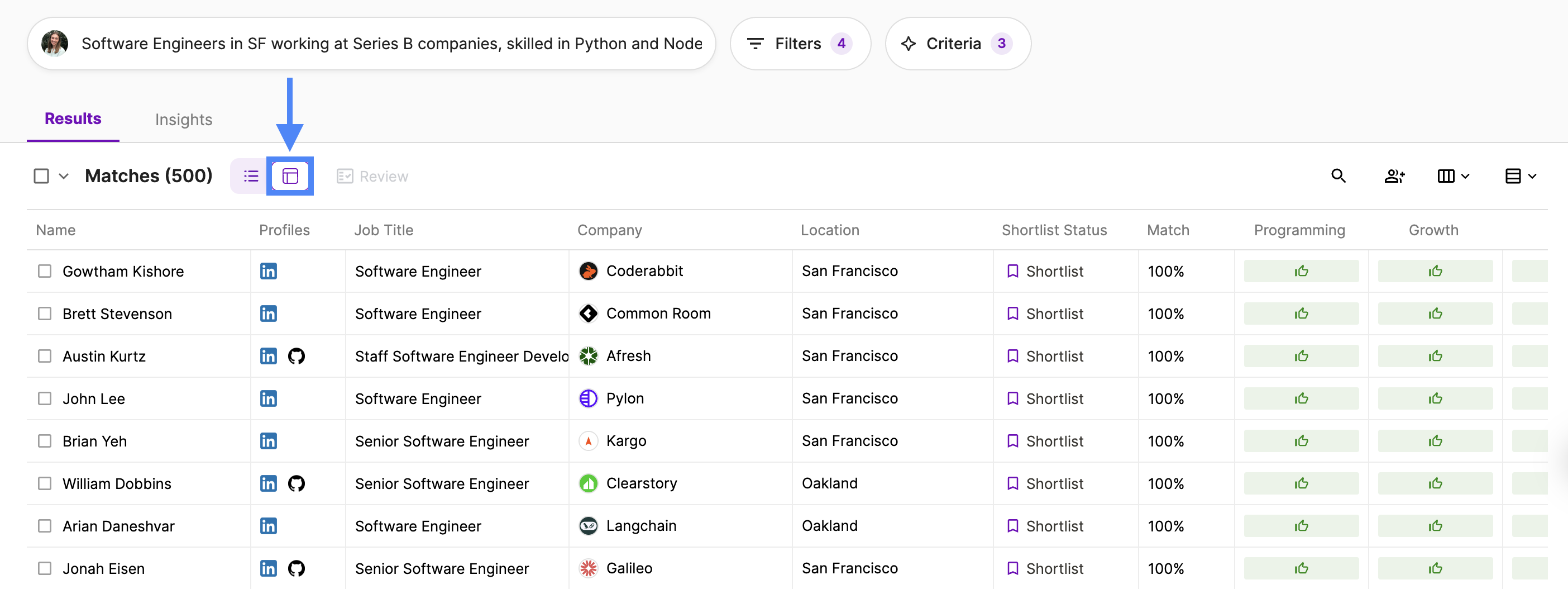
To learn more about a candidate:
1. Click on the candidate’s name to review their full profile
2. Tailor the table to include additional information such as Education, Location, Company and Job Title
3. Expand a single row in order to look at a candidate’s match analysis overview
4. **Recommended:** Select Review at the top to open a side-by-side view of the candidate’s background and Juicebox’s match analysis. Interact with each criterion to see exactly where that experience appears within the candidate’s profile
**Not finding the right results?** Click into Insights to uncover data on your current search pool, and then tweak filters based on any misaligned skills, locations, employers, etc.
## Shortlisting Profiles
Shortlist the candidates you believe are a good fit in order to contact them directly, share with a hiring manager, or export back to your ATS. To shortlist a candidate, you can:
1. Directly shortlist as you scroll from the classic or table view
2. Individually “Add to Shortlist” from the candidate’s profile or Review results
3. Bulk select > Add to Shortlist from the classic or table view
## Iterating on your Search
Adjust your filters or criteria at any time to continue to iterate on your search and ensure you are finding the best candidates.
## Learn More
To learn more about filters vs criteria, please visit the Filters vs Criteria article [here](/filters-vs-criteria).