> ## Documentation Index
> Fetch the complete documentation index at: https://docs.juicebox.ai/llms.txt
> Use this file to discover all available pages before exploring further.
# Welcome Kit: Reach out to candidates
This guide is part of a welcome kit series for Juicebox users. Check out the [previous guide on running a search](https://docs.juicebox.ai/welcome-kit-run-your-first-search) if you haven't used natural-language search, filters, criteria, or shortlists yet.
In this guide, we’ll create and add candidates to outreach sequences, where you can use email, LinkedIn InMail, and phone as channels to contact and nurture your top candidates in an automated but still personalized way. You’ll learn how to:
* Set up your email and send-on-behalf-of (SOBO) to send sequences
* Create a new sequence using AI or templates
* Edit and personalize the content, including AI commands
* Tailor your sequences and content to maximize reply rates
* Add shortlisted candidates to a sequence and track their responses
## Integrate your email
The best candidate outreach is multi-channel: using email, social media ,and phone. Passive candidates may not be checking professional networking sites or job boards, so you’ll want to use email as a key part of your outreach strategy.
Depending on your plan, each mailbox can send from 20-500 automated emails per day, so you can maximize outreach and deliverability.
To set this up in Juicebox, go to **Integrations** and then click the link to sign in with your email provider. Once your email status says **Connected**, you’re ready to reach out to candidates.
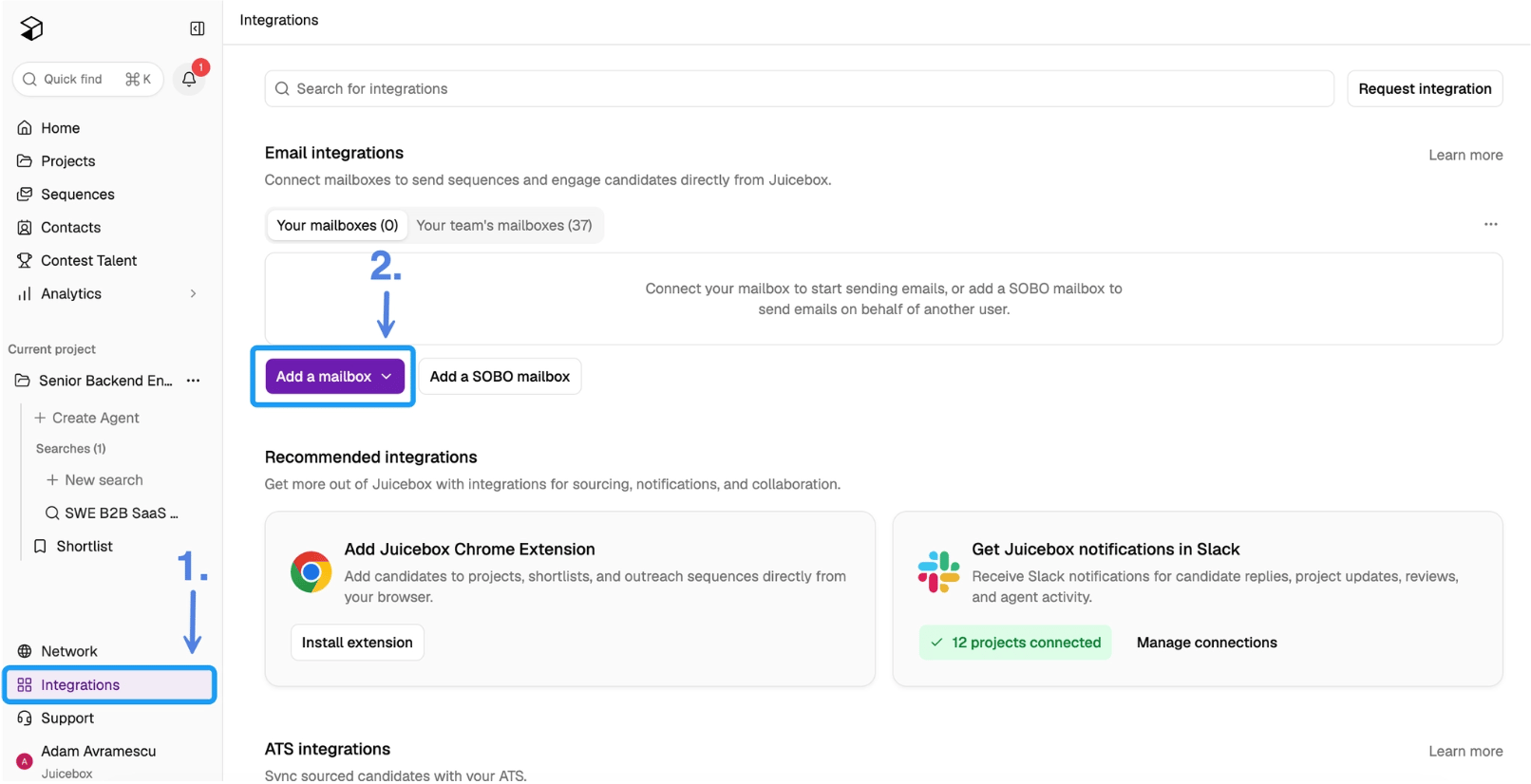 *Because emails sent on behalf of hiring managers, founders, or leaders tend to have higher reply rates, you’ll also want to set up **Send On Behalf Of (SOBO)** mailboxes.*
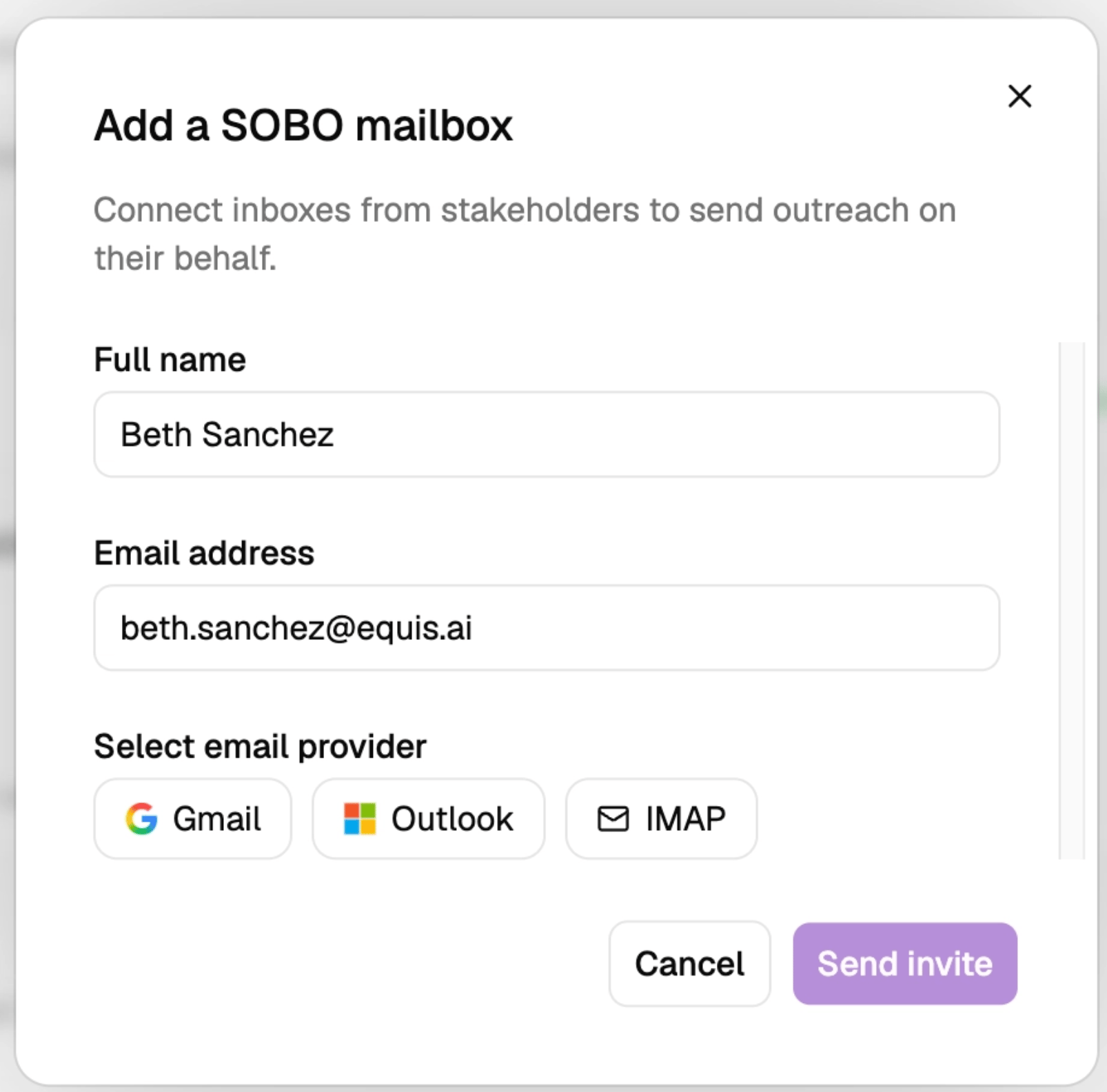
Click **Add a SOBO mailbox** to send an invite from Juicebox to the relevant person whom you’d like to send on behalf of. Once they accept the invite, their status will change from **Pending** to **Connected** and you’ll be able to use SOBO as part of your outreach strategy.
*Because emails sent on behalf of hiring managers, founders, or leaders tend to have higher reply rates, you’ll also want to set up **Send On Behalf Of (SOBO)** mailboxes.*
Click **Add a SOBO mailbox** to send an invite from Juicebox to the relevant person whom you’d like to send on behalf of. Once they accept the invite, their status will change from **Pending** to **Connected** and you’ll be able to use SOBO as part of your outreach strategy.
 **Want more help?** Learn more about [email integrations](https://docs.juicebox.ai/email-integrations) and [SOBO setup](https://docs.juicebox.ai/email-integrations#internal-&-sobo-send-on-behalf-of-setup).
## Create a sequence
Juicebox lets you create and run automated sequences to reach out to candidates. This also means you can continue to contact candidates even when you’re out of the office, and you can easily follow up with candidates who replied when you return.
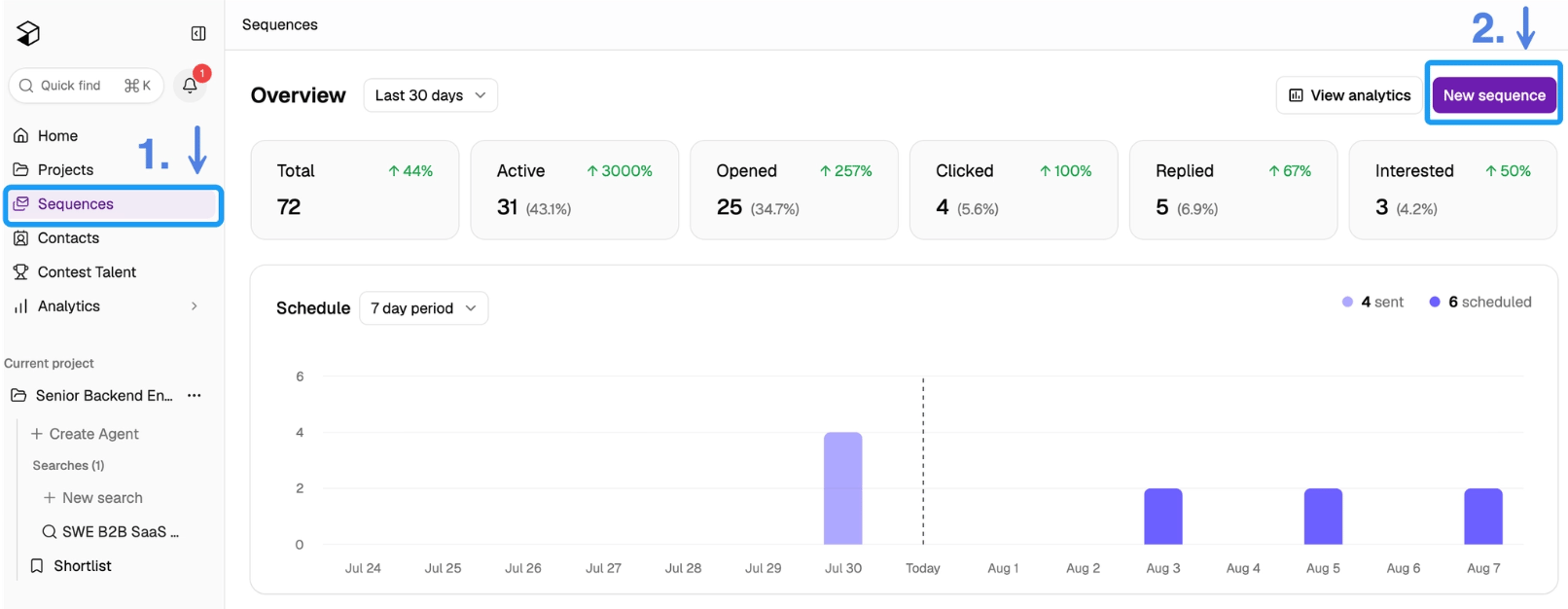
Click **Sequences** in the left-hand menu. From here, you can create a new email sequence and check in on existing sequences.
Let’s create one by clicking **new sequence**.
**Want more help?** Learn more about [email integrations](https://docs.juicebox.ai/email-integrations) and [SOBO setup](https://docs.juicebox.ai/email-integrations#internal-&-sobo-send-on-behalf-of-setup).
## Create a sequence
Juicebox lets you create and run automated sequences to reach out to candidates. This also means you can continue to contact candidates even when you’re out of the office, and you can easily follow up with candidates who replied when you return.
Click **Sequences** in the left-hand menu. From here, you can create a new email sequence and check in on existing sequences.
Let’s create one by clicking **new sequence**.
 Juicebox gives you several ways to create sequences. You can write them from scratch, but you can also generate sequences with AI or use templates that we’ve already provided.
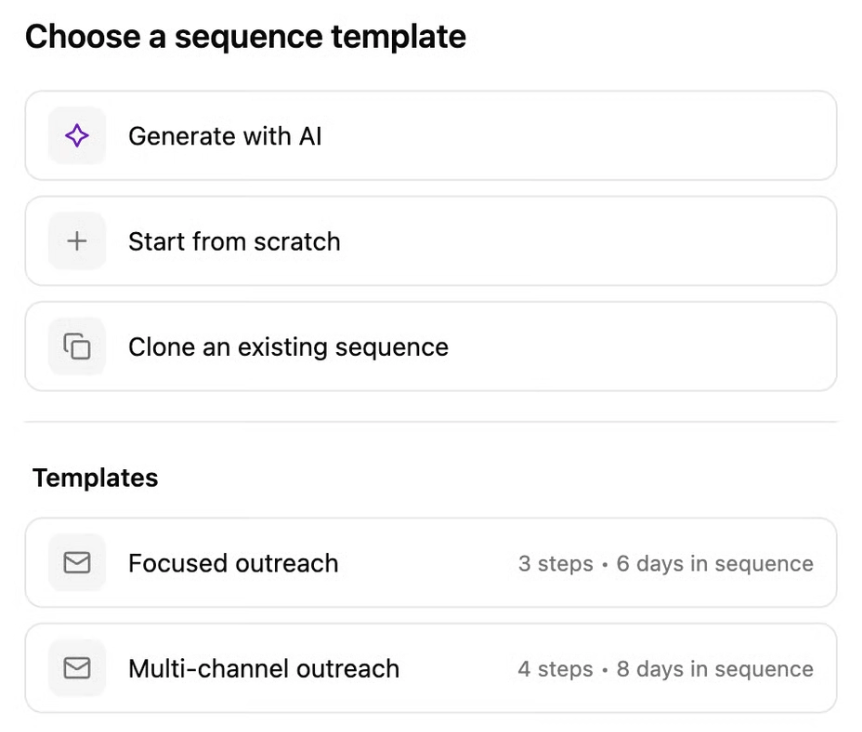 AI sequences make sequence writing much easier. They pull in details from your project and job description, so that you’ll already have a more personalized and tailored outreach. Don’t worry, you can always edit and give it a personal touch.
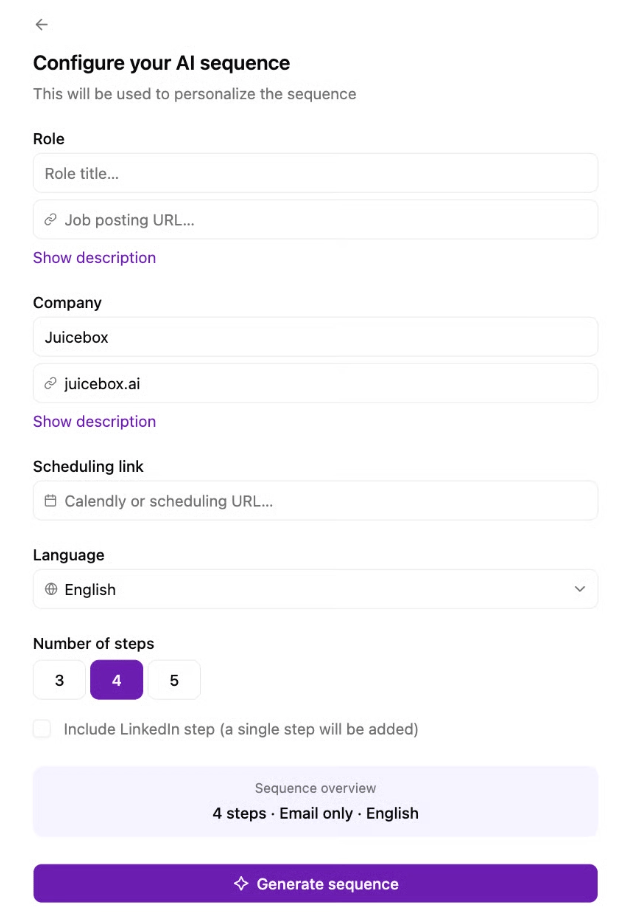 Any option will take you to the sequence editor where you can edit the title, sender, and content of each email. You can also add or remove steps directly from this page.
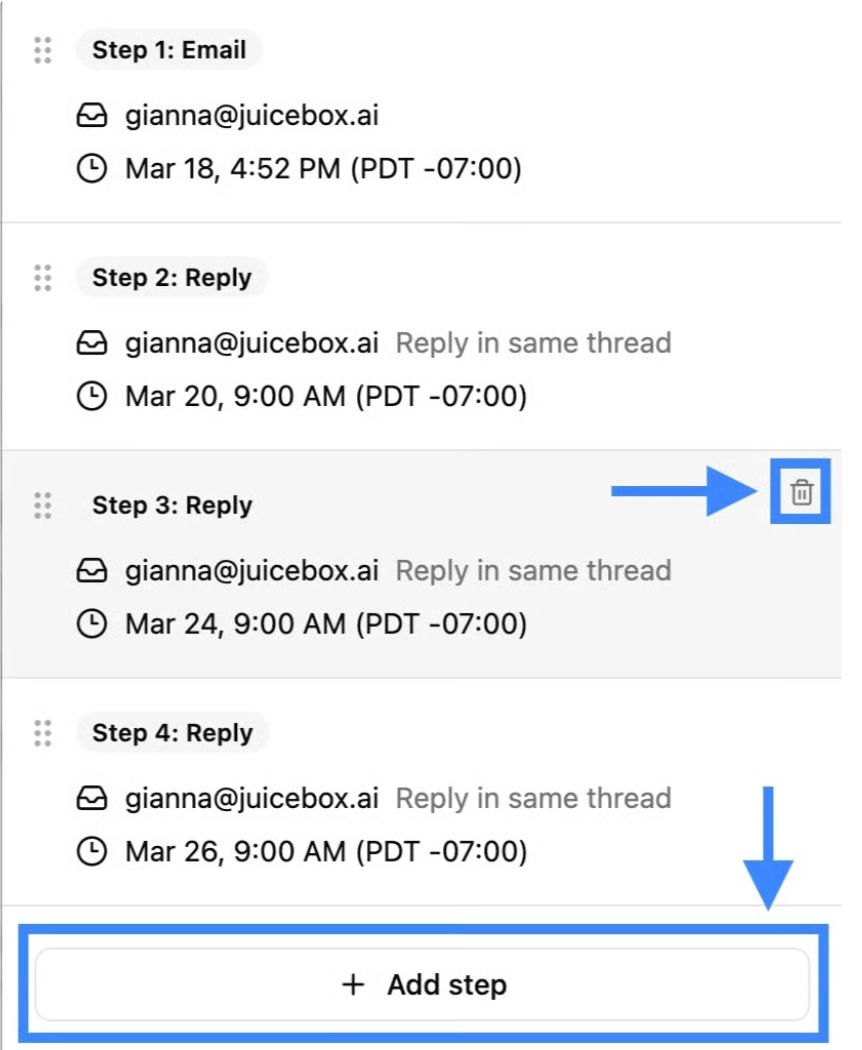 You can add steps to a sequence that take place outside of email, such as LinkedIn or phone calls. But please note that these aren’t automated. You’ll have to take those actions outside of Juicebox, even though you can still use Juicebox to track them alongside candidate progress.
**Want more help?** Learn more about [sequences](https://docs.juicebox.ai/sequences).
## Schedule your sequence
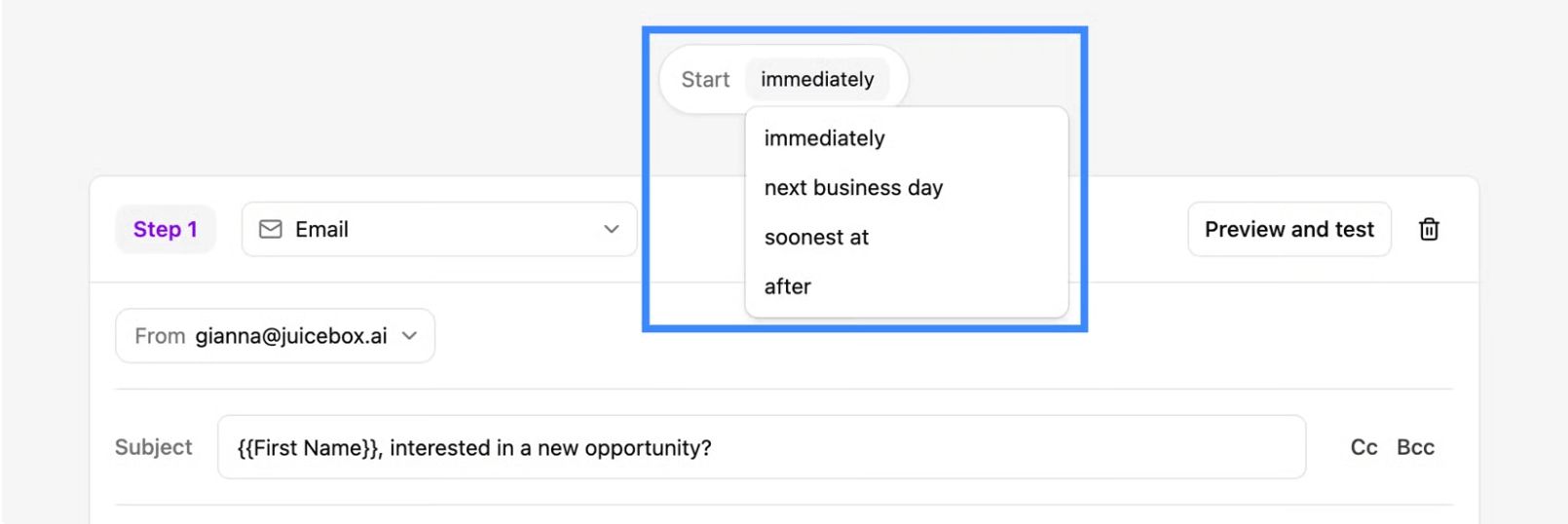
Below the email draft, you’ll see the scheduling options for each email in the sequence. The first step can be sent immediately or scheduled for later.
You can add steps to a sequence that take place outside of email, such as LinkedIn or phone calls. But please note that these aren’t automated. You’ll have to take those actions outside of Juicebox, even though you can still use Juicebox to track them alongside candidate progress.
**Want more help?** Learn more about [sequences](https://docs.juicebox.ai/sequences).
## Schedule your sequence
Below the email draft, you’ll see the scheduling options for each email in the sequence. The first step can be sent immediately or scheduled for later.
 Subsequent steps can be scheduled for a certain time afterward.
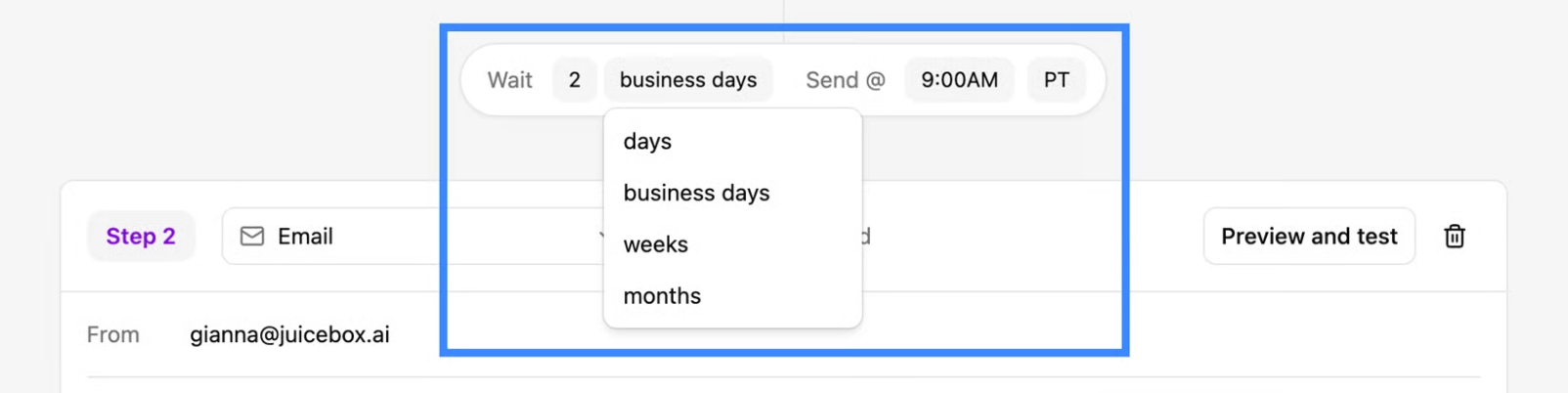 *Schedule steps within 2-3 days of each other to stay top of mind without overwhelming candidates.*
## What makes a good sequence?
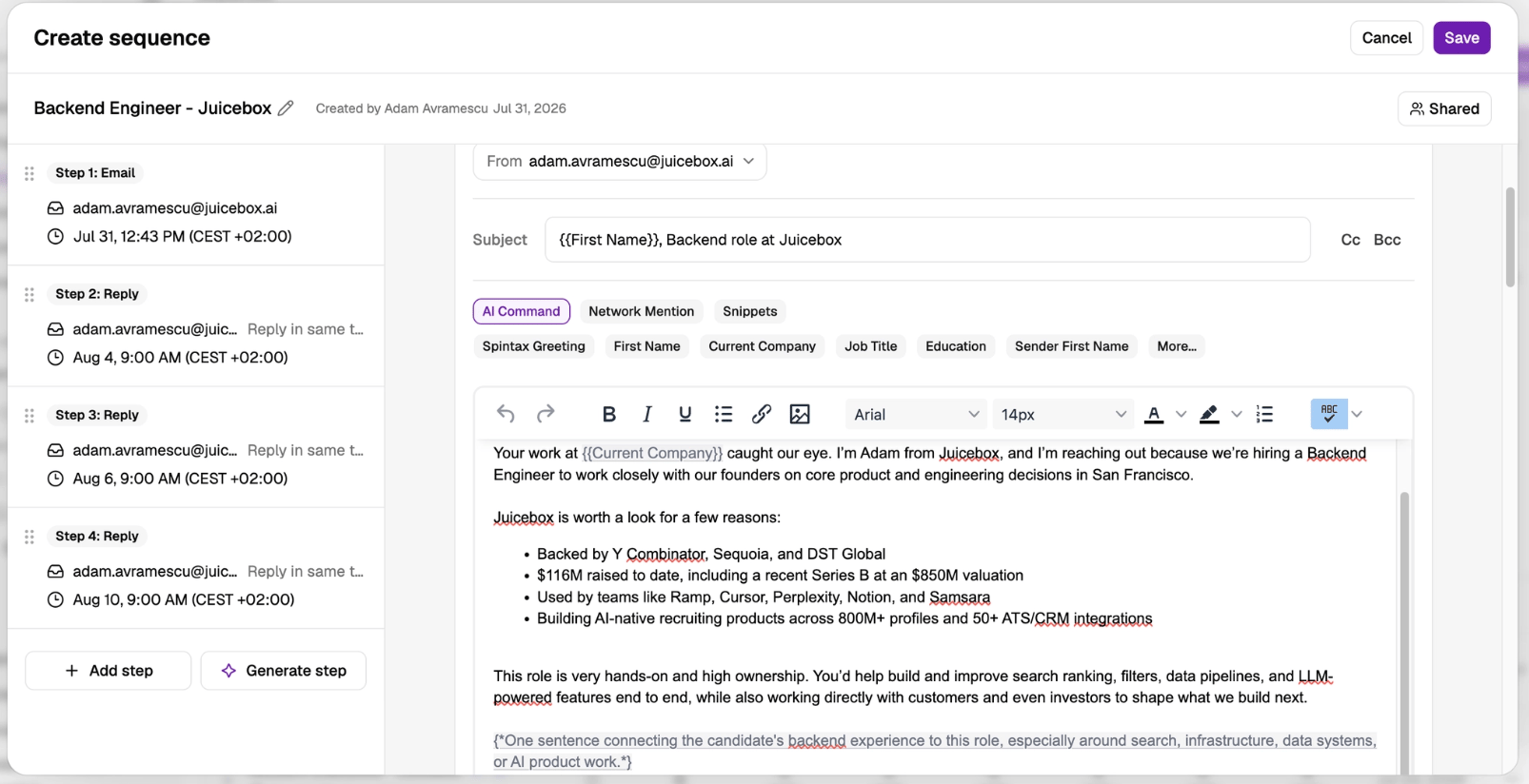
Let’s make sure your sequence delivers high reply rates and attracts high-quality candidates to speak with the hiring manager. We’ll focus on email best practices, since this is the core channel you’ll use for sequences in Juicebox:
### Subject lines
* Keep subject lines between 5-9 words to capture the candidate’s attention
* Personalize the subject line with a variable (for example: `{{First Name}}, interested in a new opportunity?` )
### Email body
* Personalize with variables, AI commands, and snippets
* Example of variable: `I noticed your experience at {{Current Company}} and would like to invite you to…` Example of AI command: `{*Brief mention of the candidate's relevant skills.*}`
* Snippets are pre-saved examples of reusable content that you or your team create
* Include **bold text** and emojis 💪 to make your email stand out
* Include **details and benefits of the job or company** to provide context
* Include an **email signature** to reinforce your credibility
* Use **Network Mentions** (available on the Business plan) to reference specific mutual connections in their network to add personalization
Here’s what that might look like, put together in an example intro email:
*Schedule steps within 2-3 days of each other to stay top of mind without overwhelming candidates.*
## What makes a good sequence?
Let’s make sure your sequence delivers high reply rates and attracts high-quality candidates to speak with the hiring manager. We’ll focus on email best practices, since this is the core channel you’ll use for sequences in Juicebox:
### Subject lines
* Keep subject lines between 5-9 words to capture the candidate’s attention
* Personalize the subject line with a variable (for example: `{{First Name}}, interested in a new opportunity?` )
### Email body
* Personalize with variables, AI commands, and snippets
* Example of variable: `I noticed your experience at {{Current Company}} and would like to invite you to…` Example of AI command: `{*Brief mention of the candidate's relevant skills.*}`
* Snippets are pre-saved examples of reusable content that you or your team create
* Include **bold text** and emojis 💪 to make your email stand out
* Include **details and benefits of the job or company** to provide context
* Include an **email signature** to reinforce your credibility
* Use **Network Mentions** (available on the Business plan) to reference specific mutual connections in their network to add personalization
Here’s what that might look like, put together in an example intro email:
 ### Other ways to increase reply rates
* Design sequences to have **3-5 steps**, as this captures **95% of reply rates**
* Send to a candidate’s **personal email address** for a **40% boost in reply rates**
* Schedule messages to be sent during **mid-morning (9am-12pm local time) on weekdays and Sunday** for the highest reply rates, and **avoid Fridays and Saturdays**
* Using SOBO, send the final emails in a sequence **on behalf of** a hiring manager, founder, or team lead for **a 50% boost in reply rates**
**Want more help?** Learn more about [maximizing reply rates](https://docs.juicebox.ai/maximize-replies).
## Test the sequence
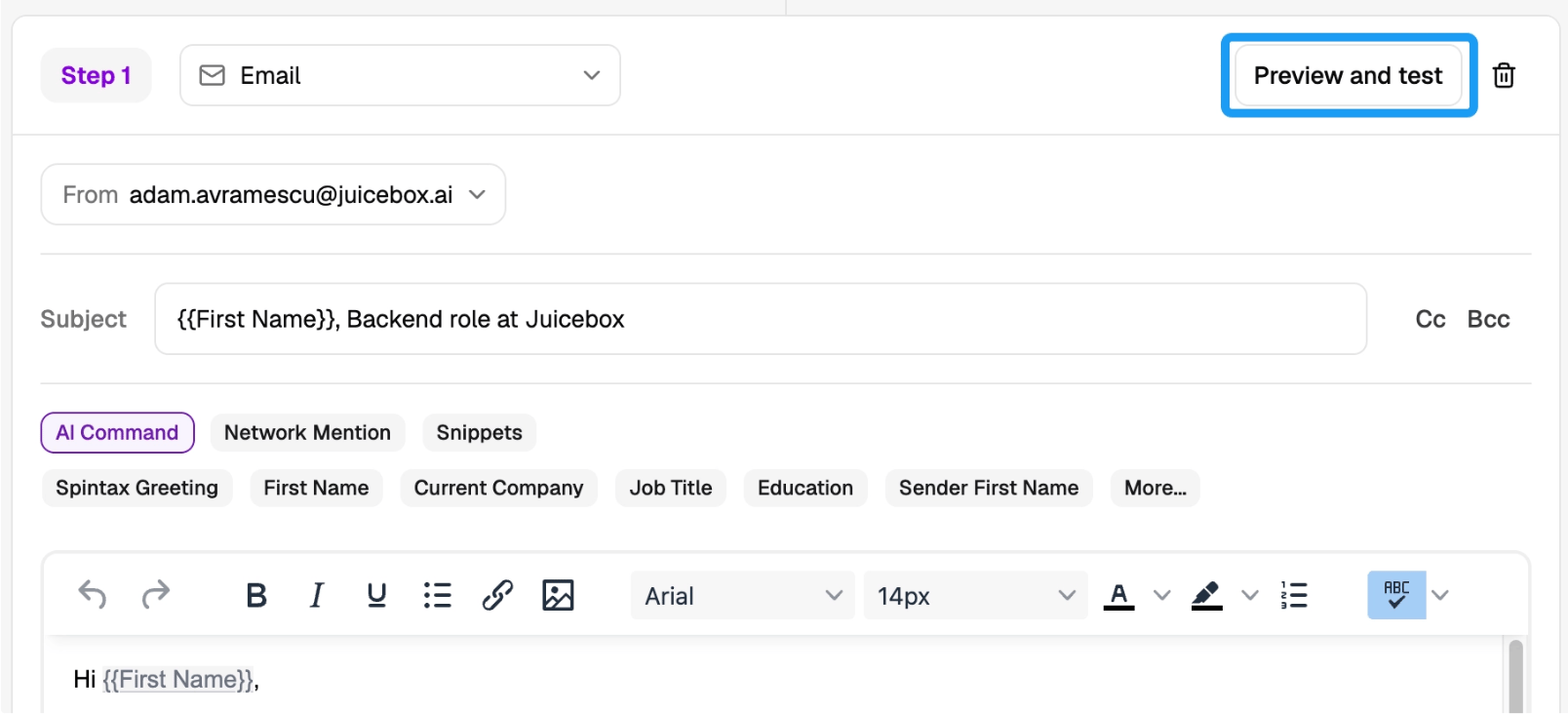
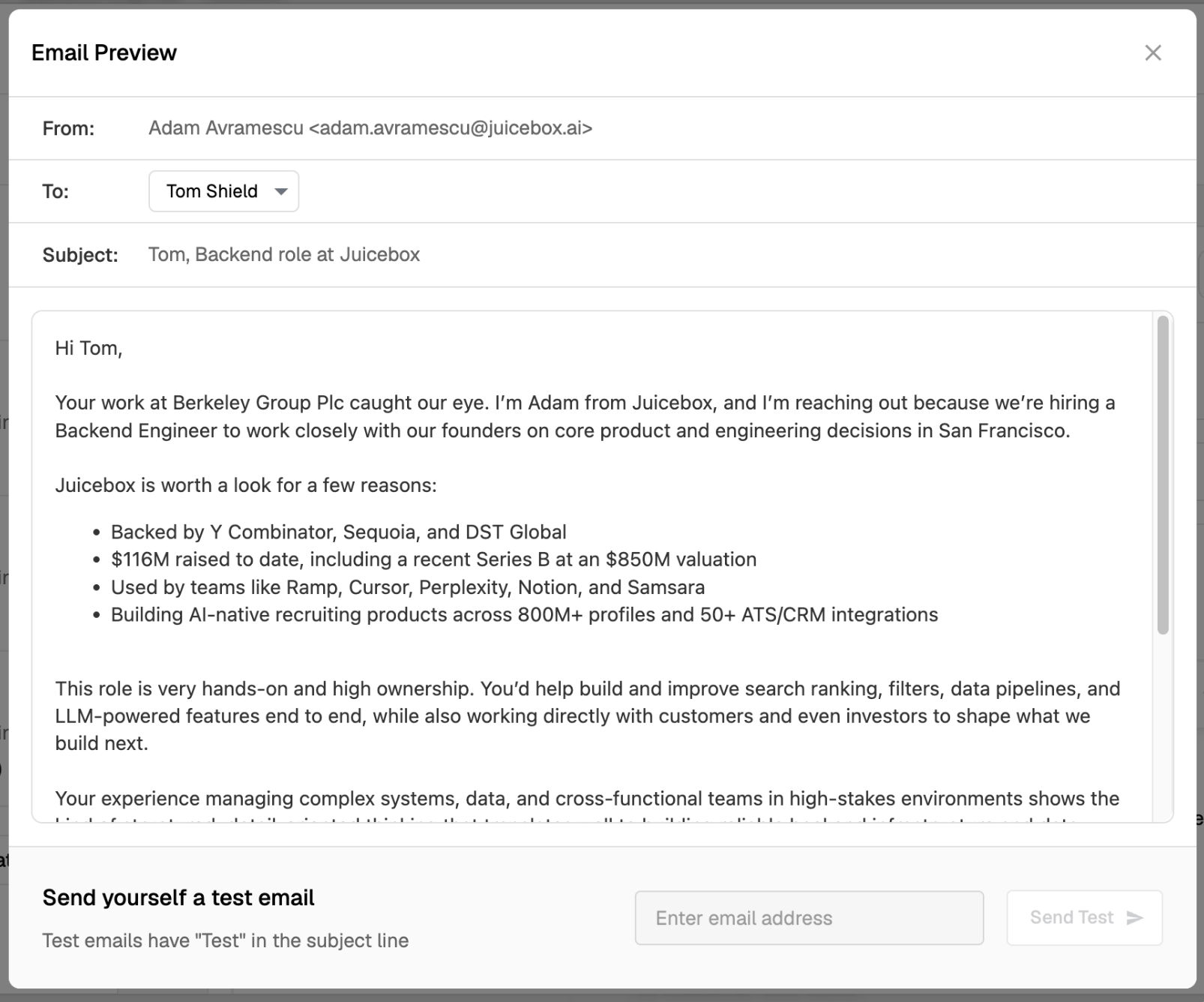
Before going live, test the sequence to make sure it looks as you expect. For each email in the sequence, you’ll see a **Preview and test** button. Here, you’ll find the option to send yourself (or a colleague) a test email before you set the sequence live with candidates.
### Other ways to increase reply rates
* Design sequences to have **3-5 steps**, as this captures **95% of reply rates**
* Send to a candidate’s **personal email address** for a **40% boost in reply rates**
* Schedule messages to be sent during **mid-morning (9am-12pm local time) on weekdays and Sunday** for the highest reply rates, and **avoid Fridays and Saturdays**
* Using SOBO, send the final emails in a sequence **on behalf of** a hiring manager, founder, or team lead for **a 50% boost in reply rates**
**Want more help?** Learn more about [maximizing reply rates](https://docs.juicebox.ai/maximize-replies).
## Test the sequence
Before going live, test the sequence to make sure it looks as you expect. For each email in the sequence, you’ll see a **Preview and test** button. Here, you’ll find the option to send yourself (or a colleague) a test email before you set the sequence live with candidates.
 ## Add candidates to a sequence
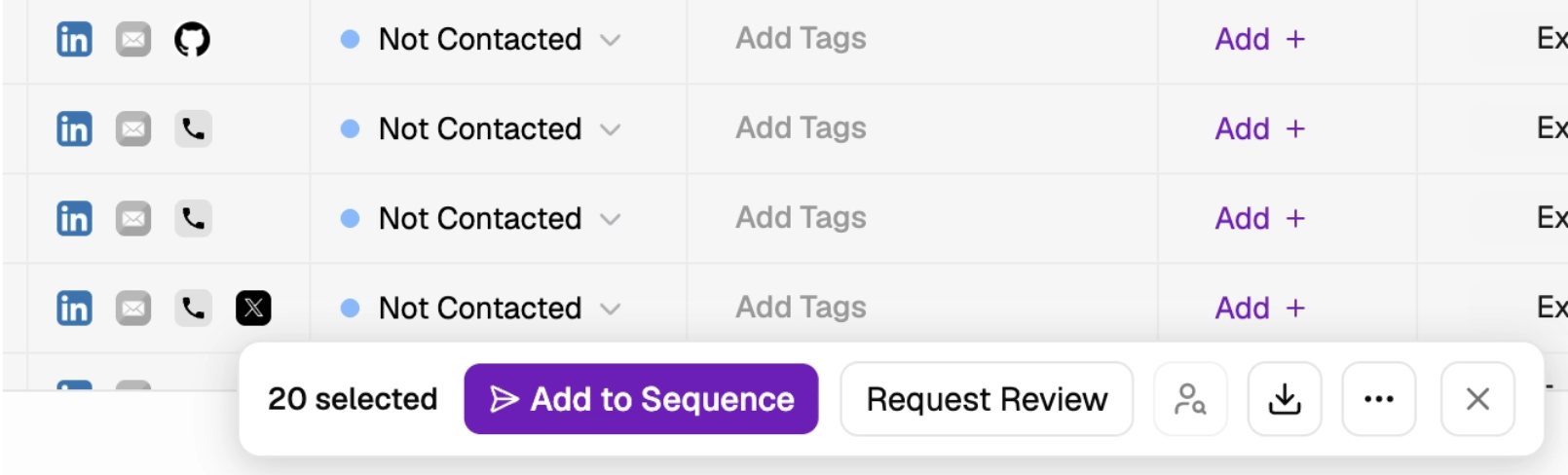
Once the sequence is live, you can start adding your shortlisted candidates to the sequence. From a project’s shortlist, you can select any number of candidates and click **Add to Sequence**.
## Add candidates to a sequence
Once the sequence is live, you can start adding your shortlisted candidates to the sequence. From a project’s shortlist, you can select any number of candidates and click **Add to Sequence**.
 You’ll see a preview of the emails; make sure to review these, including any personalization that got added via AI commands! Juicebox will flag any errors, like missing contact details, variables, or whether candidates already in an active sequence.
**Want more help?** Learn more about [adding profiles to a sequence](https://docs.juicebox.ai/add-profiles).
## Track metrics on a sequence
Now that you’re reaching out to candidates using sequences, you want to see how they’re performing. Juicebox makes this easy for you by giving you deep analytics, by role, on your sourcing and outreach, all in one place.
From the **Sequences** tab, click any sequence to see how it’s tracking. You’ll be able to see the overall funnel of opens, clicks, replies, and interested candidates, plus the status of each candidate.
You’ll see a preview of the emails; make sure to review these, including any personalization that got added via AI commands! Juicebox will flag any errors, like missing contact details, variables, or whether candidates already in an active sequence.
**Want more help?** Learn more about [adding profiles to a sequence](https://docs.juicebox.ai/add-profiles).
## Track metrics on a sequence
Now that you’re reaching out to candidates using sequences, you want to see how they’re performing. Juicebox makes this easy for you by giving you deep analytics, by role, on your sourcing and outreach, all in one place.
From the **Sequences** tab, click any sequence to see how it’s tracking. You’ll be able to see the overall funnel of opens, clicks, replies, and interested candidates, plus the status of each candidate.

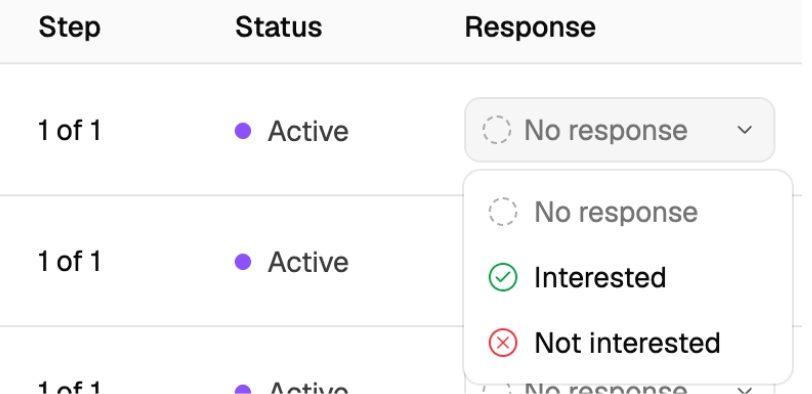
.png?fit=max&auto=format&n=190FXHhB3vmV0xcC&q=85&s=5368f85c845ec073f8996b876ee895eb) From this dashboard, use **Mark as Replied** to label replies as **Interested** or **Not Interested**. This will sync automatically to the shortlist page, so you can filter and review profiles based on their interest.
From this dashboard, use **Mark as Replied** to label replies as **Interested** or **Not Interested**. This will sync automatically to the shortlist page, so you can filter and review profiles based on their interest.
 ## What’s next?
Congratulations! By following this guide, you:
* Set up your email and SOBO to automate the sending of sequences
* Created a new sequence using AI or templates
* Edited and personalized the content
* Used best practices to maximize reply rates
* Added shortlisted candidates to a sequence and tracked their responses
You’ve already seen how Juicebox uses AI to simplify the repetitive parts of your job. In the [next guide](https://docs.juicebox.ai/welcome-kit-automate-with-agents), we’ll show you how Juicebox lets you create and configure AI agents to make this even easier.
## What’s next?
Congratulations! By following this guide, you:
* Set up your email and SOBO to automate the sending of sequences
* Created a new sequence using AI or templates
* Edited and personalized the content
* Used best practices to maximize reply rates
* Added shortlisted candidates to a sequence and tracked their responses
You’ve already seen how Juicebox uses AI to simplify the repetitive parts of your job. In the [next guide](https://docs.juicebox.ai/welcome-kit-automate-with-agents), we’ll show you how Juicebox lets you create and configure AI agents to make this even easier.