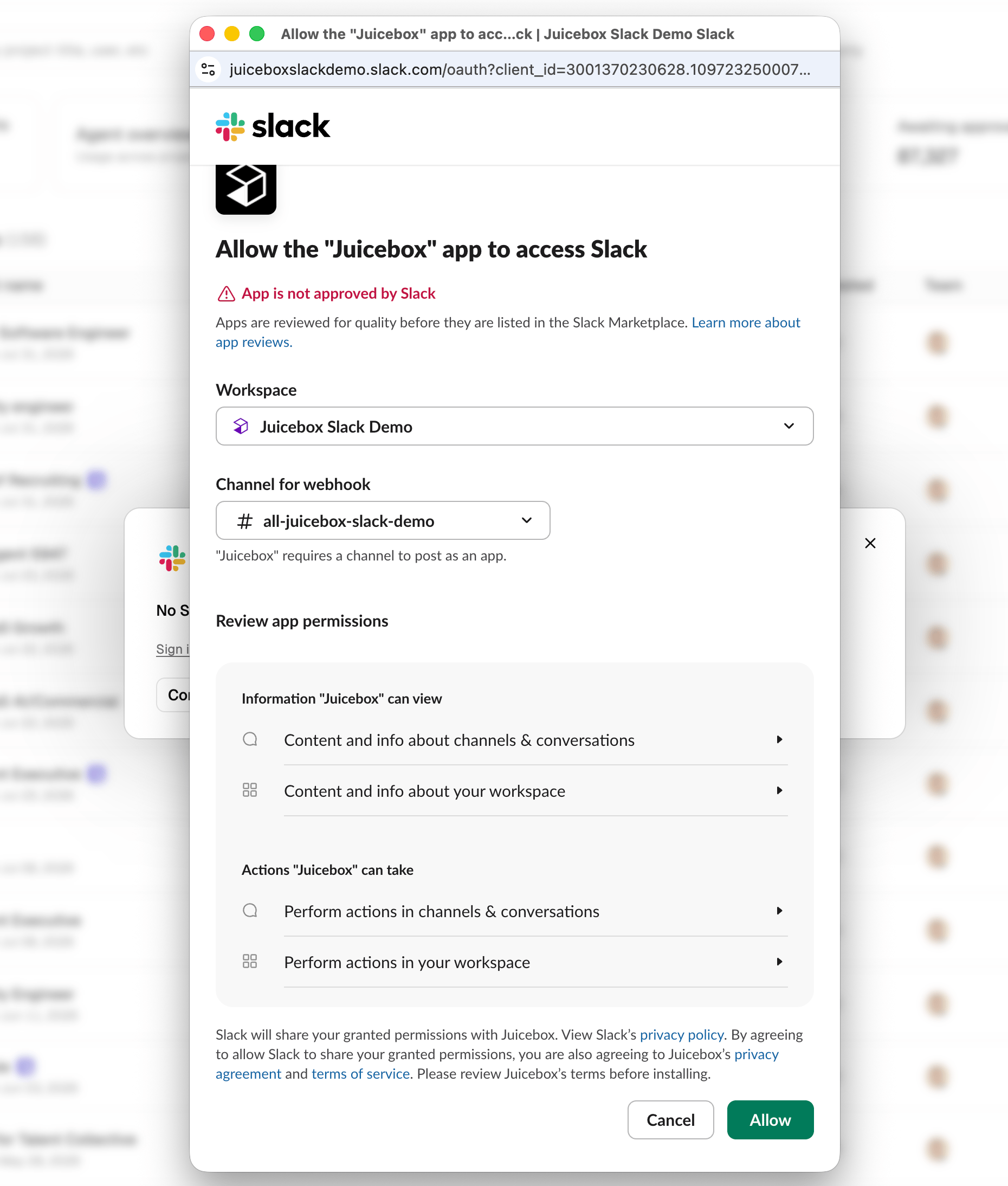
- A Slack admin connects the Juicebox app to your Slack workspace.
- Anyone can then link individual Juicebox projects to specific Slack channels.
Before you start
- You must be a Slack workspace admin to complete the initial connection.
- We recommend signing into Slack in your browser before starting. If you aren’t signed in, the OAuth flow is harder to complete. Sign in at slack.com/signin.
Part 1: Connect the Juicebox app to your Slack workspace
- Head to the Integrations tab in Juicebox: app.juicebox.ai/?tab=integrations.
-
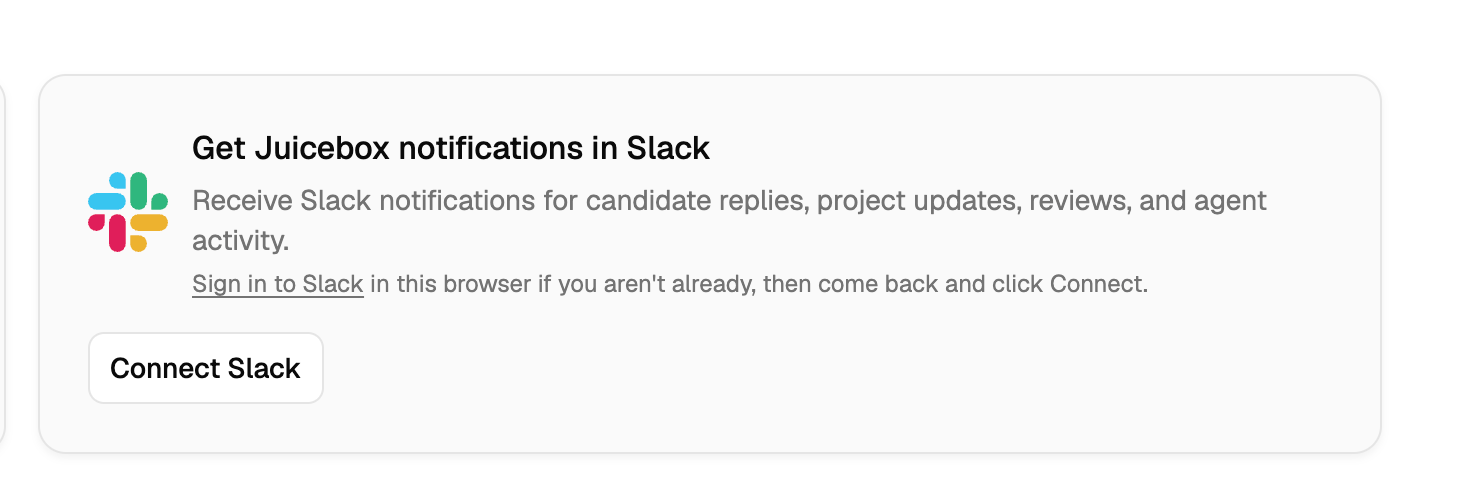
Find the Get Juicebox notifications in Slack card and select Connect Slack.
-
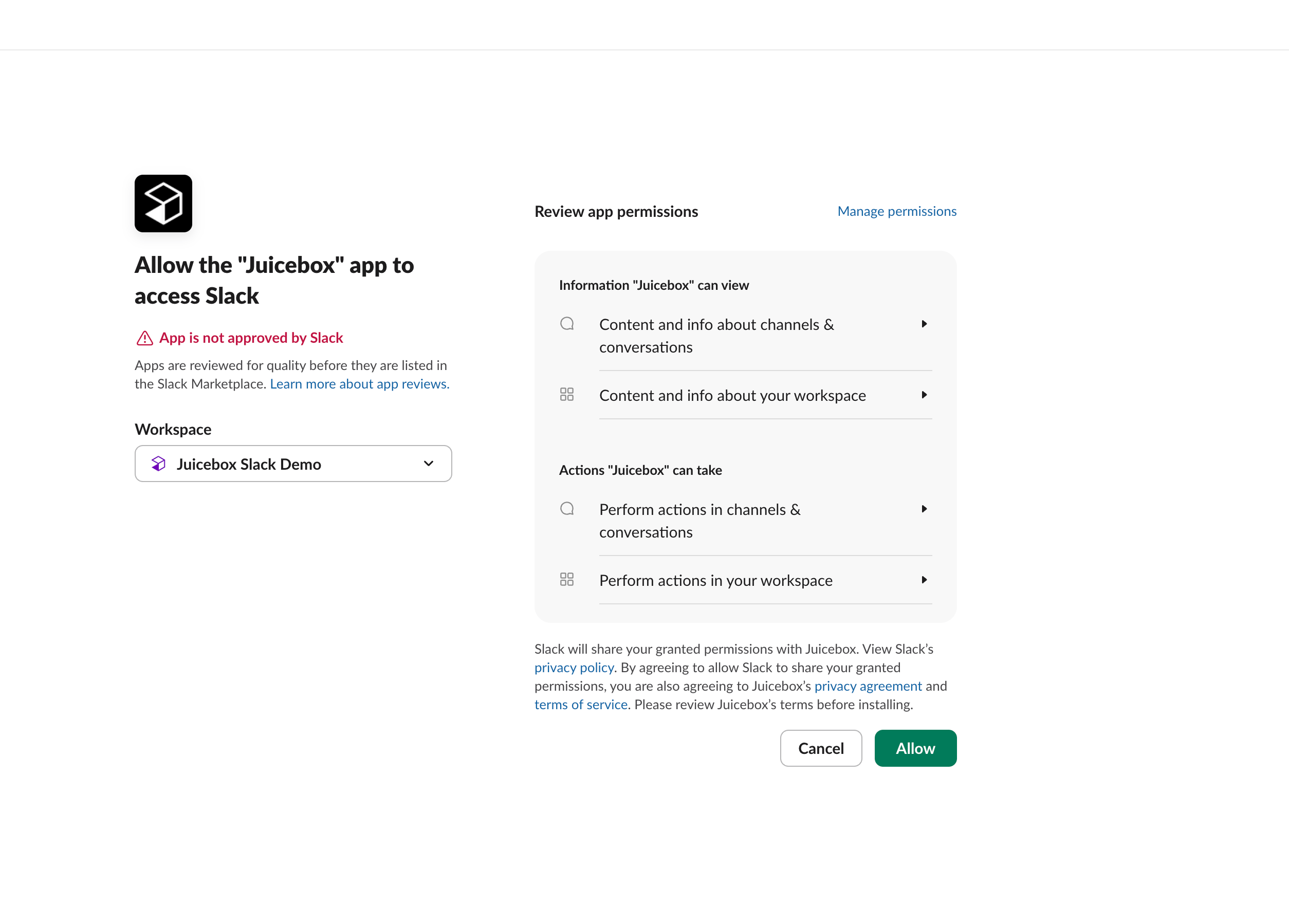
You’ll be redirected to Slack’s native permission page. Confirm the correct workspace is selected in the Workspace dropdown, review the permissions, and click Allow.
-
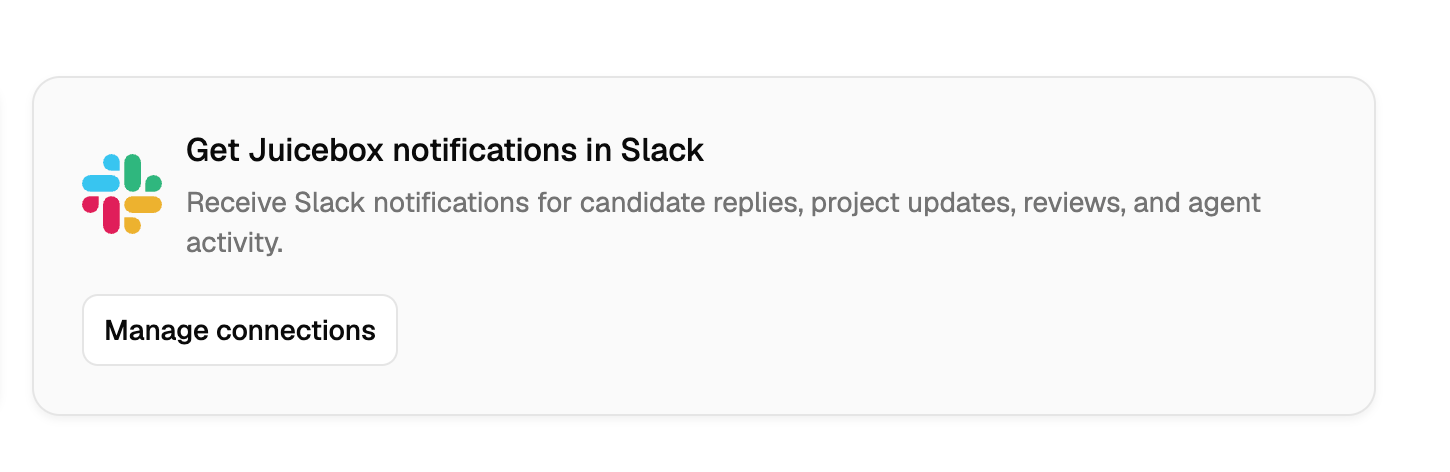
You’ll be redirected back to Juicebox. The connection card now shows Manage connections — admin setup is done.
Part 2: Add Juicebox to a Slack channel
To use Juicebox inside Slack, add the app to each channel where you want it to post and respond.-
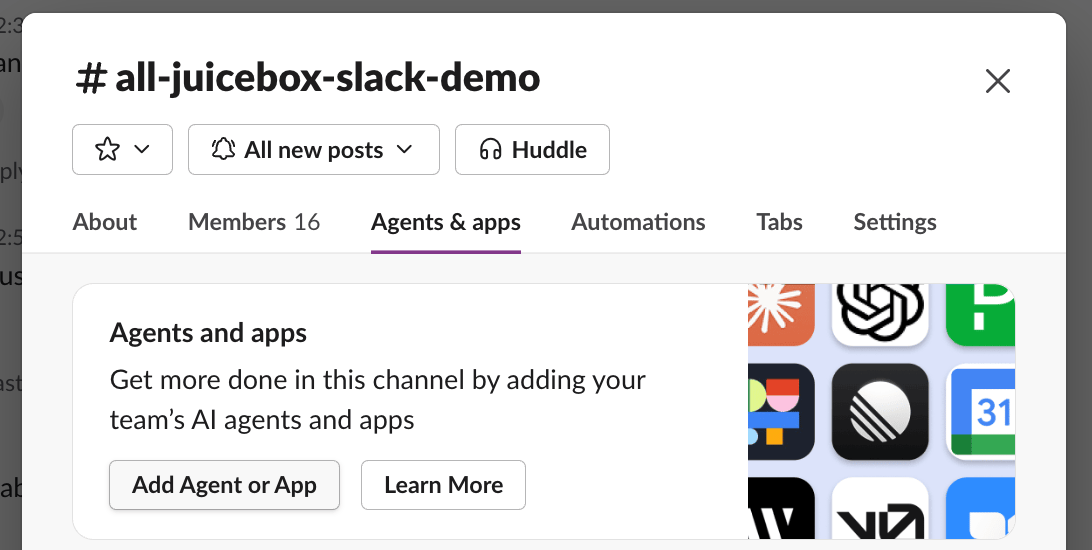
In Slack, open the channel and select the channel name at the top to open channel details. Go to the Agents & apps tab and select Add Agent or App.
-
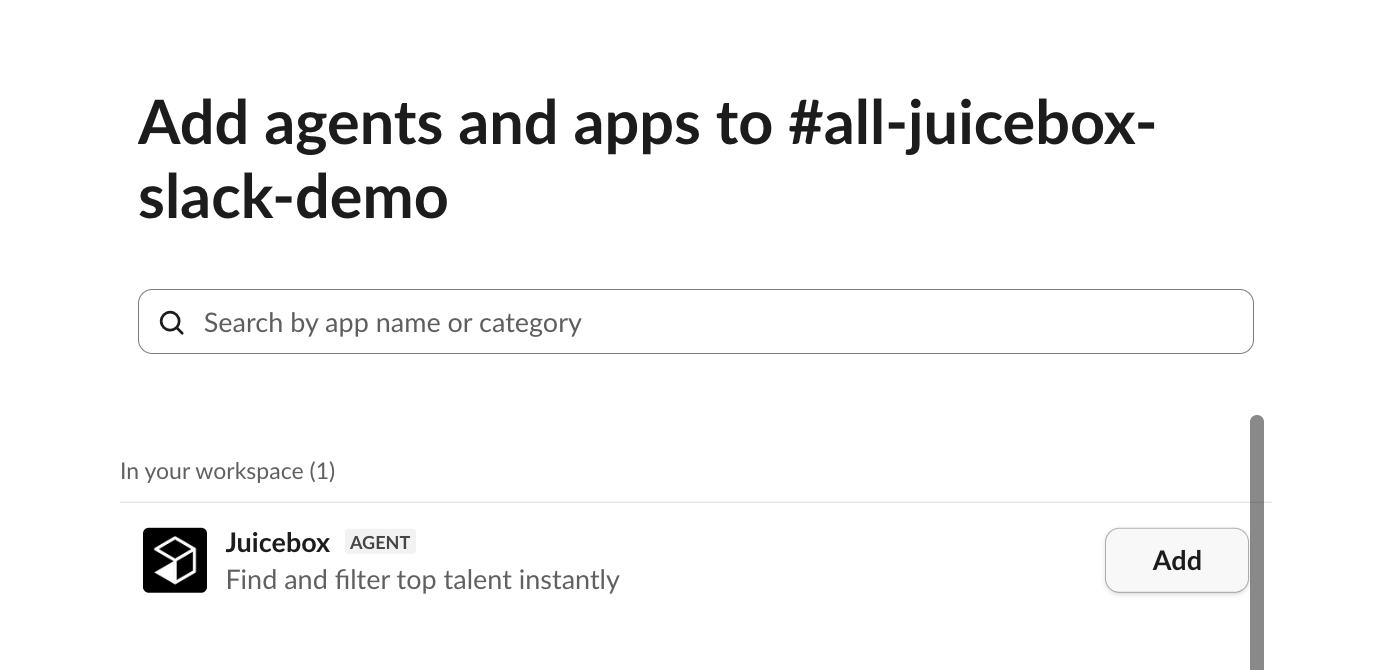
Find Juicebox in the list and select Add.
Part 3: Link a Juicebox project to a Slack channel
Once the app is connected, you can link each Juicebox project to the Slack channel where the team collaborates on that role.-
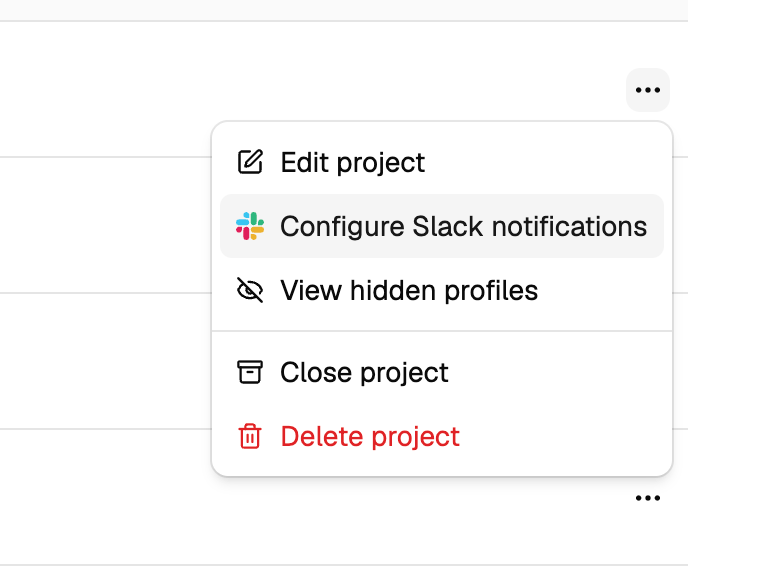
On the Projects page, open the project’s … menu and select Configure Slack notifications.
-
In the Slack notifications modal, choose one of two options:
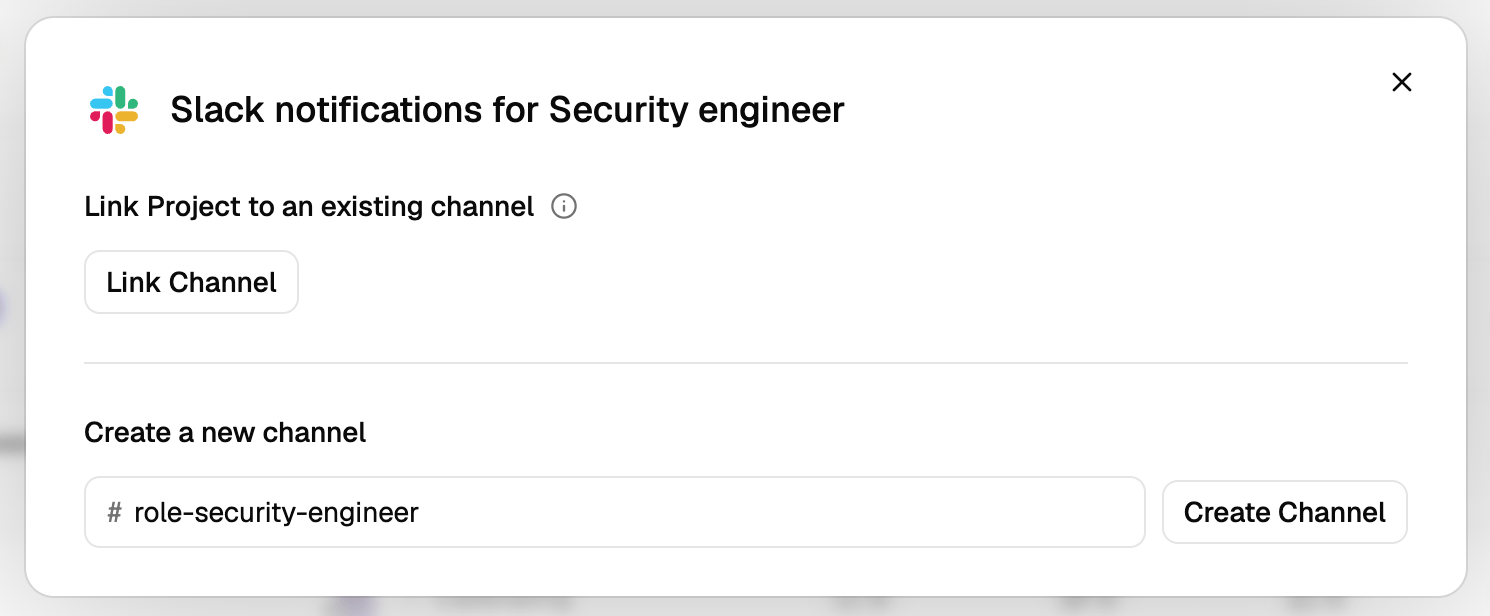
- Link Project to an existing channel — select Link Channel to connect the project to a Slack channel that already exists.
- Create a new channel — enter a channel name (a suggested name based on the project role is prefilled) and select Create Channel to have Juicebox create the channel for you.
-
If you chose Link Channel, a Slack page opens. Choose the channel you want notifications posted to under Channel for webhook and select Allow.