

This process must be completed by a Juicebox Admin. To check who your Juicebox admin is, click your profile icon in the bottom left corner and select Organization.
Using the integration
Juicebox’s integration with Ashby allows you to:- Export Profiles to Ashby: Save profiles directly into Ashby, including contact details, current company and job, profile URLs, source, and more.
- [Configurable] Auto-Export: Juicebox has the ability to auto-export profiles to your ATS with configurable triggers, including: After Shortlist, After Outreach [default], After Interested Response
- Rediscover Talent: Filter for and view profiles already in Ashby within Juicebox, including filtering by tags, jobs, and stage. Learn more about Talent Rediscovery.
- Link Ashby Jobs to Juicebox
- Import Job Descriptions: Import a job description from Ashby into Juicebox to automatically kick off a search using the job description.
- Simplify Exports: When exporting a profile from Juicebox to the ATS, it will automatically be connected to the correct job in the ATS. More details here.
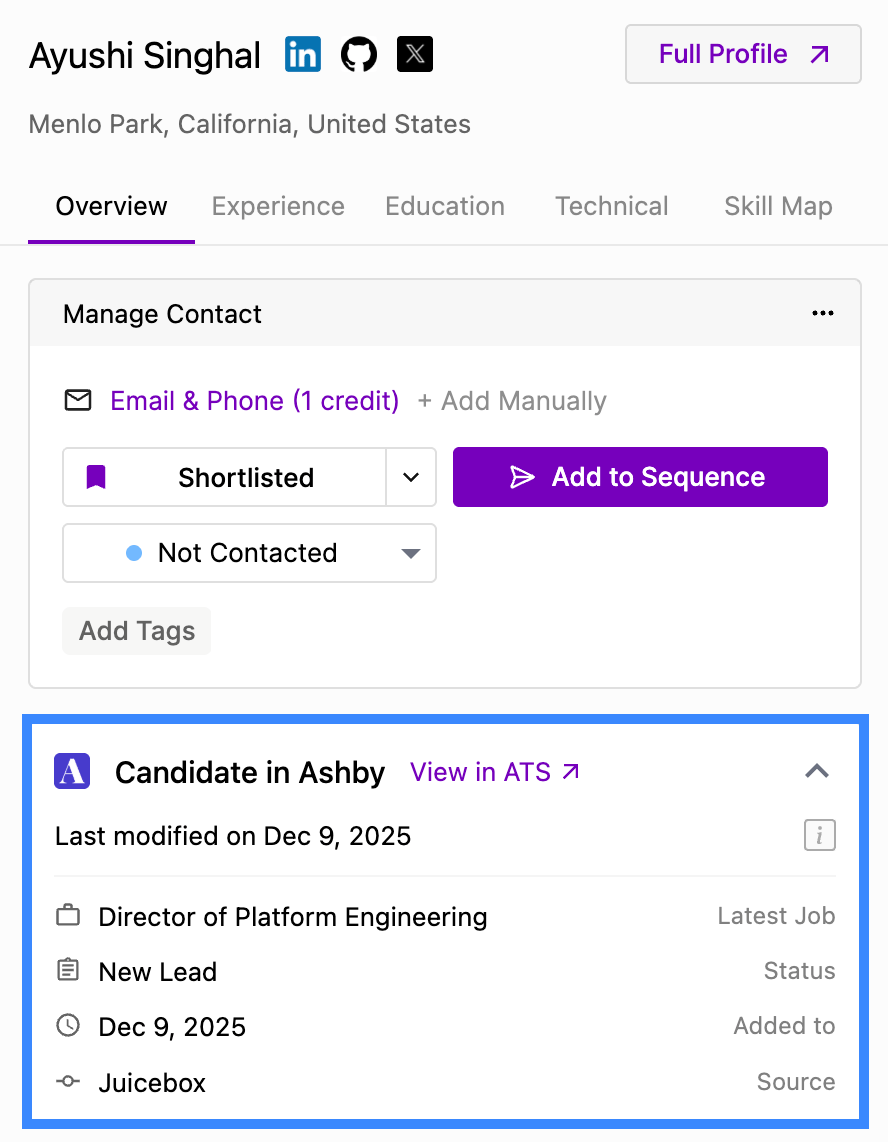
- View Profile in Ashby: View profiles already in Ashby within Juicebox. Avoid reaching out to the same profile twice, and instantly view your relationship history.
Start a project via the Ashby integration
Open the projects page and select Import Job from ATS / CRM. You will then see your Ashby jobs and can select the corresponding option.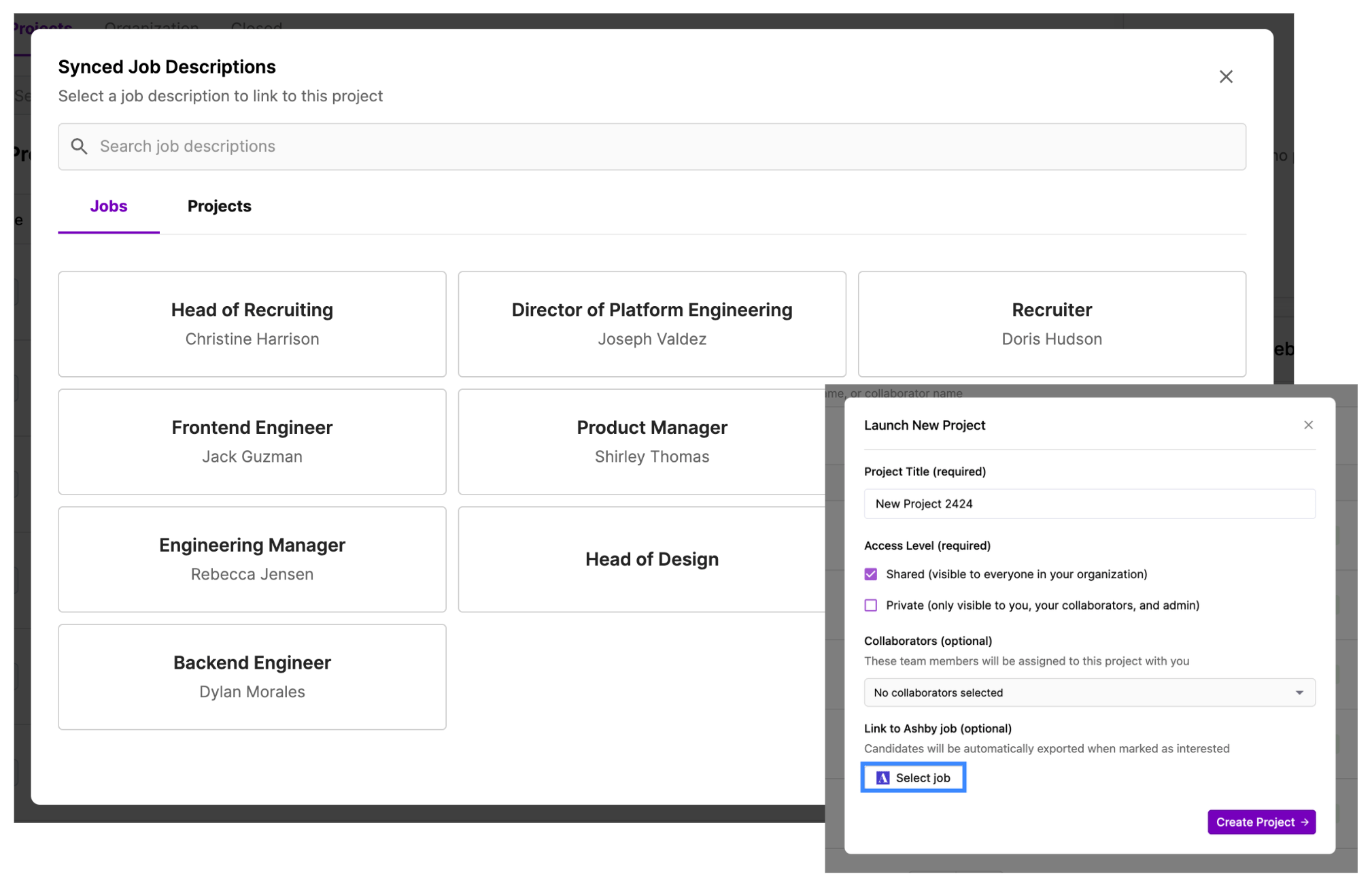
Export profiles to Ashby
Follow the regular export steps and select Export to Ashby on either an individual profile or a bulk export. After exporting to Ashby, you will see the profile created in your Ashby account.Sourcing tags
Juicebox tags each candidate it exports to Ashby with who sourced them:
Tags apply to manual exports, auto-exports, and exports from sequences, shortlists, and Slack. Use them in Ashby to filter candidates or report on Agent-sourced versus recruiter-sourced hires.
Sourcing tags require the Hiring Process Metadata: Write permission on your Ashby API key. Without it, exports still succeed, but Juicebox doesn’t tag the candidates.
View profiles already in Ashby
Juicebox will tag profiles that already exist in Ashby. You will see the last modified date, as well as the option to view the profile directly in Ashby by selecting the View in ATS button.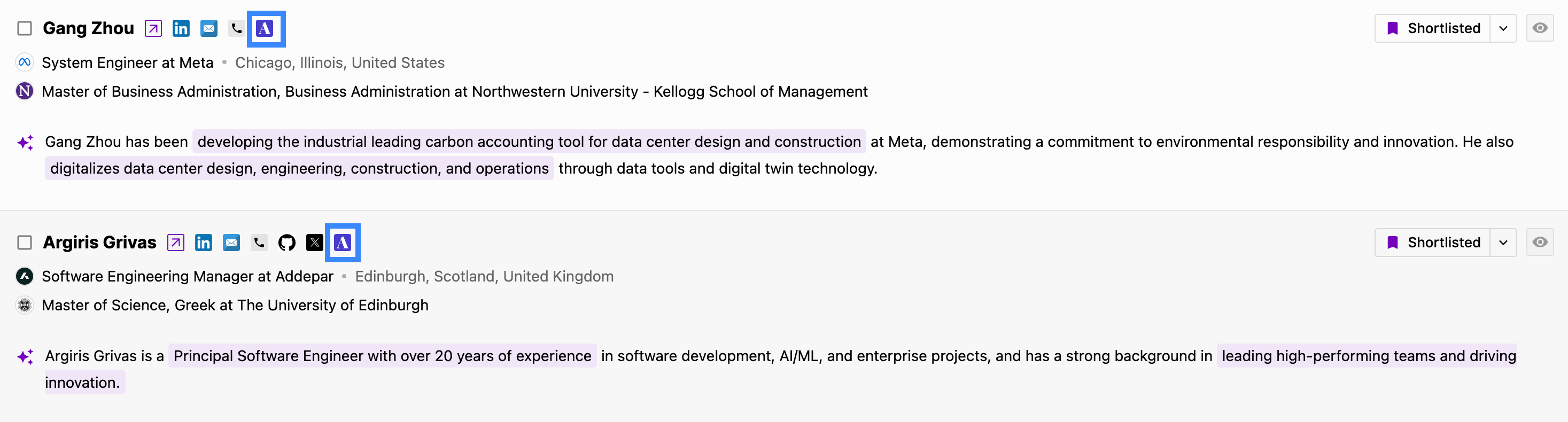
Setting up the integration
-
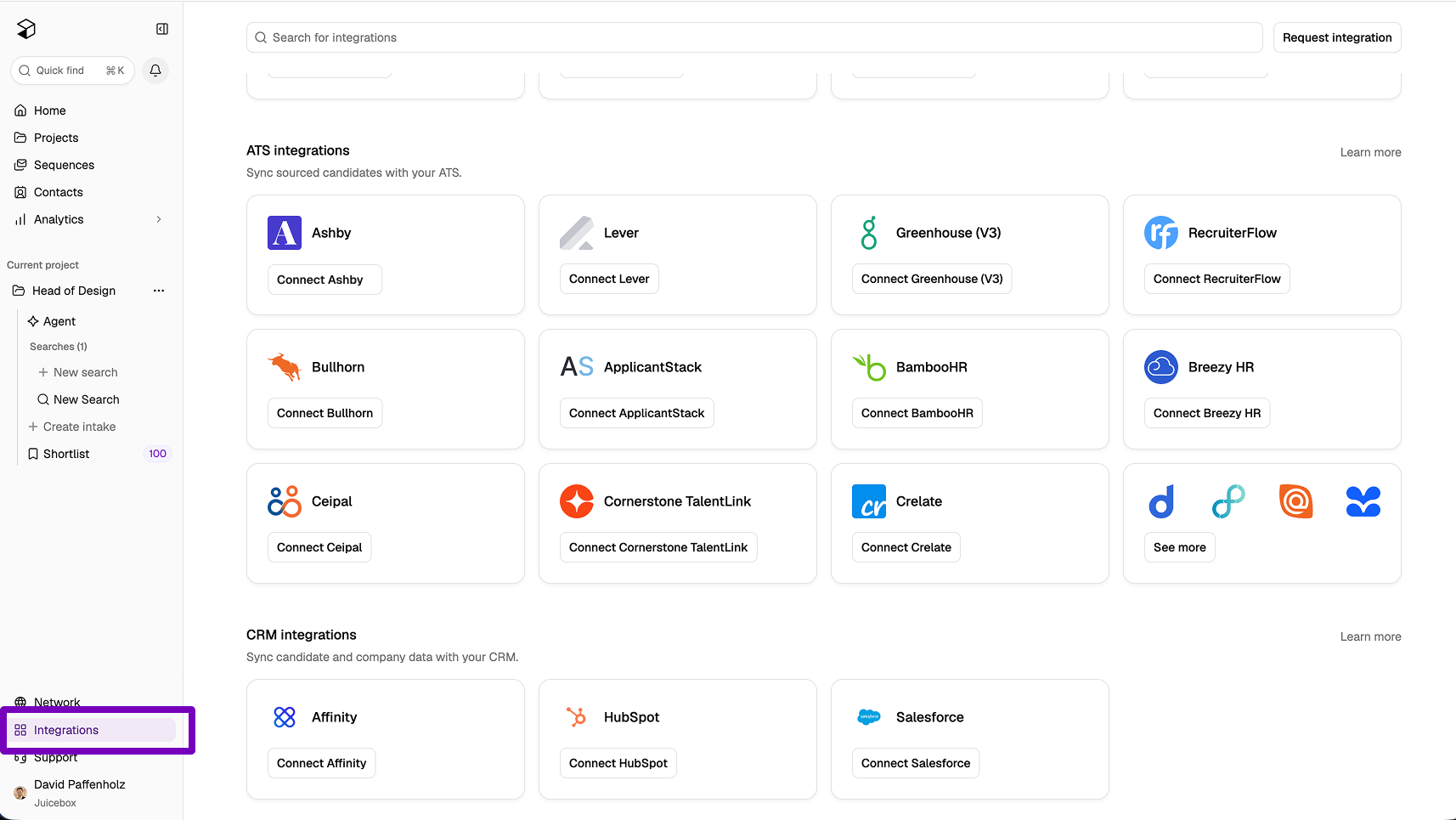
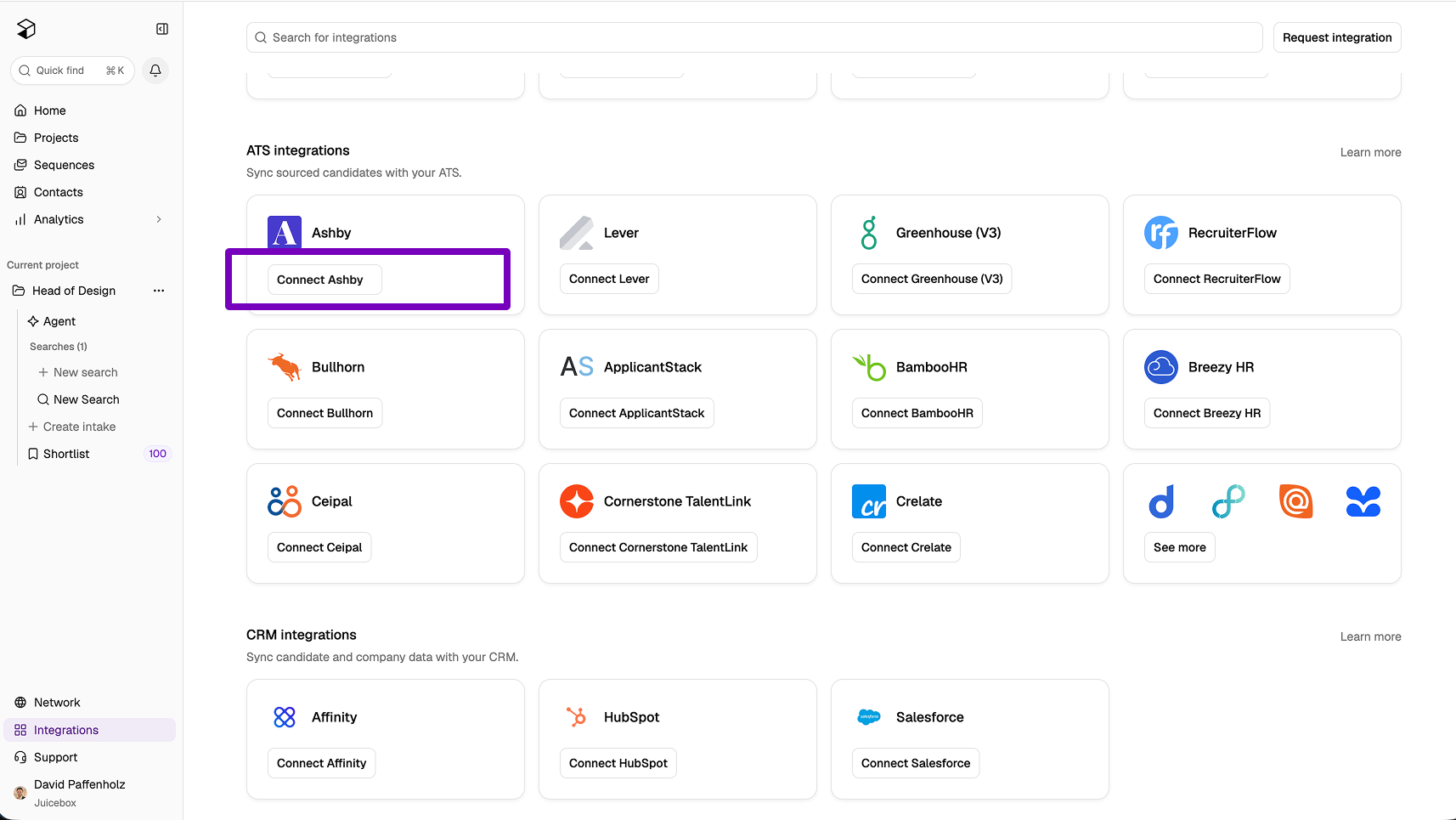
To connect Juicebox with Ashby, open the Integrations tab on the left-hand side of the Juicebox platform.
-
Select Ashby and select Connect Ashby. You can also use the search bar at the top.
-
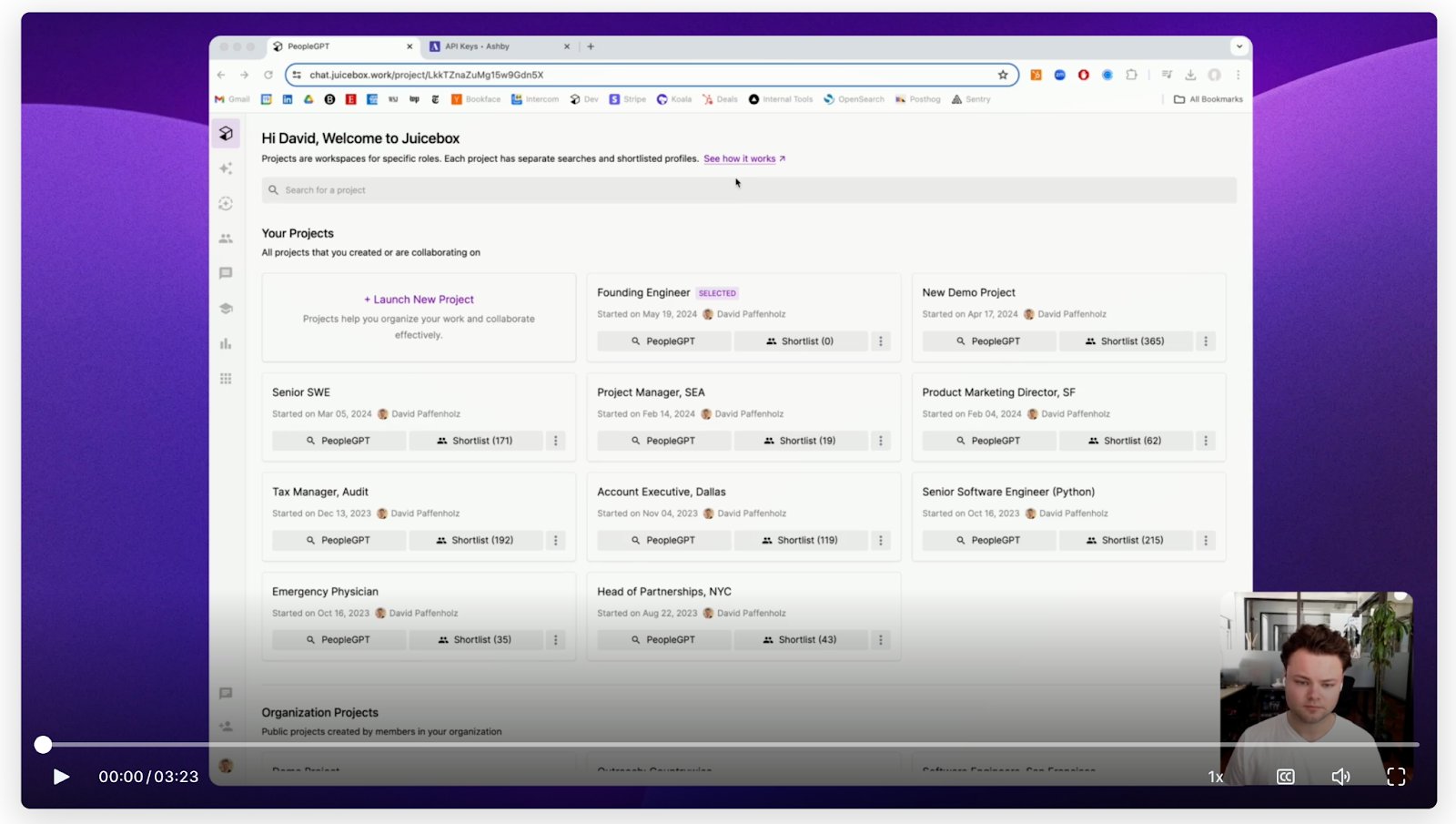
Follow the steps detailed in this video:
-
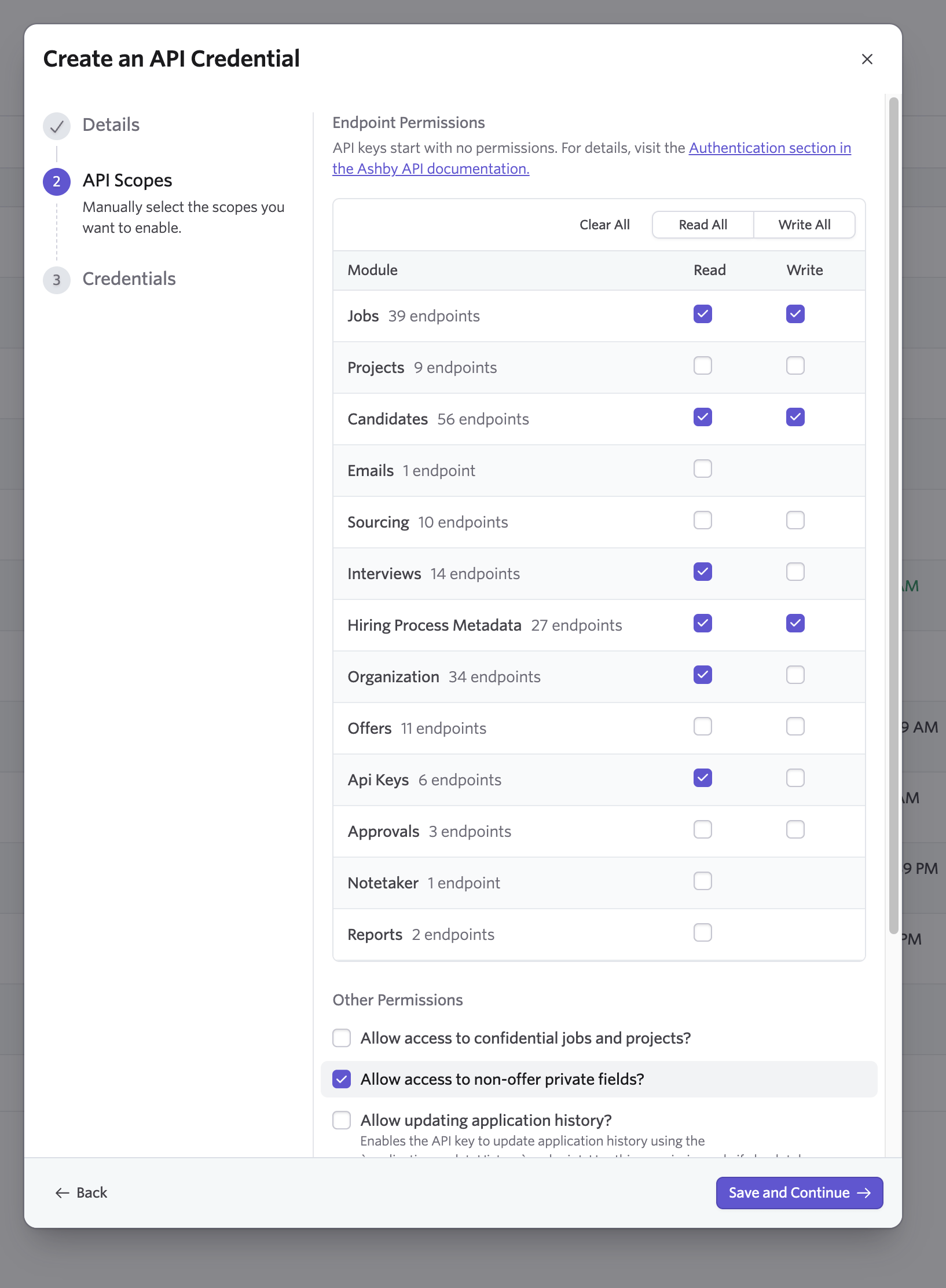
When you create the API key in Ashby, turn on the permissions shown below.
API Keys: Read lets Juicebox check which permissions your key has. Hiring Process Metadata: Write is required for sourcing tags. To link intakes to Ashby jobs, also turn on Allow access to non-offer private fields.
-
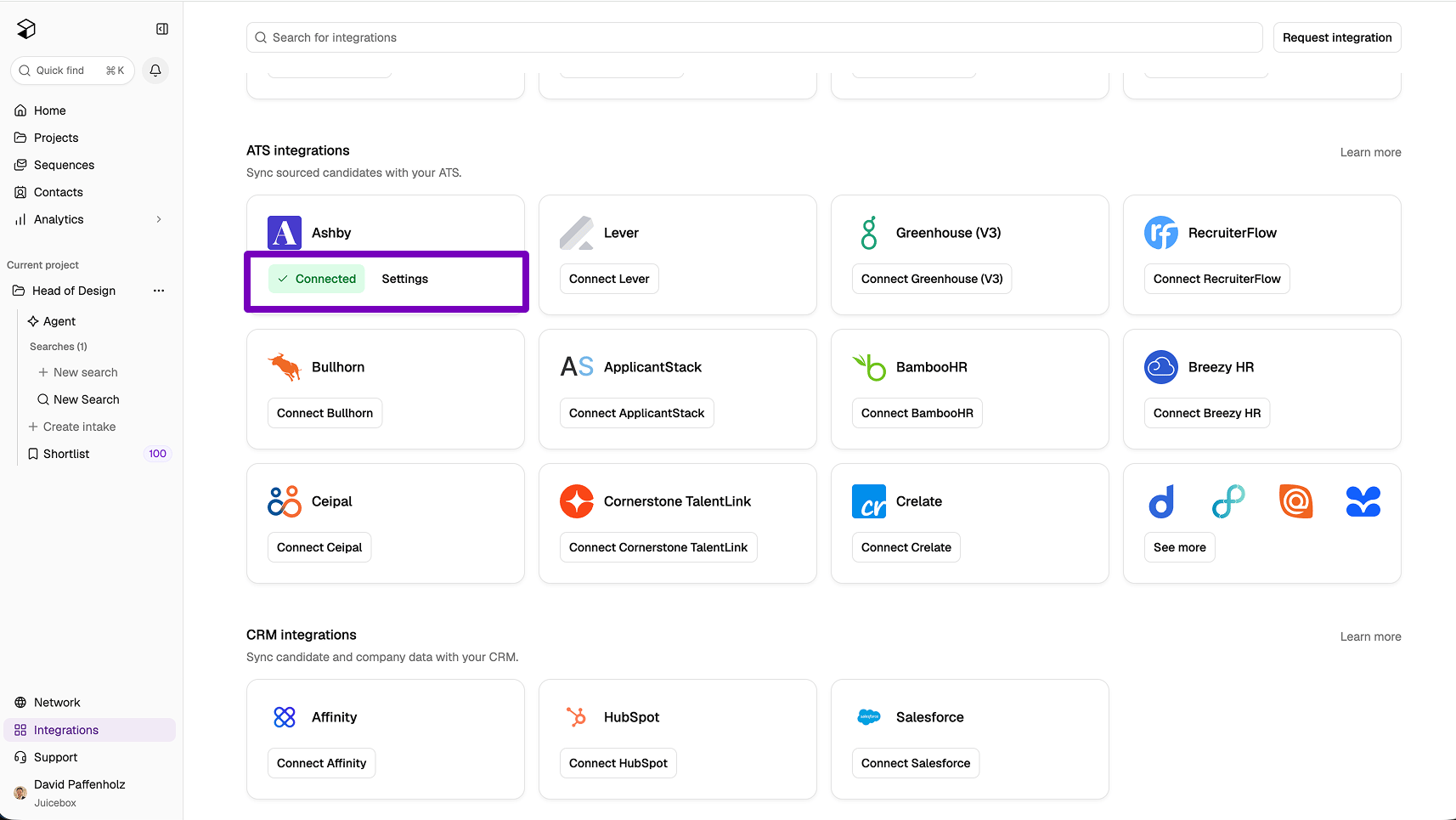
After you have signed in, the window will close and you will be redirected to Juicebox. Refresh your page. If successful, you will see a green Connected button.
It may take a few minutes for all data to sync between Juicebox and Ashby. Wait up to 10 minutes to ensure all data has been synced.
Check your API key permissions
After you connect Ashby, Juicebox checks your API key’s permissions each time you open the Integrations page. If something is missing, the Ashby card shows a warning instead of the plain Connected status:- N limited: The key is missing permissions that N Juicebox features need.
- Check permissions: Juicebox can’t read the key’s permissions, usually because API Keys: Read is off.
- By feature: Lists each Juicebox feature as Available, Limited, or Unknown, with the permissions it’s missing.
- Ashby checklist: Shows a Read/Write grid for each Ashby module and marks the permissions to turn on.
Fix missing permissions
You don’t need to reconnect Ashby. An Ashby admin can add the missing permissions to the existing key:- In Ashby, open Admin → Integrations → API Credentials.
- Edit the key you connected to Juicebox. The modal shows the key’s name when Juicebox can read it.
- Turn on the permissions marked in the checklist, then select Save.
- Return to the Ashby permissions modal in Juicebox and select Check again.
Only Ashby admins can edit API keys. If you aren’t an Ashby admin, send these steps to one. Juicebox can’t check the Allow access to non-offer private fields setting, so confirm it manually if you link intakes to Ashby jobs.