

- Click this link to navigate to LinkedIn’s data export interface. If the link does not work, follow the steps in LinkedIn’s help article.
-
In the interface, select Download larger data archive (option 1) and then click Request archive.
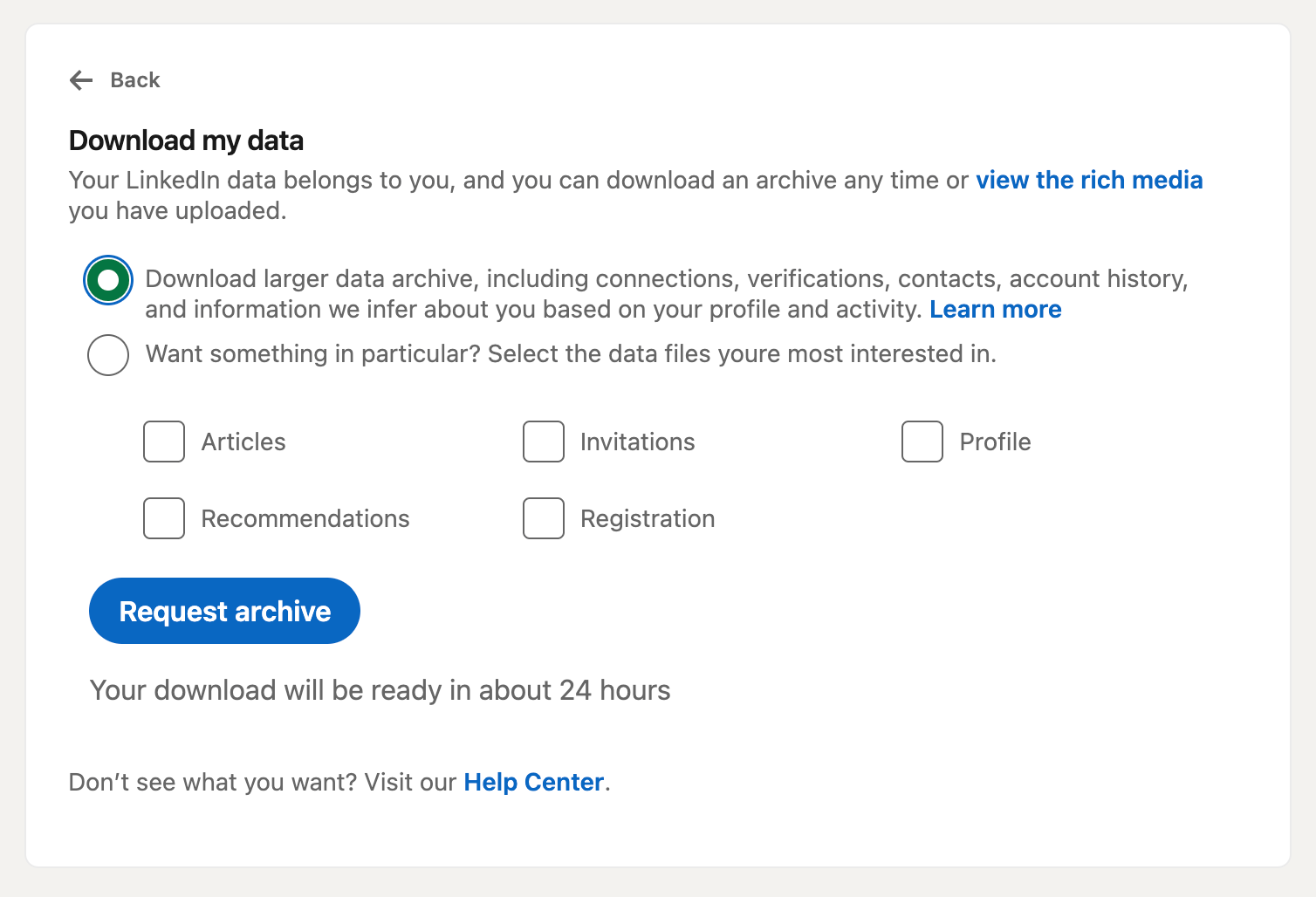
- Within 24 hours, you should receive an email from LinkedIn containing a CSV file called “Connections”. Download that file and head to the Juicebox platform. On Juicebox, in the Integrations tab, select LinkedIn and upload the CSV file.
If you receive a ZIP file instead of a CSV file from LinkedIn, this is normal — simply extract the ZIP file to access the
Connections.csv file inside, then upload that CSV to Juicebox as described.Juicebox supports up to 500 profiles per upload, so if your connections file contains more than 500 rows, you’ll need to split it into multiple CSV files of 500 rows or fewer and upload them separately.