

Reset your password
- Visit the login page.
- Click the Forgot Password link.
- Enter your email address.
- Follow the password reset instructions sent to your email.
- Create a new strong password.
If you originally signed up using Google OAuth, you can use the password reset process to set up email/password authentication for your account. This allows you to log in with either method.
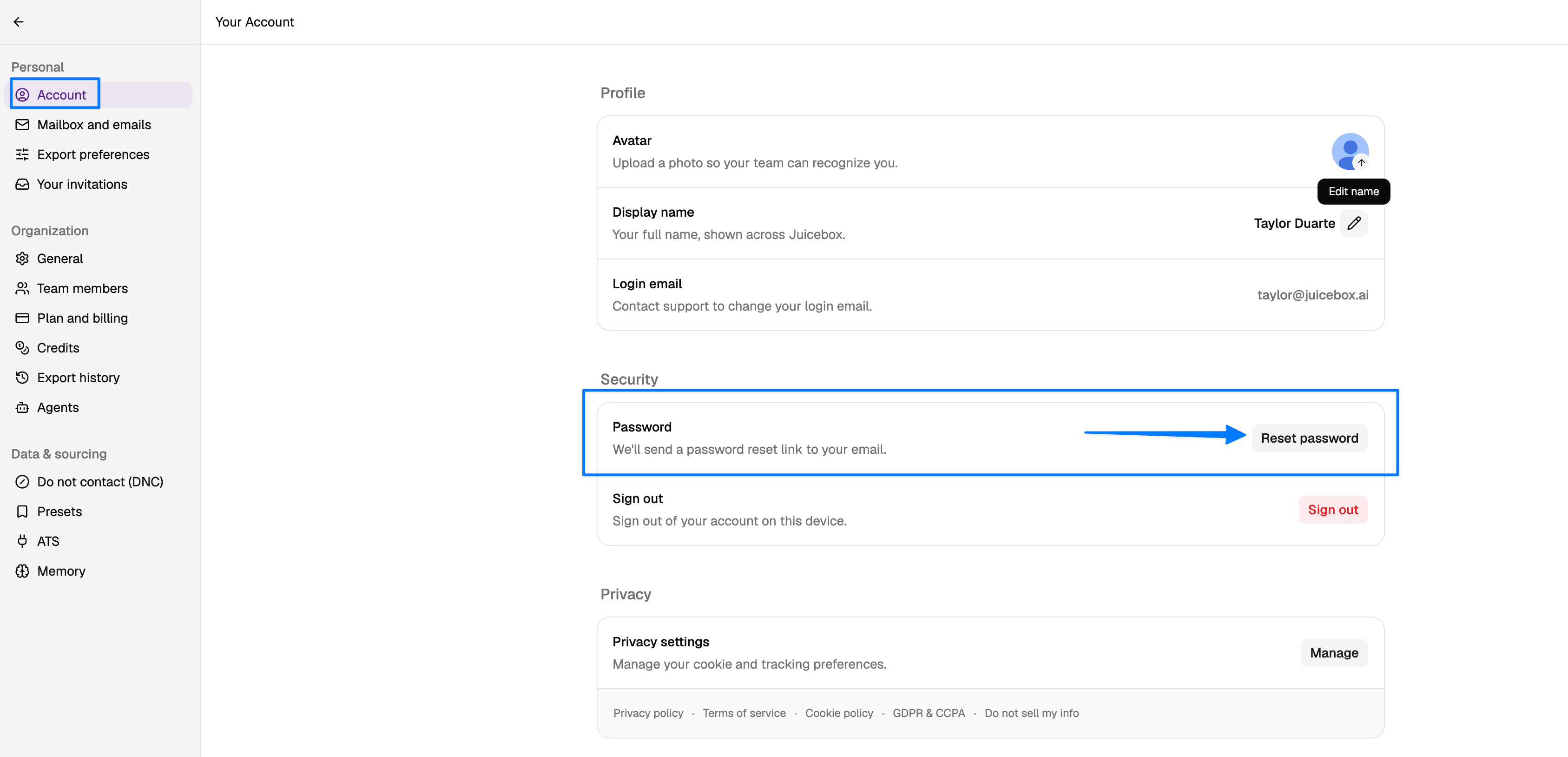
Already logged in?
- Head to Account Settings.
- Go to Account.
- Select Reset password.
- The link will be sent to your email address.
Still can’t log in?
If a password reset doesn’t resolve the issue, try these additional steps:- Clear your browser cache and cookies.
- Try using an incognito or private browsing window to reset your password.
- Verify you’re logged into the correct email account. If you have multiple Juicebox accounts (for example, a free trial and a paid account, or personal and work emails), you may be logged into the wrong one:
- Check which email you’re currently logged in with in your account settings.
- If you’re logged into the wrong account, click on your name at the lower left side of the screen and select Sign out.
- Log back in using the correct email address and password.
- If needed, use the password reset steps above for the correct account.
- Try using a different browser.
- If you use a password manager, try entering credentials manually.