

The Juicebox MCP server is rolling out to users starting August 12th, 2026.
Permissions & access
The Juicebox MCP server is available on all Juicebox paid plans. Access levels vary based on the plan you are on. Please review the access matrix below for more details.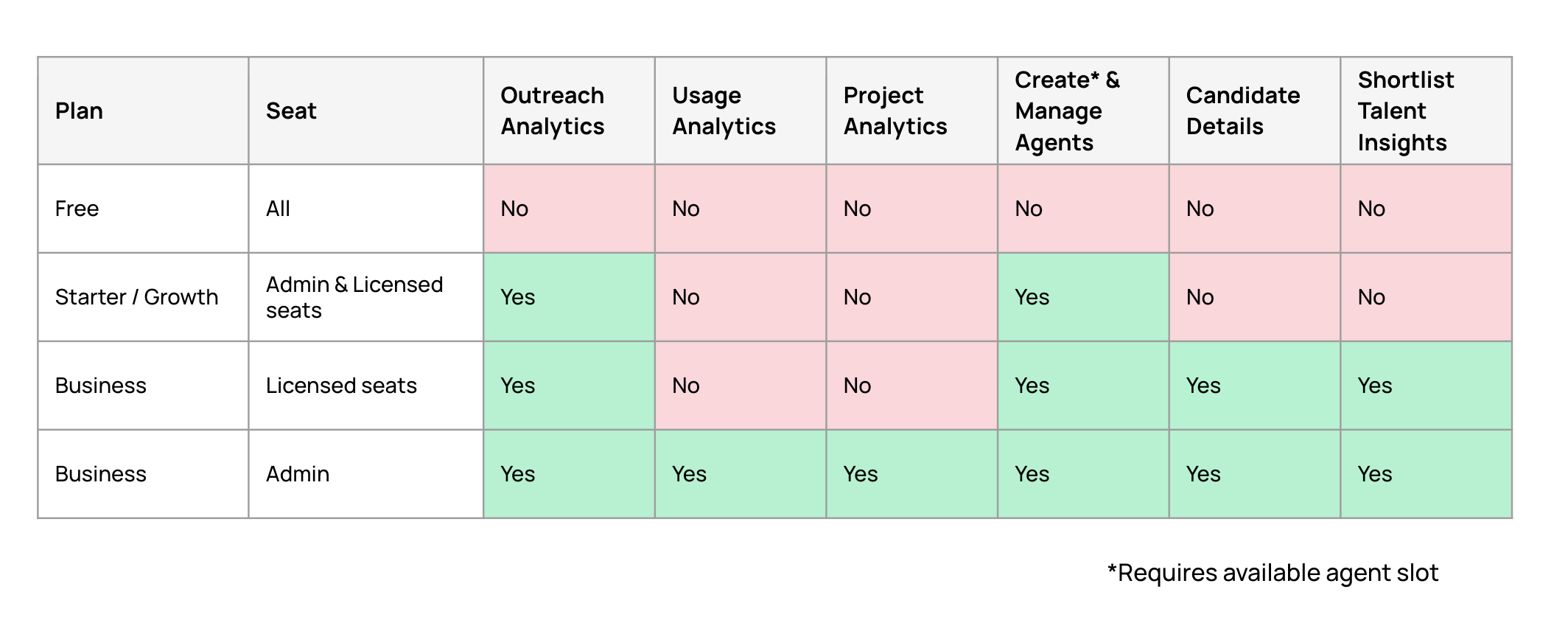
Authentication
Our MCP server authenticates each user individually via OAuth. Every user completes their own OAuth flow during setup, so the server only returns data that the user can already see in Juicebox. A user cannot query projects, searches, or candidates they do not otherwise have access to in the app.Re-authentication every 30 days
Each MCP connection stays signed in for 30 days from the time you first approve it. Your AI client refreshes access automatically during that window, but refreshing does not extend the session past 30 days. After 30 days, your client prompts you to complete the OAuth flow again. Sign in and click Approve to reconnect. If your client’s registration with the Juicebox MCP server is missing, the client registers again automatically when you sign in. You don’t need to remove and re-add the server.Set up your MCP client
The Juicebox MCP server is client-agnostic and works with any MCP-compatible tool. The server URL is: https://mcp.juicebox.ai/v1 Note: this URL is only used by MCP clients. Opening it directly in a browser will show an error, which is expected. Select your client below for setup instructions. During setup, you’ll see an approval screen listing the permissions the MCP server requests: reading your recruiting analytics and creating or calibrating agents on your behalf. Click Approve to continue.Claude Connectors
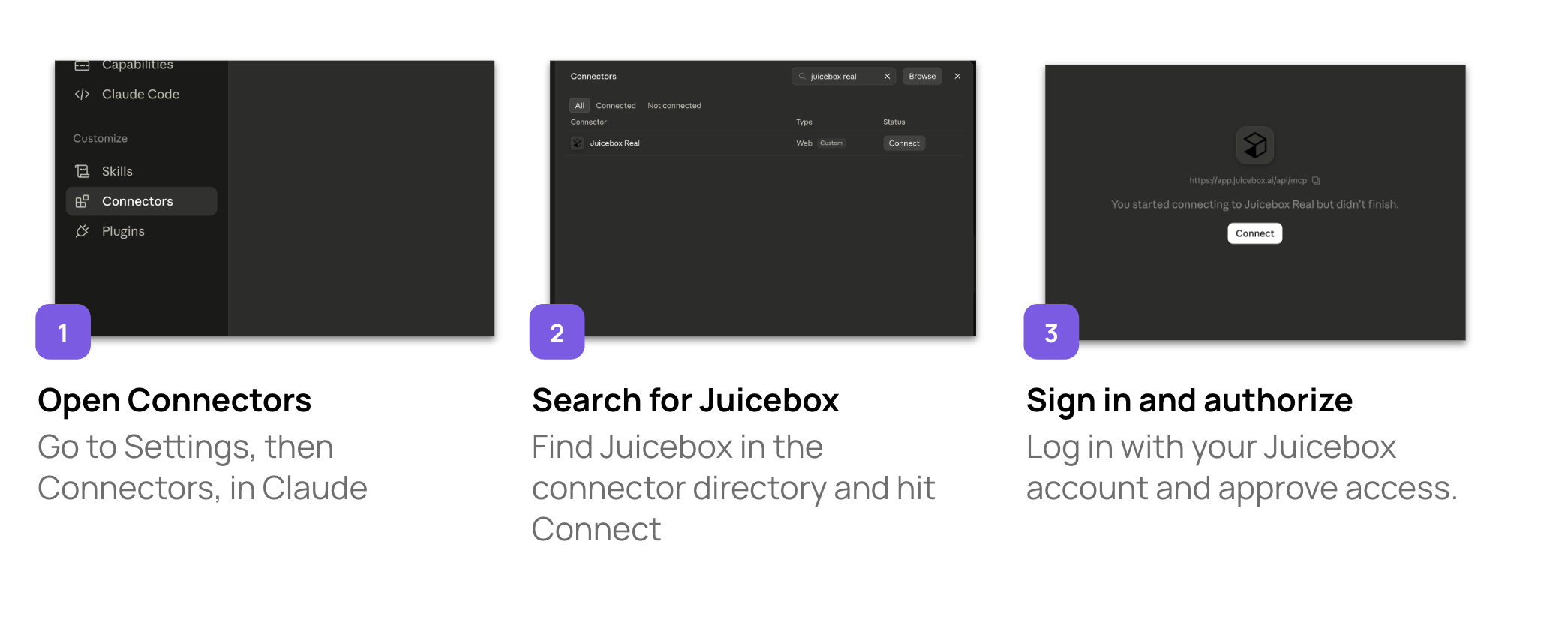
- In Claude, go to Settings > Connectors and search for Juicebox, or go there directly with this link: claude.ai/directory/connectors
- Select Juicebox and click Connect.
- You’ll be prompted to log in to Juicebox (if you aren’t already) and select Approve in the MCP access window.
ChatGPT Plugins
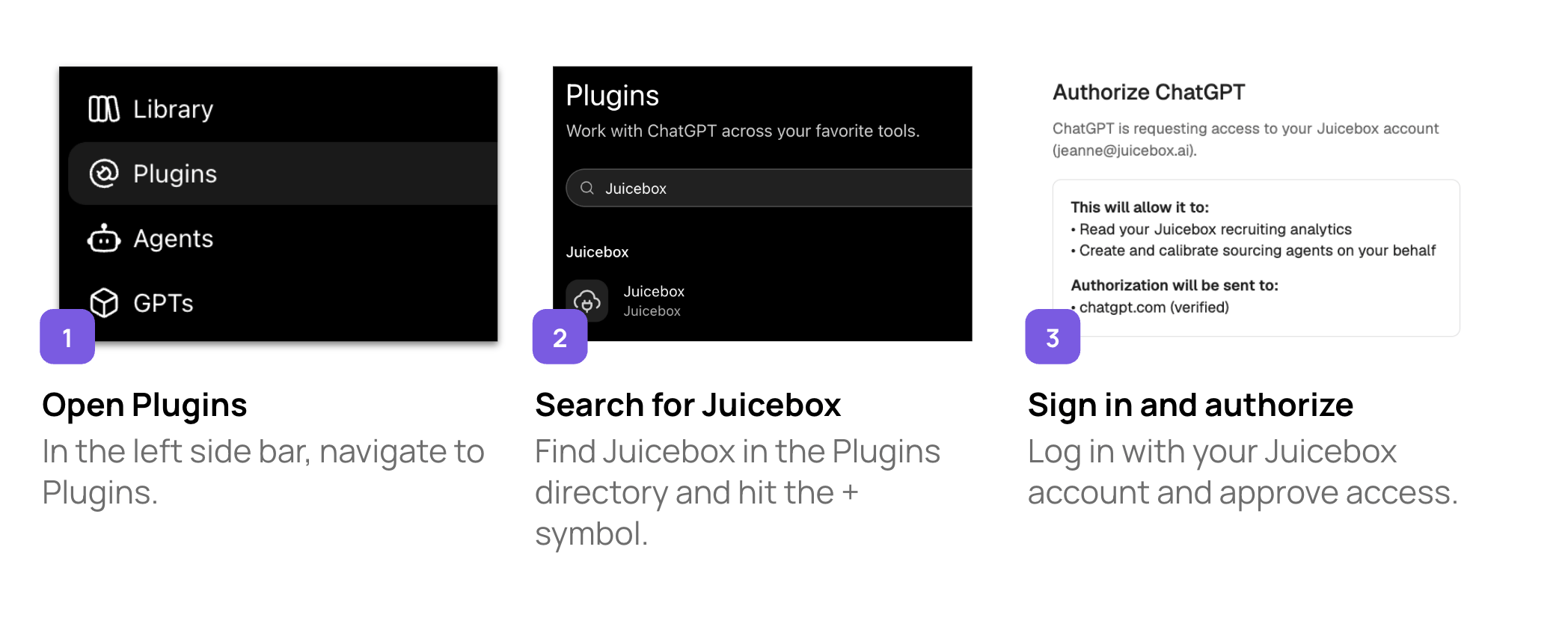
- In ChatGPT, open Settings > Plugins and search for Juicebox, or use this link: chatgpt.com/apps?q=Juicebox
- Select Juicebox and click Connect.
- Follow the authorization prompts to complete setup.
Cursor and other IDEs
- Open Cursor Settings > Tools & MCPs > New MCP server.
- Paste the following into your configuration:
- Save and restart Cursor. When you use a Juicebox tool for the first time, complete the OAuth flow to connect your workspace.
Gemini CLI
Juicebox’s MCP server supports dynamic client registration, so it can be configured with Gemini CLI:- Add the server with the command: gemini mcp add —transport http juicebox https://mcp.juicebox.ai/v1/
- Complete the auth process. For more on Gemini CLI’s auth process, check out their MCP server guide.
- Restart the Gemini CLI (or run /mcp reload if the session is active) and check the status using the built-in command /mcp list. You should see the server listed with a “Connected” status.
Tools
Analytics tools- get_schema — Shows a catalog of what data you can ask about: the available tables, fields, and example questions. You call this first so you know what you’re allowed to query.
- get_data — Runs a read-only report and returns rows of data (e.g. counts, breakdowns, activity). It’s the actual “answer my analytics question” tool, always limited to your organization’s data.
- resolve — Turns a human name or link into the internal ID the system needs. You give it a project name, a teammate’s name/email, a sequence title, or an agent name (and it hands back the matching ID), so other tools can act on the right thing.
- search_shortlist — Lists the candidates saved to a project’s shortlist, with optional filters (e.g. by title or school). Read-only, and only for projects you’re allowed to see. Available on the Business plan.
- get_candidate_details — Pulls richer details on specific shortlisted candidates that the quick list doesn’t include—like total years of experience and job tenure—so you can filter or analyze on those. Available on the Business plan.
- get_project — Gives a summary of one project: its basic info plus how much is in it (number of saved searches and shortlisted candidates). Available on the Business plan.
- get_agent_schema — Explains how recruiting agents work: what you need to create/configure one, the lifecycle (start, pause, resume, close, reopen), and current limits. You read this first before creating an agent.
- create_agent — Creates a new automated recruiting agent for a role (or fine-tunes an existing one). If you give it enough about the role, it sets up and starts searching for candidates in one step; if not, it asks a follow-up question.
- start_sourcing — Tells an already-set-up agent to begin actively searching for candidates. Usually not needed since create_agent starts automatically, but useful for restarting or retrying.
- manage_agent — Controls an existing agent’s lifecycle: pause, resume, close, or reopen it.
Export limits
To keep Juicebox fast and reliable for users, some detailed candidate exports through the MCP Server count toward your plan’s monthly export limit.- Doesn’t count toward your limit: Lightweight lookups like a candidate’s name or LinkedIn URL.
- Counts toward your limit: Full candidate profiles, including experience history and contact details.