Account settings
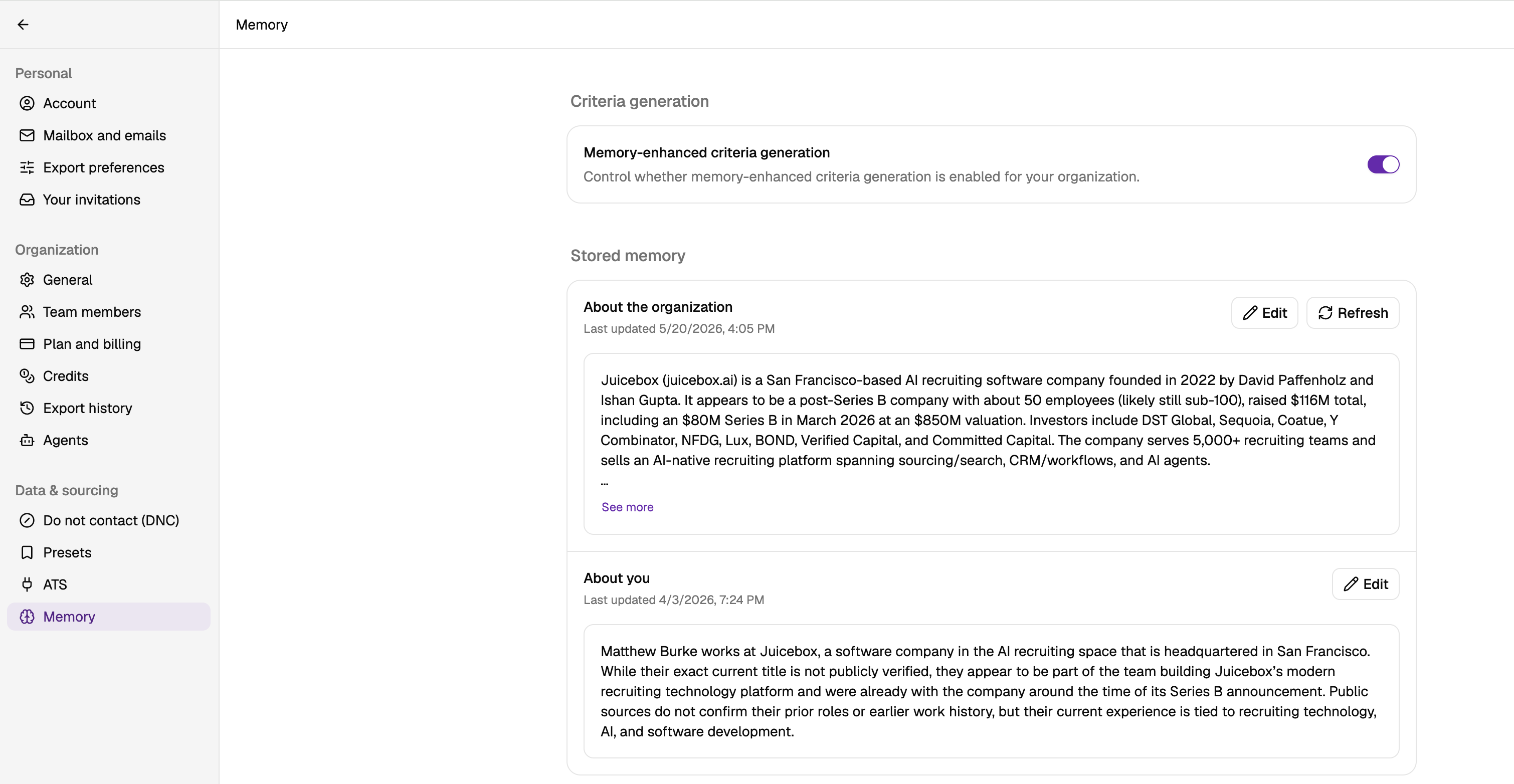
To manage your Juicebox account, select your name or organization at the bottom of the left-hand menu, then select ‘Account Settings.’ This opens up your account menu, which is organized into three main sections:- Personal
- Organization
- Data & sourcing
Personal
Mailbox and emails
Here, you can connect or switch your mailbox, add a custom signature, and enable candidate reply notifications. Juicebox sends these updates to your inbox and includes the candidate’s profile (not visible to the candidate). You can also enable automated reminders, link tracking, or limit outreach to verified domains only, which reduces bounce rates.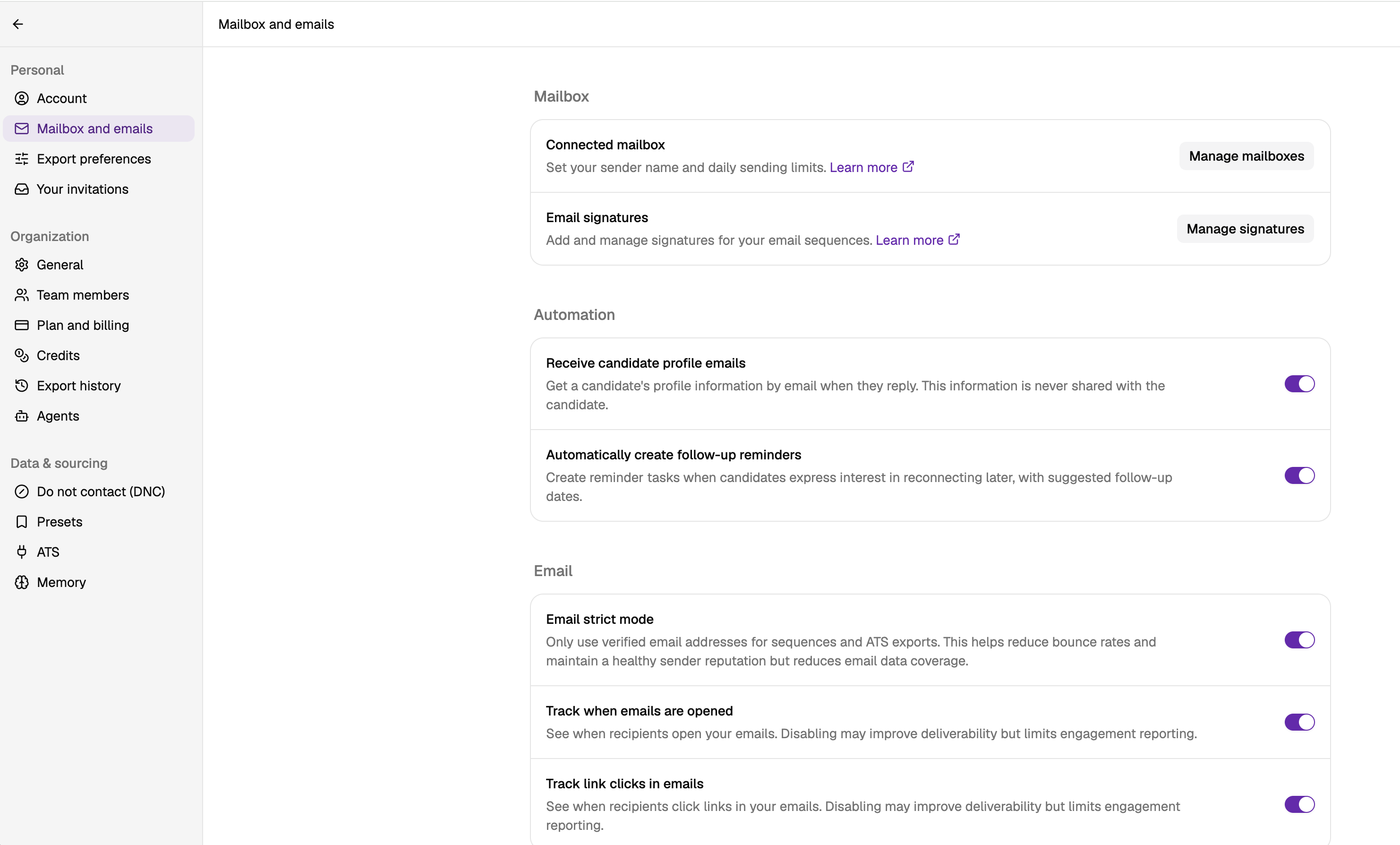
Email signatures
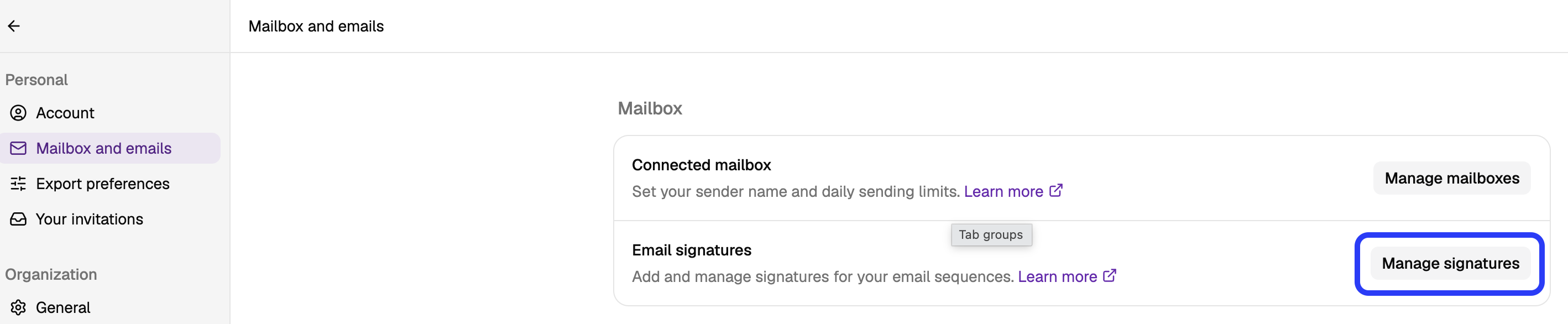
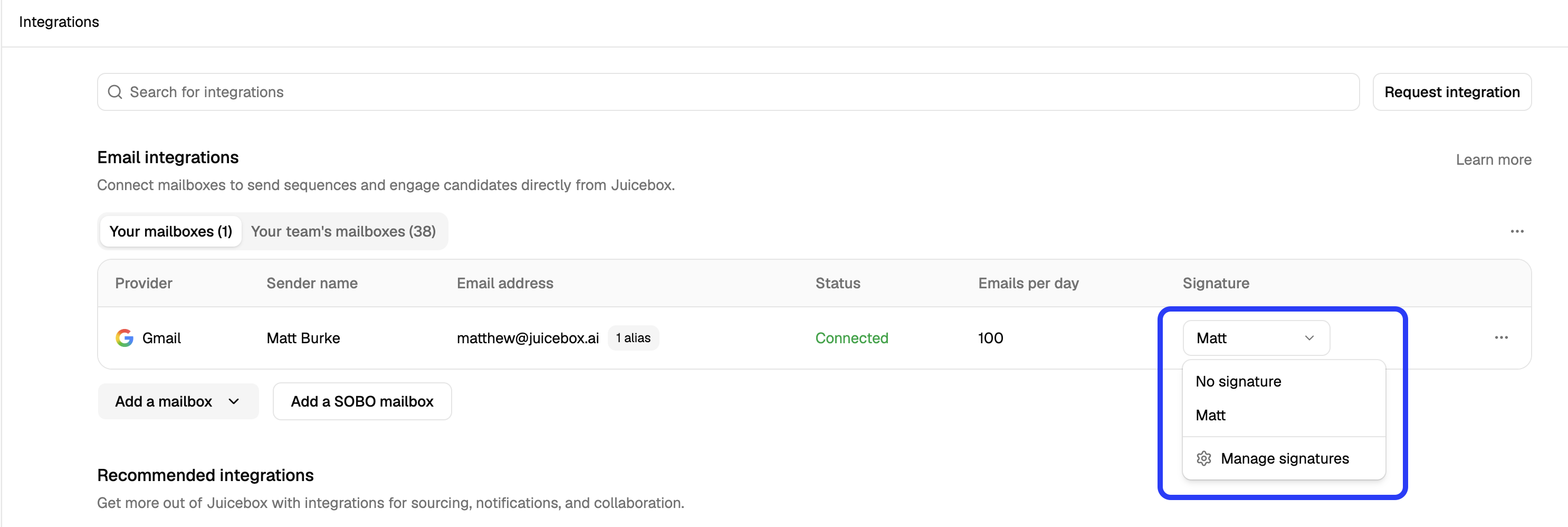
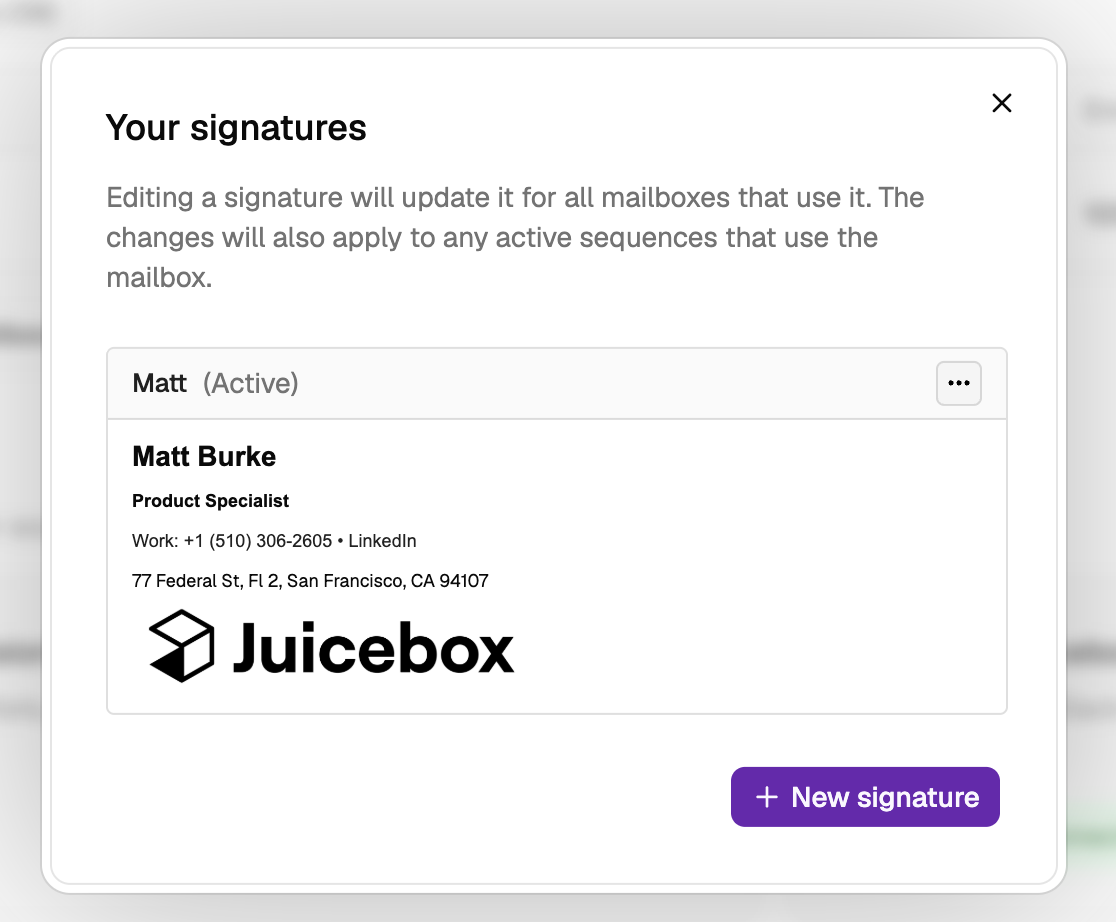
Selecting Manage Signatures takes you to the Integrations tab. From there, you can:- Add new signatures
- Edit or duplicate existing ones
- Assign a signature to a mailbox
- Delete a signature
Export preferences
When exporting talent profiles to CSV, you can choose to include up to 15 optional fields, such as GitHub, Behance, or personal websites (when available). Learn more about how to export profiles.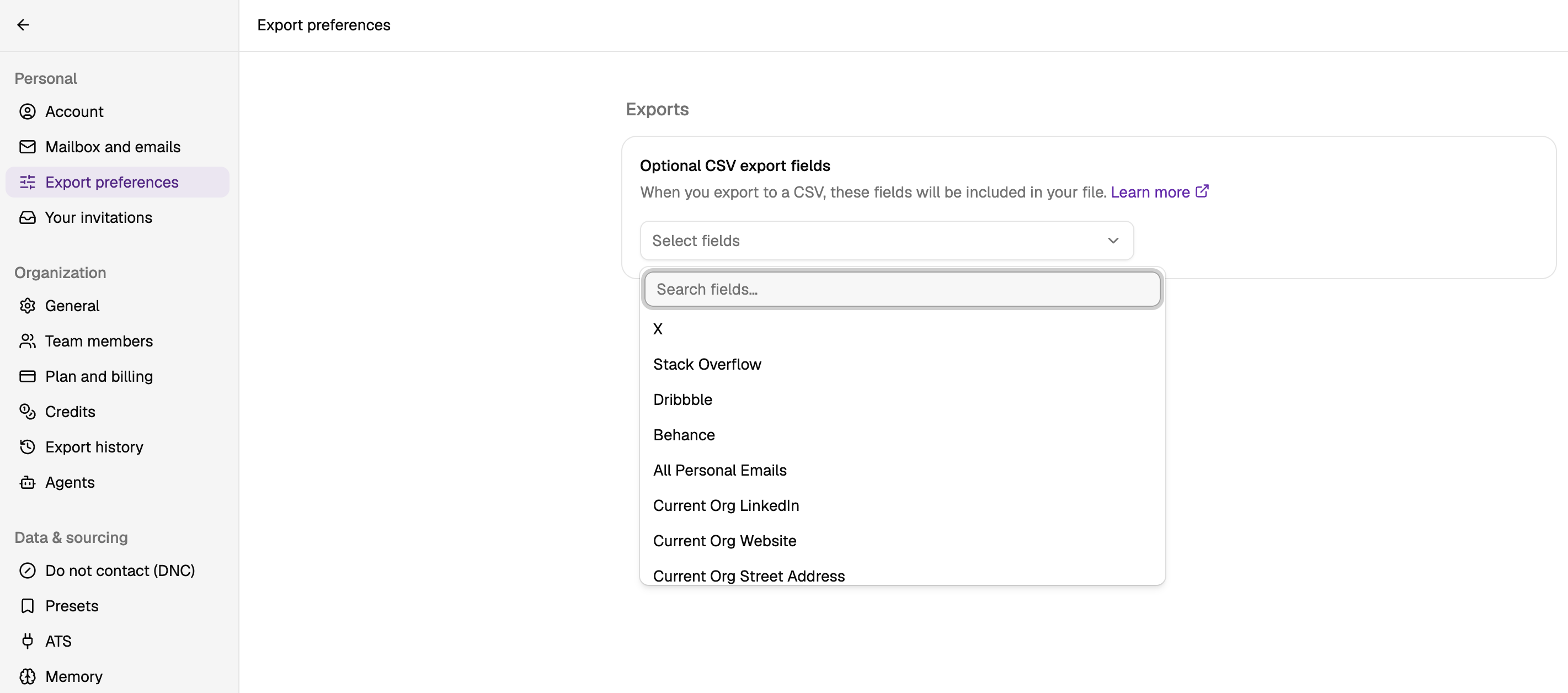
Your invitations
If another organization has invited you to join their Juicebox workspace, you’ll find pending invitations here.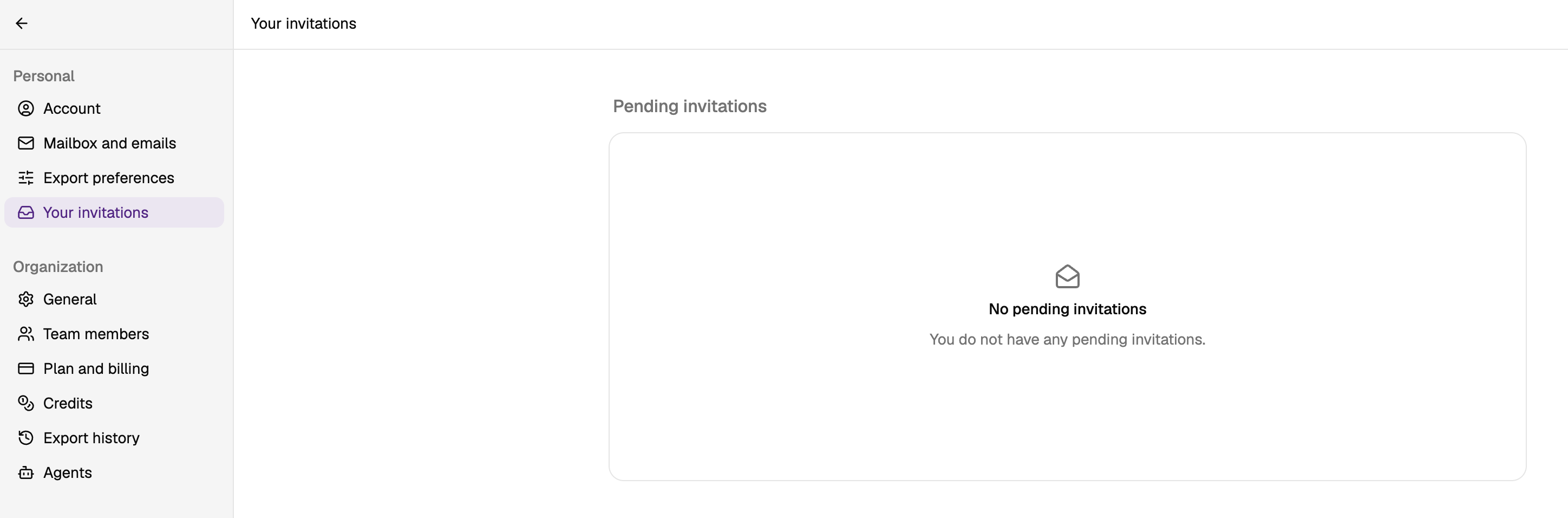
Organization
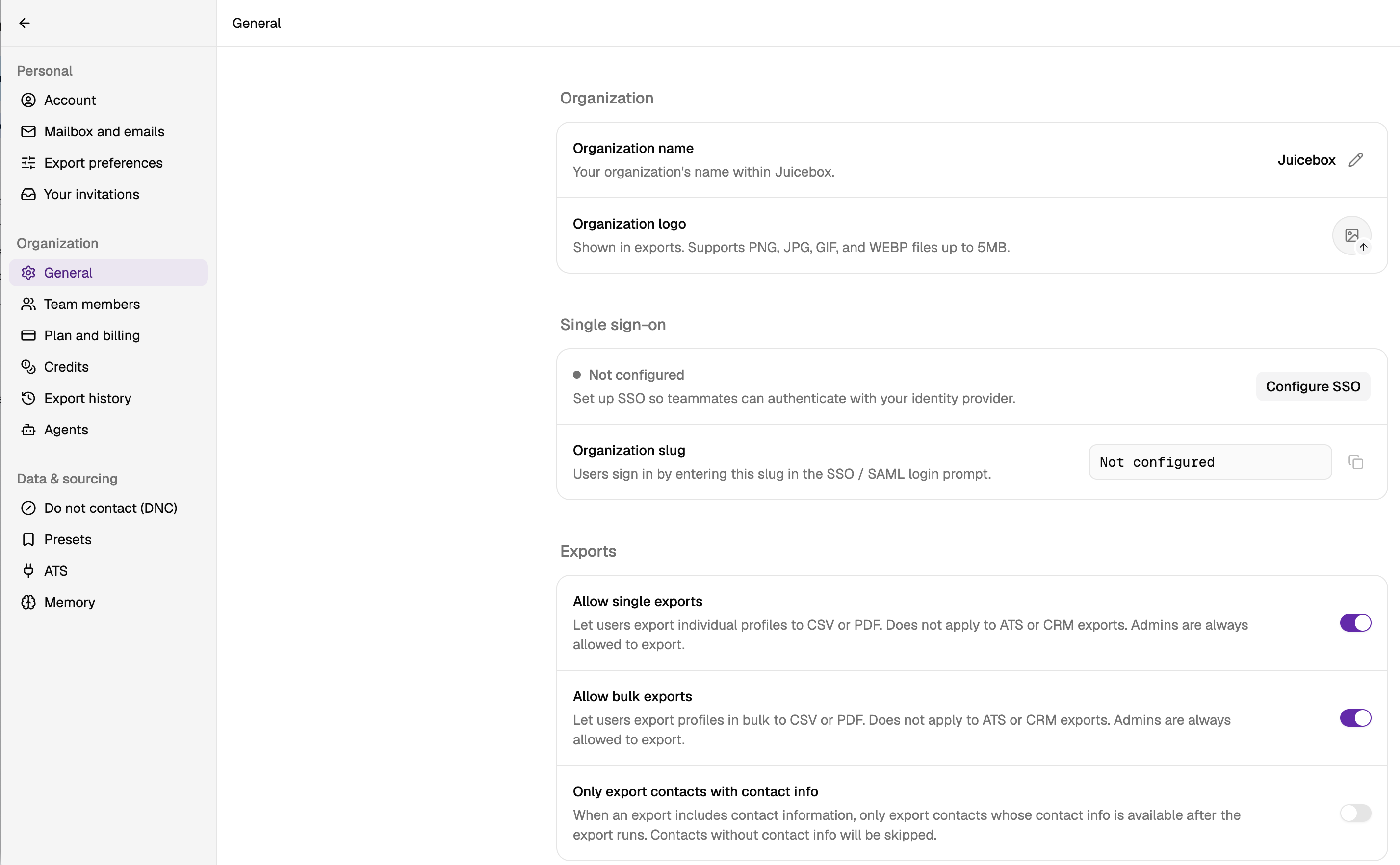
General
View and update organizational settings. These settings affect all users in the workspace. Organization settings include:- Organization name
- Organization logo
- SSO configuration (available on the business plan)
- Allow single exports
- Allow bulk exports
- Only export with contact info
- Add notes for Stack Rank and Agents
- Multiple active sequences per candidate
- Recently contacted window
- Auto-enroll with fallback after email bounce
- Force include unsubscribe link
- Enforced footer addendum
- Enforce Email strict mode (locks Email strict mode on for every user in the organization)
- Available email preferences
- Organization email sending limit
- Blackout dates and organization timezone
- Monthly usage reports (available on the business plan)
Recently contacted window
The Recently contacted window (days) setting under Outreach and sequences defines how long a candidate counts as recently contacted after someone in your organization emails them. Only admins can change it. The default is 90 days, and you can enter any whole number from 1 to 180. Juicebox uses this window in two places:- When you add a candidate to a sequence, Juicebox shows a recently emailed warning if anyone in your organization emailed them within the window.
- Agents exclude candidates emailed within the window from their search results.
Blackout dates
Use Blackout dates to stop sequences from sending on holidays or company-wide breaks. Only admins can change these settings. Blackout dates apply to every sequence in your organization.- Set the Timezone. Blackout dates start and end at midnight in this timezone.
- Under Dates, add a single date or a date range, with an optional label.
- To add holidays in bulk, apply a preset:
- US federal holidays: adds each federal holiday in the next 12 months. Holidays that fall on a weekend also block the weekday they’re observed on.
- Year-end break (Dec 24 – Jan 1): adds the year-end break.
- Remove any dates you still want to send on.
Team members
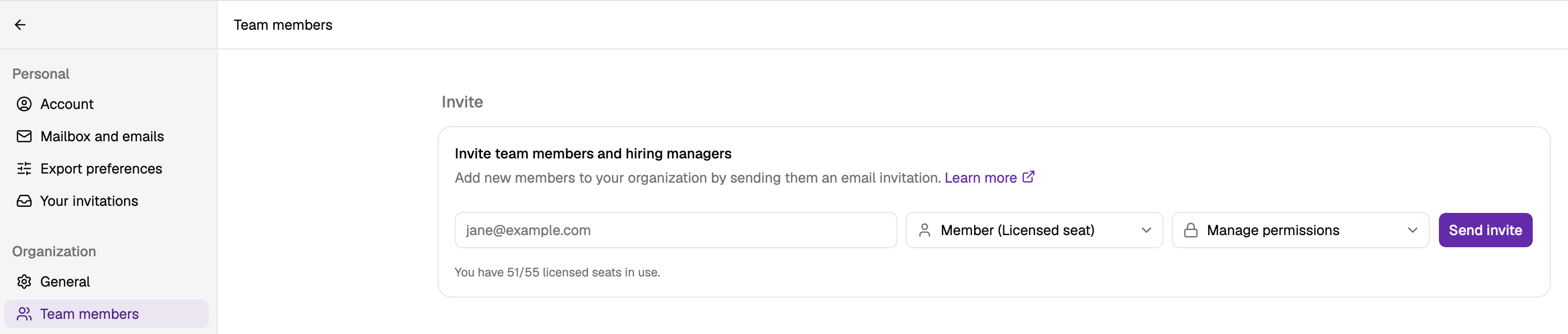
Invite teammates or hiring managers to your Juicebox organization. Set their permissions to either:- Full Access
- View-only
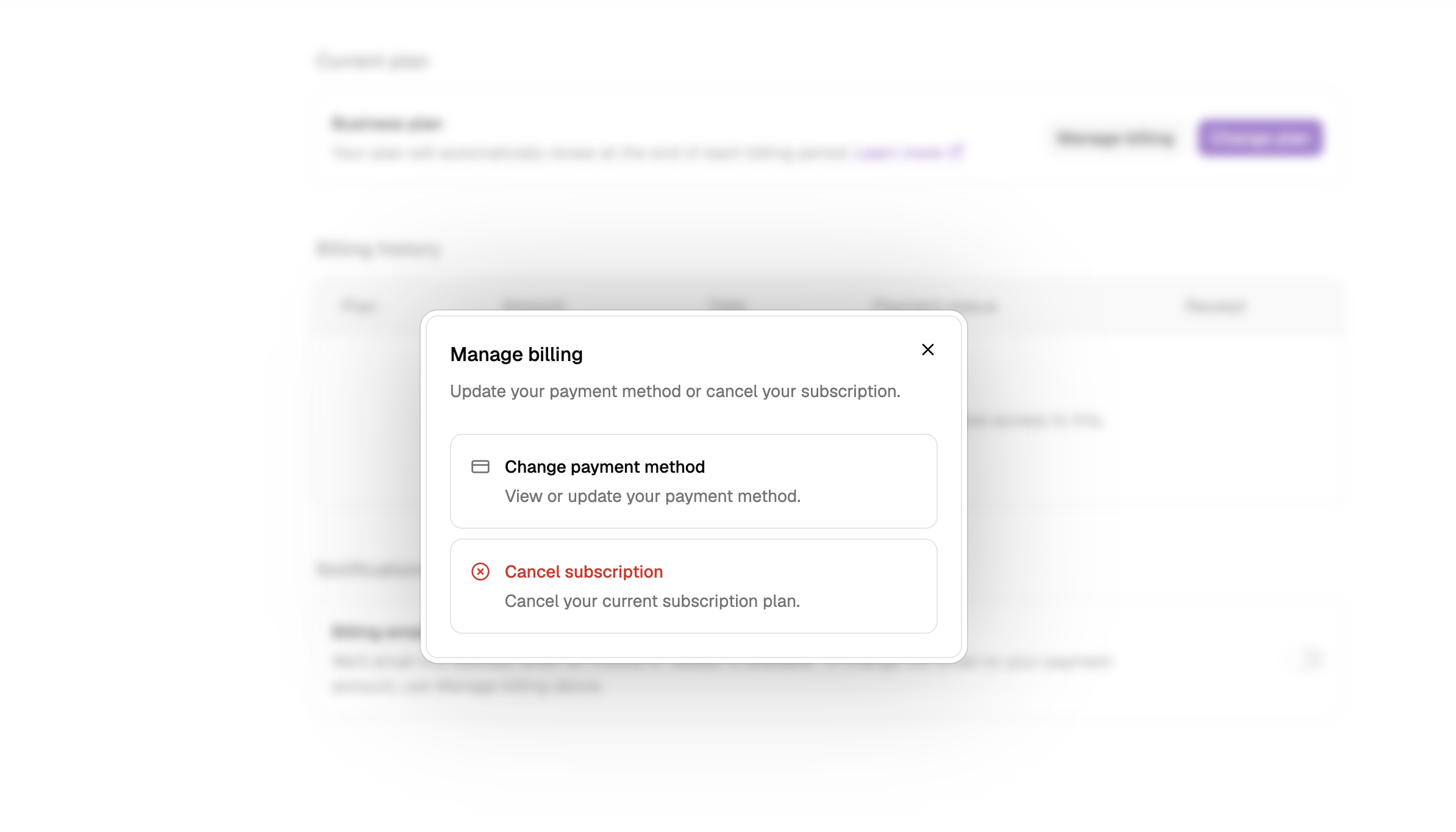
Plan and billing (for free, starter, or growth plans)
In this tab, you can:- Update your subscription plan
- Change your payment method
- View billing history
- Cancel your plan
- Enable billing email notifications
Credits
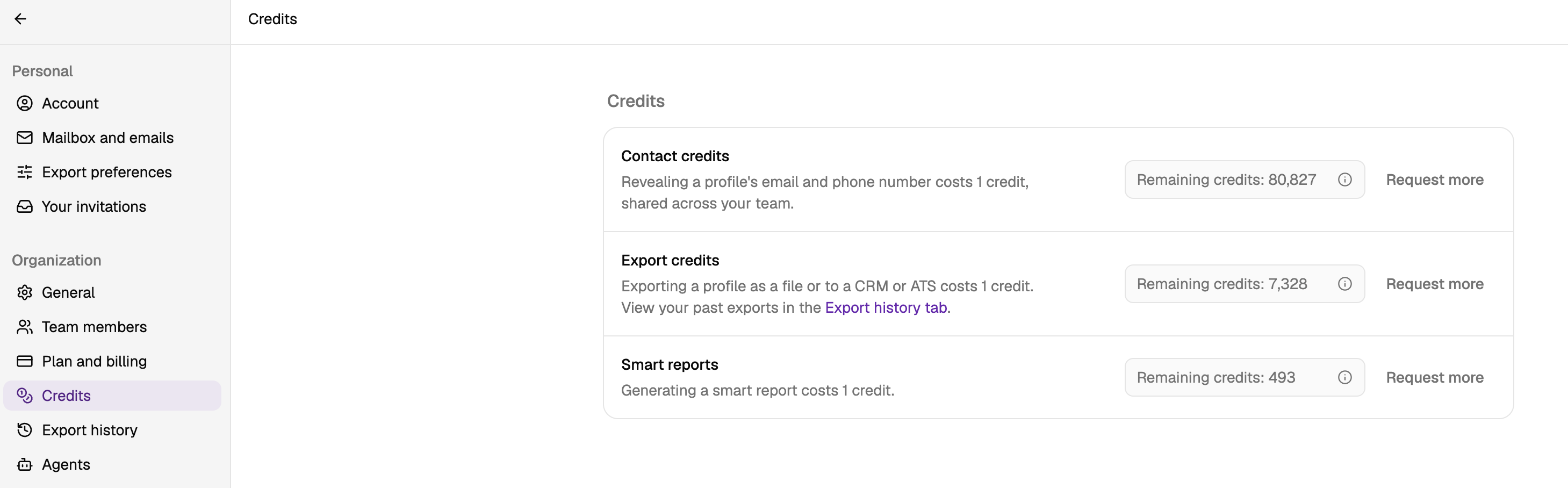 See your available credits for contacting, exporting, or generating Smart Reports. If you run out, you’ll be able to request more.
Export history
View a log of your previous exports along with the fields configured in your export preferences.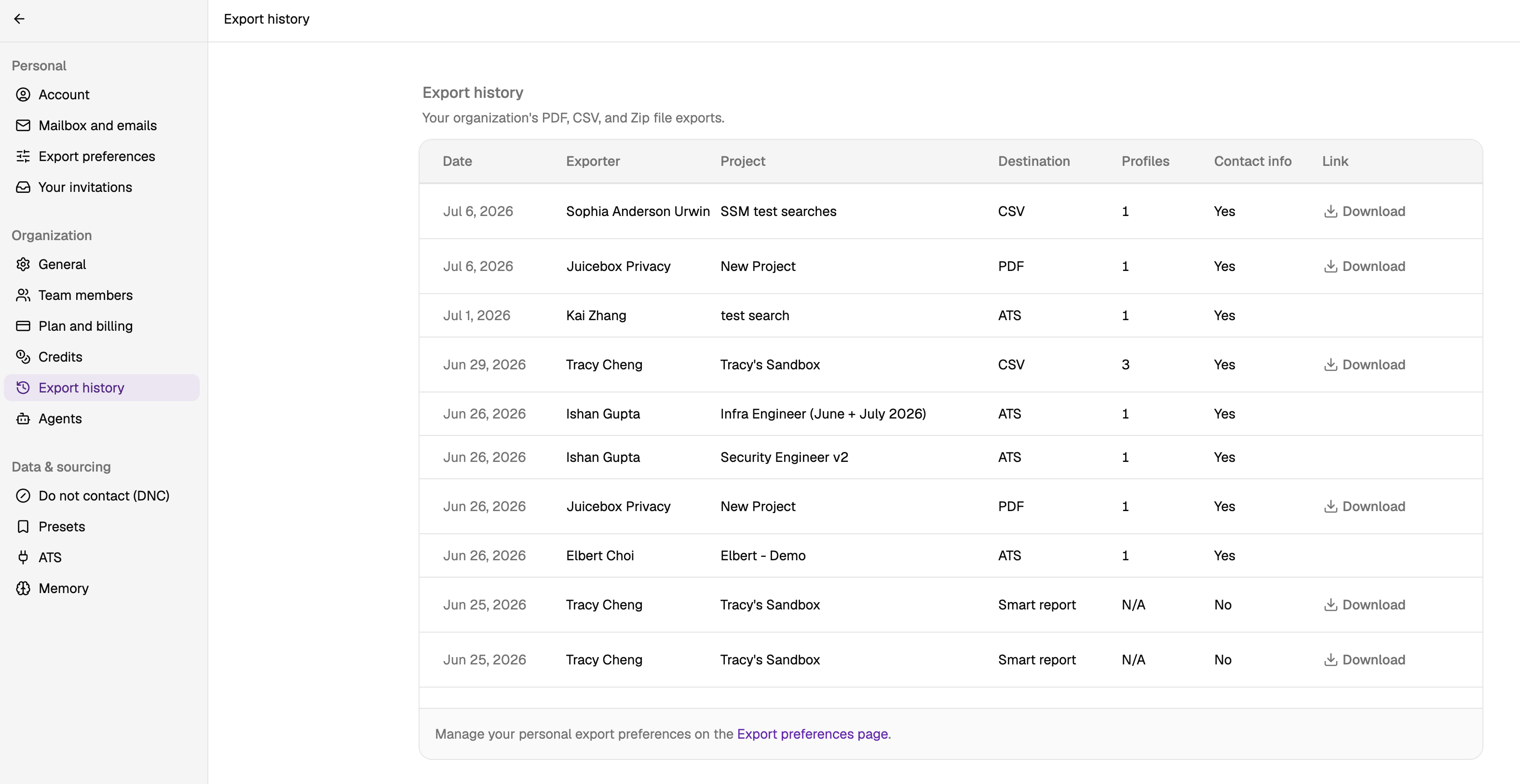
Agents
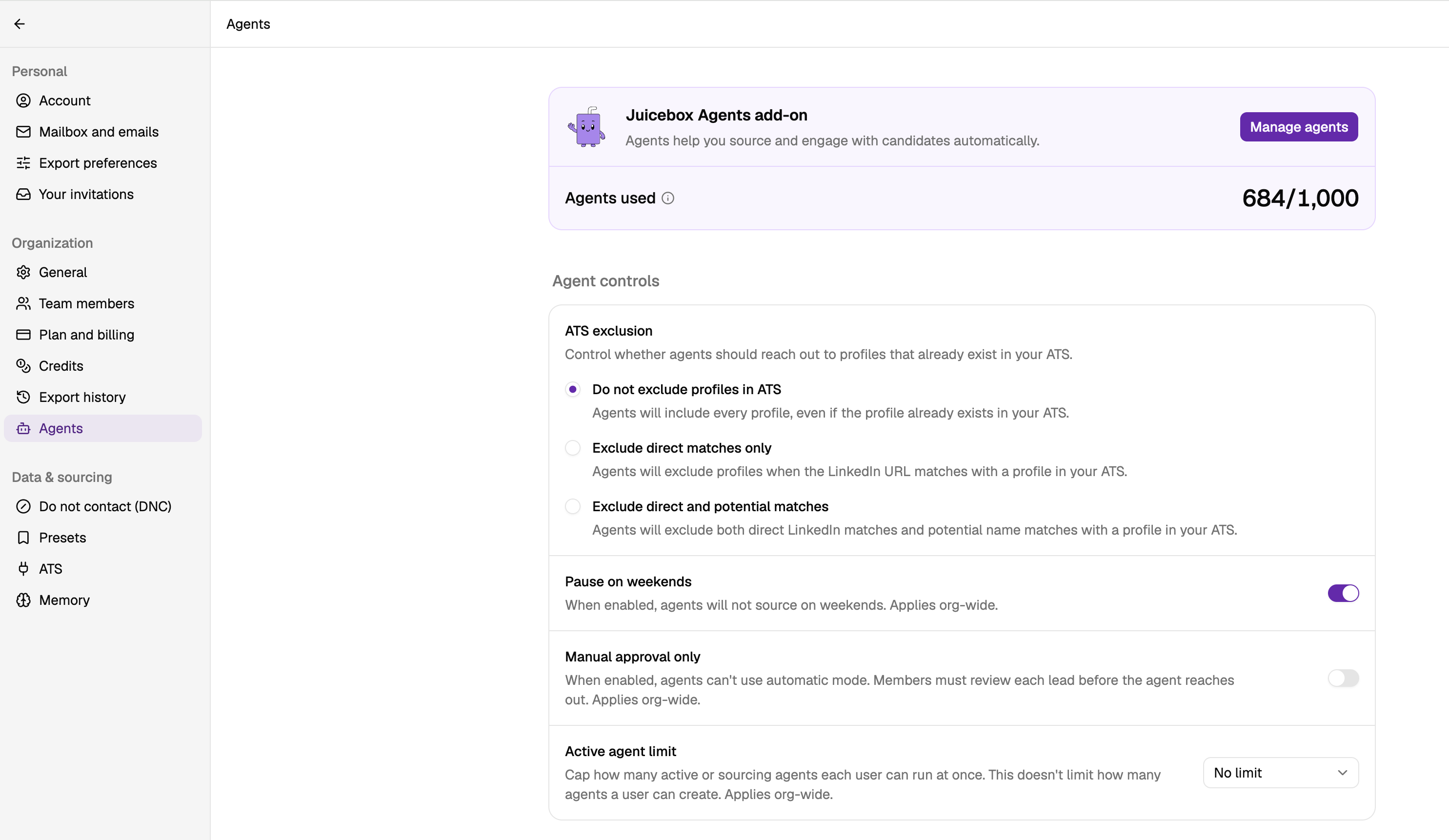
Manage existing agent limits or add new agents to your organization from this section. Learn more about what agents can do in your workflows.Recent ATS activity window
The Recent ATS activity window setting under Agent controls defines which ATS candidates count as recent for your whole organization. Only admins can change it. Choose Any time to turn it off, or pick 90, 180, 270, or 365 days. A candidate counts as recent when their ATS application is Active, or is Archived or Hired with a last interaction inside the window. When you set a window:- The Exclude recent ATS candidates search filter becomes available.
- Agents that exclude ATS profiles across all stages exclude only recent ATS candidates. Older ATS candidates stay in the Agent’s pool.
- Agents warn you about an ATS match before outreach only when that candidate is recent.
Data & sourcing
DNC companies (do not contact company settings)
Add companies to your organization’s DNC list to exclude contacts working at selected companies from email sequences and search results. Auto exclude is on by default. It automatically filters out profiles from these companies in new searches, Agents, intakes, and searches started from Slack for the entire team. Admins can turn off Auto exclude DNC companies in searches to disable it for the organization. You can still turn off exclusion for an individual search. Learn more about DNC enforcement.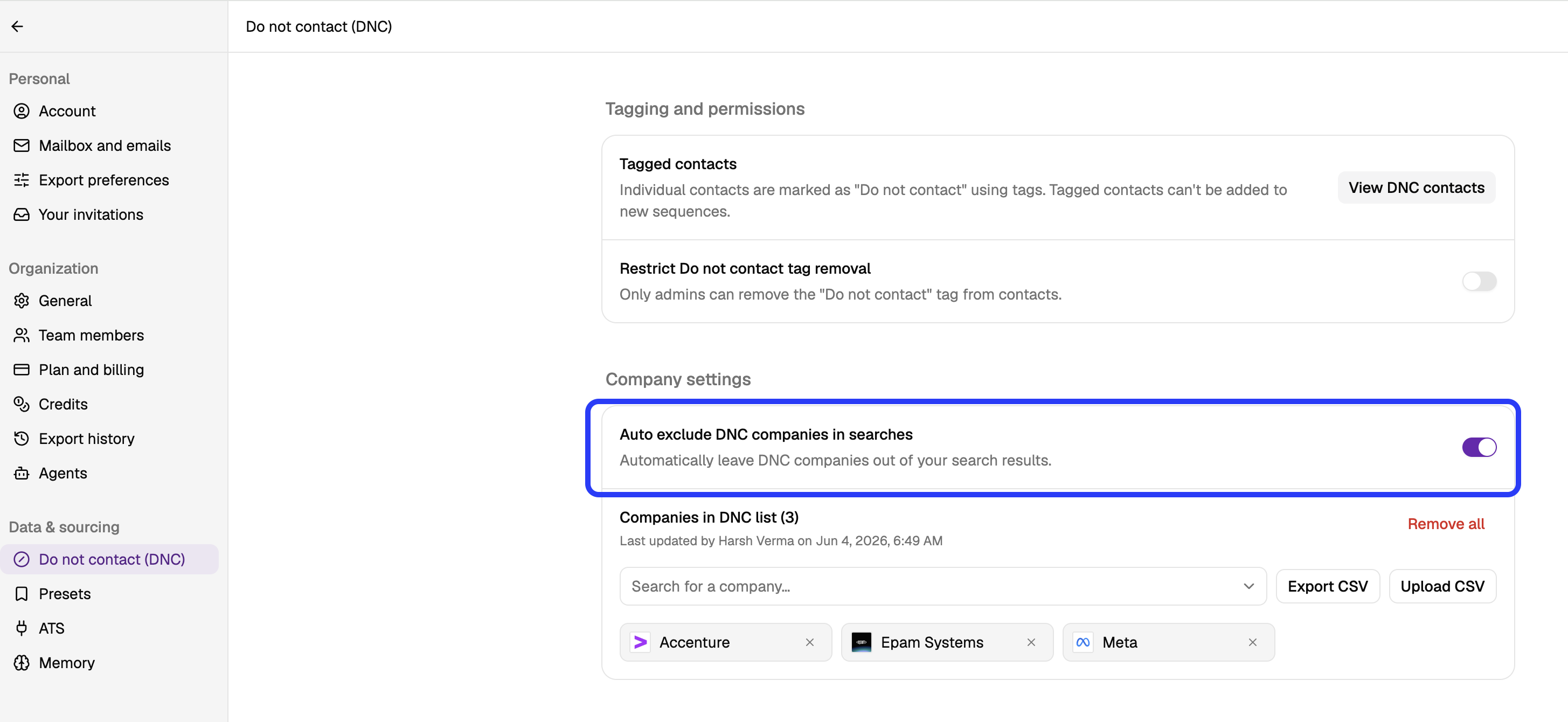
DNC countries (do not contact country settings)
Add selected countries to exclude them from email sequences and search results. Country auto exclude is off by default. Enable it to automatically filter out profiles from these countries for the entire team. Admins can also add specific people as exceptions to the company and country DNC lists. Learn more about contact-level DNC overrides.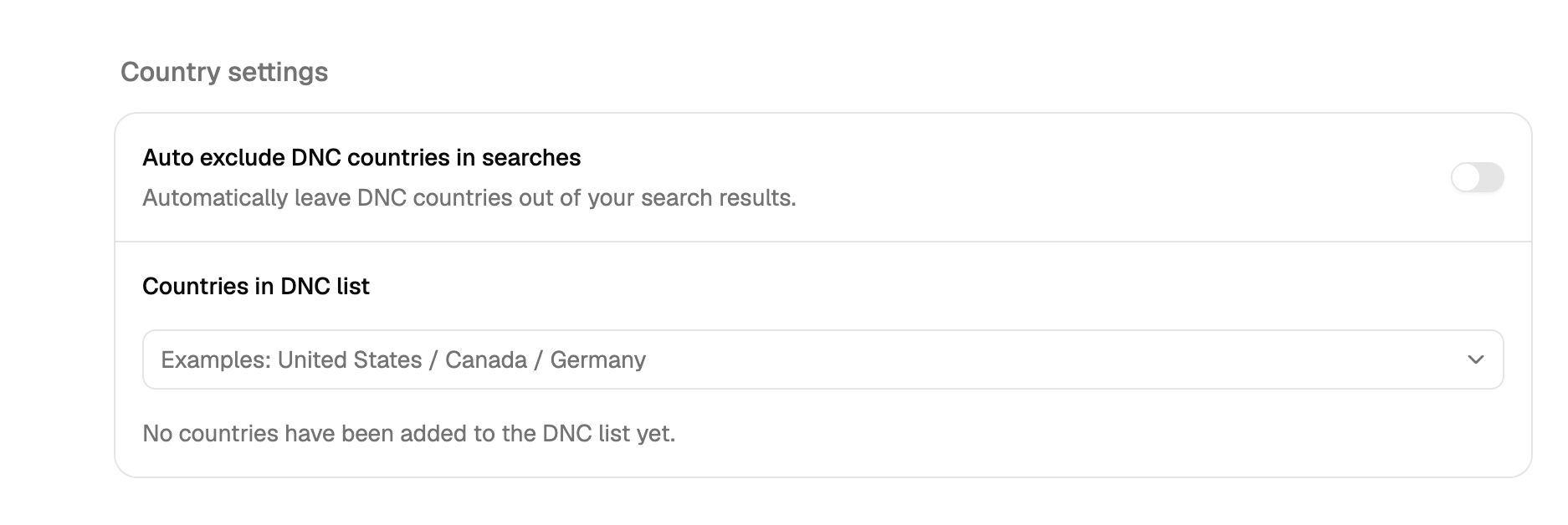
Presets
Manage reusable preset lists for search filters here. Presets let you save and reuse commonly used search criteria so you can launch searches faster and keep requirements consistent across roles. Use Juicebox’s pre-built presets or create your own custom presets for the types of candidates your team searches for most often.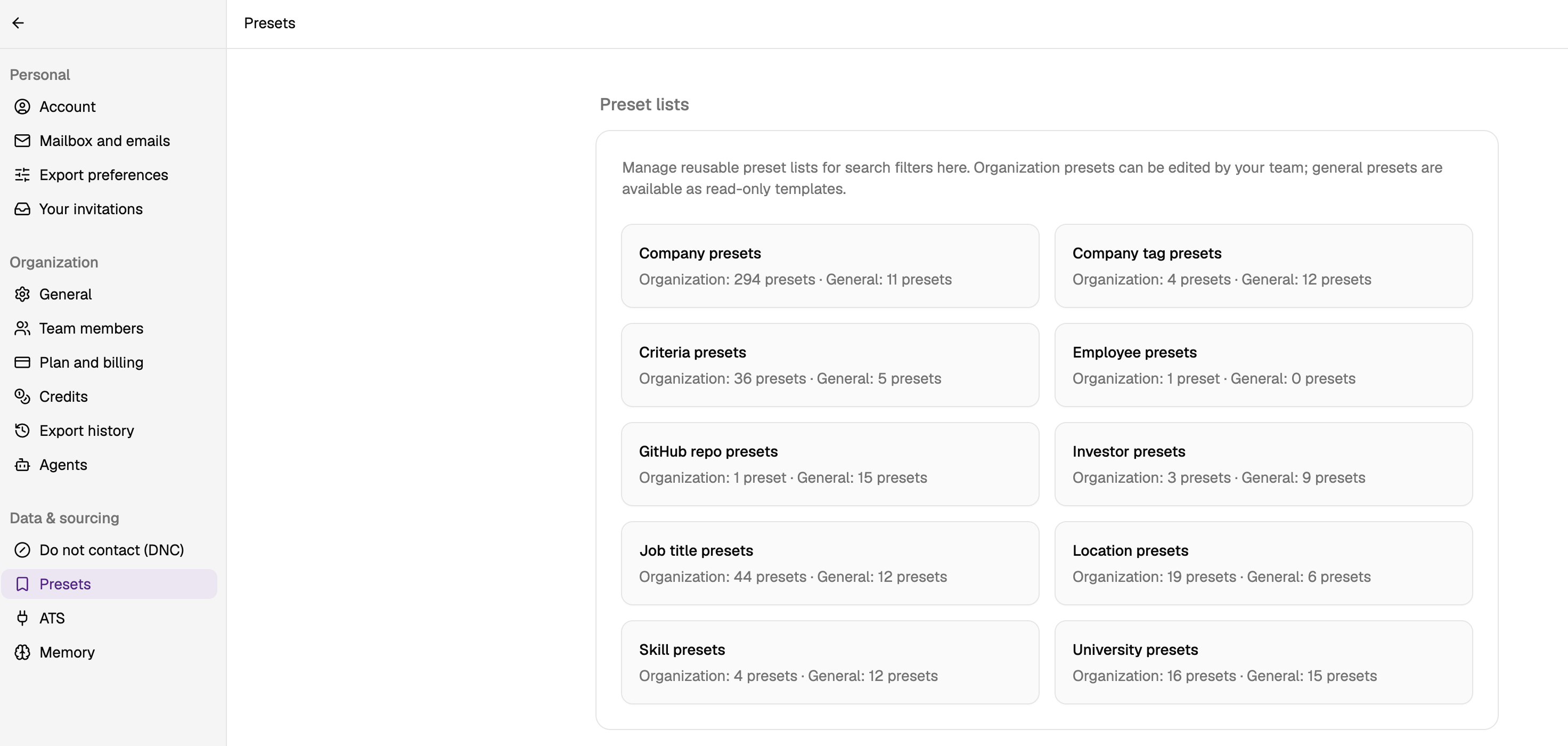
ATS
Use this page to keep Juicebox projects, Agents, and ATS workflows aligned. ATS Settings let admins manage their ATS connection, configure automated exports, and control how candidates move from Juicebox into the right ATS job or stage. ATS integration is available on the business plan.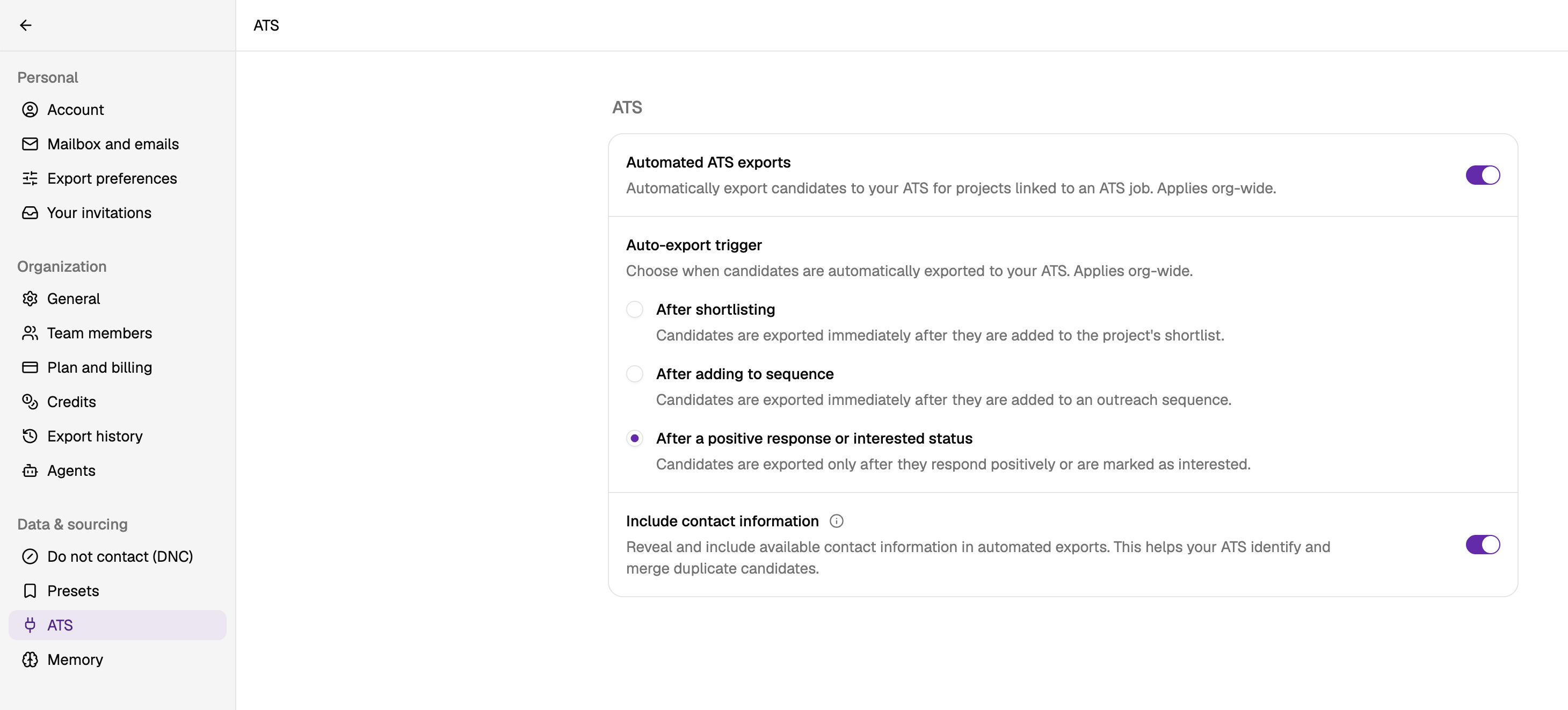
Memory
Manage the preferences and guidance Juicebox uses to personalize AI-generated work across your workspace. Memory Settings help Juicebox remember your team’s preferences, feedback, and instructions so future searches, Agents, and AI-generated outreach are more aligned with how your team works.