

Outside Juicebox
The most important deliverability work happens on your domain and in your sending habits, regardless of which tool you use to send.1. Authenticate your sending domain
Authentication is the single most important step, and it happens in your DNS, outside of any sending tool. Without it, most modern inbox providers will silently deprioritize or block your mail. Configure all three of the following records on the domain you send from:- SPF (Sender Policy Framework): A DNS record that lists which servers are allowed to send on behalf of your domain. Prevents attackers from spoofing your address.
- DKIM (DomainKeys Identified Mail): A cryptographic signature added to every message you send, proving it was not altered in transit and that it really came from your domain.
- DMARC (Domain-based Message Authentication, Reporting, and Conformance): A policy that tells receiving servers what to do when SPF or DKIM checks fail. Start with
p=nonefor monitoring, then move toquarantineorrejectonce you’re confident in your setup.
Your domain administrator or IT team manages these records. If you use a dedicated recruiting domain (for example,
talent.yourcompany.com), each subdomain needs its own authentication.2. Warm up new domains and mailboxes
A brand-new domain or mailbox has no sending history, and providers treat sudden high volumes from unknown senders as a strong spam signal.- New domains: start at the minimum daily cap (20 emails/day in Juicebox) and increase gradually over 4–6 weeks.
- New mailboxes on an established domain: start at 20–30 emails/day and ramp up over 2–3 weeks.
- Recovering from a sending issue: drop back to 25–50 emails/day and rebuild slowly once your domain recovers.
3. Respect daily sending limits
Scale sending volume to match how much your domain has proven it can handle. As a general rule:- 100 emails/day per mailbox is a safe steady-state for most established domains; this is the Juicebox default.
- 200–500 emails/day is achievable on an established domain with strong open and reply rates. Scale up gradually as your reputation holds, and do not jump straight to the ceiling.
- New or recovering domains should stay well below these numbers until sending history is built up.
4. Keep your list clean
Every bounce and every spam complaint costs you reputation. Two habits that reduce both:- Verify email addresses before sending. Sending to invalid addresses is the fastest way to get flagged. Juicebox does this for you automatically: every address is run through an email waterfall with multi-provider verification before it can be used in a sequence, and turning on Email strict mode enforces verified-only sending as a hard gate.
- Prefer personal addresses where appropriate. Personal inboxes tend to have lower bounce rates and higher reply rates than professional addresses, which are frequently filtered by corporate spam systems or become stale when someone changes jobs. Juicebox defaults to Prefer personal emails, fallback to professional when you add profiles to a sequence, and you can enforce personal-only sending organization-wide from account settings.
- Suppress bounced and unsubscribed contacts. Never re-send to an address that hard-bounced or opted out. Juicebox does this automatically: bounced emails are re-enrolled only via an explicit action, and unsubscribes are enforced across every sequence.
5. Write emails that get replies
Engagement is not just a nice-to-have; it’s a direct deliverability signal. Providers watch how recipients interact with your mail and adjust your reputation accordingly.- Personalize the subject line and opening. A relevant reference to the recipient’s background dramatically increases open and reply rates.
- Keep it short. Long emails to strangers rarely get read, and low read time is a negative signal.
- Avoid spam triggers. Excessive links, all-caps subject lines, “FREE” language, and heavy image-to-text ratios all raise flags. Plain-text-style messages perform best.
- Include a clear opt-out. An unsubscribe link is legally required in most jurisdictions and materially improves deliverability, because it gives uninterested recipients an alternative to marking your email as spam.
- AI-generated sequences produce short, plain-text-style outreach that follows the patterns above by default, a good starting point if you’re not sure how to phrase a first message.
- AI Commands insert per-candidate personalization (a one-line reference to their experience, skills, or background) into every step, so every message reads like it was written specifically for that person rather than a template blast.
- Snippets let you reuse blocks of copy across sequences without copy-pasting entire messages, which helps avoid the “identical text over and over” pattern that inbox providers flag.
6. Send at a human pace
Bulk sends to hundreds of recipients in a single minute look nothing like real human behavior. Space messages out across the day, and avoid sending to your entire list at exactly the same time. A steady drip of a few emails per minute over several hours is far safer than a single burst. Juicebox does this automatically: sequence steps from the same mailbox are spaced roughly 2 minutes apart, so a scheduled batch goes out at a human pace instead of all at once.7. Monitor and iterate
Deliverability is not a one-time setup. Watch these metrics over time:- Bounce rate should stay below ~3%. Higher rates indicate list quality issues.
- Open rates below your baseline suggest your mail is being filtered.
- Spam complaints above ~0.1% will damage reputation quickly; pause and review immediately.
- Reply rates are the strongest positive signal. Tune content, targeting, and timing to keep them high.
Inside Juicebox
Juicebox does not send email through a shared third-party relay or a Juicebox-owned domain. When you connect a mailbox, you authenticate directly with your email provider (Gmail, Microsoft 365, or IMAP) via OAuth, and every message goes through your mailbox using your domain. This is the same path a message takes when you send it from Gmail or Outlook yourself. There is no intermediate sending infrastructure, no shared IP pool, and no Juicebox domain in the headers. The upside: recipients see mail from you, not from a marketing tool, which is generally better for both deliverability and candidate experience. The tradeoff: every deliverability signal is tied directly to your domain and your mailbox. There is no shared reputation to fall back on. Bounces, spam complaints, and engagement all accrue to your domain, so everything in the section above matters more, not less, when you send through OAuth.Settings that affect deliverability
Juicebox exposes the levers that shape deliverability directly in your account. The tradeoff is almost always the same: stricter settings = better deliverability, but less data and lower throughput. Below is what each setting does and how to tune it.Per-mailbox daily send limit
Each connected mailbox has its own Max emails per day setting, edited from Account → Email integrations → Manage mailboxes. Open: app.juicebox.ai/account?tab=email-integrations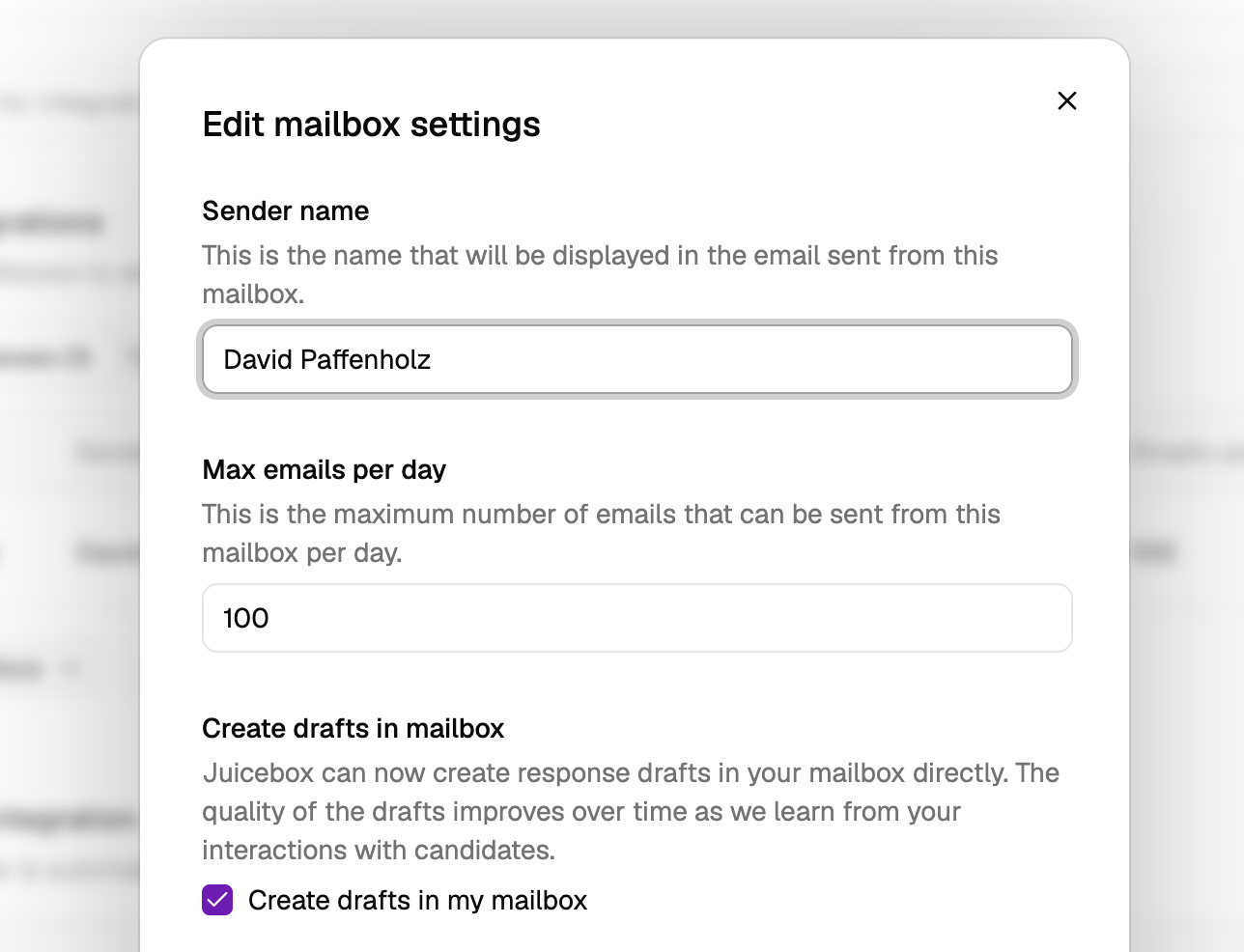
- Default: 100/day
- Maximum: 500/day on Business plans, 200/day on self-serve plans
- Deliverability guidance: the lower this number, the better the signal to inbox providers. Brand-new domains should start well below the default (20–30/day) and ramp up over weeks. Established domains with strong reply rates can push higher.
Email strict mode
Under Account → Email settings, Email strict mode controls how conservative Juicebox is about which addresses it will send to. Open: app.juicebox.ai/account?tab=email-settings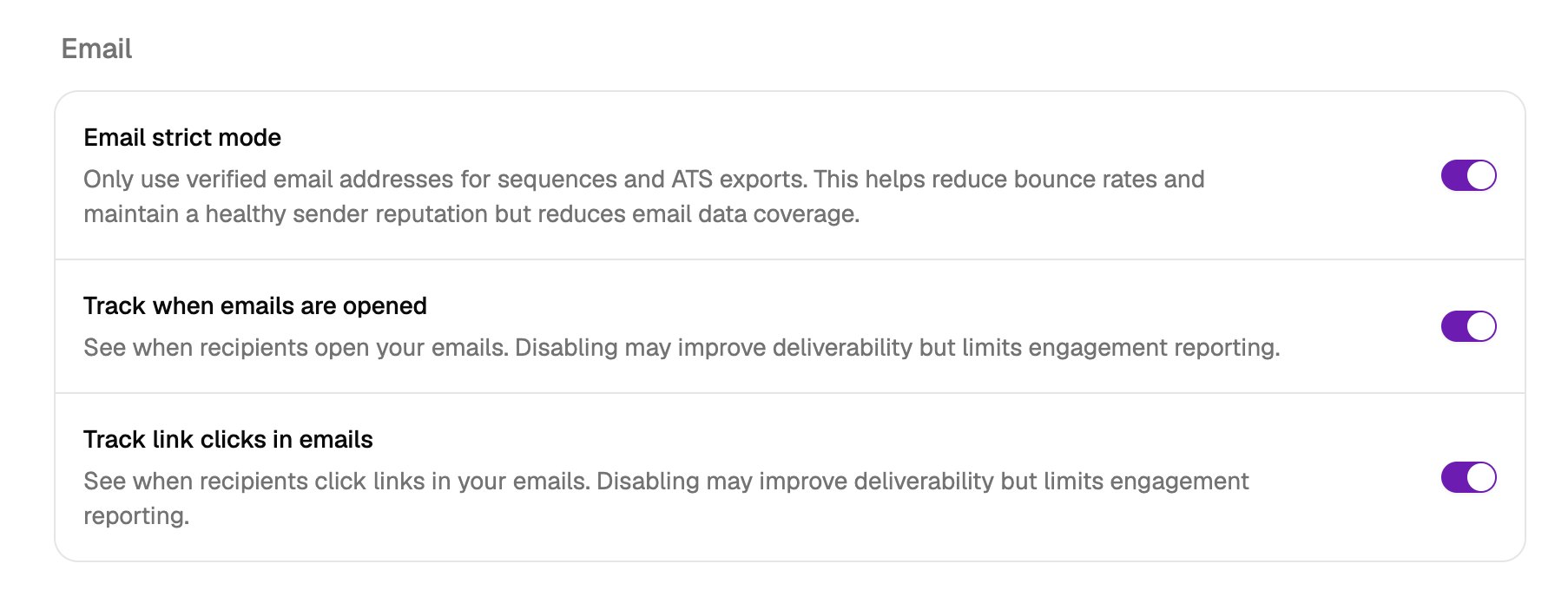
- On: sequences and ATS exports only use email addresses Juicebox has independently verified. Bounce rates drop sharply, and your sender reputation is protected. Email addresses you added manually to a candidate still count as sendable in strict mode. Juicebox treats a manual add as your confirmation of the address. This applies when you preview a sequence, when you enroll candidates, and when Juicebox falls back to another address after a bounce. Juicebox still excludes a manually added address that it has marked as undeliverable or incorrect.
- Off: all sourced emails are eligible to send to, including unverified addresses. Your email data coverage is higher, but so is your bounce risk.
Open and click tracking
The same Email panel controls open tracking and link-click tracking. Open: app.juicebox.ai/account?tab=email-settings- Track when emails are opened: inserts a tracking pixel so you can see open rates.
- Track link clicks in emails: rewrites links so you can see who clicked what.
- For maximum deliverability: turn both off. This is the recommendation for brand-new domains or when you are actively repairing sender reputation.
- In practice: most Juicebox users leave both on, because open and click data is useful for tuning sequences and scaling volume as their domain proves reliable. Once your domain has a strong reputation and your reply rates are healthy, the deliverability cost of tracking is small.
The “strictest possible” deliverability configuration in Juicebox is: strict mode on, open tracking off, click tracking off, and a low per-day limit. This maximizes inbox placement at the cost of engagement data and throughput. It is worth using while you warm up a new domain, and then relaxing as your reputation stabilizes.
Mailbox connections and per-day team limits
Account → Email integrations shows all mailboxes you have connected personally, and, on Your team’s mailboxes, every mailbox connected across your organization. Each row shows the provider, sender name, address, connection status, per-day cap, and signature. Open: app.juicebox.ai/account?tab=email-integrations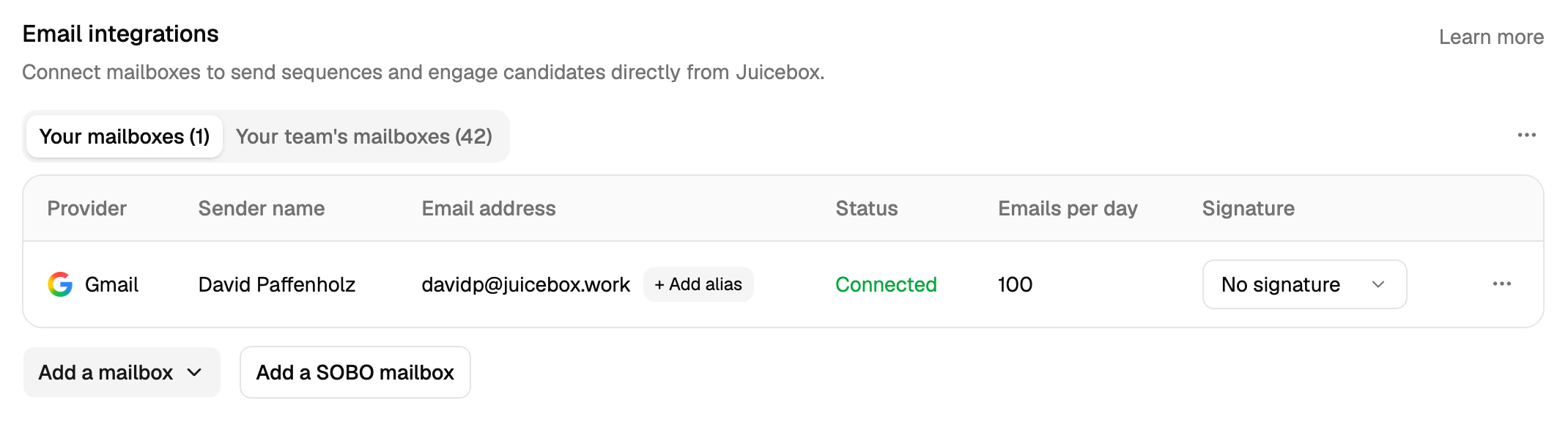
- Connect additional mailboxes to spread sending load across multiple senders. Distributing volume across mailboxes is safer than pushing any single mailbox to its limit.
- Adjust the per-day cap on any mailbox to trade throughput for deliverability. Lower caps = safer for reputation.
- Add a SOBO (send-on-behalf-of) mailbox so a hiring manager’s name appears on outreach without them having to manage the sequences themselves.
Signatures, sender name, and drafts
Also from Manage mailboxes, you can set the Sender name that appears in the “From” field and choose whether Juicebox should create drafts in your mailbox for replies. Neither directly changes deliverability, but a recognizable sender name meaningfully improves open and reply rates, which do feed back into reputation. Open: app.juicebox.ai/account?tab=mailbox-settings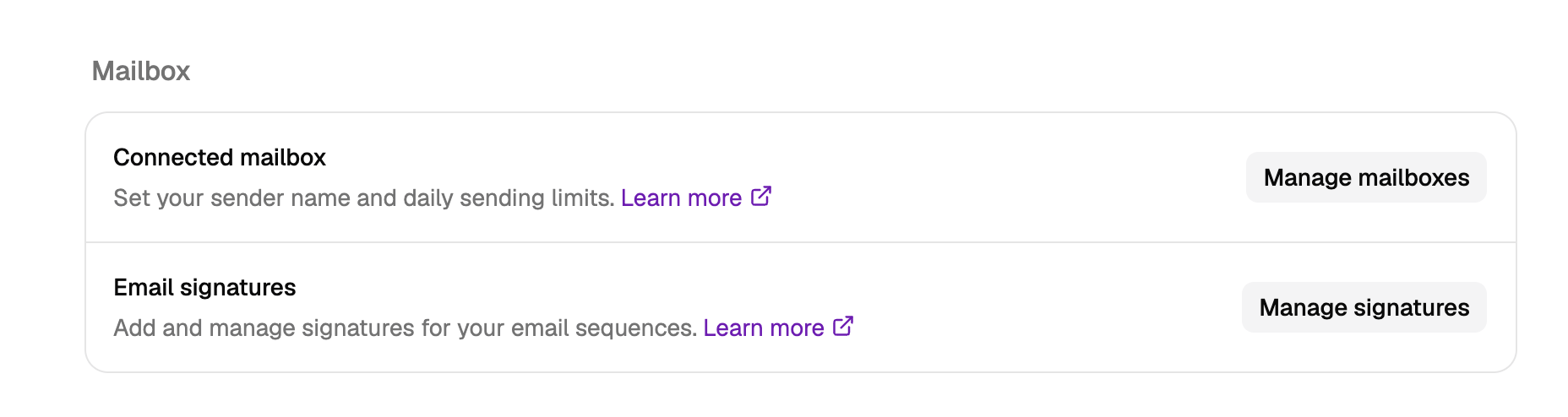
Automation settings
Under Account → Automation, you can control what Juicebox does when candidates reply. Open: app.juicebox.ai/account?tab=automation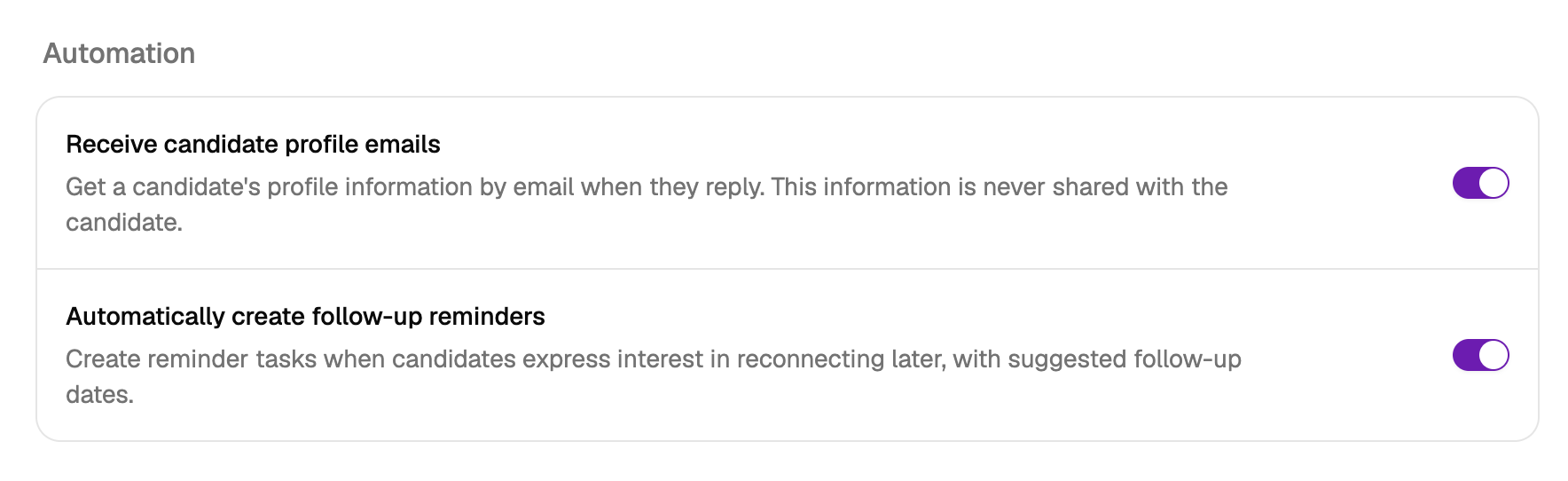
Calendar
Under Account → Calendar, Don’t request calendar access stops Juicebox from asking for calendar permission when members connect a mailbox. While the setting is on, Juicebox drops the calendar scope from every Google and Microsoft mailbox connect and reconnect. Mailboxes connected under it can still send email normally, but they lose calendar-based features: AI-suggested meeting times, daily briefing summaries, and sequence auto-stop when a meeting is booked. Turning the setting off does not restore calendar access on existing mailboxes. A member has to reconnect the mailbox to regain the scope. Open: app.juicebox.ai/account?tab=calendar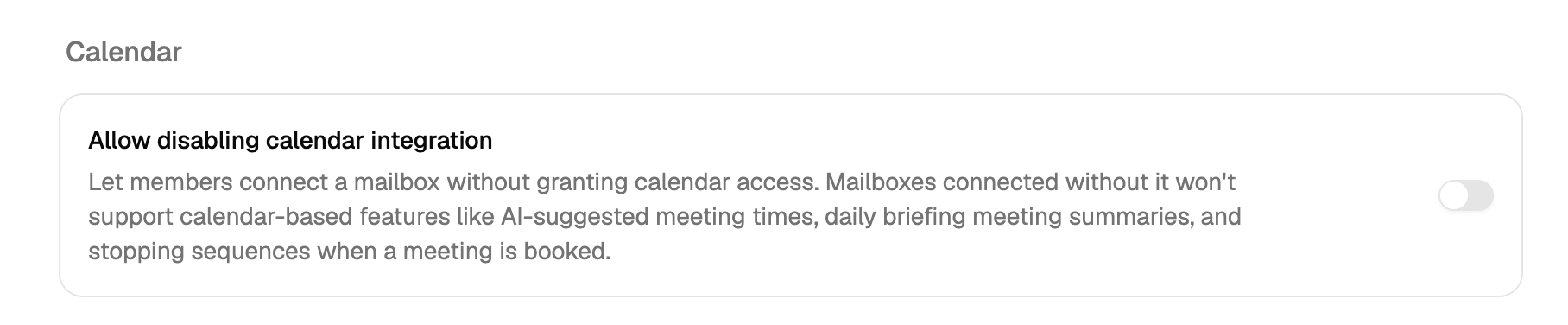
Email drafts
Under Account → Email Drafts, Don’t request draft access stops Juicebox from asking for draft-compose permission when members connect a mailbox. While the setting is on, Juicebox drops the compose scope from every Google and Microsoft mailbox connect and reconnect. Mailboxes connected under it can still send and receive email, but Juicebox won’t create response drafts in them. The Create drafts in my mailbox option is hidden on both the mailbox settings dialog and the sequence onboarding card. A member cannot re-enable drafts by reconnecting an affected mailbox while the setting is on.Admin settings for deliverability
Organization admins have a few additional levers under Account → Organization settings that apply across the whole team. These are the highest-leverage controls for deliverability because they set defaults and ceilings that every member operates within. Open: app.juicebox.ai/account?tab=organization-settingsOrganization email sending limit
Under Email limits, Organization email sending limit sets the maximum daily emails per mailbox for everyone in the organization. Individual mailbox caps (set on the Email integrations page) can be lower, but never higher, than this ceiling.
- Business plan: up to 500/day
- Self-serve plans: up to 200/day
Default mailbox access
Under Mailboxes, Default mailbox access controls the privacy setting applied to newly connected mailboxes: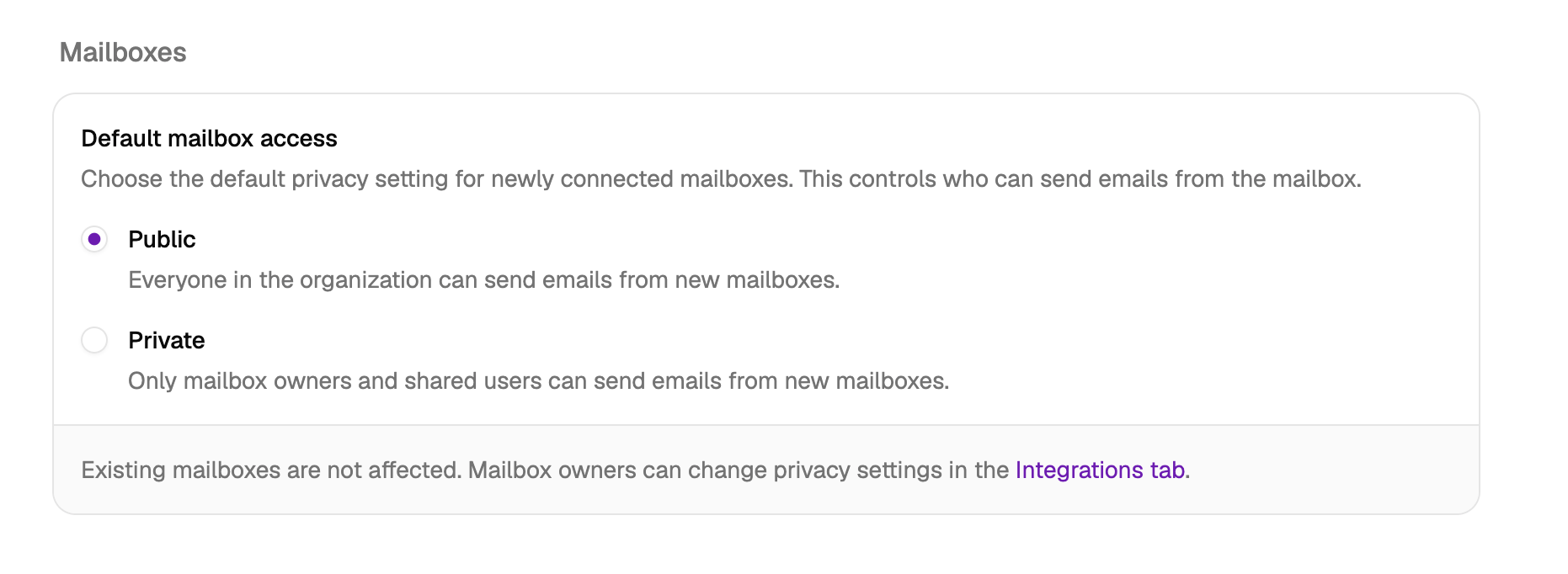
- Public: everyone in the organization can send from new mailboxes (useful for SOBO workflows).
- Private: only mailbox owners and users the owner shares with can send from new mailboxes.
Enforced footer addendum (Enterprise)
Under the org-wide sequence controls, Enforced footer addendum appends default text to the footer of every outbound sequence email. Users can’t disable or edit it.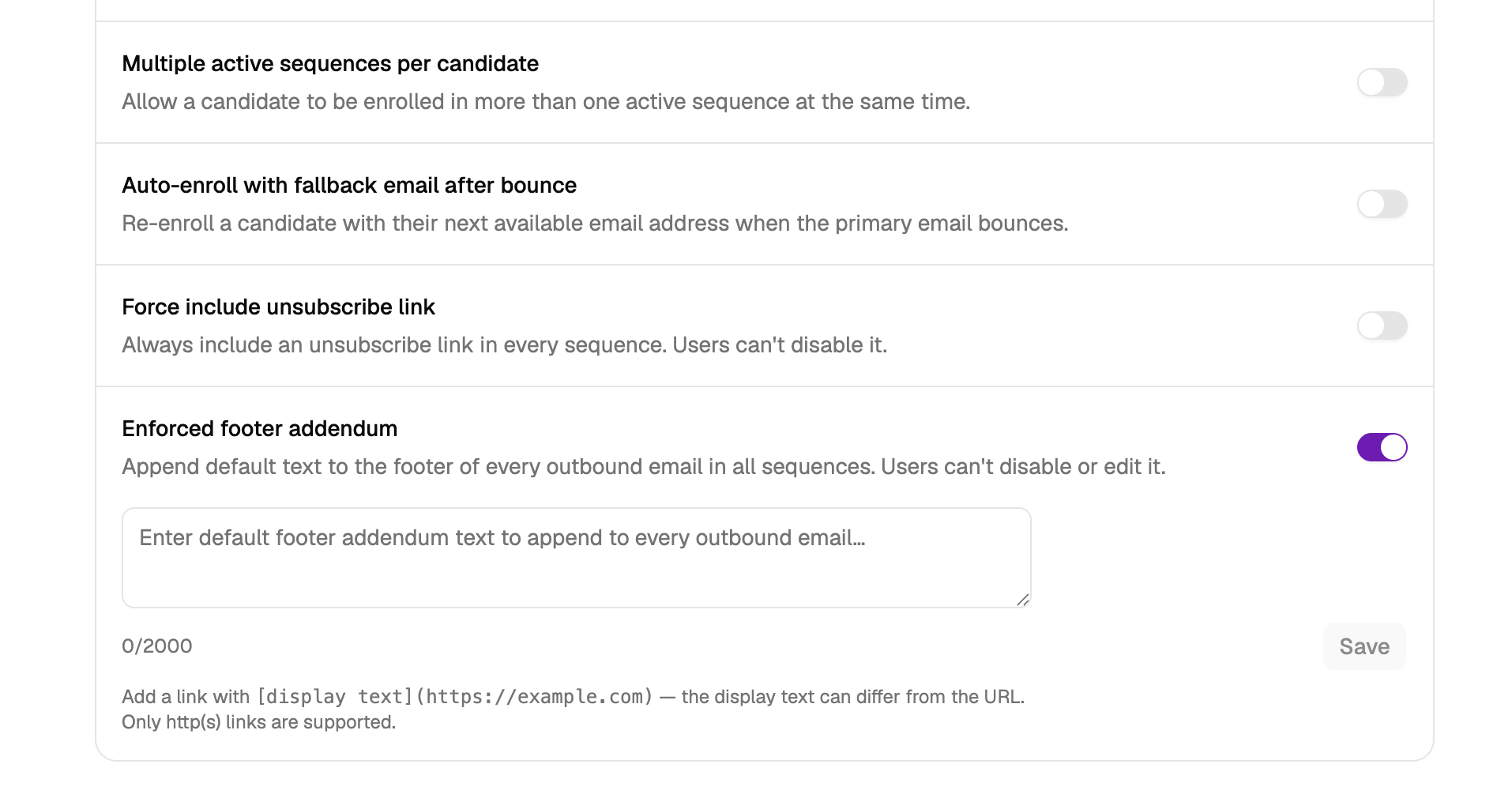
Enforce Email strict mode across the organization
Under Outreach and sequences, Enforce Email strict mode turns on Email strict mode for every user in the organization and prevents them from turning it back off. Only org admins can change this setting. Open: app.juicebox.ai/account?tab=organization-settings When it’s on:- Sequences, agent outreach, and ATS exports only send to email addresses Juicebox has independently verified. In sequences, Juicebox also allows addresses that a user added manually, unless Juicebox has marked them undeliverable or incorrect. This applies to everyone in the organization, regardless of each user’s personal Email strict mode setting under Account → Email settings.
- The per-user Email strict mode toggle stays on and disabled, with a tooltip explaining that an admin has enforced strict mode for everyone.
- Agents and other automated workers that would otherwise pass a non-strict flag are also forced to strict mode, so their outreach follows the same verified-only rule.
- The API rejects any attempt to turn a user’s strict mode off with a
403 locked-by-adminresponse until the org setting is turned back off.
Available email preferences
Under the Email Preferences section at the bottom of the General settings tab, Available email preferences lets admins turn off specific email-preference options for the entire organization. Members can only pick from the options that remain enabled when adding contacts to a sequence. Open: app.juicebox.ai/account?tab=organization-settings The four options that can be toggled on or off are:- Prefer personal emails, fallback to professional emails
- Prefer professional emails, fallback to personal emails
- Only use professional emails
- Only use personal emails
What Juicebox does automatically
On top of your settings, Juicebox applies several safeguards regardless of configuration:- Email verification. We run an email waterfall across multiple providers with automated bounce checks before sending. When strict mode is on, this becomes a hard gate.
- Sending intervals. Messages in a sequence are automatically spaced out, typically ~120 seconds between sends from the same mailbox, so a scheduled batch goes out at a human pace instead of a burst.
- Daily caps enforcement. Sequences that would exceed a mailbox’s per-day cap automatically defer to later days rather than pushing volume through.
- Multi-mailbox distribution. Sequences can be tied to different connected mailboxes to spread load without over-sending from any single one.
- Unsubscribe enforcement. Admins can require an unsubscribe link on every sequence email from organization settings.
Recommended setup checklist
Before you start sending at volume through Juicebox:- Confirm SPF, DKIM, and DMARC are configured on your sending domain.
- Connect your mailbox via OAuth from Account → Email integrations.
- If the mailbox or domain is new, keep the per-day limit low (20–30) and ramp up over weeks.
- Turn on Email strict mode so sequences only send to verified addresses.
- Decide on tracking: leave open/click tracking off while warming a new domain, and turn them on once your reputation stabilizes and you want the engagement data.
- Include an unsubscribe link on every sequence.
- Monitor bounce and reply rates weekly during your first month, then monthly.
Related reading
- Email integrations: connect and manage your mailboxes
- Minimize bounces: reduce bounce rate on your sequences
- Contact data: how Juicebox sources and verifies emails
- Maximize replies: write outreach that gets responses