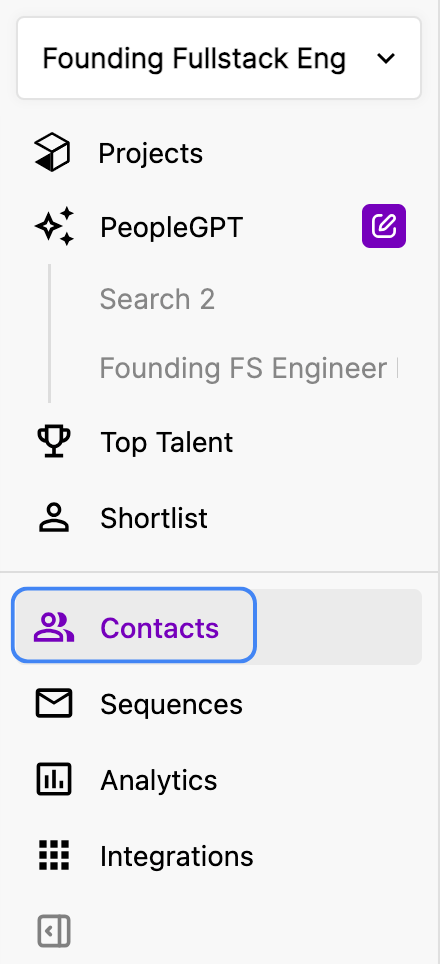
How to Use the Contacts Page
View All Profiles
The Contacts Page consolidates all candidate profiles you’ve ever shortlisted or reached out to across different projects or sequences.Filter by Key Metrics
Use the filters to find candidates based on different criteria: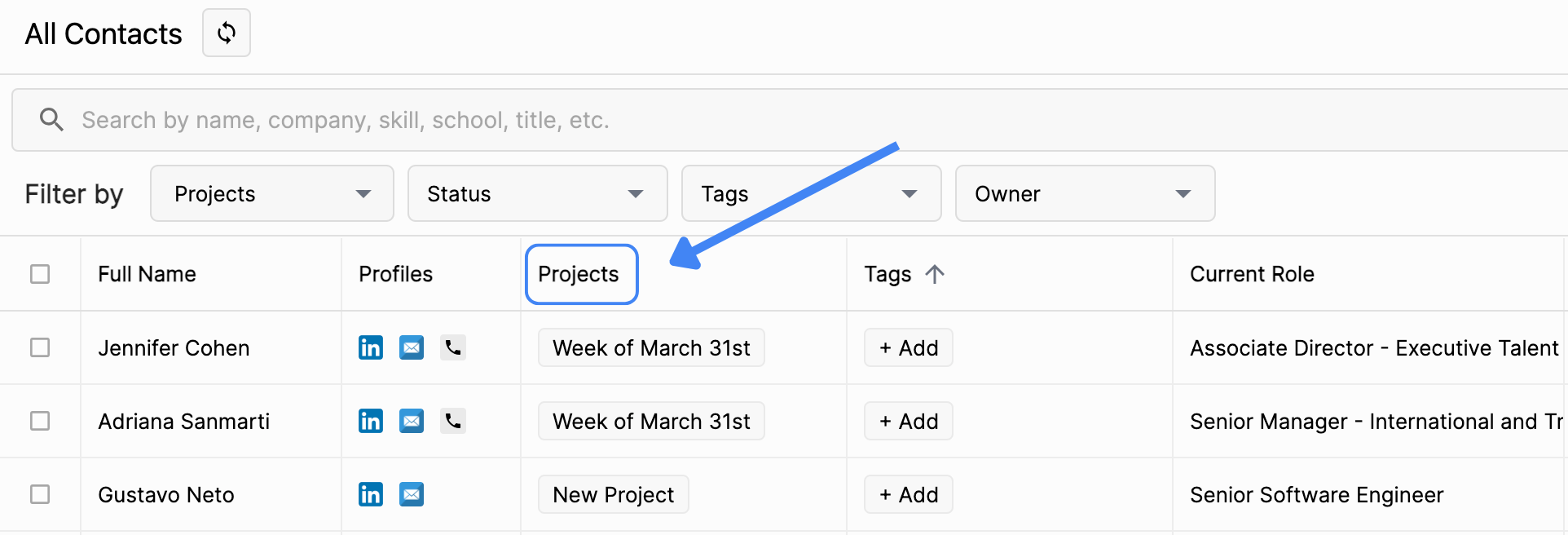
- Projects: Filter candidates by the projects they’re assigned to. A candidate can be in multiple projects.
- Status: See where each candidate stands in your recruitment process (e.g. ‘Not Contacted,’ ‘Interested,’ ‘Not Interested’) — will autoupdate if you reached out to them via a sequence
- Tags: Use custom tags to organize candidates based on qualities you define (e.g., ‘To Reach-Out’ ‘Follow-up,’ etc.)
- Owner: Filter by the user who interacted with the candidate’s profile to manage who’s responsible for each candidate
Add Tags
Add custom tags to profiles for easier filtering and organization. Just click ‘+Add’ to tag candidates, or remove tags that are no longer relevant.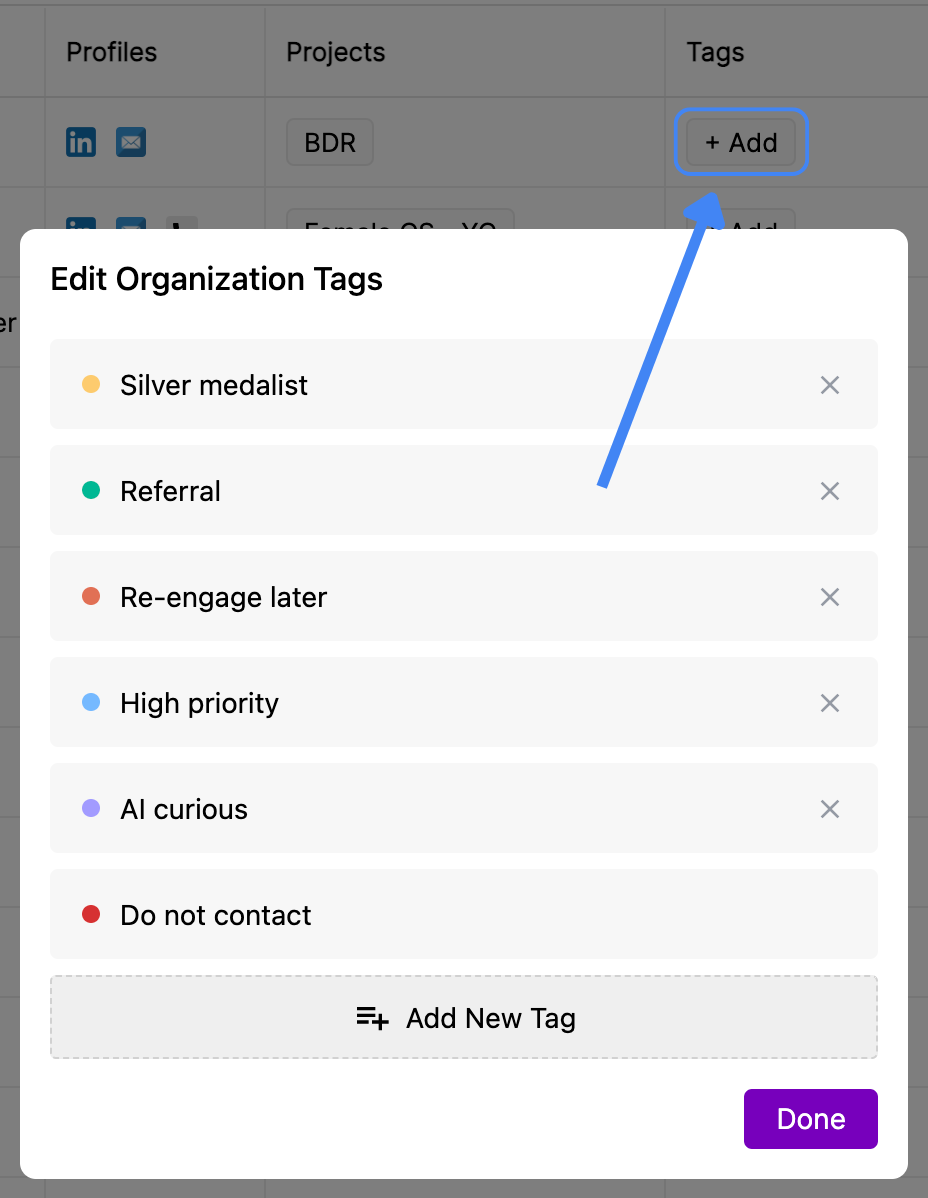
Using Actions on Candidate Lists
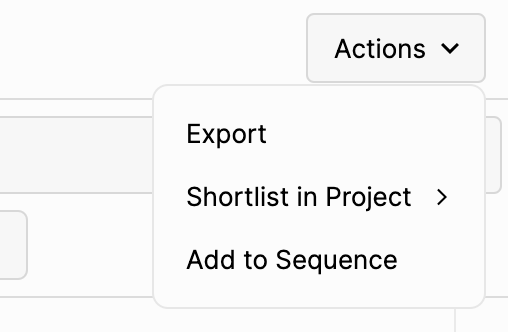
You can select candidates and use ‘Actions’ (found on the top right of the page) to export, shortlist in a project, or add to sequence.- Export: Candidates can be exported in PDF, CSV, CSV for LinkedIn Recruiter, or ATS formats. Exports count toward your export credits, which can be found under Settings → Organization → Export Credits.
- Shortlist: You can shortlist candidates into additional projects.
- Add to sequence: You can directly add candidates to email sequences from here.