

Overview of Projects
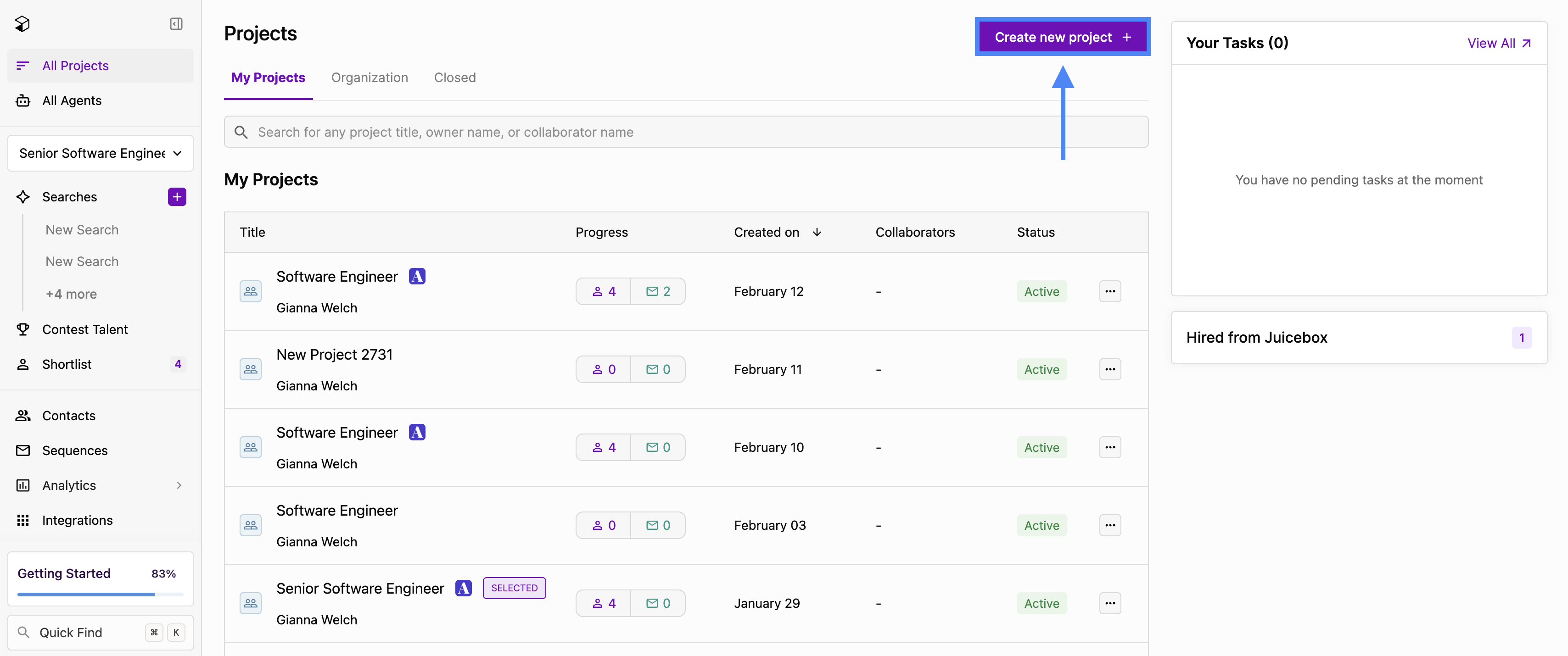
Projects are the top-level unit of work in Juicebox — think of one project as a campaign for a single role. Every search and every agent lives inside a project, and there is no separate Agents page or standalone “create a search” entry point: creating a search or an agent means creating (or opening) a project. Each project runs in one mode at a time — a manual Search or an Agent — and you can toggle between the two whenever you like. We recommend creating a new project for each new role or target audience that you’re kicking off. You can create a new project by selecting Create new project + in the top right.The project homepage
When you create a new project, you’ll land on the project homepage. This is the launch pad for the role:- Name the project. Naming it after the role (for example, “Brand Designer”) lets Juicebox auto-complete the ATS job link and the hiring manager when there’s a unique match. If more than one open role matches, you’ll be asked to pick which one to link.
- Choose Search or Agent. The central action area is where you fire off a manual Search or hand the role off to an Agent. You can switch between the two at any time from inside the project.
- See project context on the right. Collaborators, connected integrations, the linked ATS job, and a mini preview of the current shortlist all live in the right-hand panel. The mini shortlist links out to the full shortlist page — there’s no duplicated shortlist view on the homepage.
Project Categories
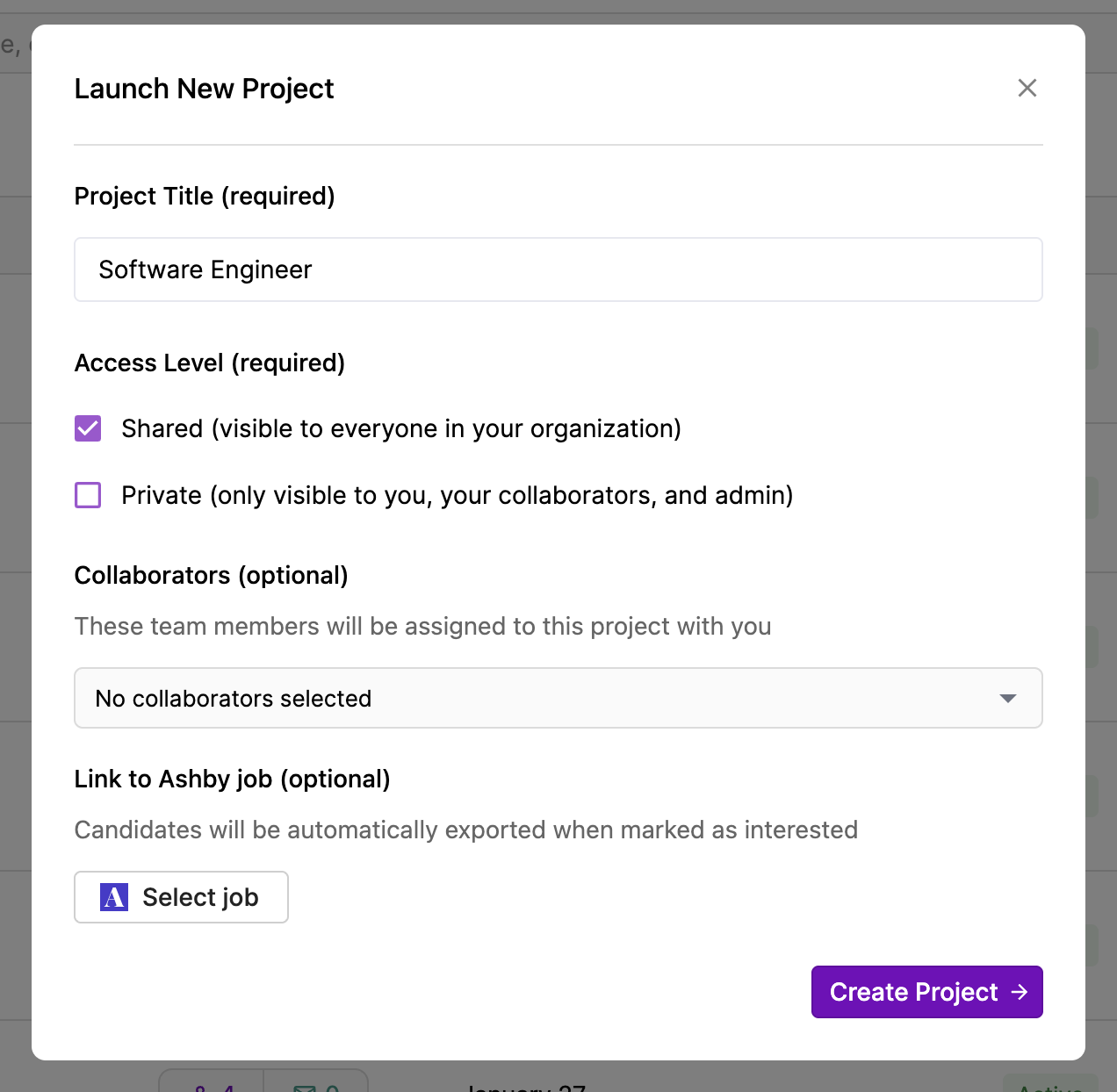
When launching a project, you will be asked to select between one of two different types of projects in Juicebox:- Shared (Default): Projects visible to everyone in your org
- Private: Projects visible only to you, the project’s collaborators, and admins
Project Collaborators
Any project can be shared with specific collaborators. In the case of a private project, this will only give you and the collaborators access. In the case of a shared project, it will give the full team access.Link to ATS
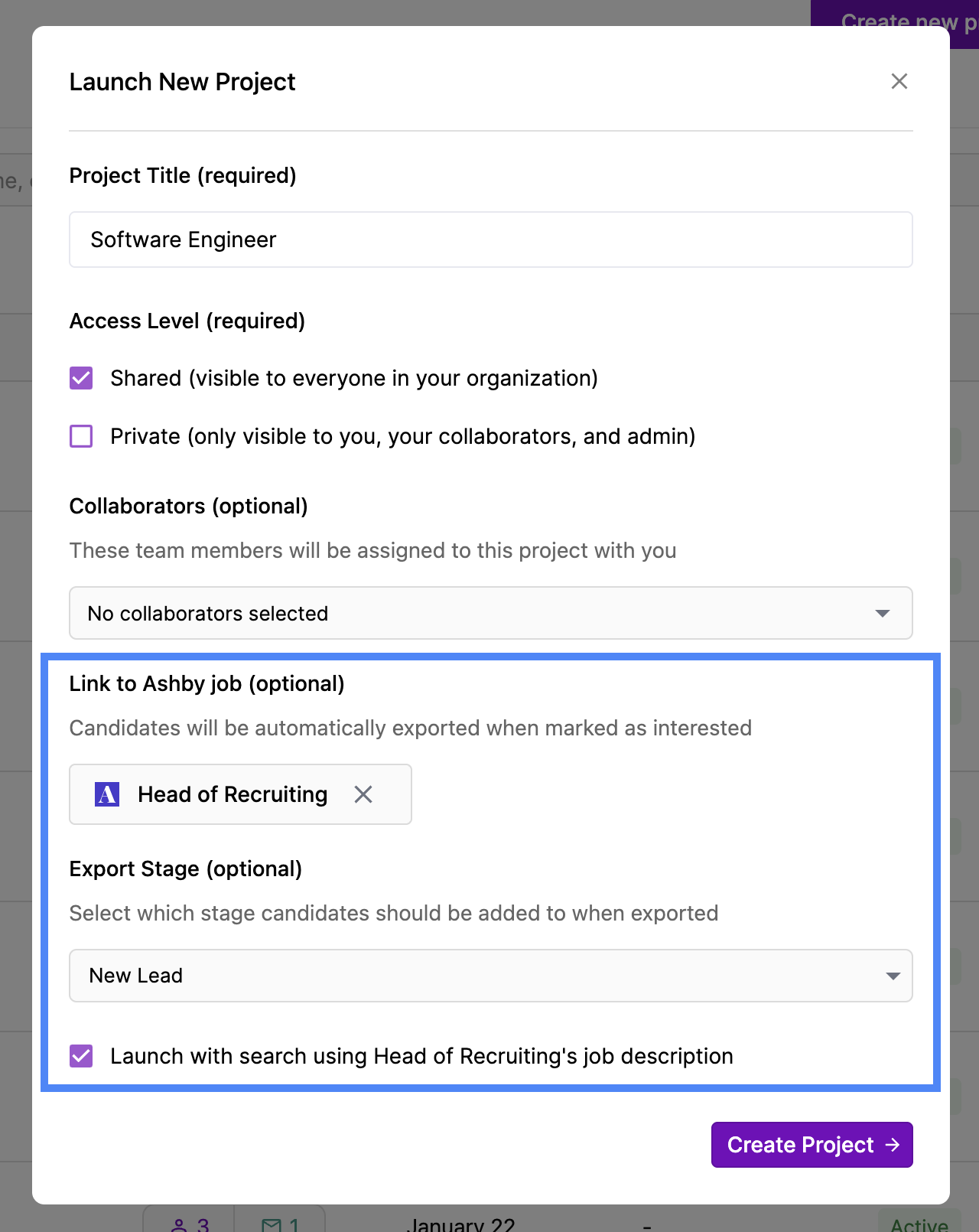
For all ATS integrations, you have the option to link a Juicebox project to an existing role in your ATS. Linking a project enables several key workflows and ensures alignment between both systems, with benefits such as:- Importing Job Descriptions: Automatically pull in the job description from your ATS to initiate a search in Juicebox.
- Maintaining a Single Source of Truth: Keep your Juicebox project connected to the corresponding open role in your ATS to ensure consistency and visibility across platforms.
- Exporting Candidates to a Specific Role and Stage: Send candidates directly from Juicebox to the appropriate role and stage within your ATS for streamlined pipeline management.
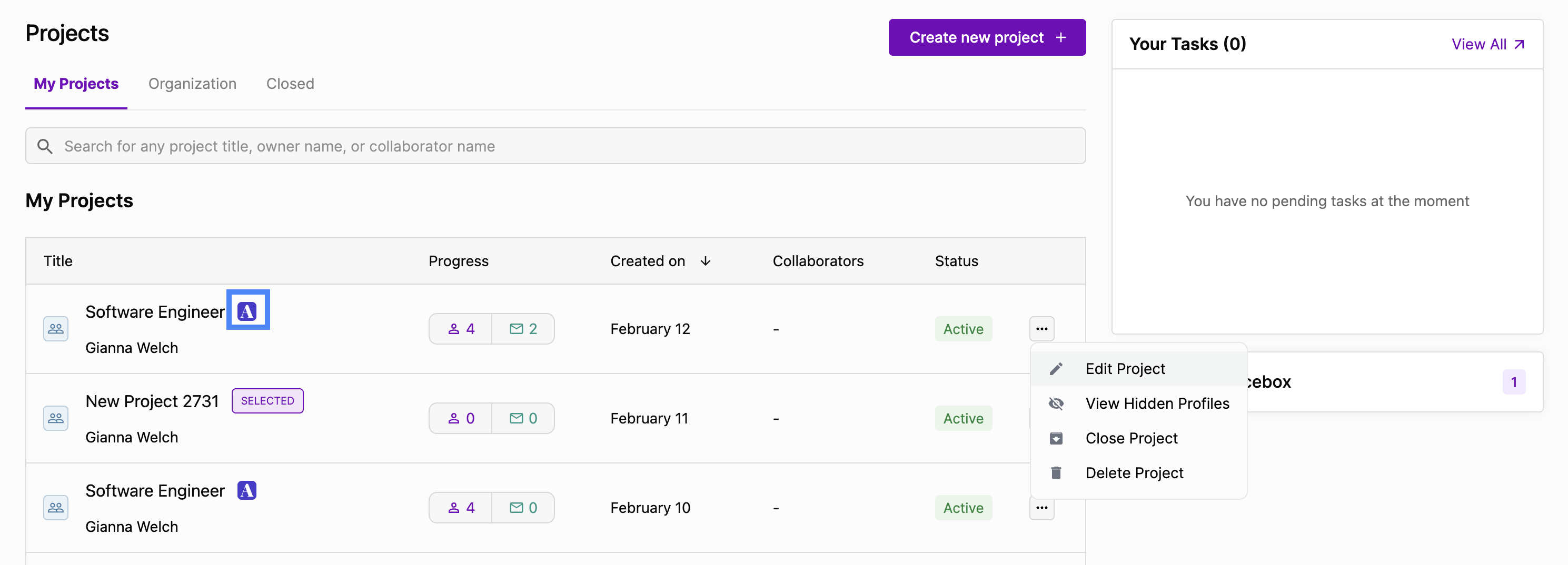
 When actively linked to an ATS role, the ATS icon will appear next to the Juicebox project. To update, remove, or associate an ATS role with an existing Juicebox project, please click the “…” > Edit Project.
Home Screen (All Projects)
Projects will appear in your home screen depending on the categorization:- My Projects: Includes both private and shared projects that you’ve created
- Organization: Includes projects created and shared across your team
- Closed: Includes projects that are manually closed in Juicebox
- Show agents only to hide projects that don’t have an agent attached — this is the canonical way to view your agents now that the standalone Agents page has been retired.
- Filter by status (for example, sourcing or paused) to focus on the work that needs attention.
- Filter to just your own projects, or just your agent-backed projects.
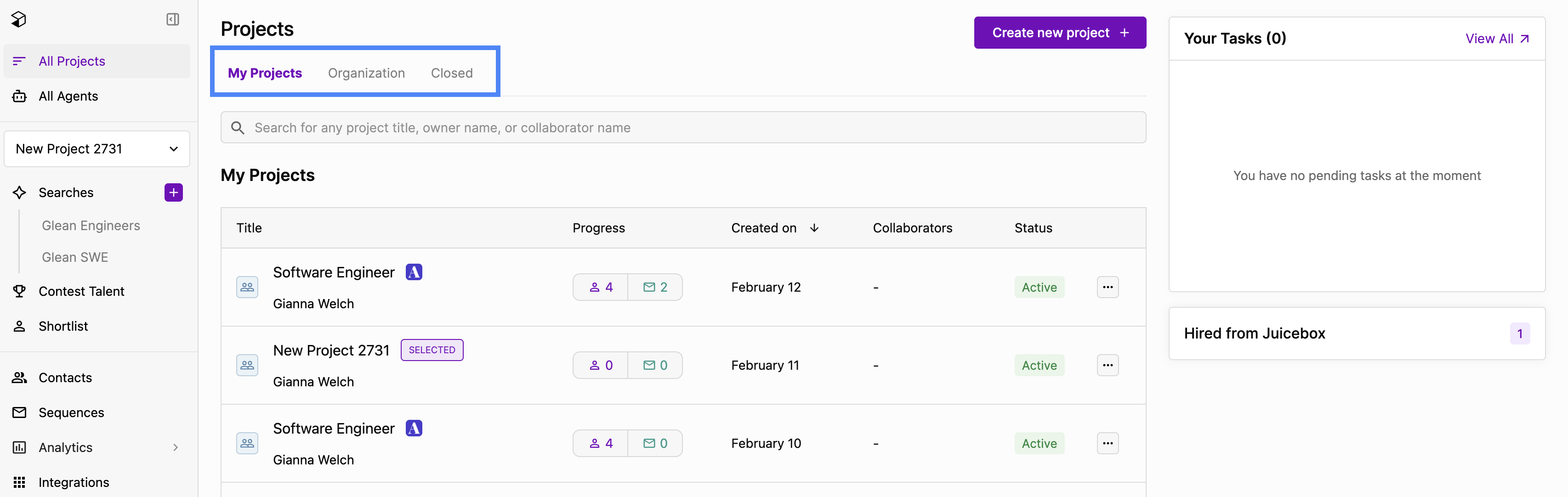 My Projects
 are projects that you have created. As the project owner, you have the ability to edit the project title, close the project, or delete it. Your name will be displayed as the project owner and visible to other members of your organization.
Organization Projects
Organization Projects are projects created by other members of your team. Within this view, you can see the project owner, the date the project was created, and the total number of shortlisted and contacted candidates.
My Projects
My Projects are projects that you have created. As the project owner, you have the ability to edit the project title, close the project, or delete it. Your name will be displayed as the project owner and visible to other members of your organization.
Organization Projects
Organization Projects are projects created by other members of your team. Within this view, you can see the project owner, the date the project was created, and the total number of shortlisted and contacted candidates.
Switching Projects
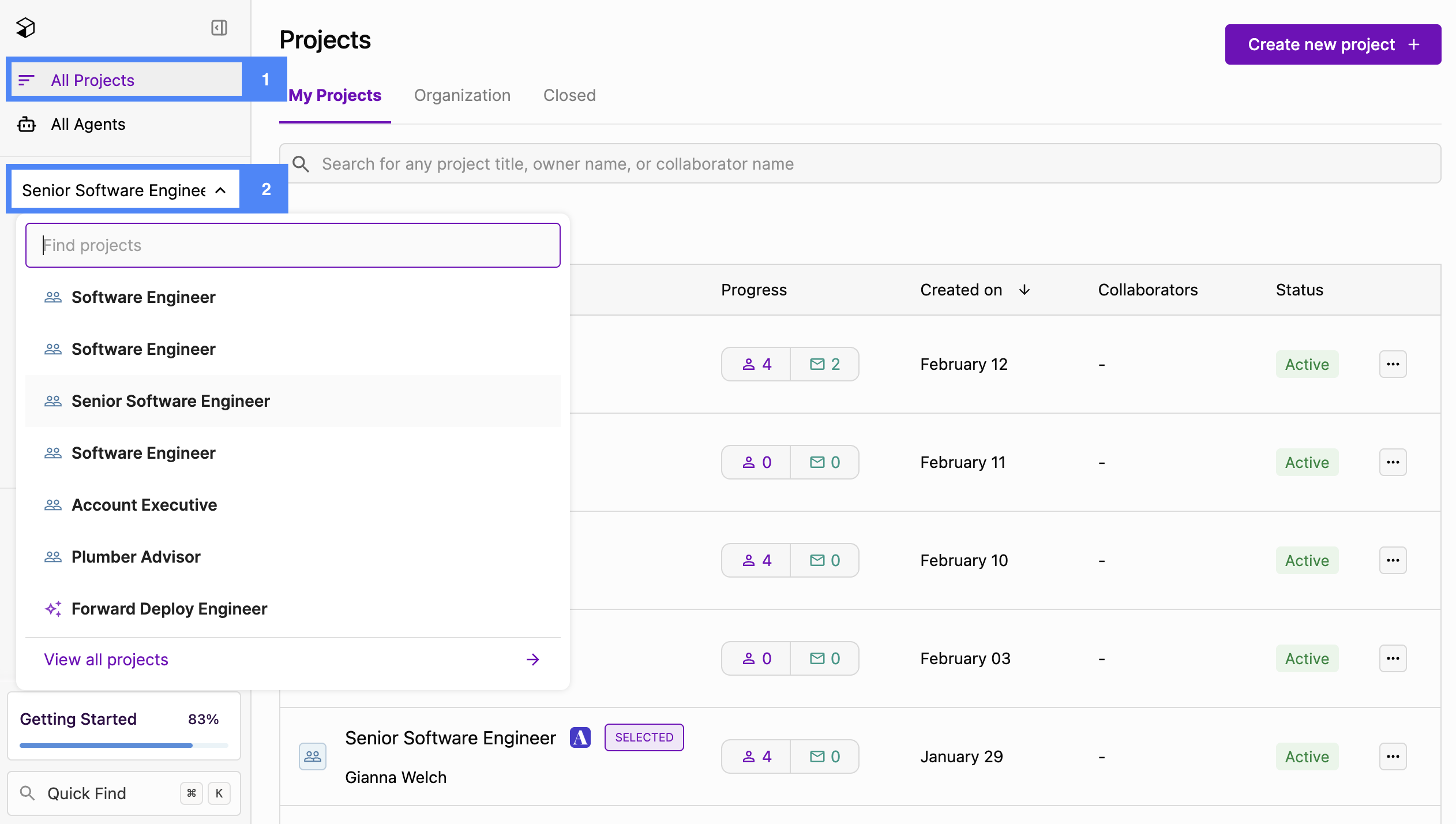
To switch between projects, you can:- Navigate to All Projects from the left-hand menu to search for the project you want to work out of from the home page
- Use the project dropdown from the left-hand menu to quickly search and flip between projects. Projects that contain an agent are marked so you can spot them at a glance.
Closing Projects
You can close a project by clicking the “…” > Close Project. Closing a project moves it to the bottom of the projects page and you will no longer be able to access project details. Closed projects do however include details on who closed the project, and when they did so.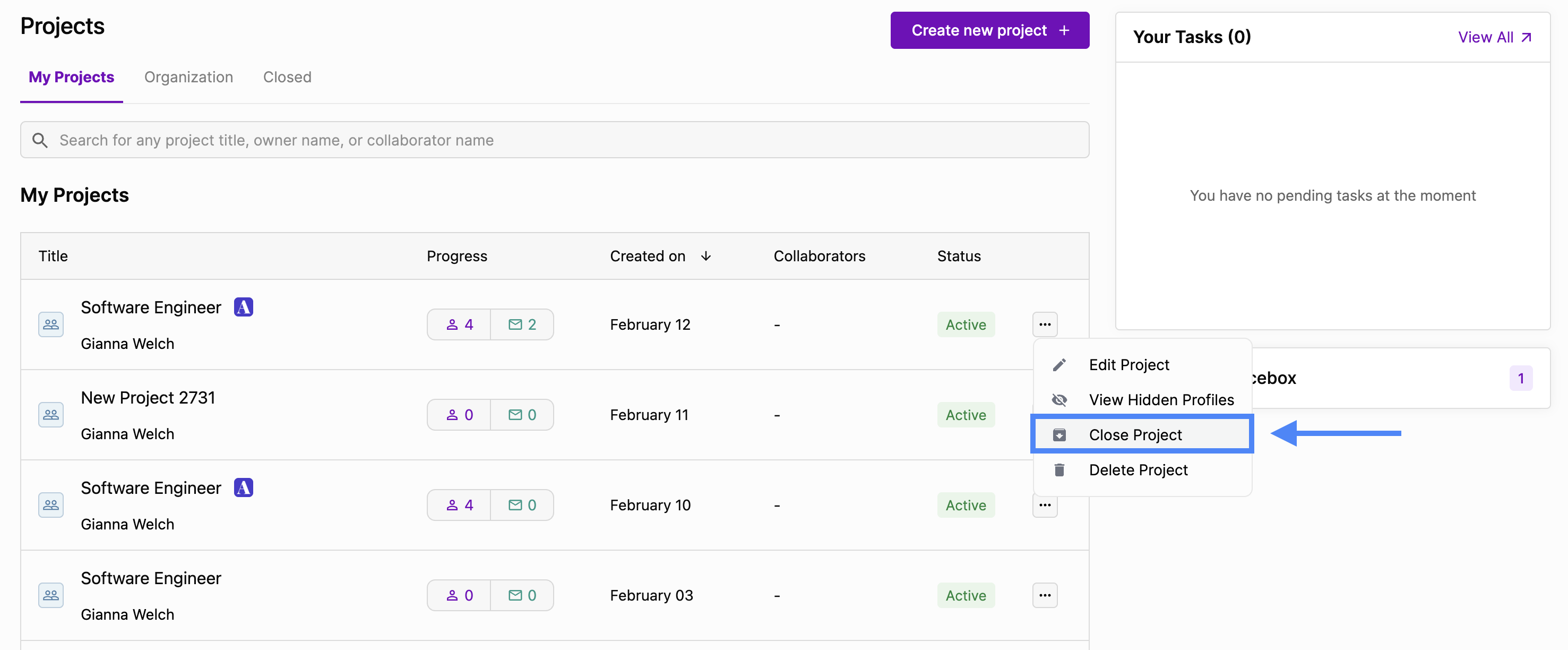 When a project is closed, it no longer counts as an active project in your plan.
Closing or deleting multiple projects at once
Use bulk selection from the home screen when you need to clean up several projects at once. For example, you might close every agent for a filled role or delete old projects in a single step. Select projects- Hover over the lock badge on a project row. The badge turns into a checkbox.
- Select the checkbox. Once any project is selected, every row shows its checkbox.
- To select every project in a group, use the select-all checkbox in that group’s header.
- Close agent (n): Stops the agent from sourcing new candidates. The projects stay open. You can also choose to cancel active outreach sequences from these agents.
- Close project (n): Closes the selected projects. You pick a close reason, the same as when you close a single project. If any selected project has an agent, you can also choose to cancel its active outreach sequences. The I made a hire through Juicebox reason is only available when you close a single project.
- Delete (n): Deletes the selected projects. If any selected project is still open, Juicebox asks for a close reason first. To confirm, type
DELETE.
You can act on up to 50 projects at a time. If you select more than 50, the action bar flags the limit and disables the actions until you deselect some projects.
Read-only admins and hiring managers can’t bulk select projects.