

- CRM Export (direct integration)
- ATS Export (direct integration)
- CSV Export
- PDF Export
- Custom-format CSV Export (for LinkedIn)
Exporting from the Search Page
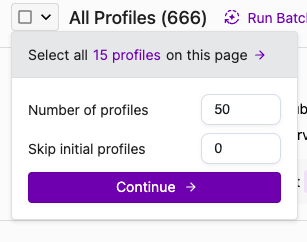
On the search page, click the “select” button under the search bar.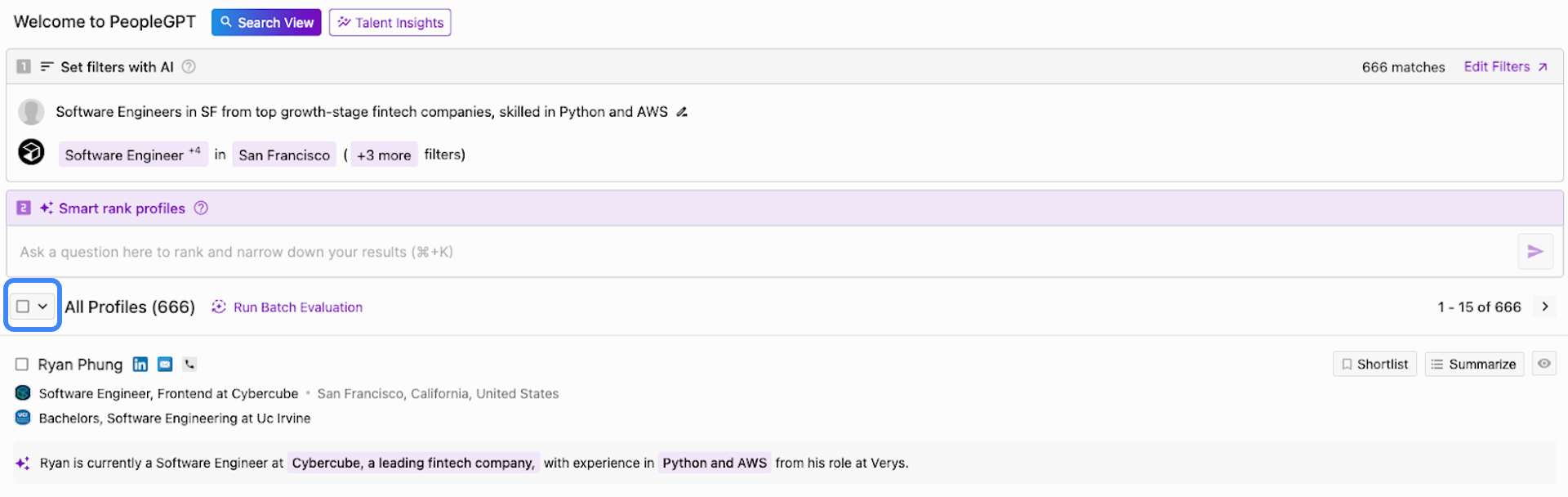 Once you click the button, a pop-up window will appear. You can choose between the following options:
- All Profiles: Select all profiles shown on the page (typically 15 on the search page).
- Custom Number: Select a custom number of profiles you’d like to select. Can be as high as the limit of your plan.
- Skip Profiles: You can choose to skip a determined number of initial profiles in your selection.
 After you have selected the profiles, a new banner will appear at the bottom of the search page. Select the export icon to proceed with the export process.
 To learn about selecting your export method, skip to the “Select your Export Method” section of this article.
Exporting from the Shortlist Page
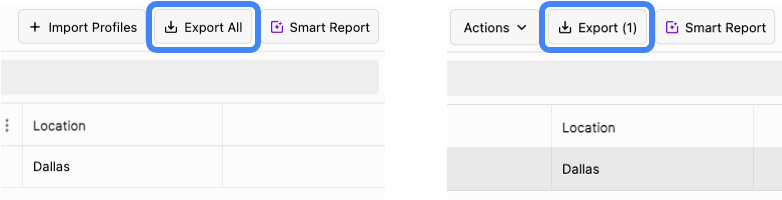
On the shortlist page, you can choose between the following options:- All profiles: To select all profiles for an export, simply click the “Export All” button in the top-right corner.
- Custom profiles: To select a certain number of profiles, manually select the profiles you wish to export. Once you have selected your candidates, click the export button in the top-right corner, which will indicate the number of exports.
Select your Export Method
As a final step, you can choose between your preferred export method — covered in more detail in the later sections of this guide. Your export will be delivered to you within the platform and via email.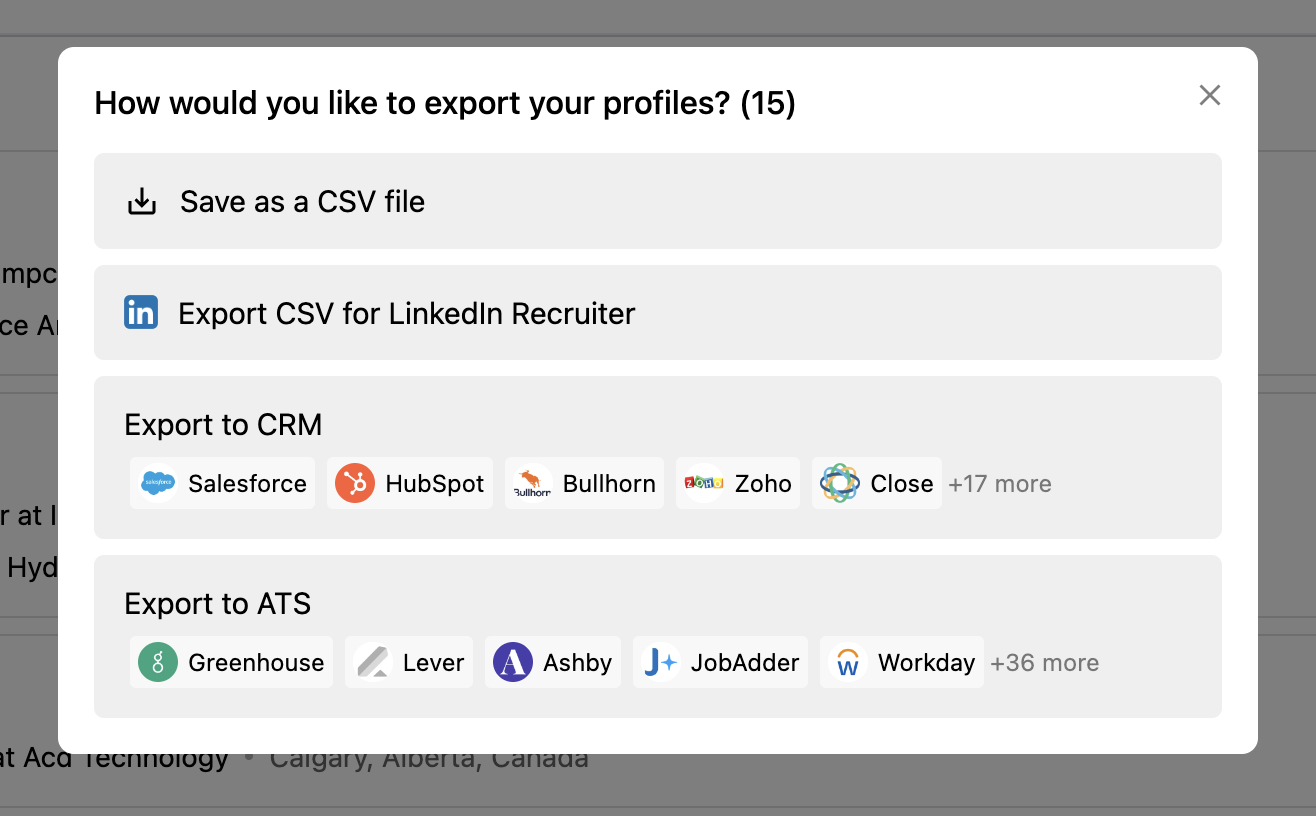
Exporting with Contact Details
After selecting your export method, you will be asked to select whether you’d like to export with contact details, or without. You can choose between: A) export with contact information or B) without contact information. Both methods will charge export credits, while you can choose whether you’d also like to use contact credits.
When exporting without contact information, the email / phone fields will simply state “TRUE” or “FALSE” to indicate whether they exist. Please see the All About Credits section for further details on credits.
Viewing Past Exports
To view past exports, select your account icon in the bottom left corner. Then, select the “Profile Export History” option. You will be able to view all previous exports, as well as download profiles previously exported.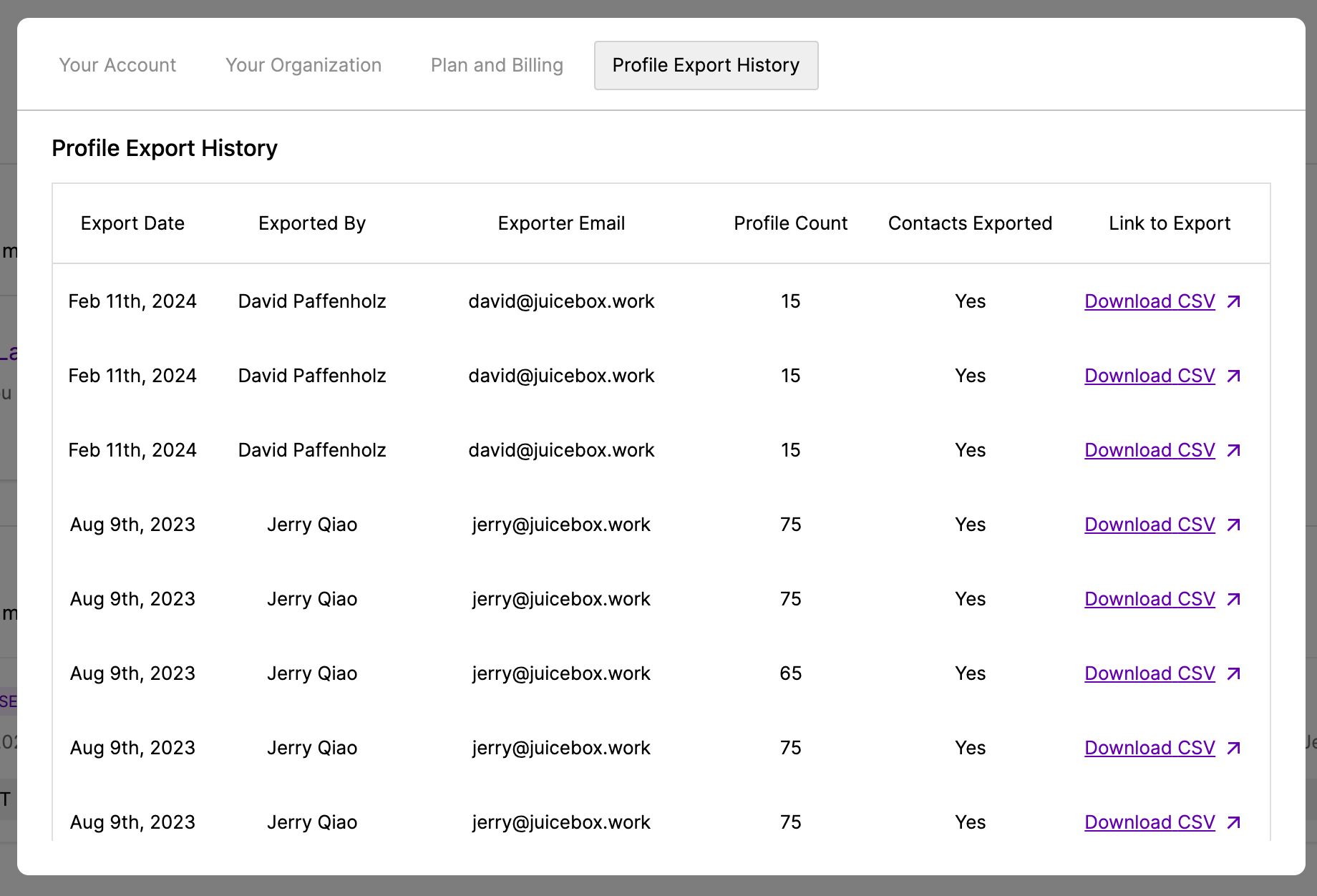
Exporting a network from the Network page
From the Network page, opening an employee’s connections or overlaps sidebar surfaces a Download icon that exports the full list to CSV. This bypasses the standard select-and-export flow above and does not use export or contact credits.- Each download includes up to 10,000 rows. If more exist, Juicebox exports the first 10,000 and surfaces a snackbar with the truncation count.
- The Connections CSV uses LinkedIn’s
Connections.csvheader format so the file can be re-uploaded for another employee. - The Overlaps CSV adds an Overlap Strength label and a How they overlap description derived from shared company or school date windows.
- Email and phone appear only when they were already revealed or manually added to that profile.