

Introduction
Juicebox uses AI to understand your searches, configure filters, and support a full natural-language prompt, giving you real-life superpowers in searching through 800mm+ profiles.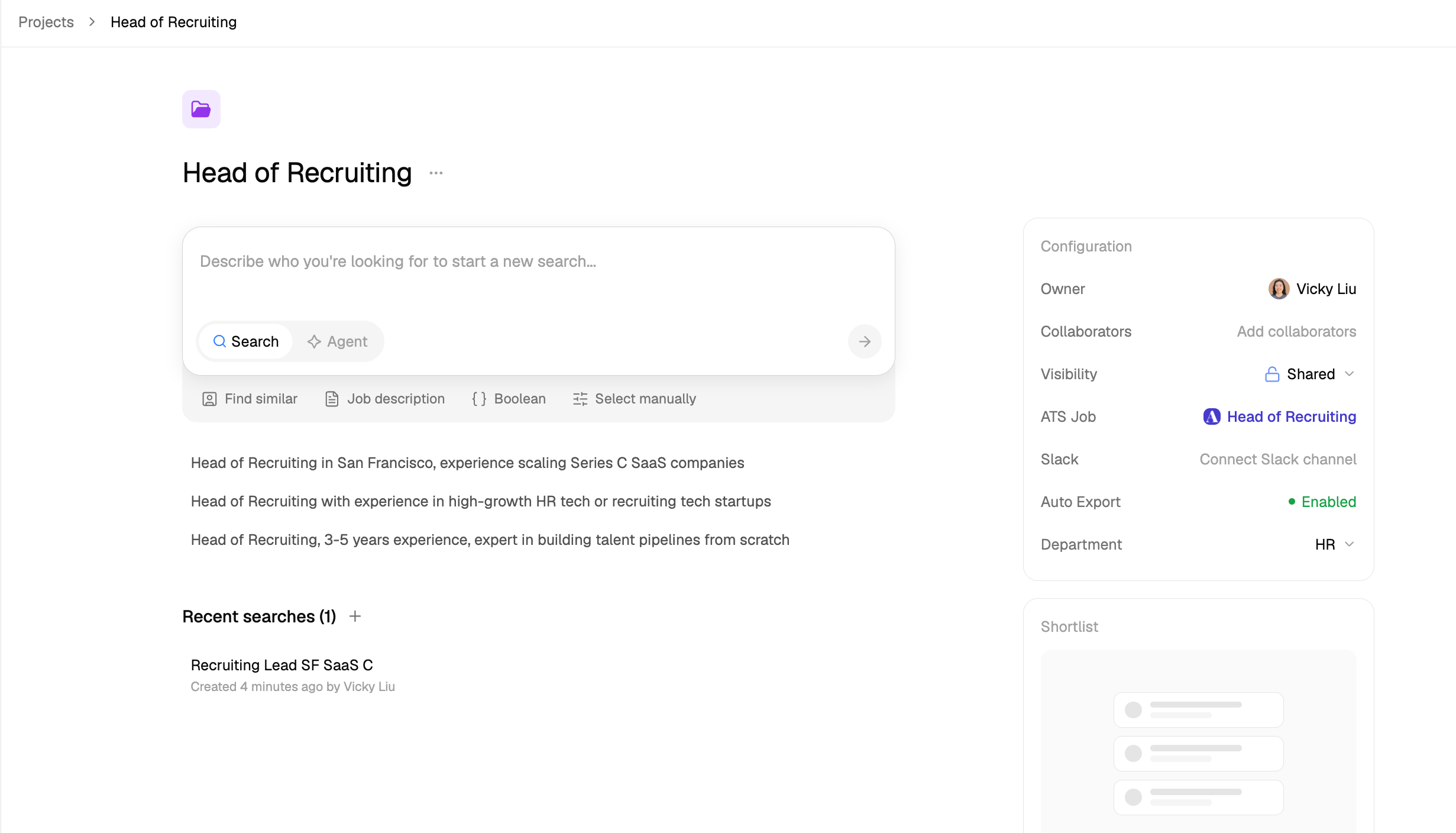
How to search in Juicebox
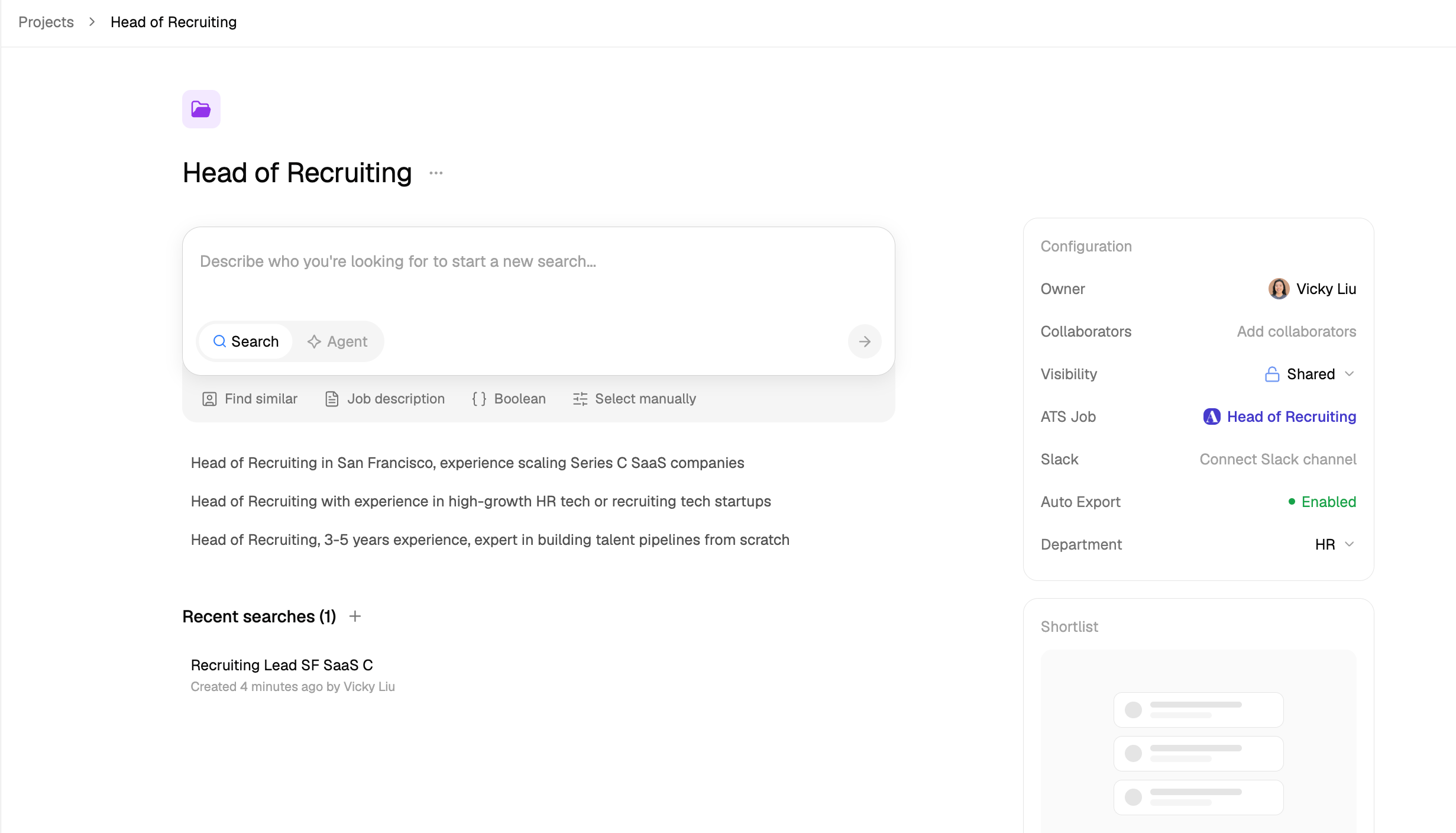
Every search in Juicebox starts inside a project. To search for candidates most effectively, please follow this method: Step 1: Create a new project. Step 2: From the project homepage, choose Search to start sourcing manually. If you do not already have an Agent setup in the project, you can toggle to Agent at any time if you’d rather have an Agent source in the background. Step 3: Describe the type of candidate you are looking for using your natural language. The more details or context here, the better! Step 4: Run your prompt to review the filters and criteria populated Step 5: Select Run search to review your ranked search pool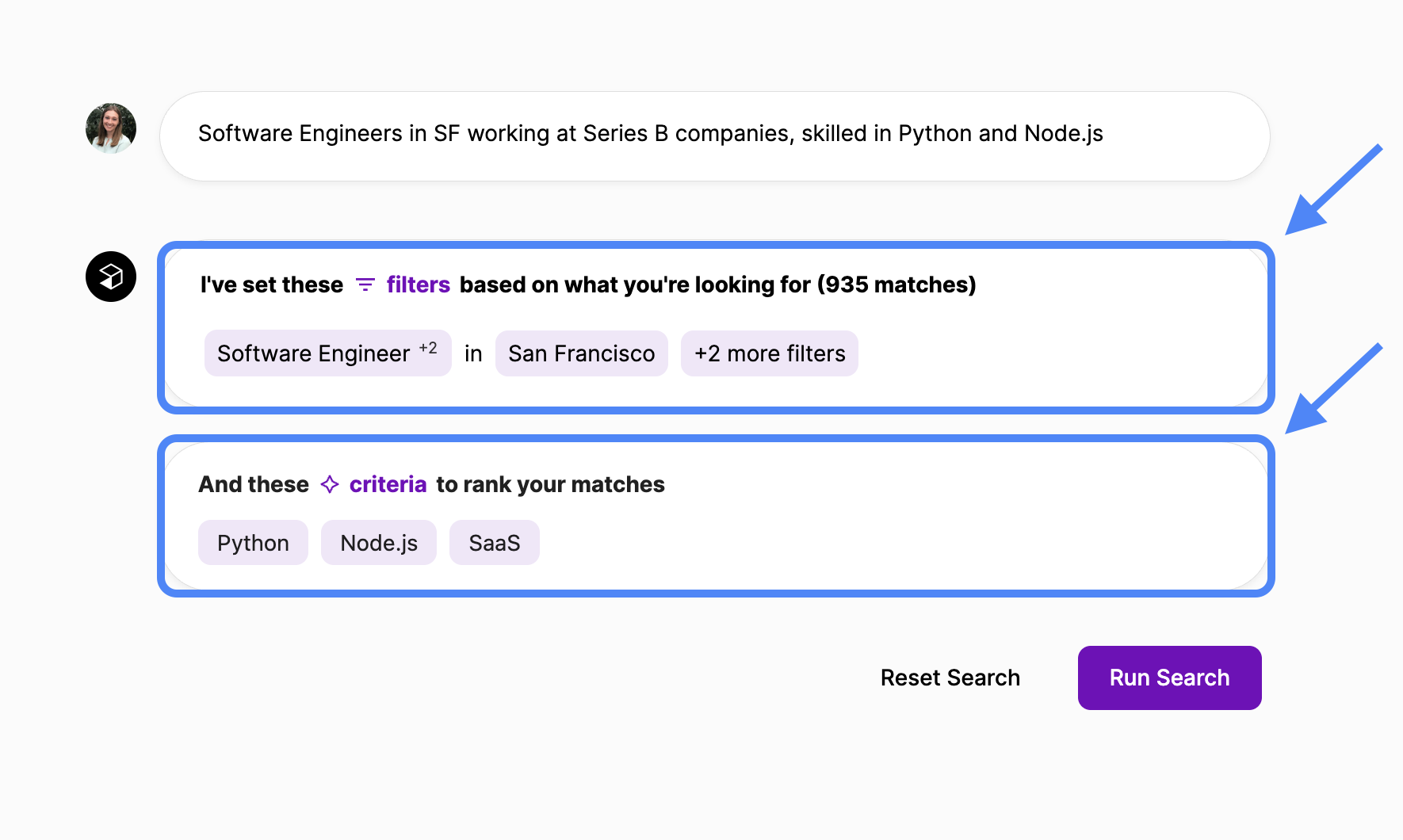
Dictating your prompt with voice
You can speak your prompt instead of typing it. Select the microphone button (Start voice input) in the project search box or the search page prompt, then start talking. A waveform shows while Juicebox is listening.- Juicebox transcribes your speech into the input so you can review and edit it. It never submits your prompt automatically.
- Recording stops on its own after about 8 seconds if you haven’t started speaking, shortly after you stop speaking, or after 90 seconds. Select the button again (Stop voice input) to stop early.
- Select the microphone again to keep adding to what you already have.
- Juicebox improves recognition of names, skills and technical terms using your project, your recent searches and your Agent chat.
- Juicebox doesn’t store your recordings.
Voice input isn’t available to view-only admins, sequence seats or hiring managers. It’s also off if your admin has turned off recording for your organization.
Reviewing results
Once you run your results, candidates will appear in a ranked view, giving you the best matched candidates right off the bat. Each profile will receive a score against the set criteria, and will be shown as:- Good Match (Green thumbs up): signifies that the criteria are fulfilled, either through explicit mention on the candidate’s profile or through AI inference.
- Potential fit (Yellow thumbs up): suggests that the criteria are likely met but with some ambiguity, or that there is some evidence missing. **
- Not a match (Red stop sign): indicates that there is no evidence that the criteria are met based on the information available. **
 To gain deeper insight into an individual candidate or action on multiple candidates at once, switch between the Classic and Table views.
Classic view
Use Juicebox’s classic view to individually review candidates and their match analysis.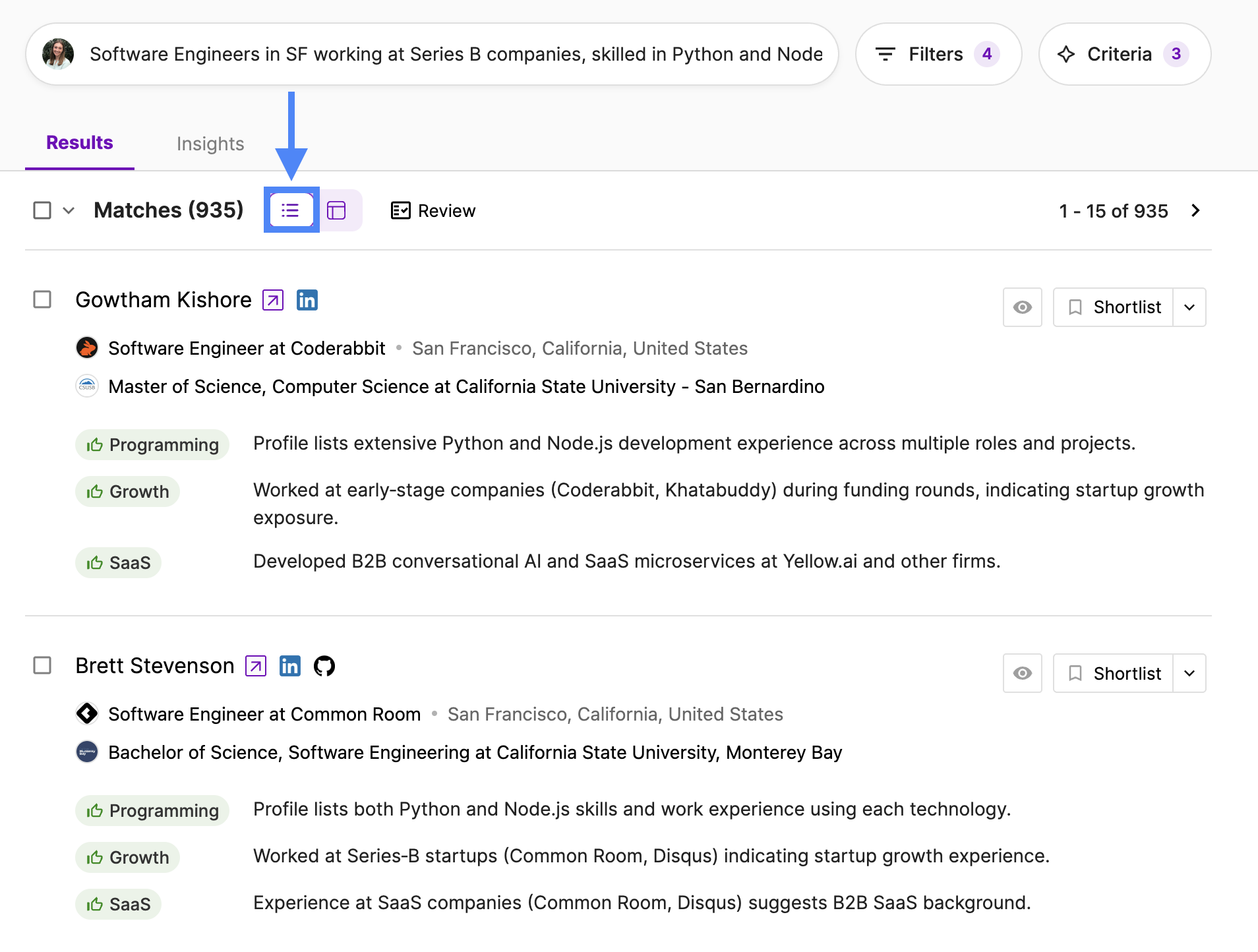 To learn more about a candidate:
- Select the candidate’s name to review their full profile
- Recommended: Select Review at the top to open a side-by-side view of the candidate’s background and Juicebox’s match analysis. Interact with each criterion to see exactly where that experience appears within the candidate’s profile.
Table view
Use Juicebox’s table view to efficiently review and select a larger set of candidates alongside a snapshot of their match analysis.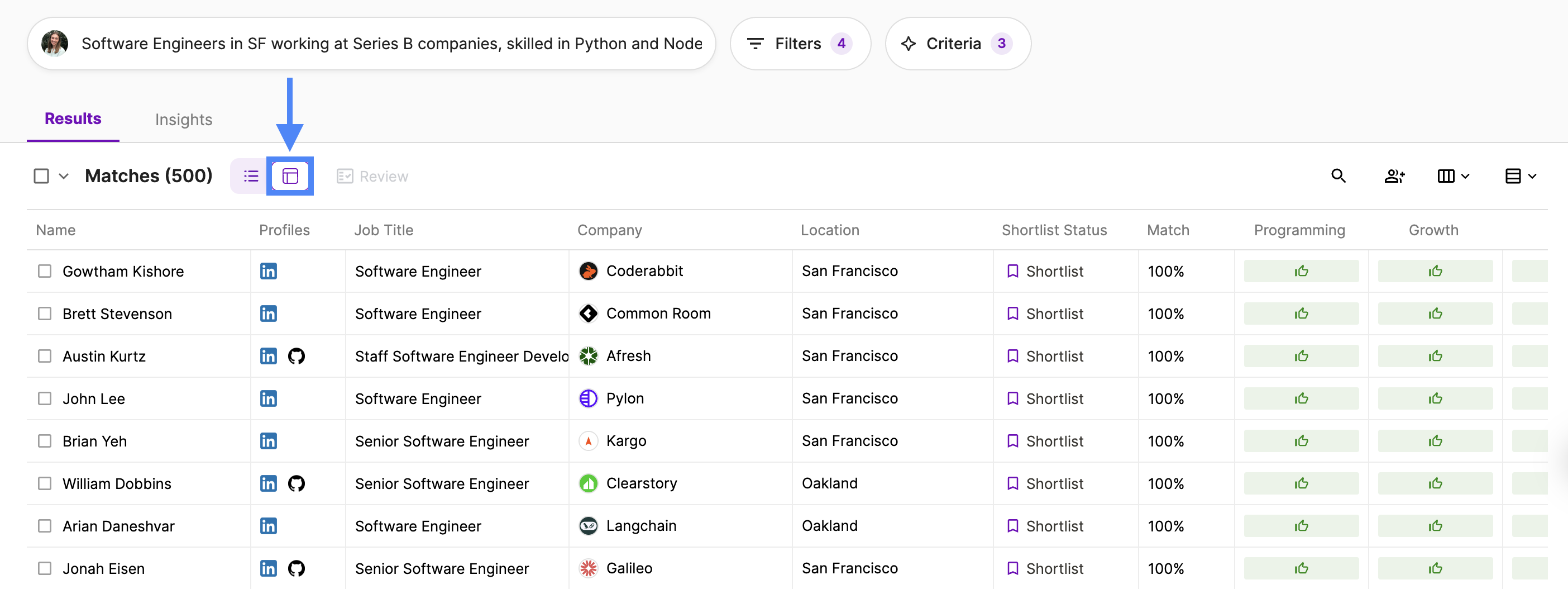 To learn more about a candidate:
- Select the candidate’s name to review their full profile
- Tailor the table to include additional information such as Education, Location, Company and Job Title
- Expand a single row in order to look at a candidate’s match analysis overview
- Recommended: Select Review at the top to open a side-by-side view of the candidate’s background and Juicebox’s match analysis. Interact with each criterion to see exactly where that experience appears within the candidate’s profile
Not finding the right results? Open Insights to uncover data on your current search pool, and then tweak filters based on any misaligned skills, locations, employers, etc.
Shortlisting profiles
Shortlist the candidates you believe are a good fit in order to contact them directly, share with a hiring manager, or export back to your ATS. To shortlist a candidate, you can:- Directly shortlist as you scroll from the classic or table view
- Individually “Add to Shortlist” from the candidate’s profile or Review results
- Bulk select > Add to Shortlist from the classic or table view
Iterating on your search
Adjust your filters or criteria at any time to continue to iterate on your search and ensure you are finding the best candidates.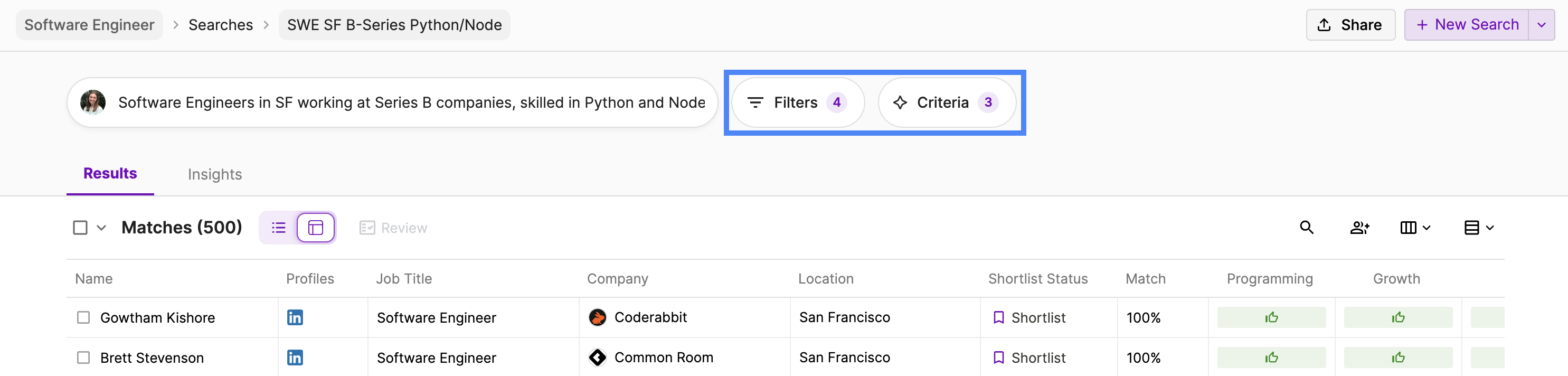
Running a search with an ATS job
Have your ATS connected? Kick off a search straight from an ATS job. Set the toggle to Search and select “Use job description from {{ATS Job}}”.Available to business plans.
.png?fit=max&auto=format&n=9NO9AEp9WpKiqQSM&q=85&s=343a8a25ecb011acd6fb8b9b2a901306)