

- The Sidebar Profile View, accessible by clicking the profile card.
- The Full Profile View, accessible by clicking the name of the candidate, or by selecting “View Full Profile” in the sidebar.
Sidebar Profile View
View profiles in the right-hand sidebar for a summary of linked socials, contact information, experience, and more.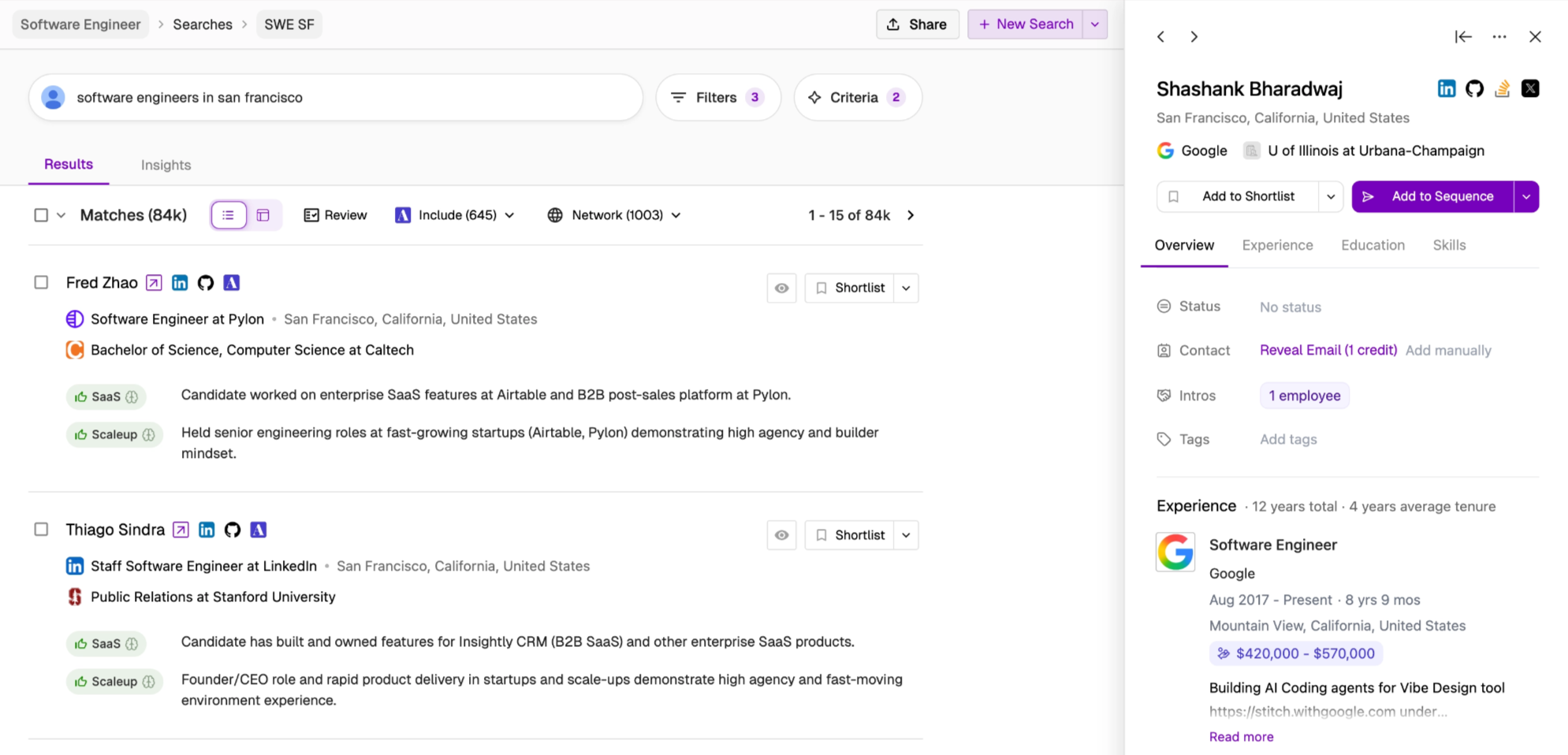
Full Profile View
Selecting the candidate’s name, or clicking on the |← icon within the side profile will expand the candidate’s profile view. This full view will now show additional details such as, profile highlights, notes, and team engagement history.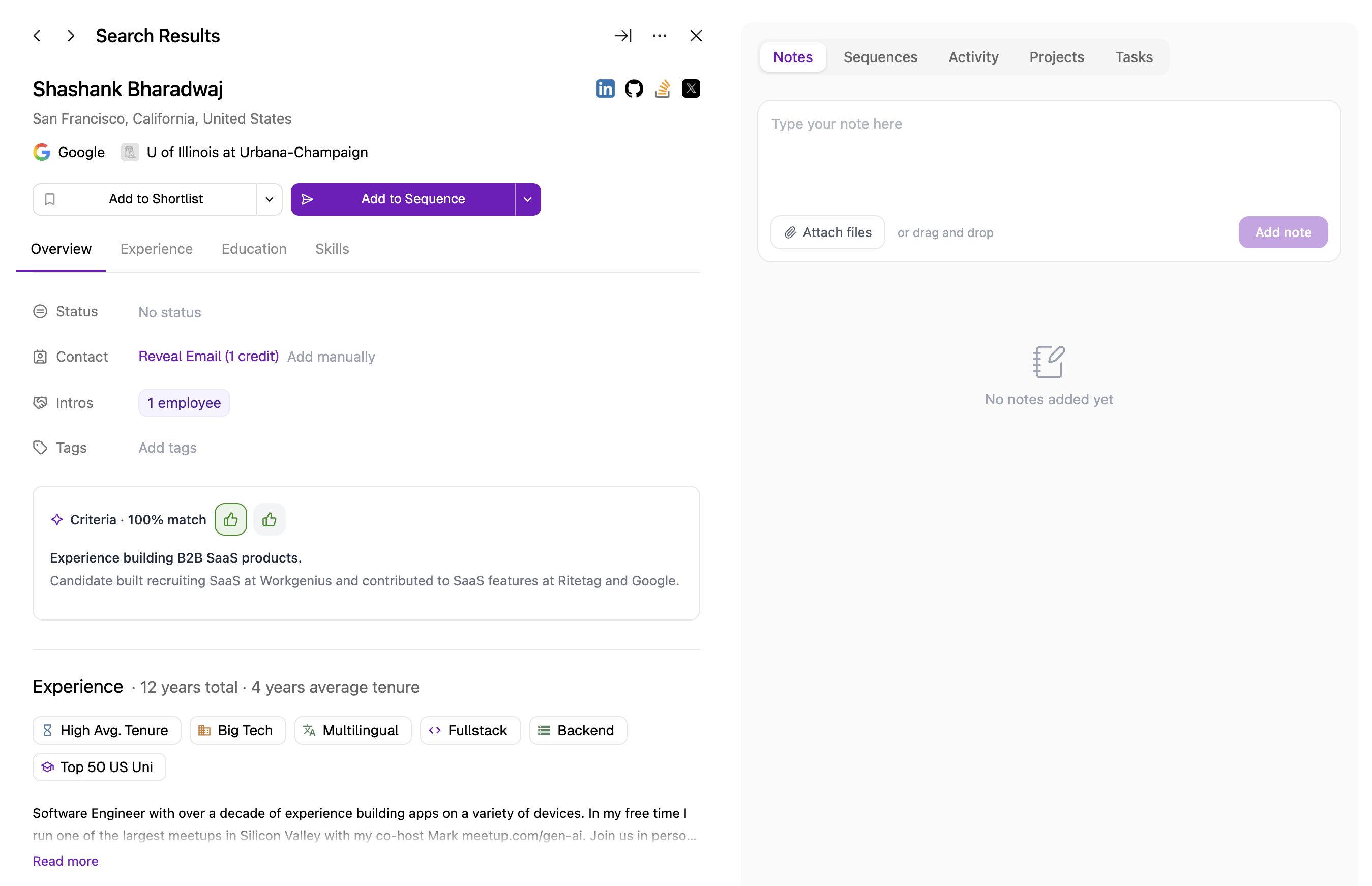
Profile Tags
See highlights about a profile, including experience, tenure, likelihood to switch, and skills. Sample profile tags include the following (please note that this is not a comprehensive list of profile tags): Top VC-backed Startup, Fast Career Growth, Web3 Experience, Board Member, Promoted Twice, Early Stage Startup, High Average Tenure, Top 100 Global Uni, etc.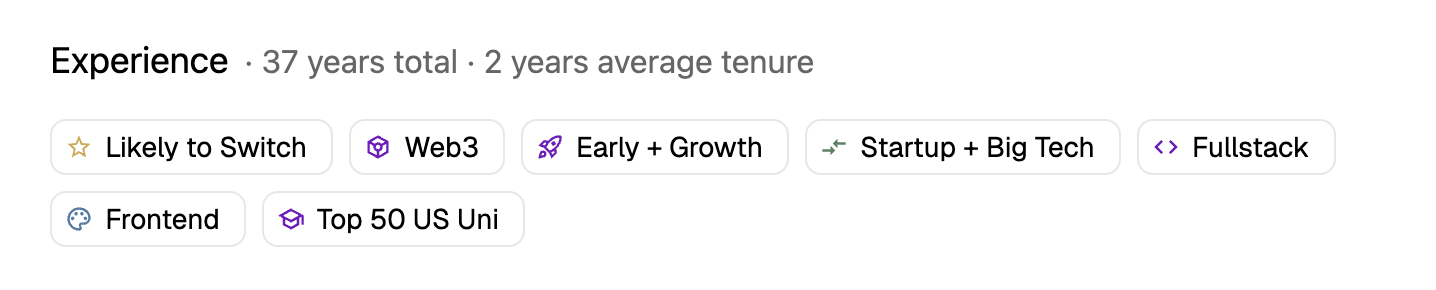
Activity History, AI-Powered File Summaries, & More
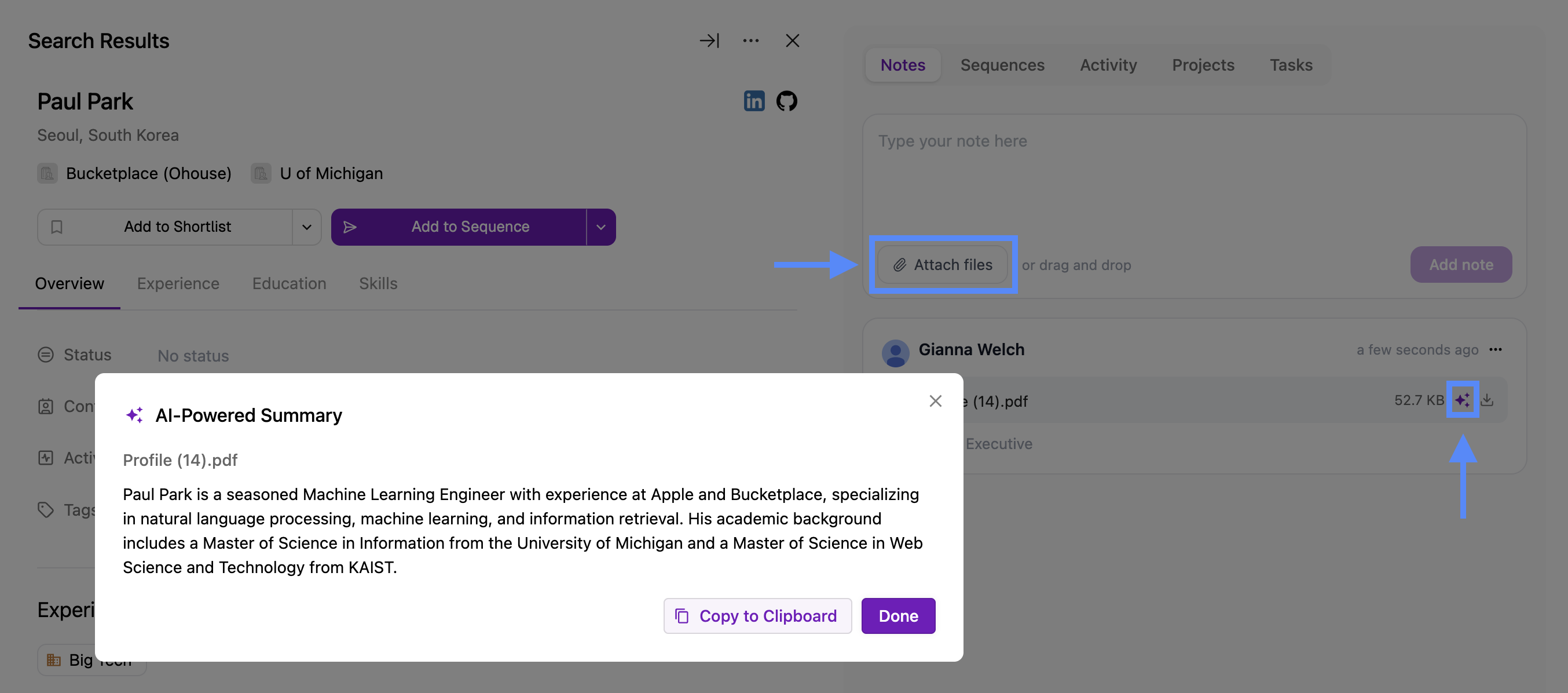
Use the Notes, Sequences, Activity, and Projects tabs to track past engagement with a candidate and collaborate with your team. Under the Notes tab, you can tag members of your team, write shared comments, or attach documents by clicking Attach Files (e.g. PDFs, resumes, screenshots).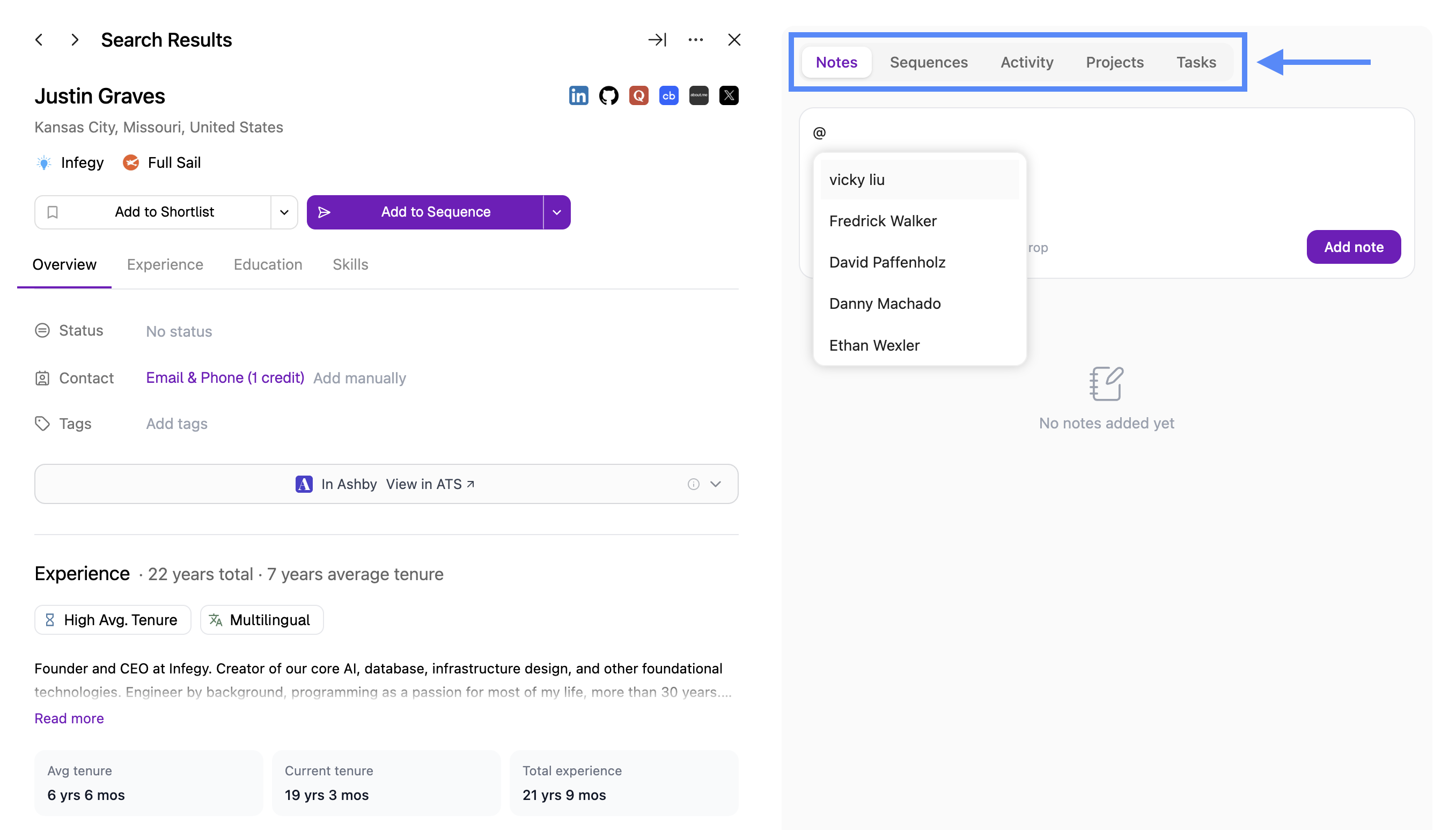 If you upload a file, you can also generate an AI-powered summary. The summary appears in the notes section and can be saved alongside your comment for future reference by your team.
Keyboard Shortcuts
When the contact side-panel or full profile page is open, the following keyboard shortcuts can be used:left- Navigate to previous profileright- Navigate to next profileesc- Close sidebar (collapses if expanded, closes if collapsed)shift+e- Export profileshift+m- Summarize profileshift+o- Toggle sidebar expansionshift+1- Switch to Notes tabshift+2- Switch to Sequences tabshift+3- Switch to Activity tabshift+4- Switch to Projects tabshift+5- Switch to Tasks taboption+shift+s- Shortlist / Unshortlist