

Introduction
Email sequences have powerful tracking built in. Use your sequence activity to identify successful campaigns and promising strategies. This guide will cover the detailed sequence view, as well as our analytics features built in.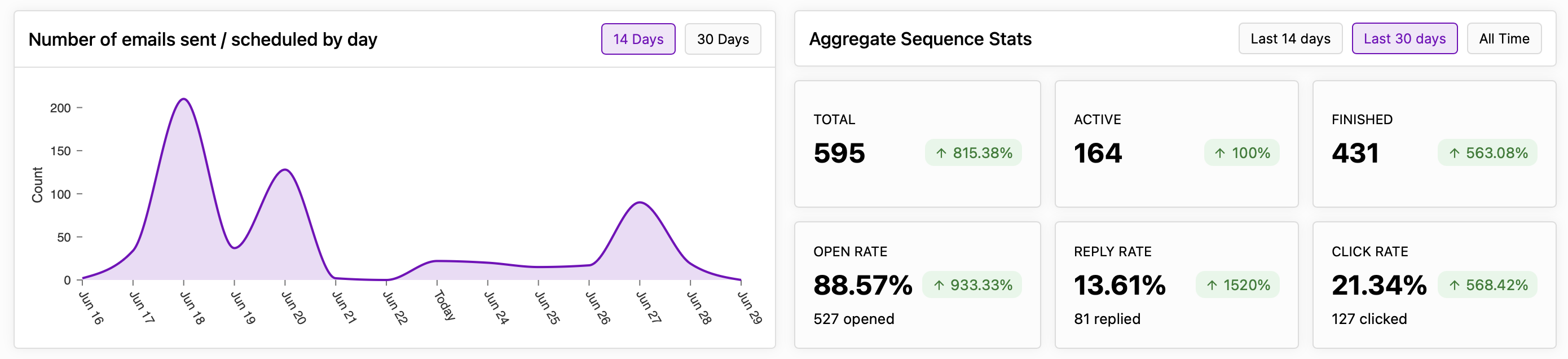
Sequence details
To view the details on an email sequence, simply select the sequence on the Email Sequences tab. You will then open the sequence tracking view.
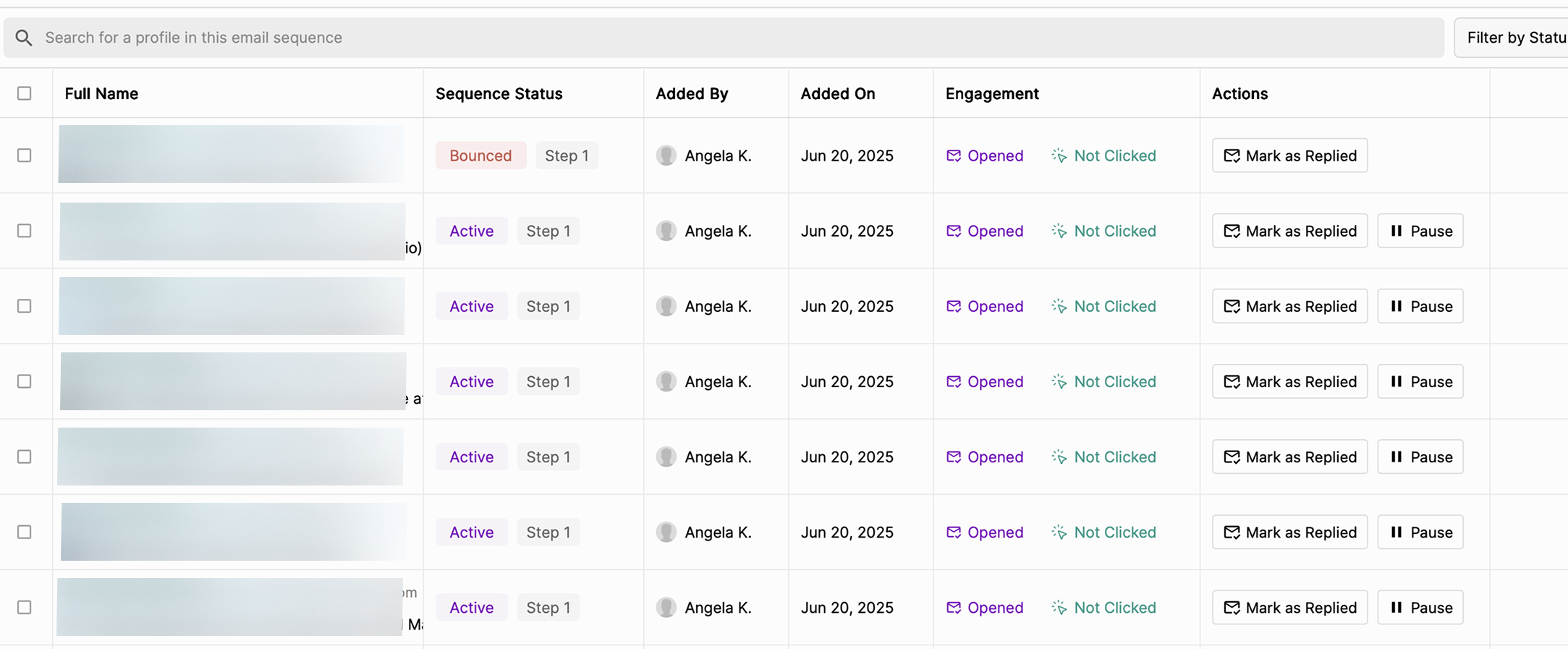 The view includes:
- A list of all profiles added into the sequence
- Their respective statuses (active, cancelled, unsubscribed, etc.)
- Attribution data
- Engagement data (open rate, click rate)
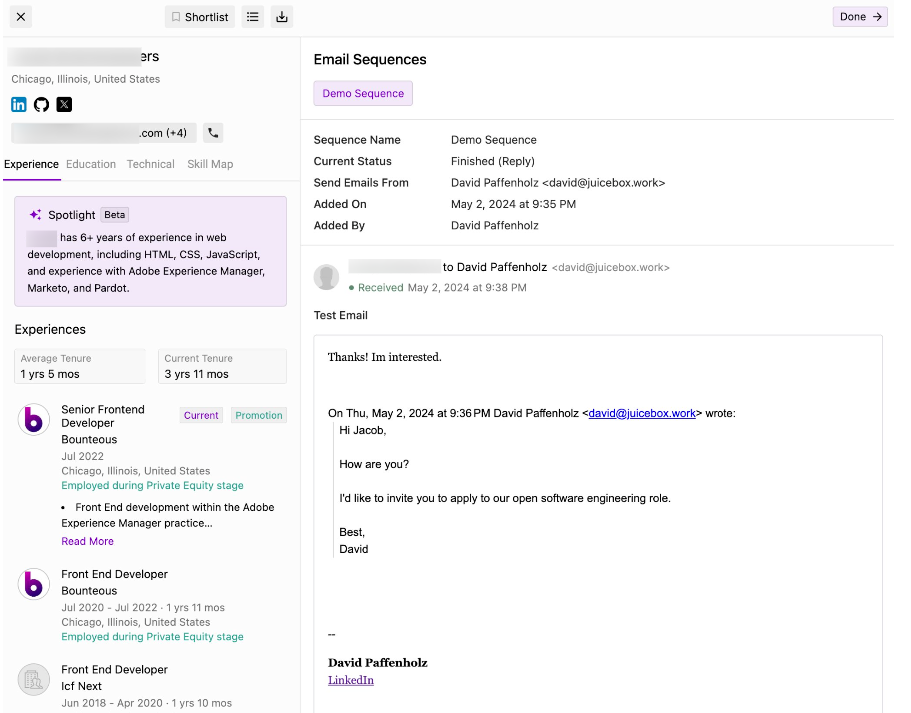
Labeling profile responses
You can label email replies directly within the Sequences dashboard as Interested or Not Interested. When a recipient replies to your email, select Mark as Replied, then choose their response status. These labels sync automatically to the Shortlist page, allowing you to filter and review profiles based on interest.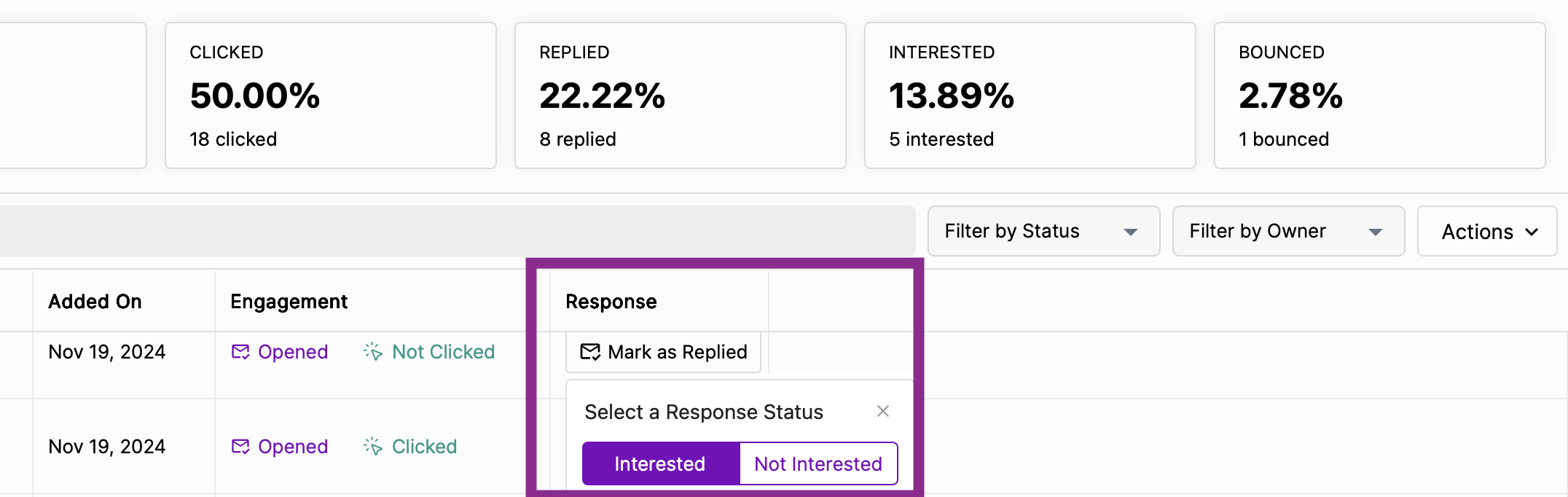
Sequence analytics
With each sequence, you receive six different data points:- Contacted: Number of sequence runs that have been sent at least one step
- Active
- Finished
- Replied
- Opened
- Bounced