

Add to shortlist
To shortlist a profile from search results, click the “Shortlist” button next to their profile. This will add the profile to the shortlist of the specified project.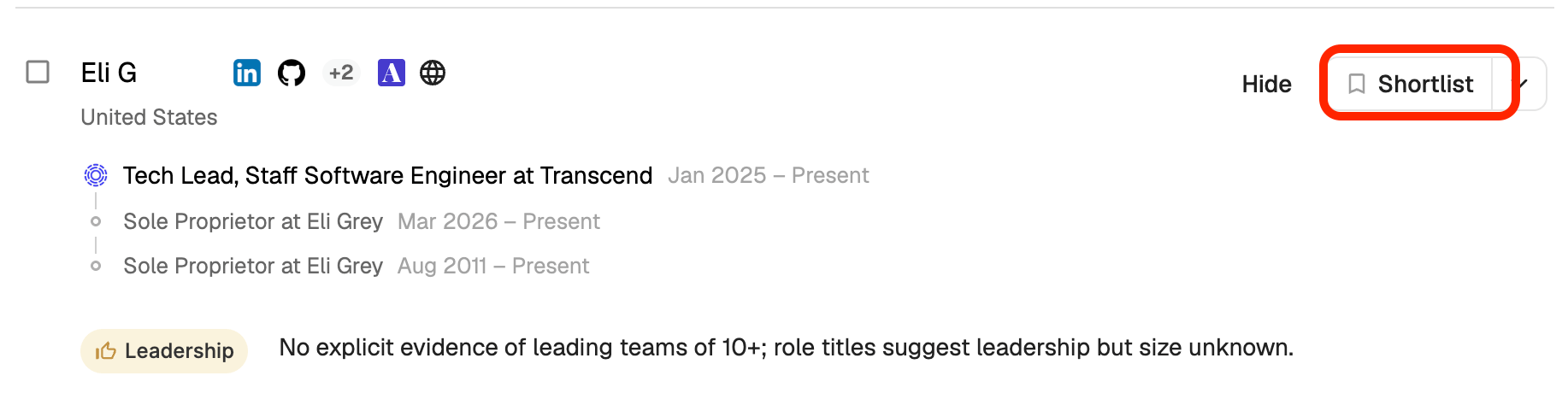
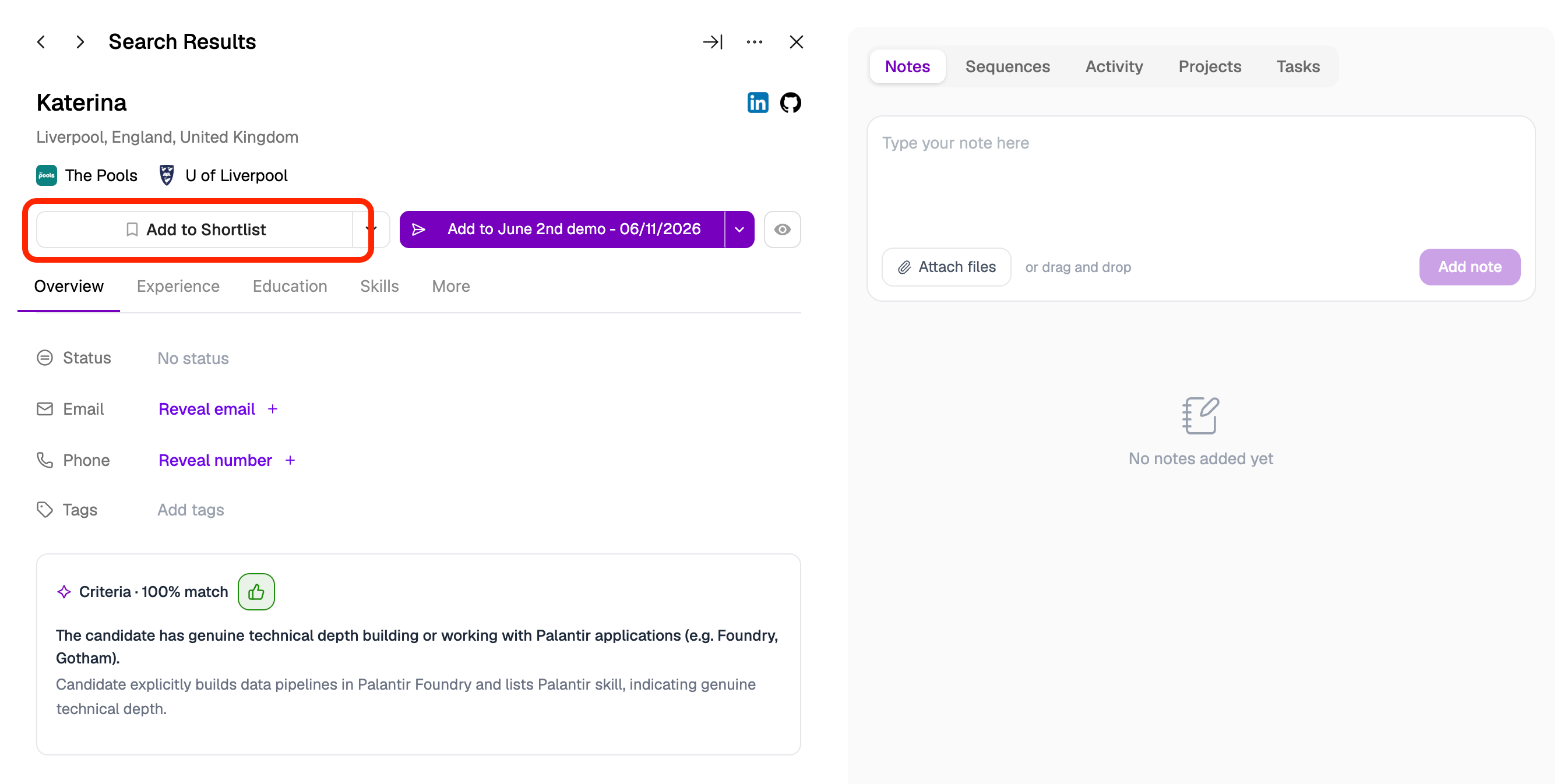
Shortlist page
To view your shortlisted profiles for a specific project, open the >Shortlist page on the left-hand menu. Your shortlist page provides you with a dynamic overview of all profiles you’ve shortlisted in a project, including their names, social profiles, outreach status, and details on their background and experiences. The shortlisted profiles page gives you full access to your outreach features — including email outreach — which you can access by selecting a profile name or contact icon. You can also perform bulk actions, including bulk exports from the shortlisted profiles page.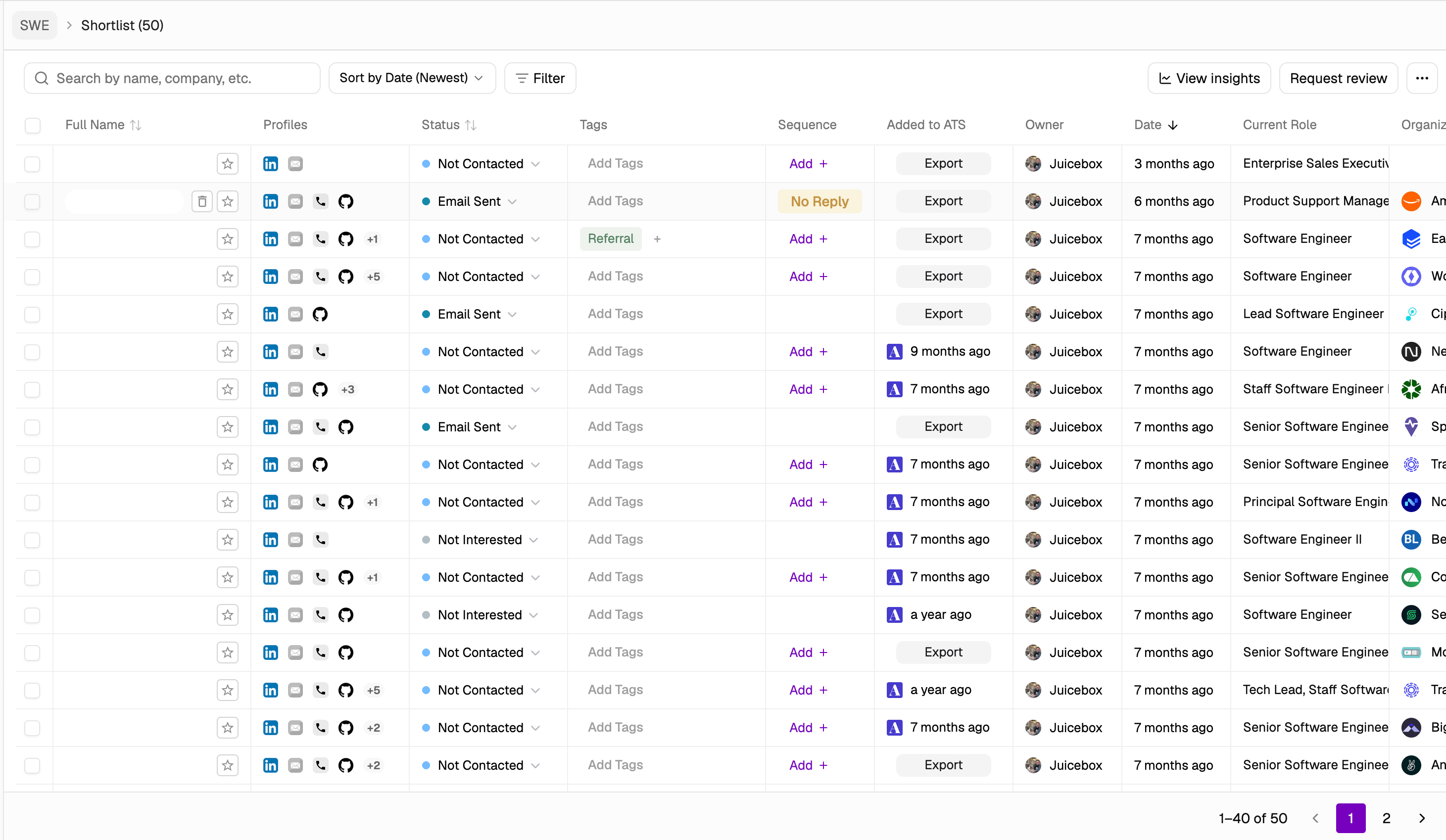
Manual vs Agent shortlists
When a project has an Agent, the shortlist can hold both candidates you shortlisted manually and candidates the Agent shortlisted on your behalf. Each row shows who added the candidate — either you (or another team member) for manual adds, or the Agent’s name for Agent-sourced adds — so you can tell at a glance where a candidate came from and follow up accordingly.Network column
The Network column surfaces the strongest in-org mutual connection for each shortlisted candidate directly on the shortlist grid, so you can see who might warm-intro them without opening each profile one by one. Each row shows the name of the top mutual, a badge for the connection type, and a+N indicator if additional mutuals exist:
- Connected: the mutual is a direct LinkedIn connection of the candidate.
- Overlap: the mutual and the candidate share history that suggests they know each other, such as time at the same company or school.
- +N: the number of additional mutuals beyond the one shown.
Contacted marker
A small blue Contacted marker appears next to a candidate’s name in both the table view and the kanban view whenever they have already been contacted through a sequence, or have outreach scheduled to go out. It matches the same badge shown on search results, so a candidate’s contact status reads the same everywhere in Juicebox. Hover the marker to see the last-contacted date (or the scheduled send date, when outreach is queued but has not sent yet). Candidates with outreach scheduled but not yet sent have the Pending profile status. Their status changes to Contacted after the first email sends or a LinkedIn task is completed. Learn more in Profile Status. Use the marker to spot candidates who are already in a sequence before you build them into a new one, and to avoid duplicate outreach when multiple teammates are working the same project.Starring profiles
You can star profiles to mark them as especially interesting or high-priority. To star a profile, click the star icon next to the candidate’s name in the Shortlist table.
- Prioritize candidates for immediate outreach
- Highlight profiles for discussion with a hiring manager
- Keep track of standout profiles in a large list
Sort your shortlist
You can reorder your entire shortlist using the Sort by dropdown above the table or by clicking a sortable column header. Sorting applies across the full shortlist on the server, not just the profiles currently loaded on screen. The order stays consistent as you scroll and page through large lists. Sort by offers the following options:- Date added (newest first) — the default view
- Date added (oldest first)
- Status
- Company (A–Z) and Company (Z–A)
- Name (A–Z) and Name (Z–A)
Find similar profiles
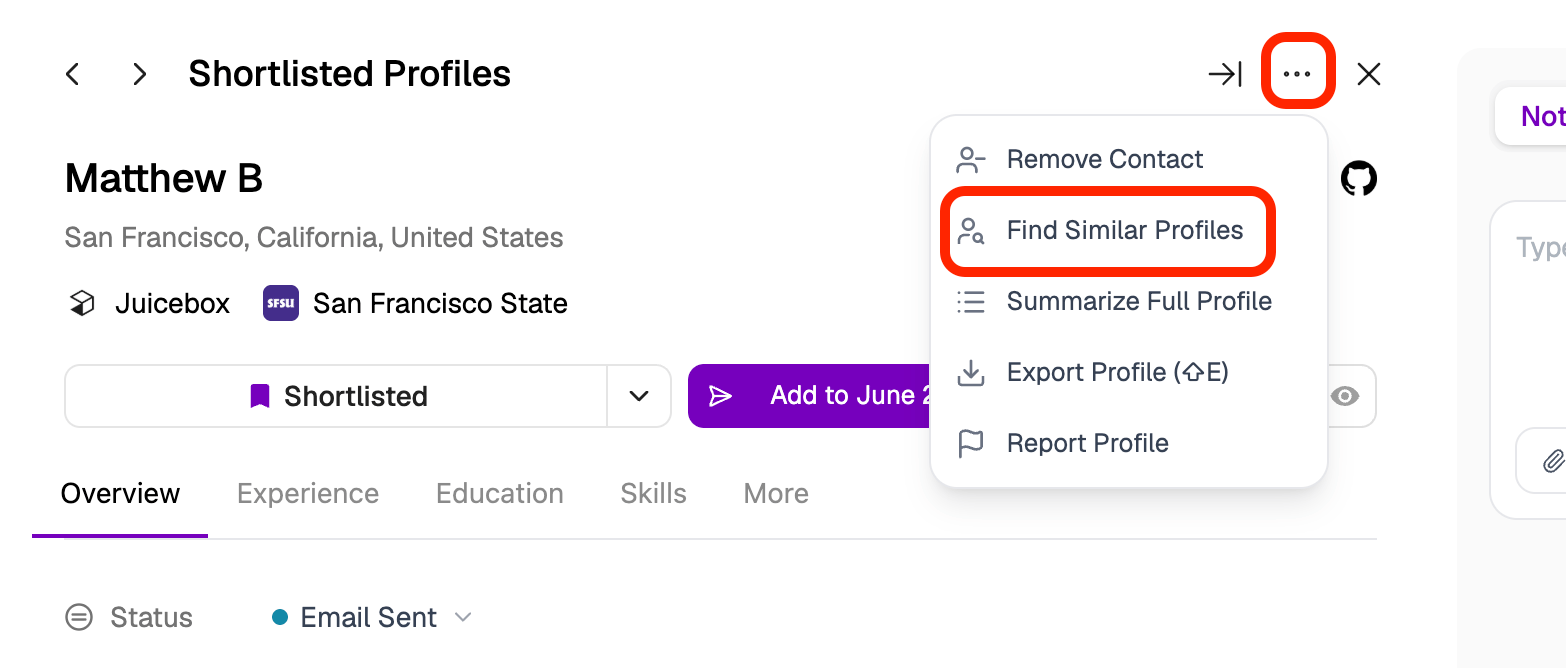
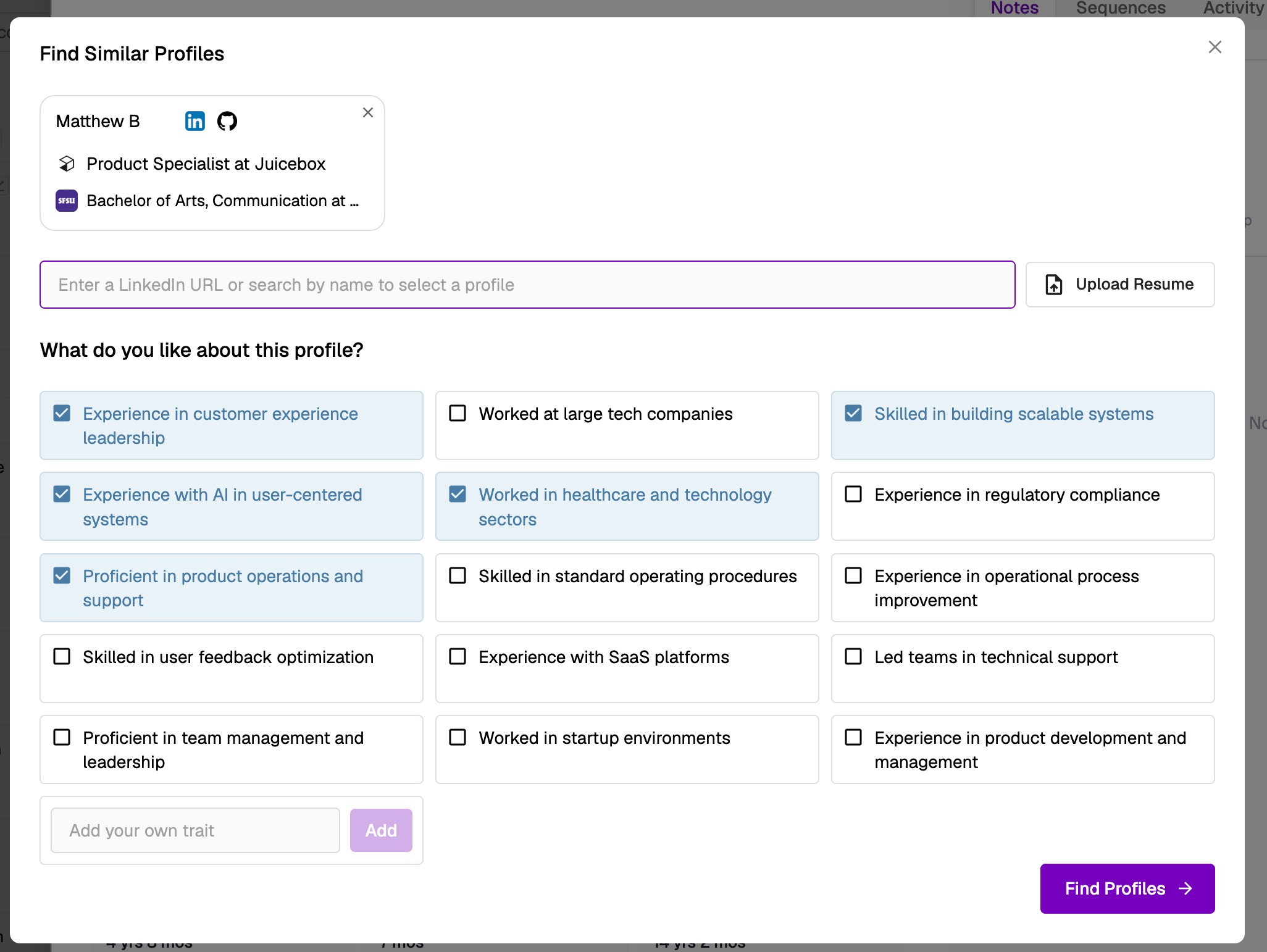
The Create Search feature within the shortlist helps you quickly discover profiles with similar backgrounds, skills, and attributes to candidates already on your shortlist. To get started, go to your Shortlist page, select a few profiles you like, and click the 3 horizontal dots in the top-right corner, then select Create search. Juicebox will analyze those profiles, generate a list of traits for you to review and edit, and return up to 500 matches based on shared characteristics. Note: This feature is currently available on the Growth and Business plans only. Finding similar profiles from the Shortlist page.-.png?fit=max&auto=format&n=emACKWdXWUbQjY_Z&q=85&s=f03226e0791b3dccd54eccffe2135157)
Import profiles
If you already found a profile outside of Juicebox and want to add them to your shortlist, you can use the “Add Candidate” button in the top right of the shortlist tab.
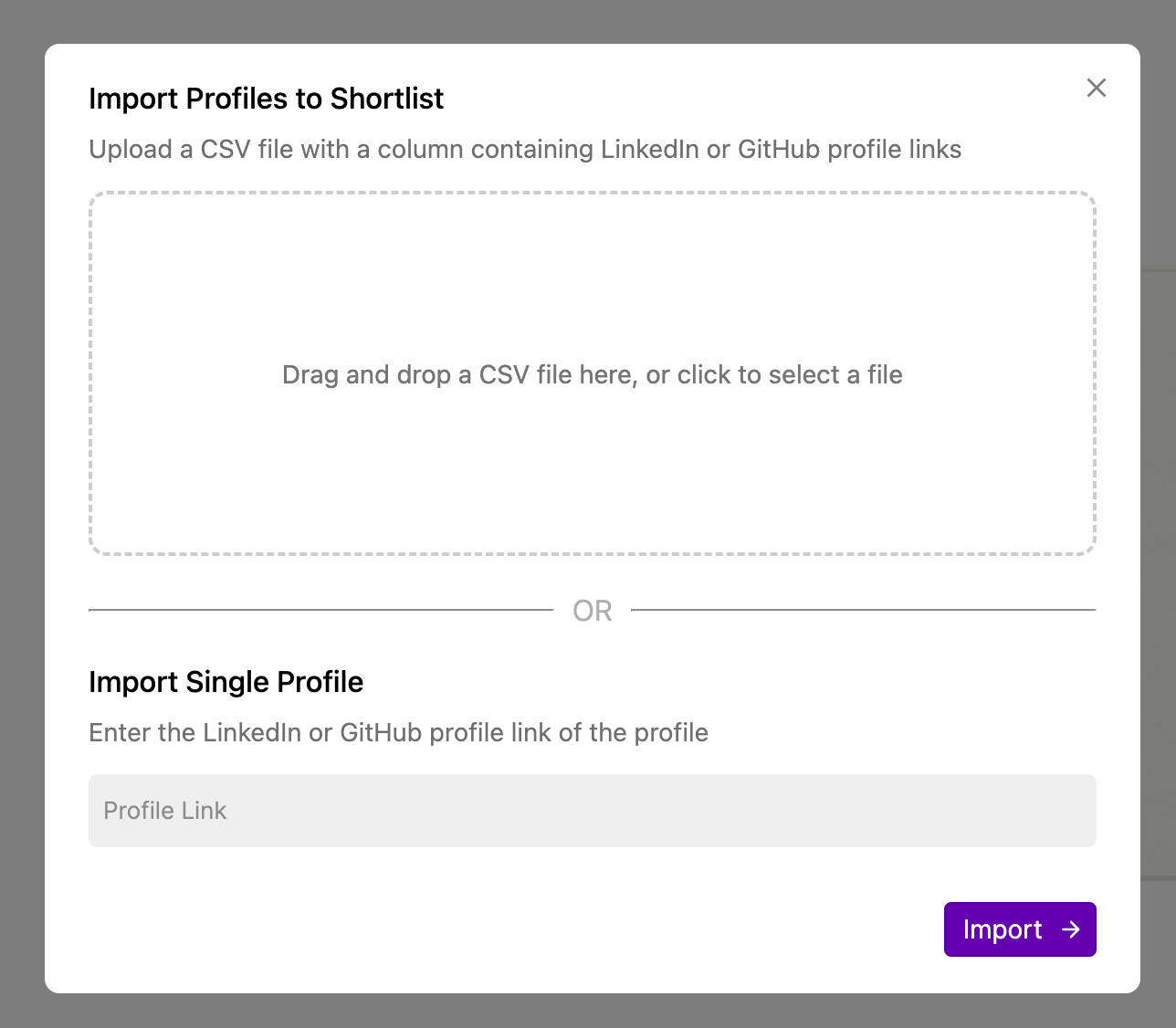 After bulk importing a list of profiles, you can use the checkmark to select which profiles to import. If any profiles aren’t successfully matched, they’ll be flagged for you as well.
Add tags and notes from your CSV
Your bulk import CSV can include two optional columns to annotate profiles as you import them:- Tags: One or more tag names for the profile. Separate multiple tags with commas, semicolons, or pipes. Juicebox matches each name to an existing tag in your organization. If a tag doesn’t exist yet, Juicebox creates it.
- Notes: Text that Juicebox adds as a contact note on the imported profile.
Tags and Notes. Headers aren’t case-sensitive. Juicebox ignores other headers, such as Label or Comments, for tags and notes.