

Introduction
As a Juicebox user, you have access to two different sets of credits:- Contact Credits are used to get a profiles’ contact information. On the starter, growth, and business plans, you can access personal and professional email addresses, as well as phone numbers.
- Export Credits are used to export profiles. On the starter and growth plan, you can export profiles via a CSV or PDF file. On the business plan, you can export profiles via a CSV, PDF or directly to your ATS/CRM.
Credits: Overview
For details on the number of contact and export credits available in your plan, please navigate to Account Settings > Credits via your Juicebox account. Please note, credits do not roll over on the monthly plan. For annual plans, the full year quantity of credits are granted upfront.
Using Contact Credits
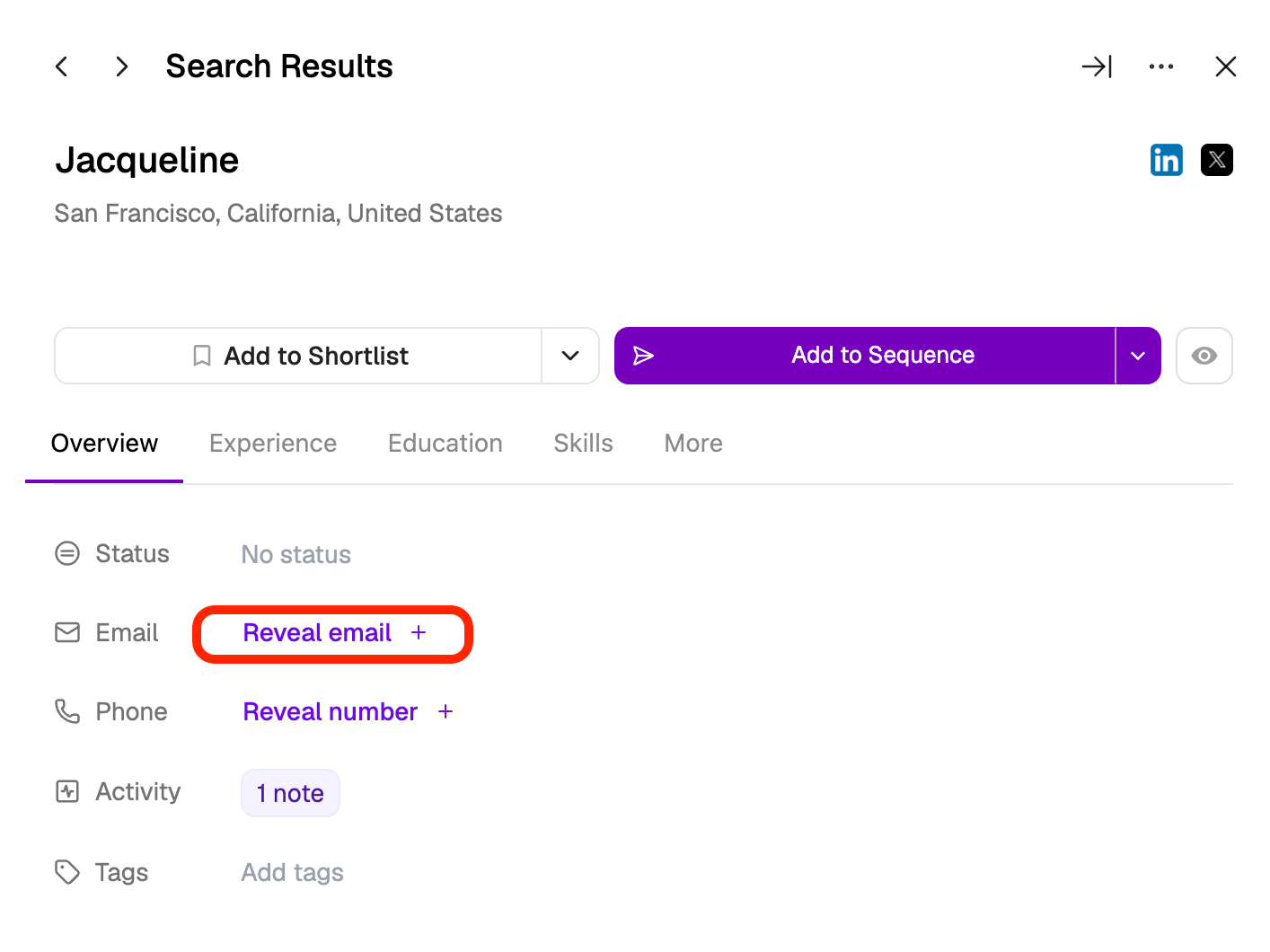
Contact credits can be used in one of four ways:- Clicking “Reveal email” (1 credit)” in a user profile OR
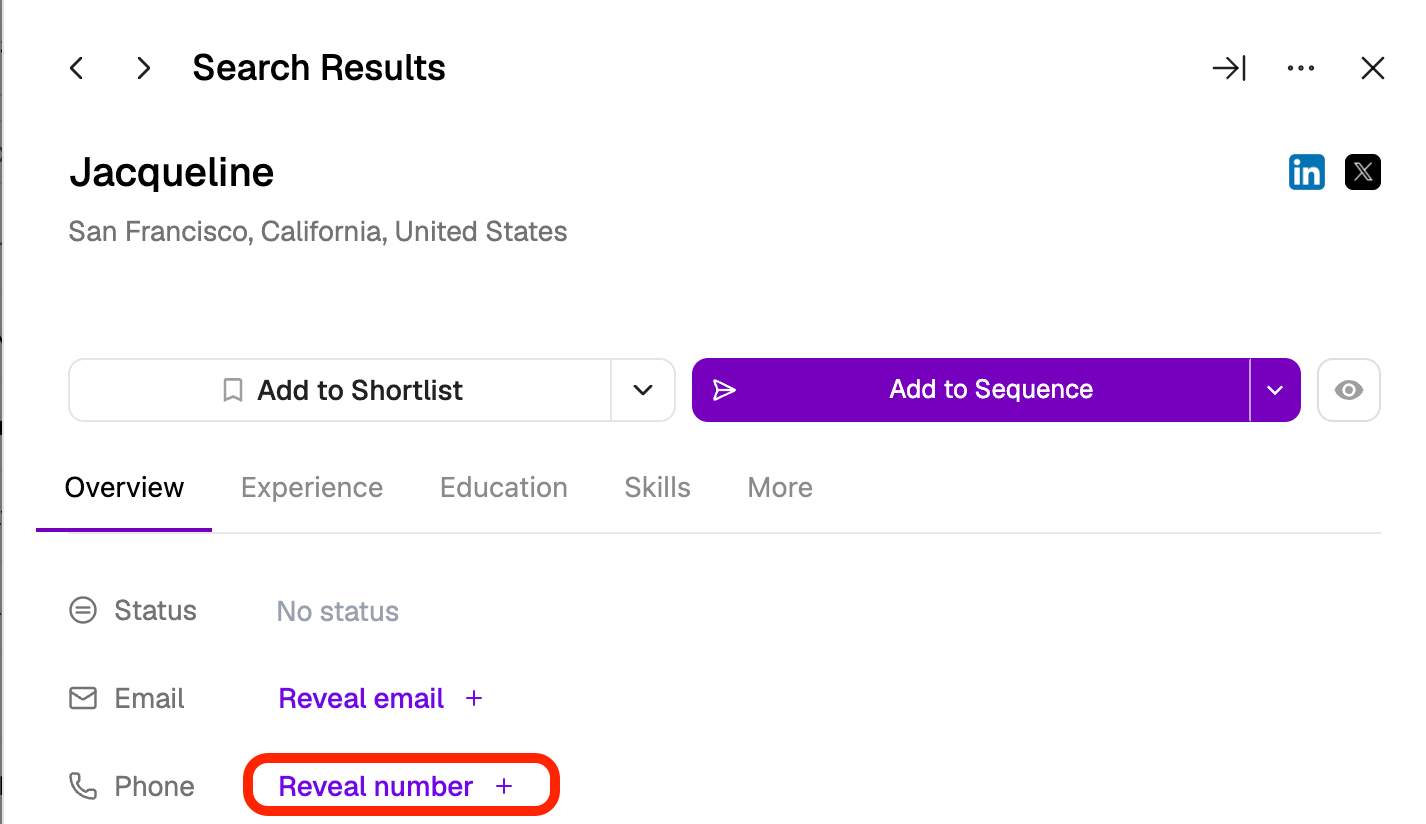
- Clicking “Reveal number (3 credits) OR
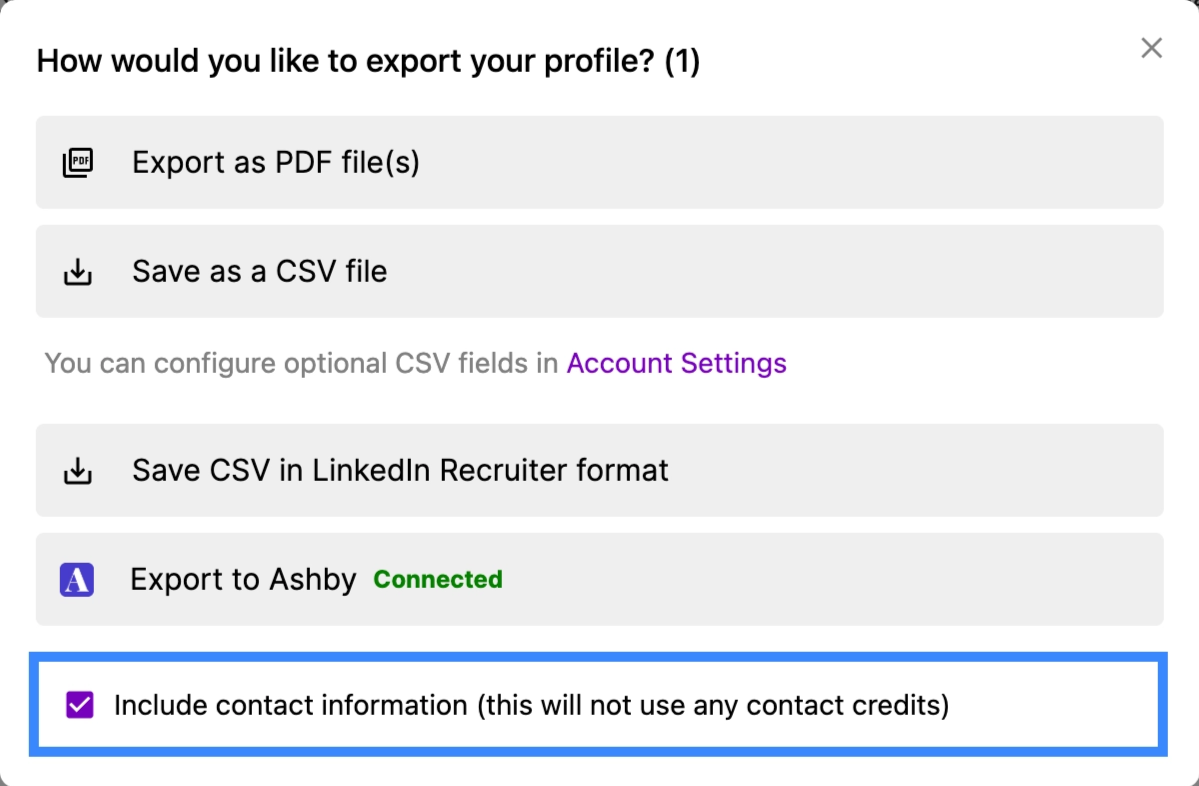
- Exporting a profile with contact information OR
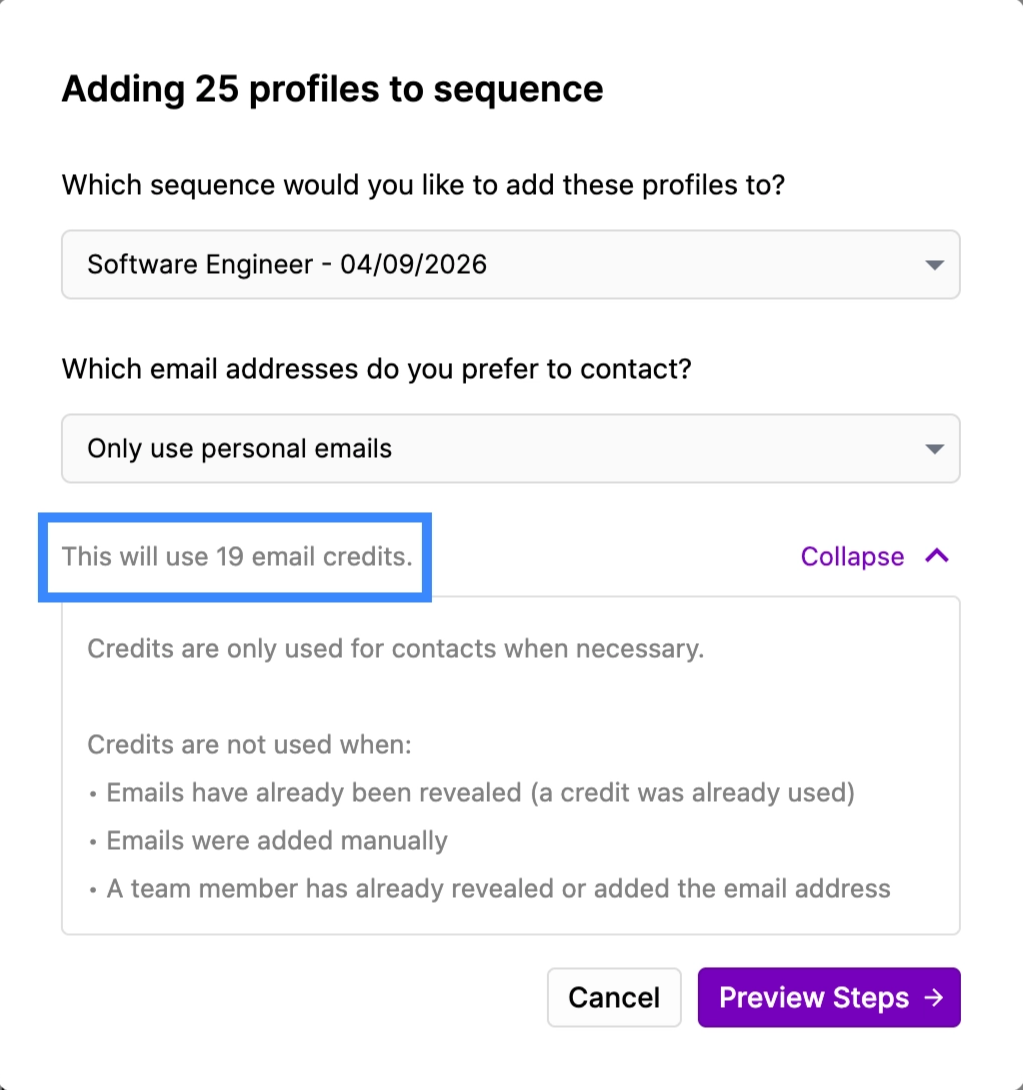
- Adding a profile to a sequence
- Reveal email (1 credit)
- Reveal number (3 credits)
- Export with Contact Info
- Adding profiles to a sequence
Using Export Credits
Export credits allow you to access and download detailed candidate profile information in a scalable format. For a full overview of available export options, please refer to our Exports article here. Similar to Contact Credits, each exported profile will only use one (1) export credit. For example, exporting 50 profiles will consume 50 export credits. If you do choose to include contact information in your export, one contact credit per profile will also be used unless that information has already been revealed. Please see below for example scenarios detailing how many contact and export credits are used across each.Using Contact & Export Credits Simultaneously
When exporting profiles and selecting “Include contact information,” you will utilize both contact and export credits simultaneously. Example 1: Exporting a list of 50 profiles, of which 20 have contact information
Example 2: Exporting a list of 50 profiles, of which 20 have contact information. However, you already clicked “Reveal Contact Information” for all 20 profiles previously.
In this example, only export credits were used. No contact credits were charged, as you already retrieved the profiles’ contact information previously.
Monitoring Credit Usage
To view your remaining Contact and Export Credits, open the Credits tab from your Juicebox Settings.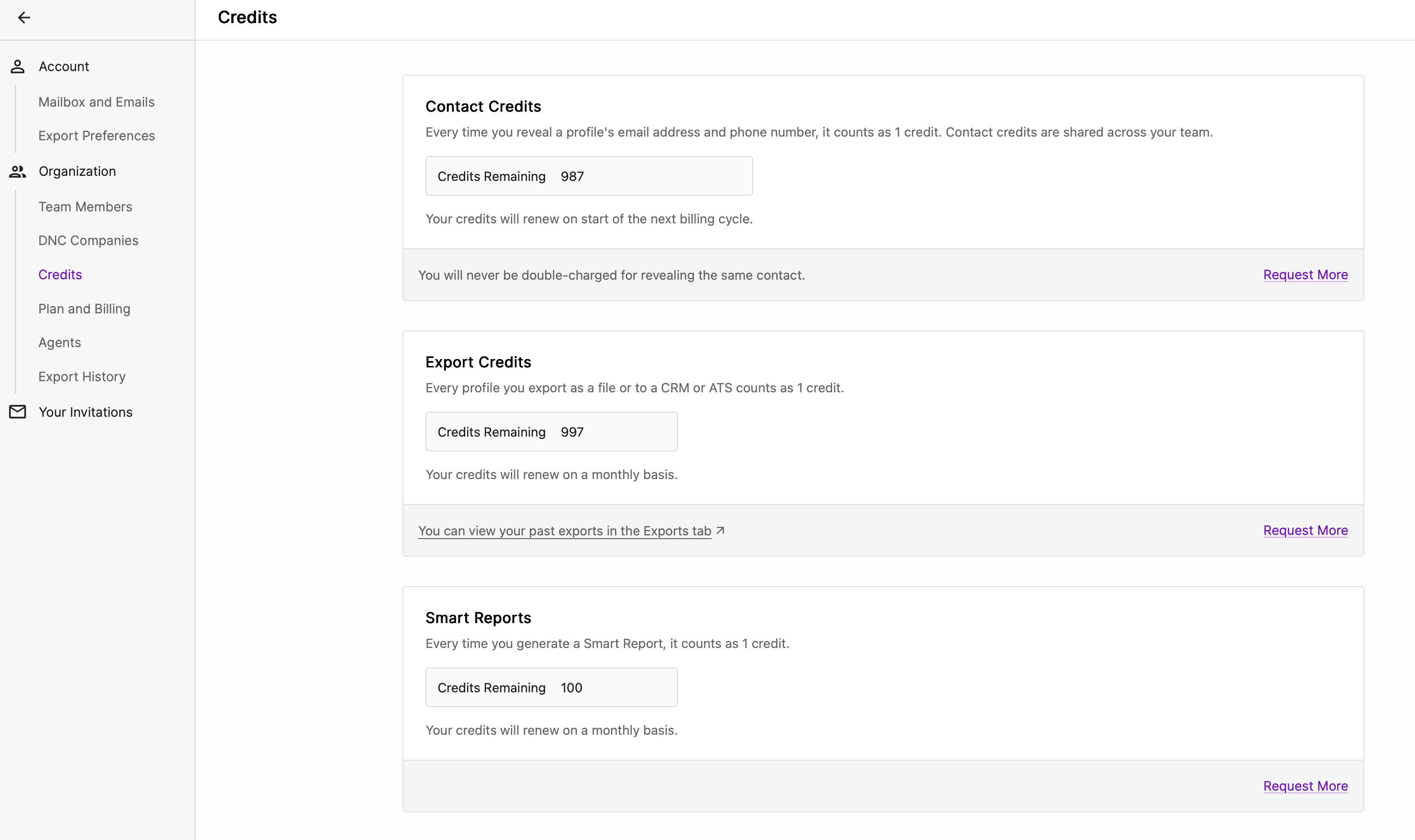 If you want to learn more about your detailed credit usage, we can provide usage logs of contact usage data including the timestamp and the number of credits used.