

Introduction
Once you have set up your email sequence, you can move on to enrolling profiles in the sequence. You can do so in two ways:- Bulk Actions: add profiles to a sequence from the Shortlist page in bulk.
- Individual: add profiles to your sequence individually from the profile menu.
Bulk add to sequence
First, ensure you have shortlisted profiles. You can then select profiles in bulk and click the “Add to Sequence” button at the bottom of the screen.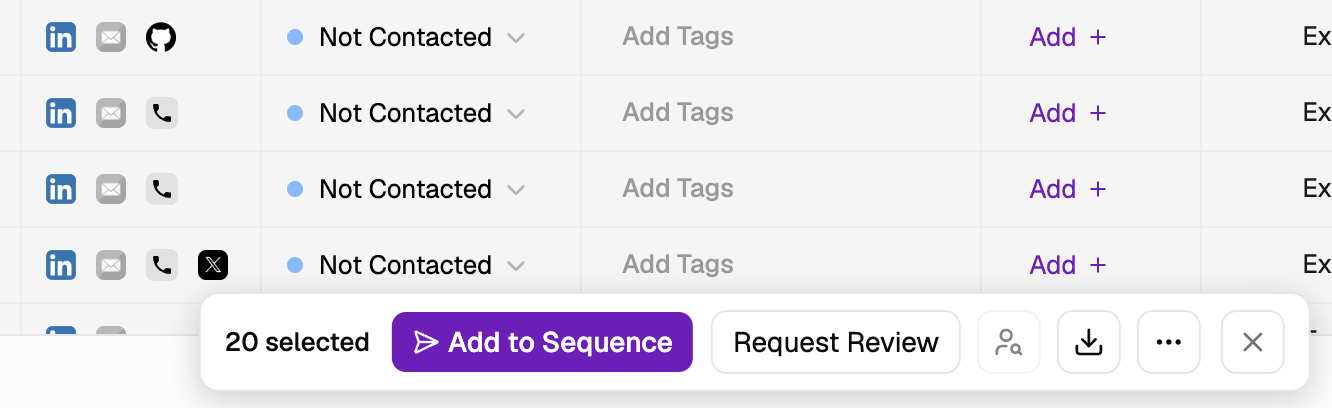
Add profiles to sequences individually
You can also add profiles to sequences one-by-one. To do so, while searching, select the “Add to Sequence” option on the profile card.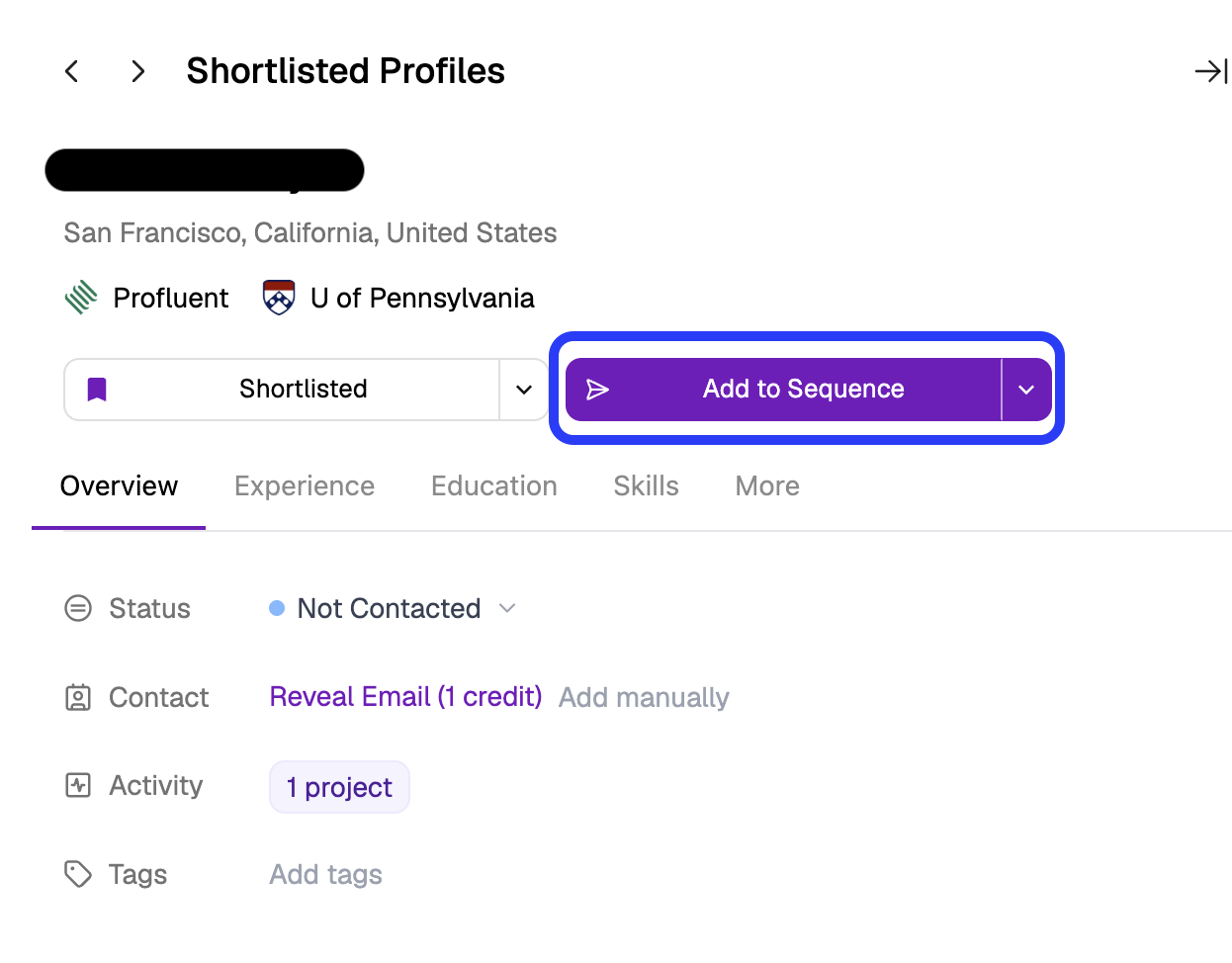
Sequence configuration: emails and template
Next, select your preferred sequence, as well as the type of contact data you’d like to use. You can choose between personal emails, professional emails, or a combination of the two.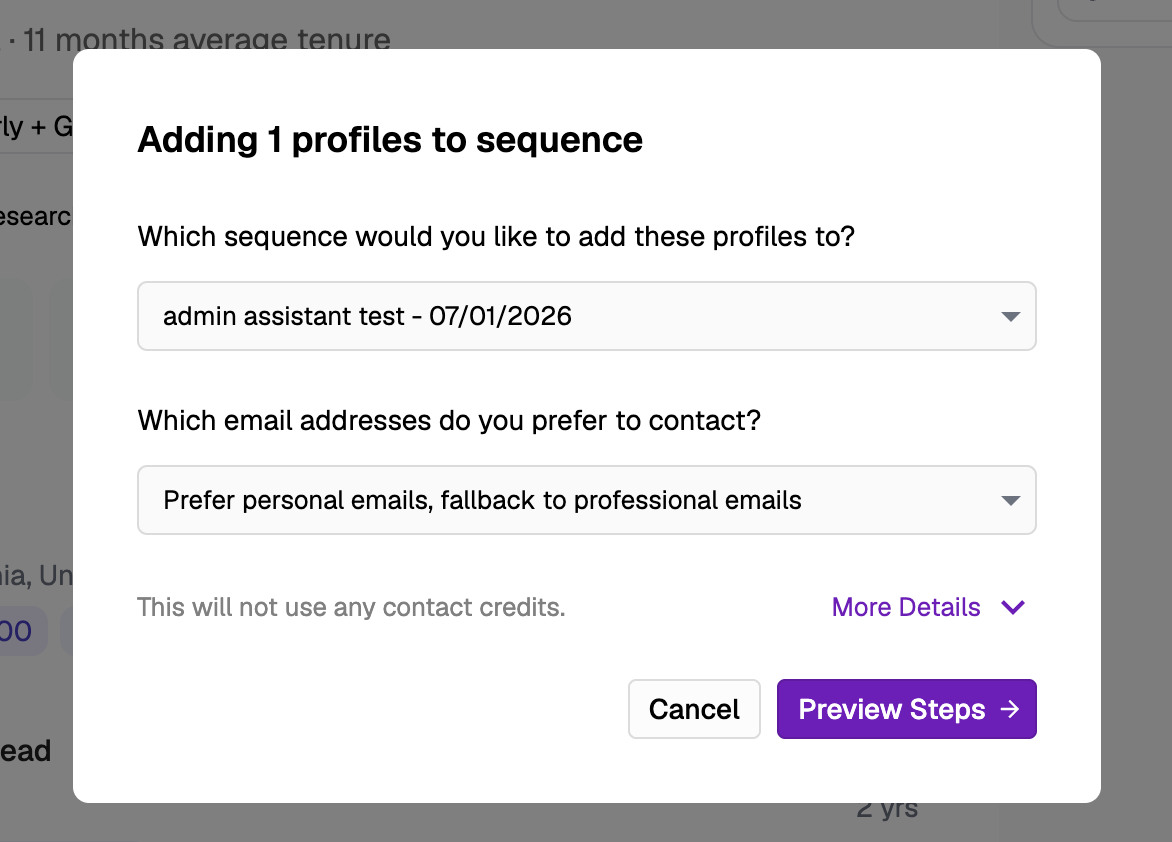 If you choose a combination option — e.g. “Prefer personal emails, fallback to professional emails” — Juicebox will search for a verified personal email. If none is available, it will search for a verified professional email instead. This option is recommended to increase email coverage.
Email preview
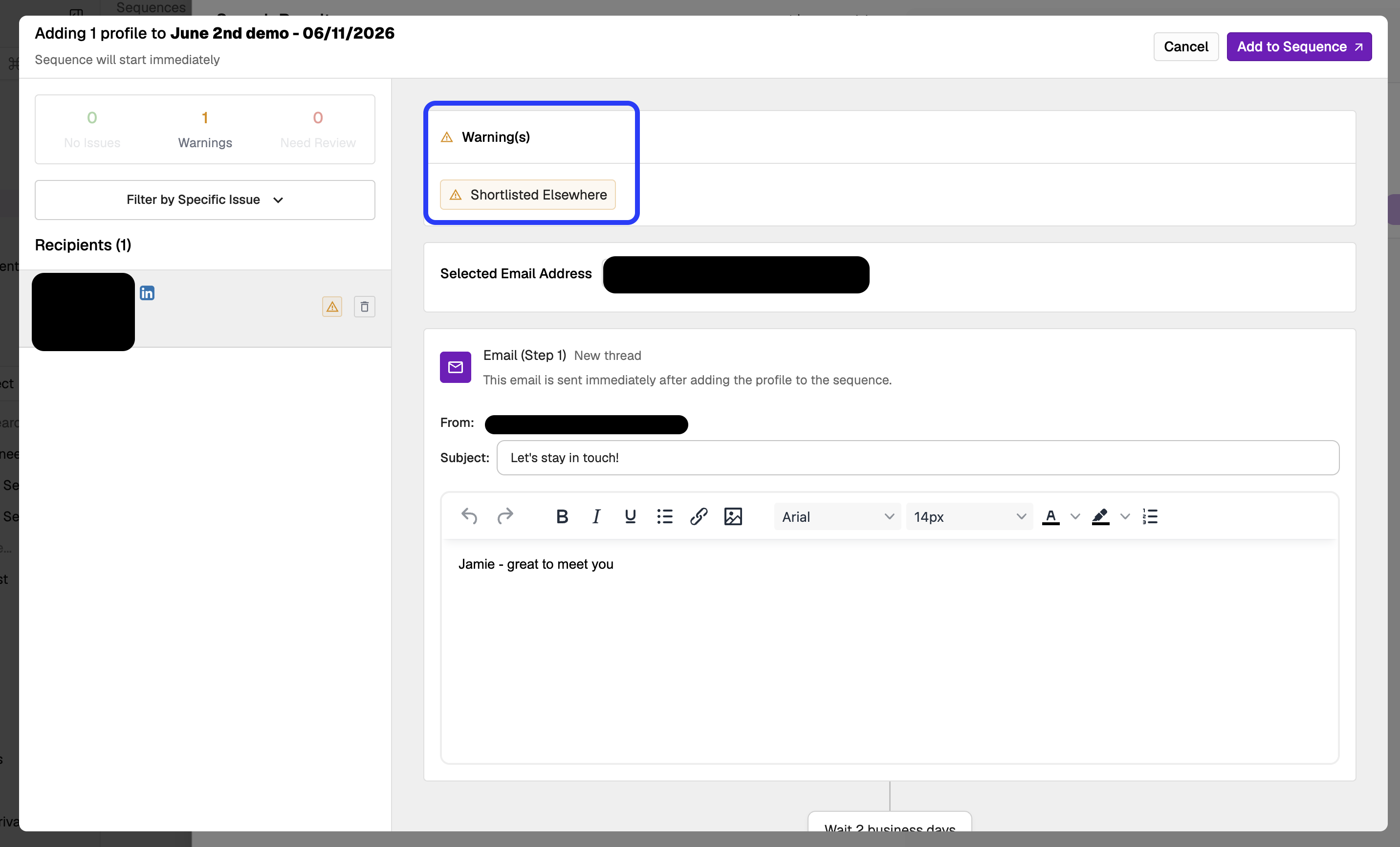
Finally, you will see a preview of the emails for your selected profiles. If you added an AI command, the emails will also include the personalization. This menu allows you to make any one-off edits to different campaign contacts. For example, you could change the outreach personalization for a specific contact.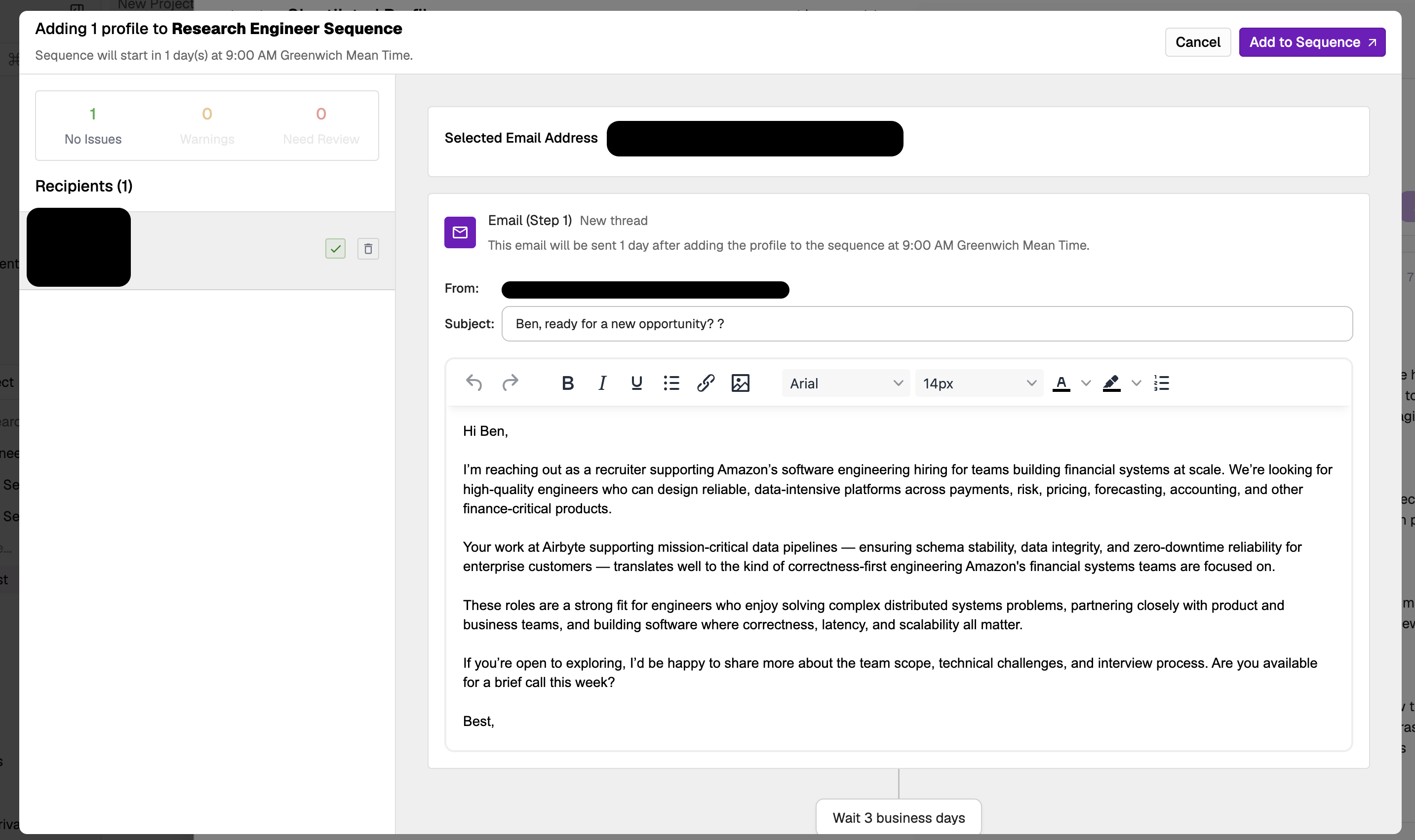 In case there are any errors or warnings, you will be shown a error icon, alongside an explanation of any actions you have to take.
Errors
These cannot be skipped and must be resolved or removed. 🛑- A profile is already in any active sequence
- Missing contact details (emails)
- Missing variables in the profile, e.g. Current Company doesn’t exist
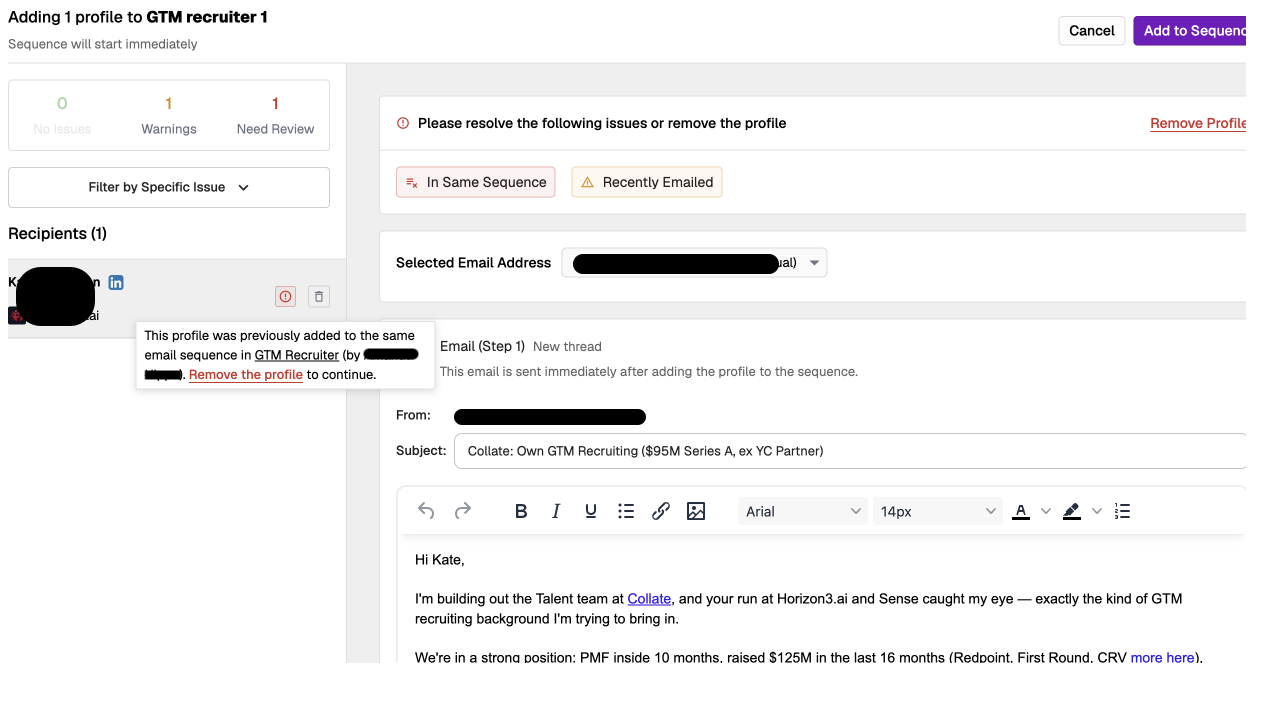
Warnings
These require review but can be skipped. ⚠️- A profile was emailed within your organization’s recently contacted window (90 days by default). The warning shows who emailed the candidate, when, and in which sequence. Admins can change the window in organization settings.
- A profile is shortlisted in another project
View email history
To view the email history that exists with a candidate (all emails sent via Juicebox previously), select “Sequences” when viewing a candidate profile. You can also see emails that have been scheduled but not yet sent, and make any edits to them, if applicable.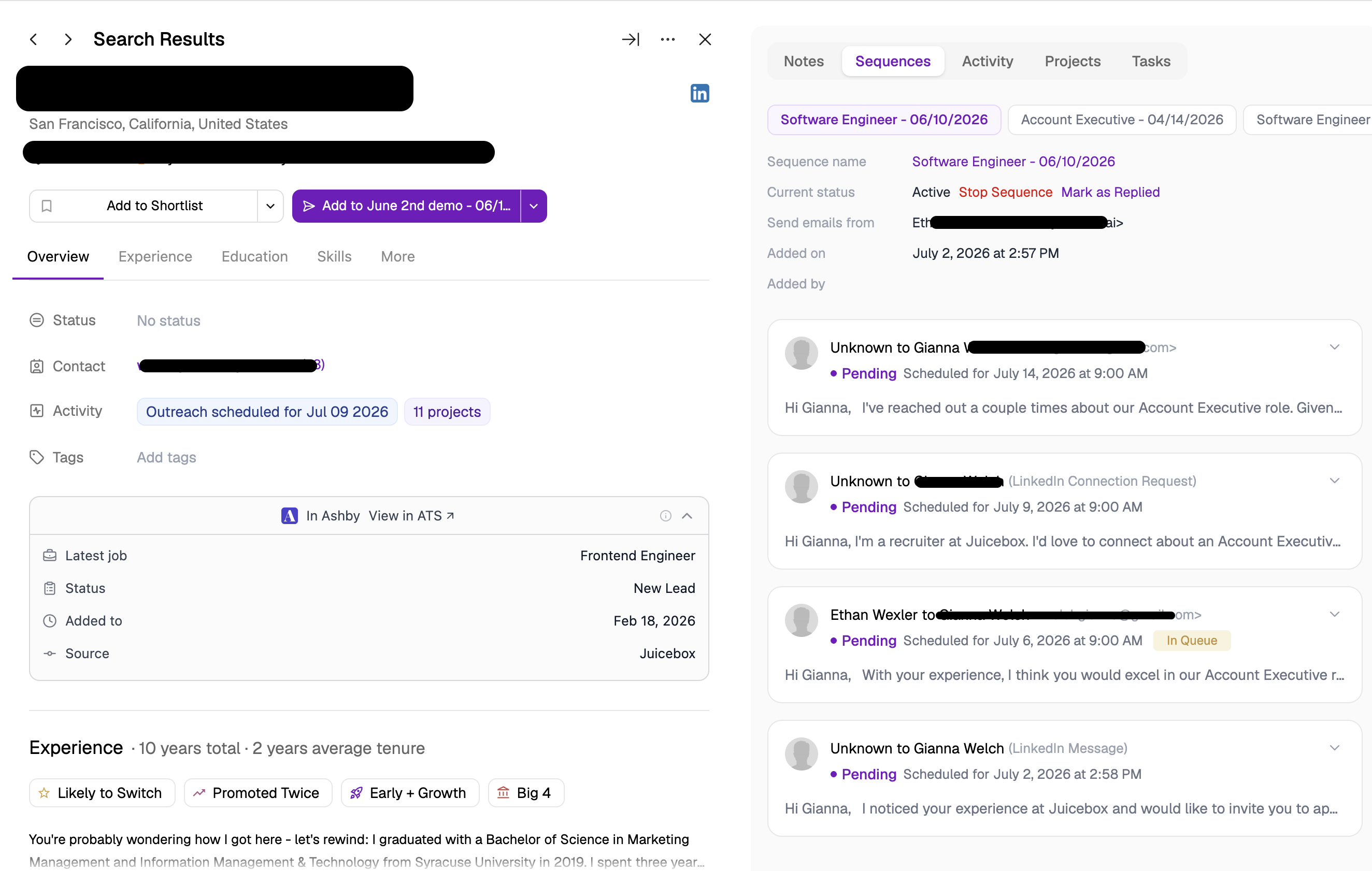
Maximizing deliverability
Juicebox takes automatic actions to improve your email deliverability. Specifically, the service includes the following measures:- Email Verification: we run an email waterfall with multiple email providers, including automated bounce-checks.
- Intervals: emails are automatically spaced out in 120-second intervals. For example, if you schedule 30 emails to send at 9.30am, they will send in two-minute intervals, e.g. 9:32, 9:34, […], until the 15th email is sent by 10am.
- Daily Limit: by default, up to 100 emails can be sent per day. You can increase that limit to up to 200 emails / day in the settings page. If you exceed the limit, you will receive an error message.