

Juicebox Fraud Detection helps your team stay focused on real profiles. Every profile is audited for suspicious signals. Profiles with strong evidence of fraud are removed from results, and unclear ones are flagged so your team makes the final call. Over 800M profiles have been individually evaluated for fraudulent signals.
What Fraud Detection does
- Automated profile audit: Juicebox reviews profiles for suspicious signals.
- Suspicious profile flags: See which profiles are flagged, and why, directly in your search results.
- Human-in-the-loop reviews: Confirm, remove, or add a flag on any profile for your team.
- Agent safeguards: Flagged profiles are automatically kept out of Agent results.
How profiles are assessed
Each profile goes through five checks:- URL verification: The profile URL matches the person, and the account is still live.
- Career history: The work history is plausible, not empty or copied from another profile.
- Account activity: The profile has real connections, some account age, and filled-in details.
- Duplicate detection: The same career history is not repeated across multiple profiles or attributed to someone else’s job.
- Outside evidence: A verified email, GitHub account, publications, or professional license confirms the person is real.
How Juicebox avoids flagging real people
Fraud Detection is designed to be conservative:- A profile is only flagged when several signals point to fraud.
- A sparse or incomplete profile alone will not trigger a flag.
- Evidence outside the public professional profile, such as GitHub activity or publications, counts in a profile’s favor.
- Industries where public professional profiles are less common, such as healthcare and skilled trades, are not penalized for thin profiles.
Reading a flag
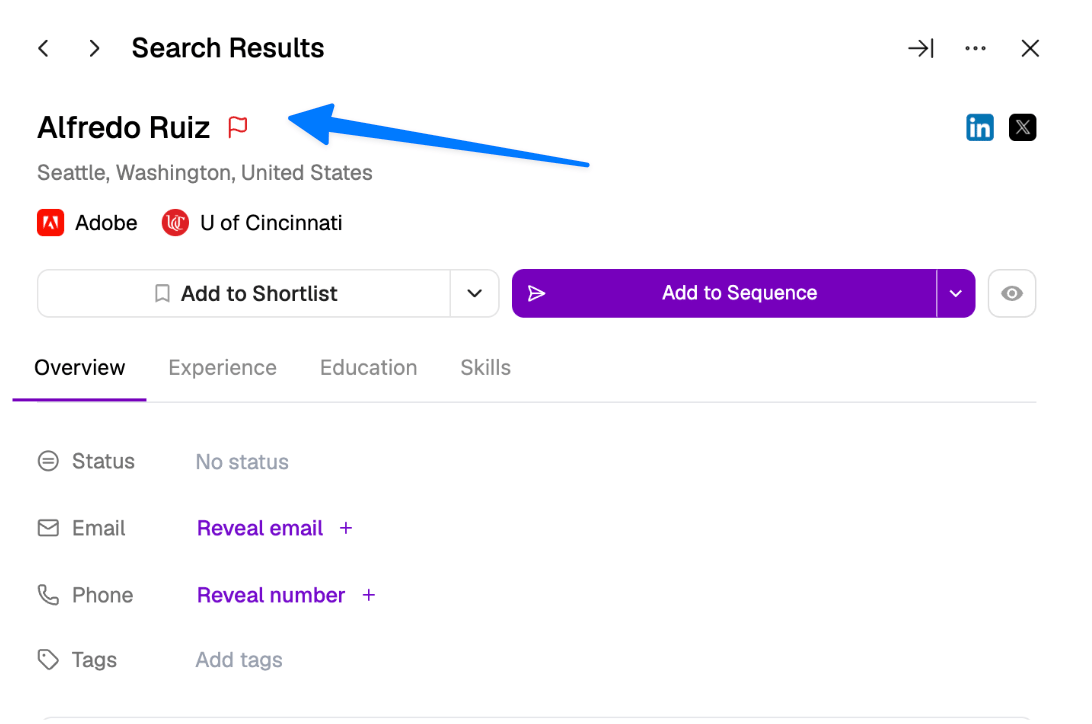
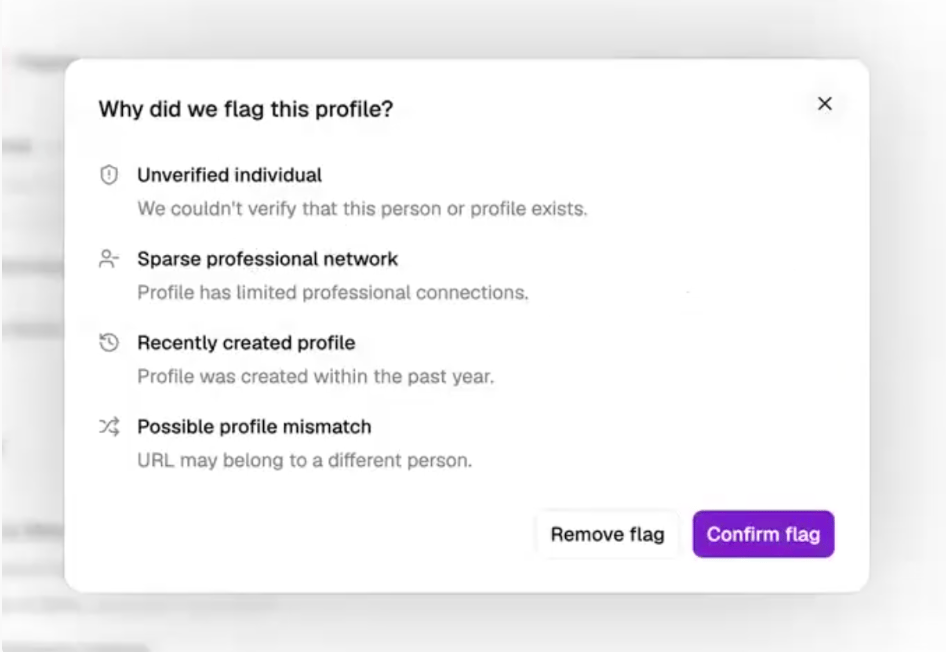
Flagged profiles appear in your search results with a flag icon next to the candidate’s name. Open a flagged profile to see the reasons it was flagged:- Unverified individual: We couldn’t verify that this person or profile exists.
- Sparse professional network: Profile has limited professional connections.
- Recently created profile: Profile was created within the past year.
- Possible profile mismatch: URL may belong to a different person.
Reviewing flags as a team
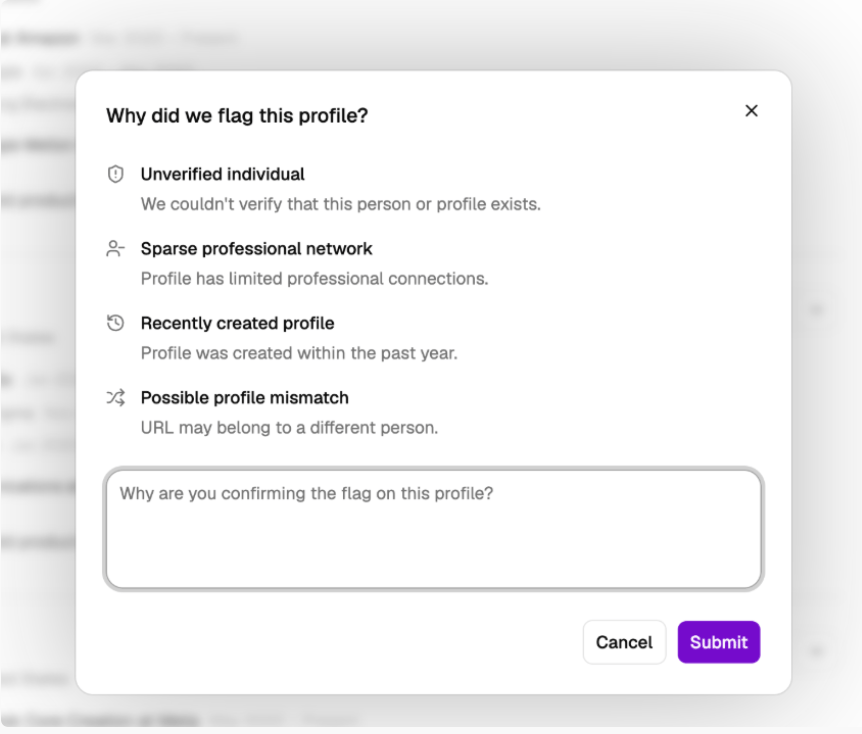
A flag is a starting point for review. After doing your own due diligence on a flagged profile, record your decision. Every decision lands in the activity log and carries across your organization:- Confirm flag: Tags the profile for everyone in your workspace, along with your reasoning. Confirming a flag does not remove the profile on its own. What happens next depends on your org settings.
- Remove flag: Clears the flag for your workspace, along with your reasoning. If a flagged candidate looks real and worth pursuing after your review, remove the flag and reach out.
- Add a flag: Mark any profile as fraudulent, even if Juicebox has not flagged it, so your team and future you do not run into it again. Open the … menu on the profile and choose to flag it.
- Org settings: Control what happens when a profile is flagged for your team.
Hiding flagged profiles from searches
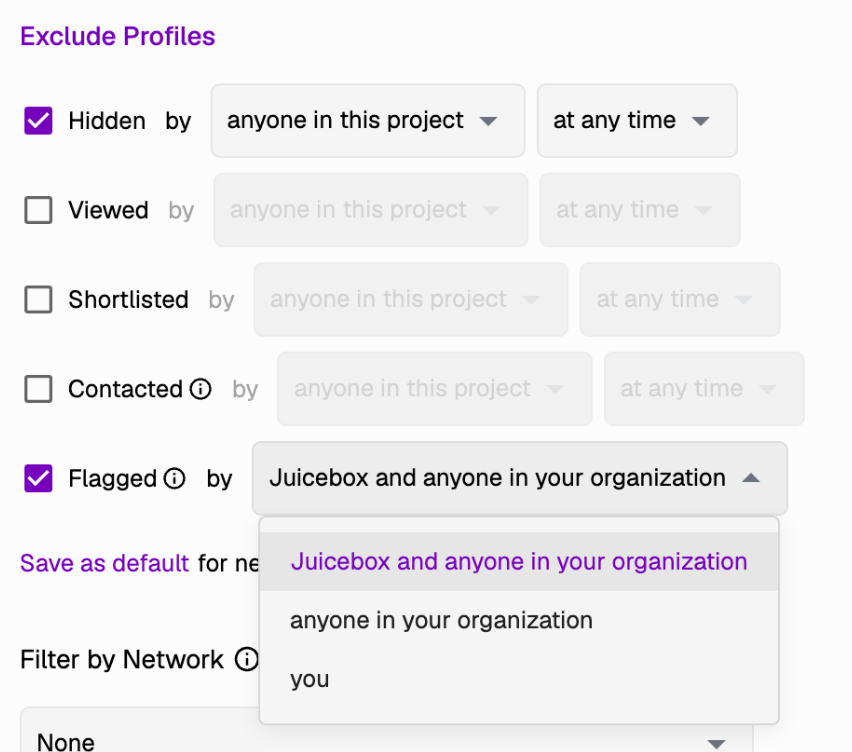
Use Search Filters to focus only on profiles Juicebox did not deem suspicious. Under Exclude Profiles, choose who flagged them:- Juicebox and anyone in your organization: Hide anything Juicebox or your team flagged.
- Anyone in your organization: Only hide profiles your team flagged.
- You: Only hide profiles you’ve flagged. Use Save as default in Settings > Search so every new search you run starts without flagged profiles. You can still switch it off on any single search.
Personal vs. Org-wide defaults
Save as default applies to your own searches only. To hide flagged profiles for everyone, an admin sets it in Org > General > Search. An org-level exclusion applies to every search in the workspace, and members can’t override it on a single search or in their own settings..png?fit=max&auto=format&n=3lYgWXqRYWw1Mkdx&q=85&s=82457da33f745e7be86277e52343d9f7)