

Why use Intake
Recruiters in hiring manager meetings are usually heads down taking notes. Intake handles that for you and adds context you would otherwise have to dig up yourself:- Live insights. When a hiring manager sets a requirement, Intake shows you what the talent pool actually looks like in real time. If they ask for a PhD and that narrows the pool to a handful of candidates, you will see that during the call, along with sample profiles you can react to together.
- Automatic notes and transcription. The full conversation is captured and transcribed so nothing gets lost.
- Context for agents. Everything the hiring manager discussed can flow directly into your search and sourcing, so your agents start with the full picture.
- One place for hiring notes. Intake keeps the transcript, notes, and insights together instead of scattered across docs and chats.
1. Open the Intake tab
Open the project you are hiring for and click Intake in the project sidebar. Every intake for that project lives here.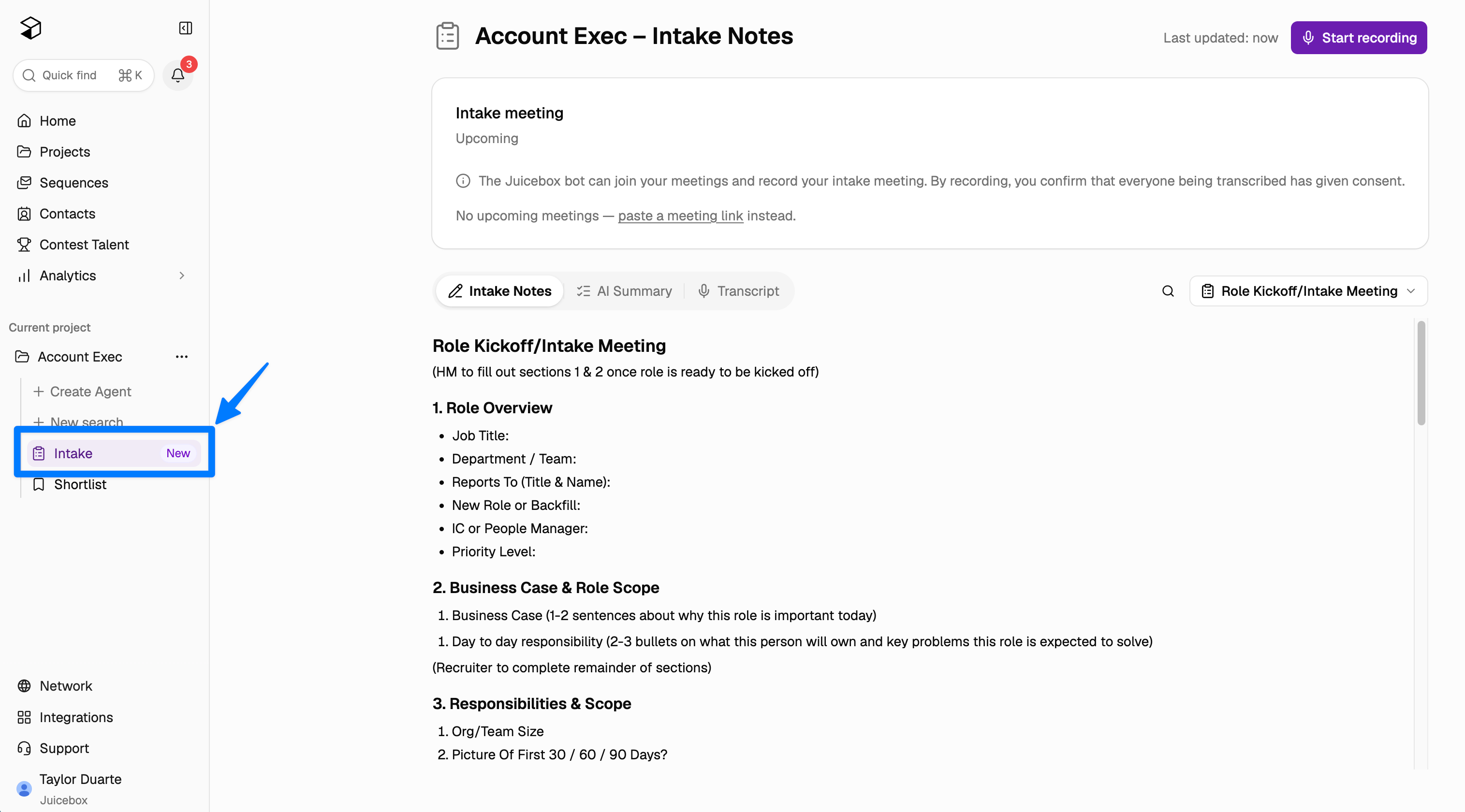
2. Add an intake
Click Add Intake to add intake notes to your project. You can start from scratch, clone existing notes, or choose a template.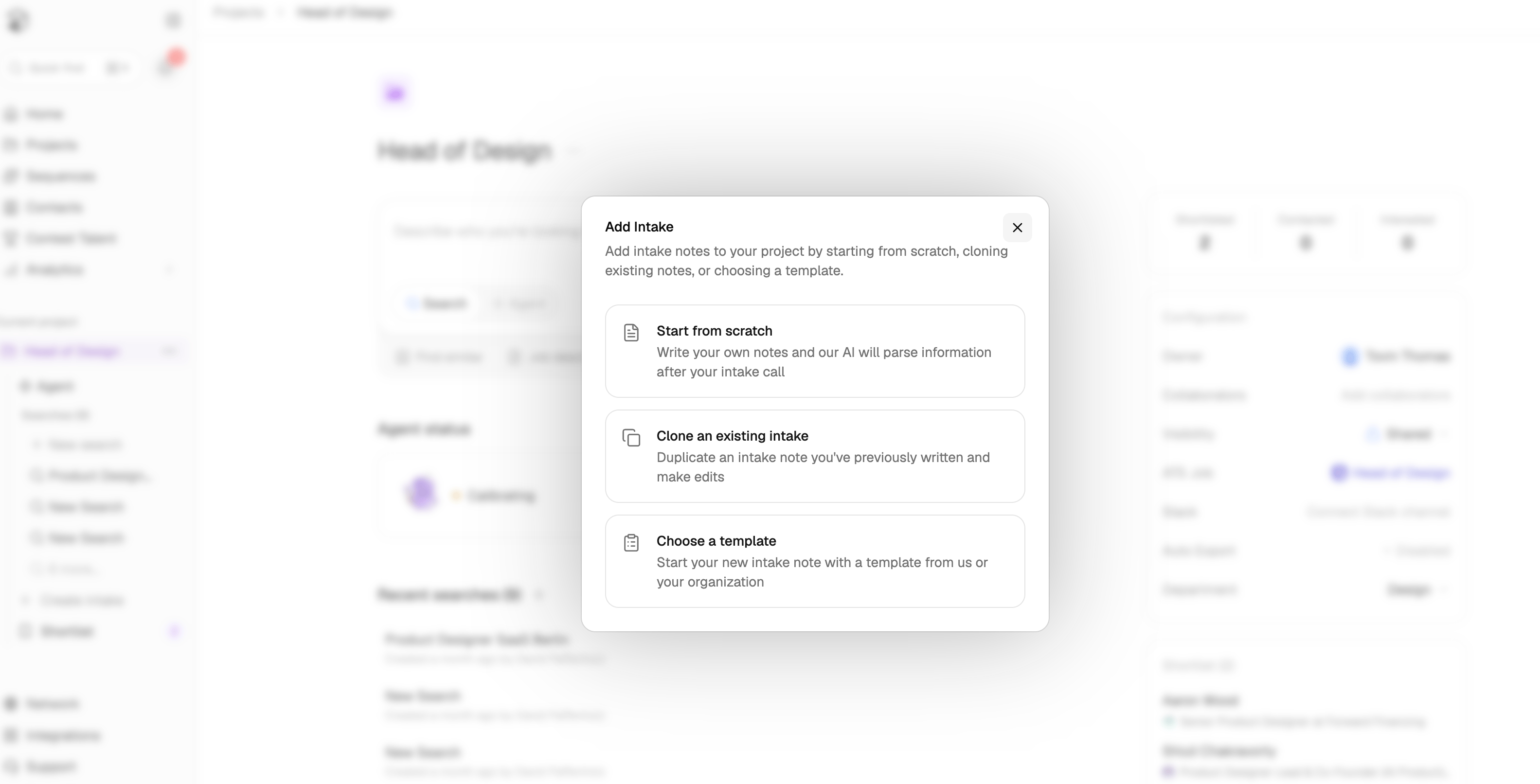
- Start from scratch. Write your own notes and Juicebox parses the details after your intake call.
- Clone an existing intake. Duplicate an intake note you have already written and make edits.
- Choose a template. Start your new intake note with a template from Juicebox or from your organization.
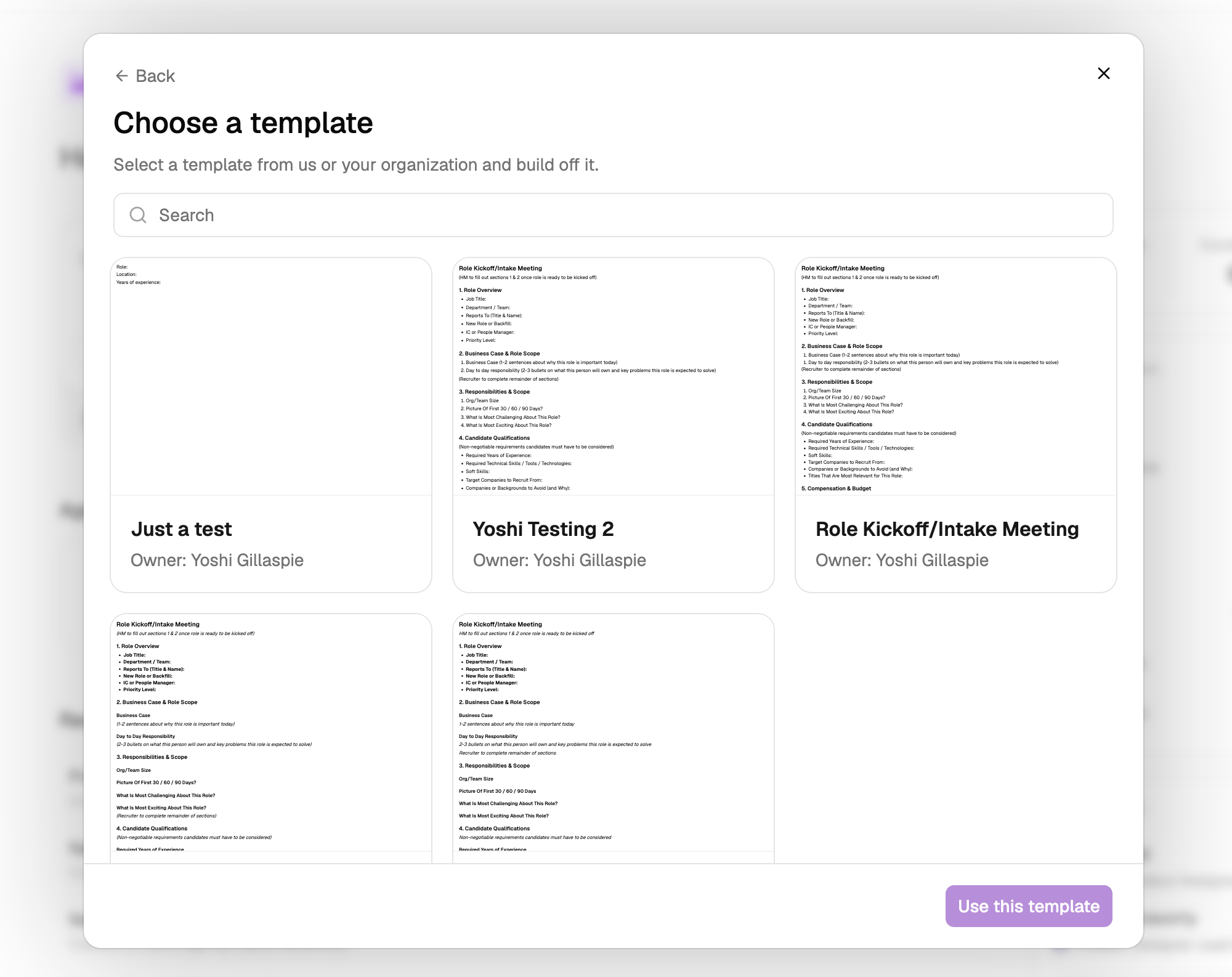
3. Pick how you are recording
With your notes in place, choose how the meeting gets captured.Record in Juicebox
Click Start recording on the intake to record straight from your browser.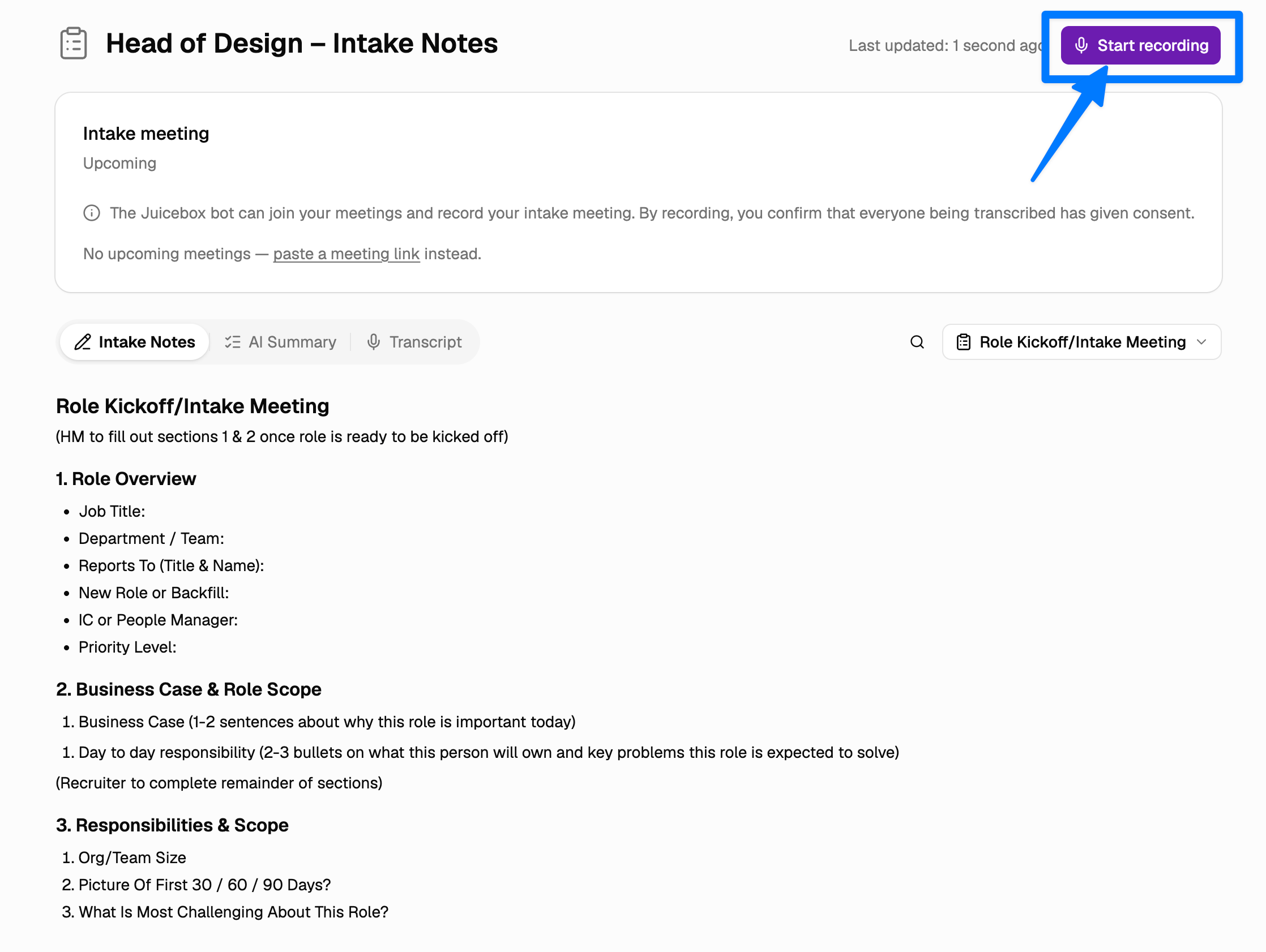
Recording from your browser is built for in-person intakes, where you and the hiring manager are sitting together. For a virtual call, have Intake join the meeting directly so all participants are captured.
Paste a meeting link
If no meeting is attached to the intake, click paste a meeting link and add your Zoom or Google Meet link. Intake joins that meeting and records it for you.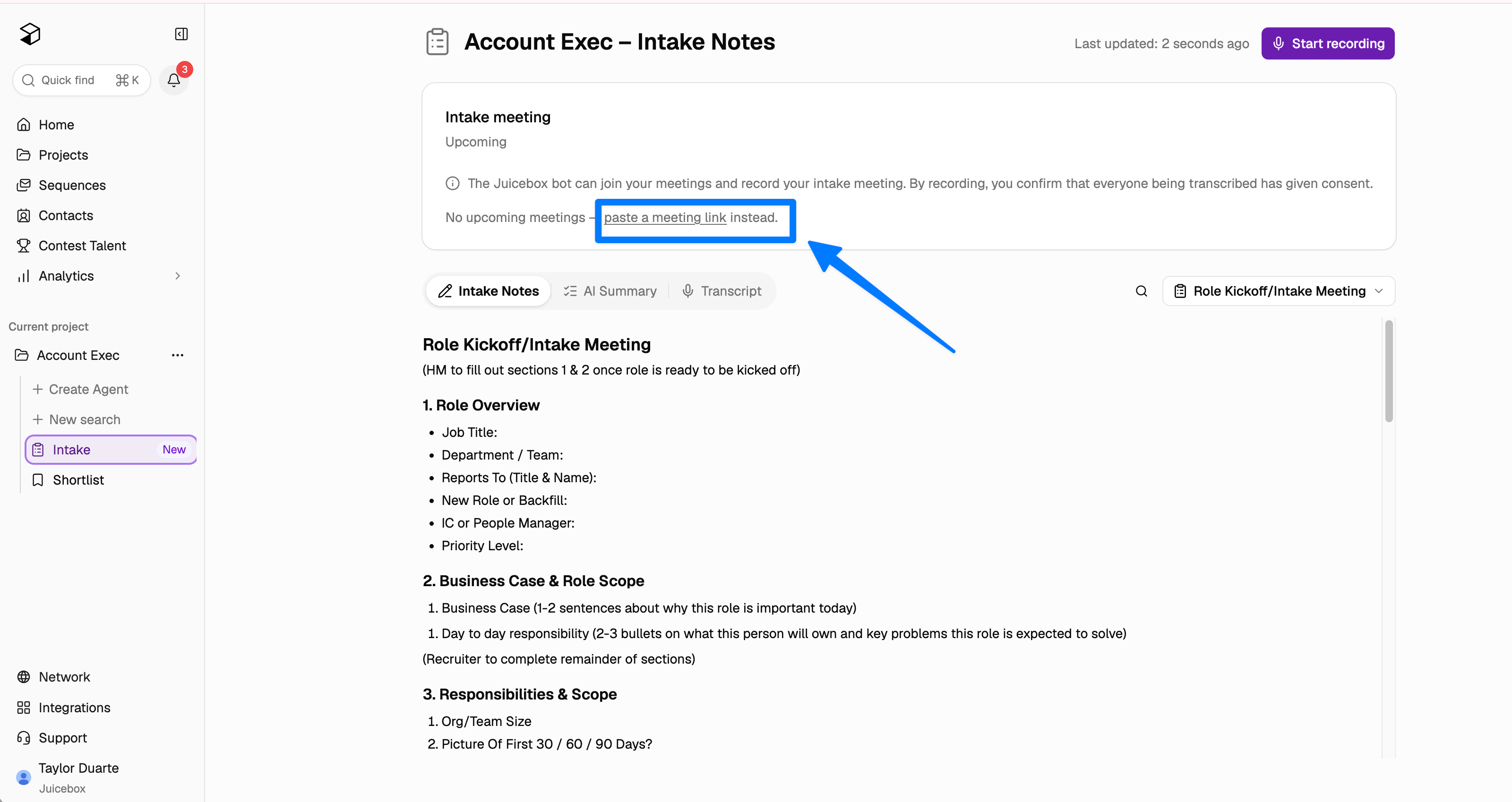
Choose a meeting from your calendar
If your calendar is connected, pick the scheduled meeting from the dropdown on the intake. The event is linked to your notes, and you can swap it any time with Change meeting.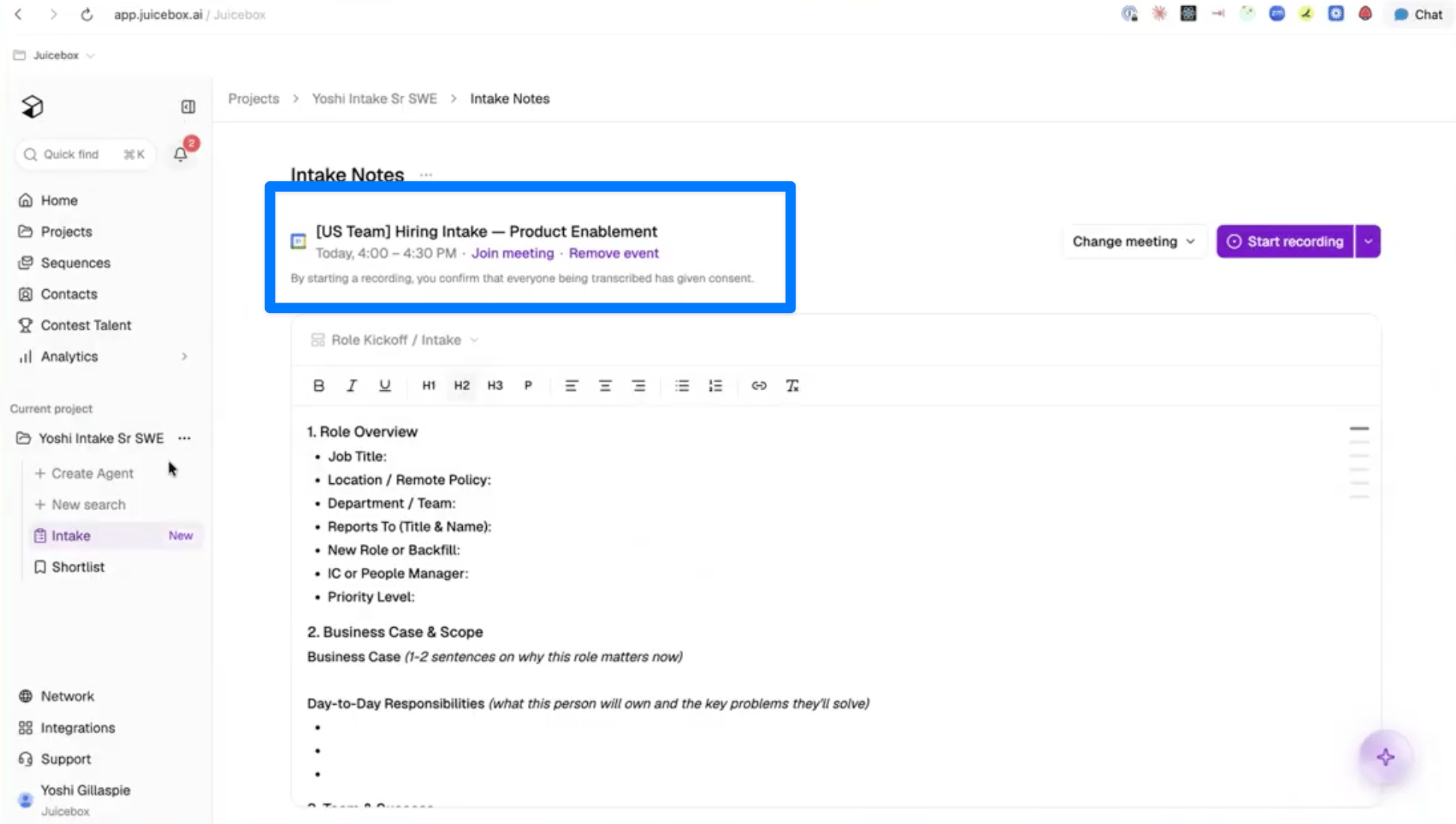
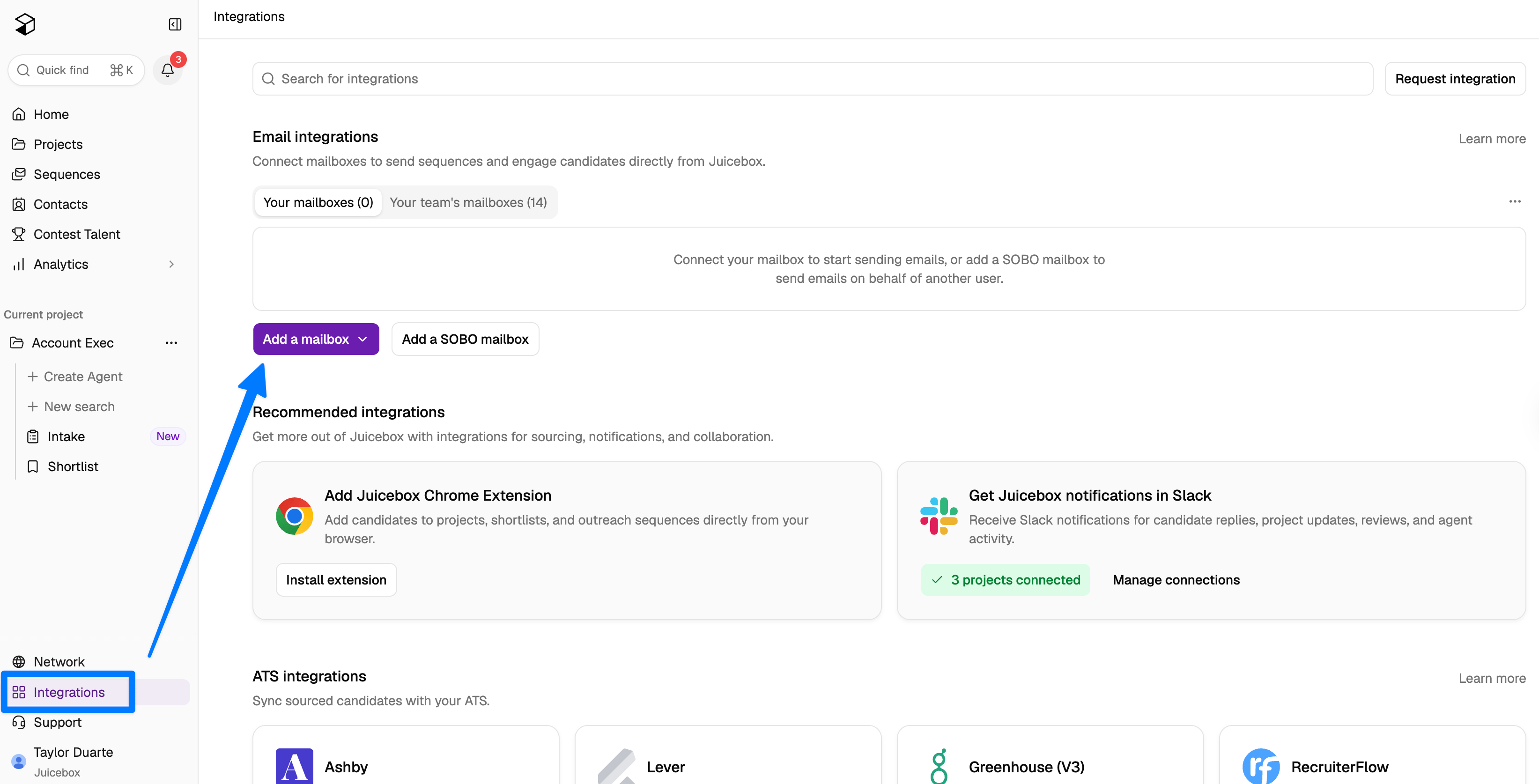
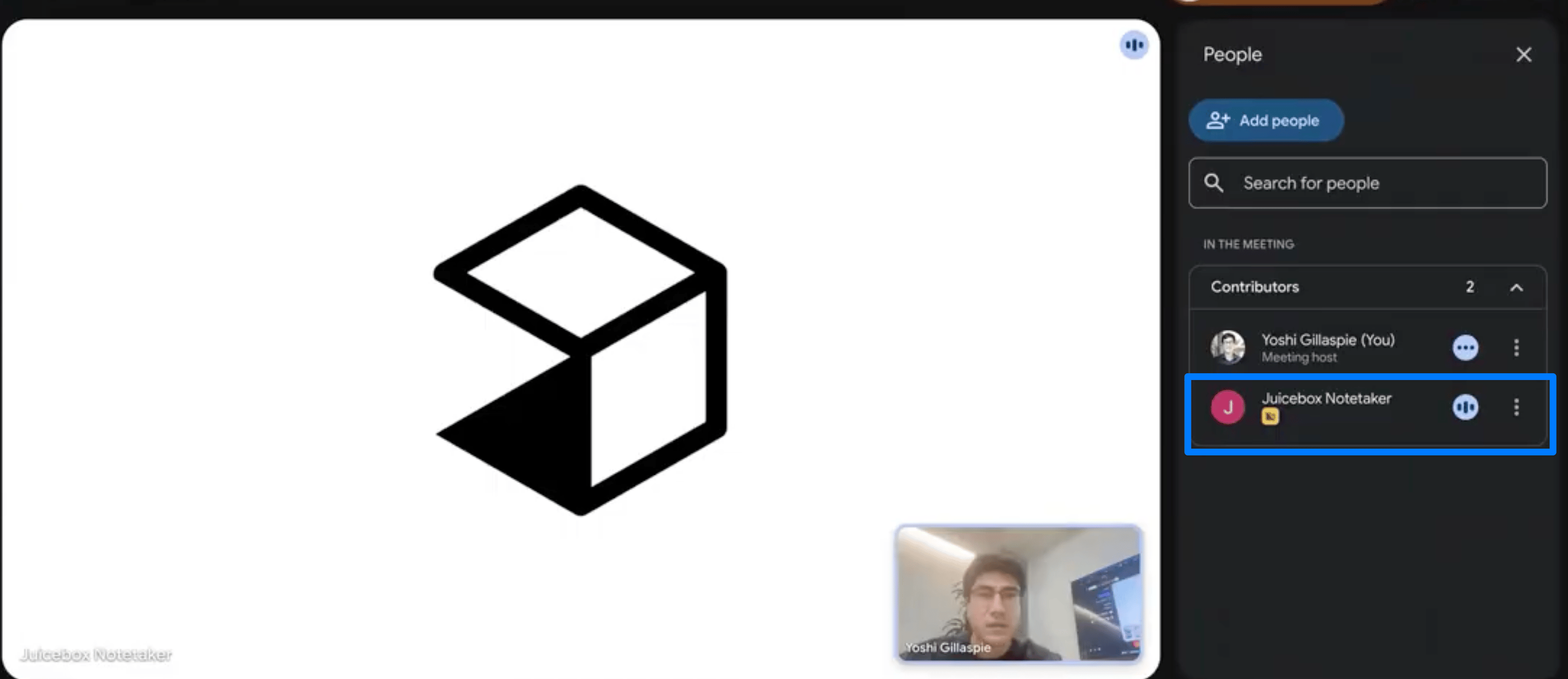
4. During the meeting
Once the meeting starts, Intake records and transcribes the conversation so you can stay in the discussion instead of typing. Live insights on the talent pool appear next to your notes as the hiring manager describes the role, filling in categories like location, job title, and years of experience as they come up, along with pool size and sample profiles you can react to together. Insights keep refreshing as more requirements surface, and if a few minutes pass without a key detail, Intake suggests which criteria would help narrow or broaden the pool. Your structured intake notes are generated once you end the recording. You can send an insight or a list of potential matches straight into the meeting chat, so the hiring manager can react to real profiles while you are still on the call.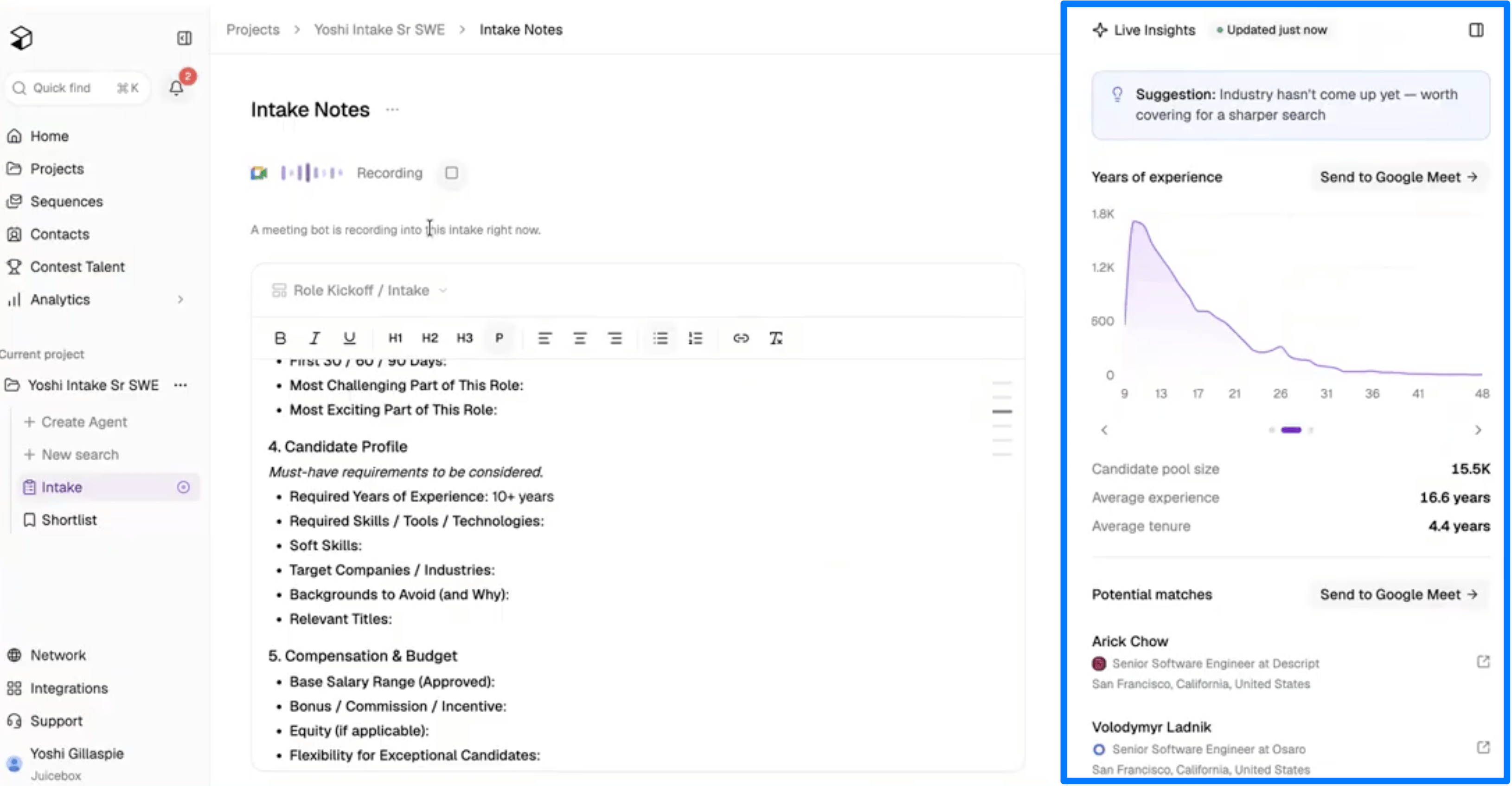
5. After the meeting
When the call ends, everything lands in one place: an AI summary of the conversation, the full transcript, and your intake notes filled in and ready to go. Each note links back to the moment in the transcript where it was discussed, so you can check the original context.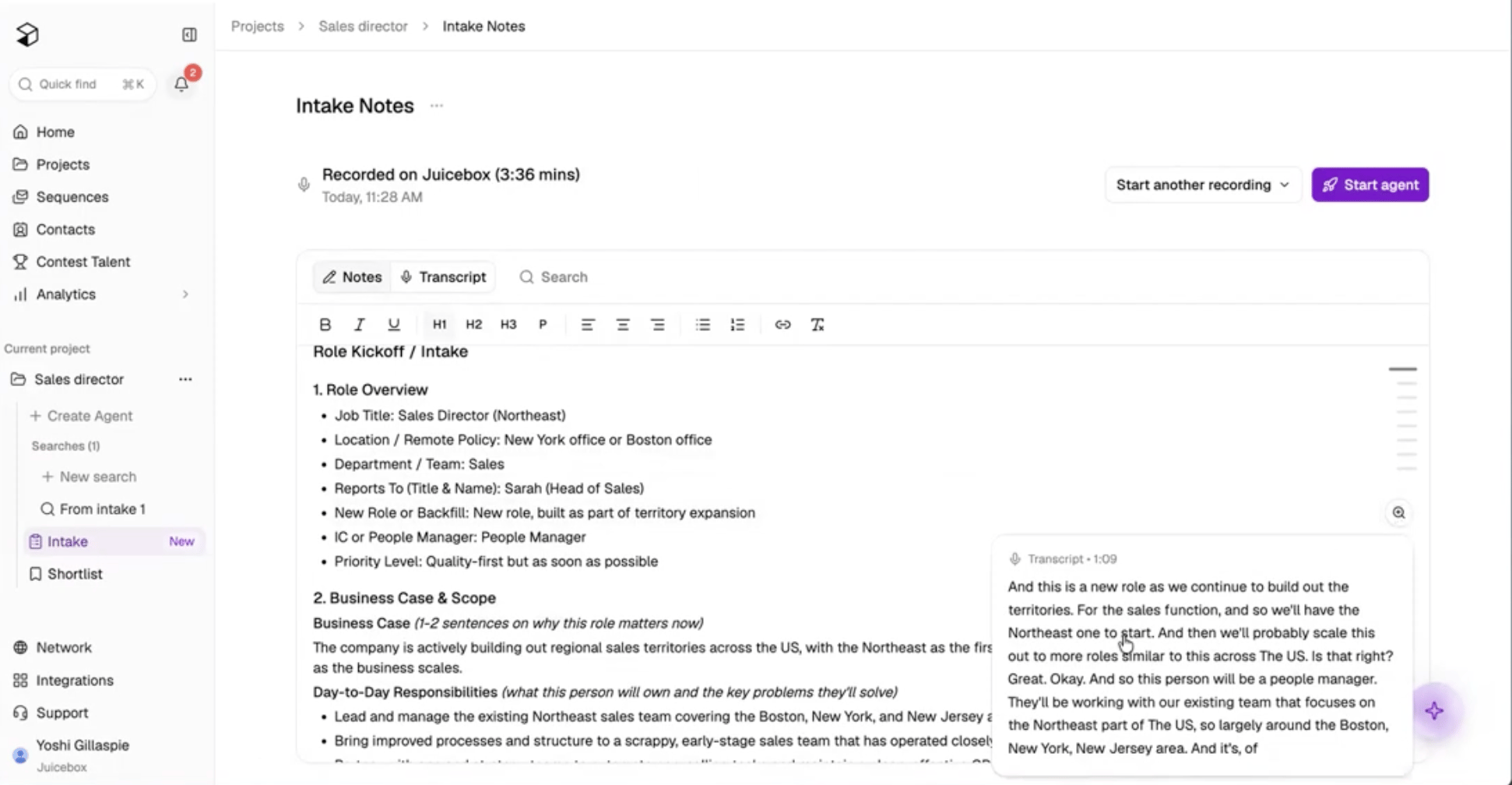
- Start an agent to begin sourcing with the hiring manager’s requirements already built in, or calibrate an agent you have already set up
- Start another recording if the conversation continues on a follow-up call
- Reference the notes from Ashby, if the role already exists there
- Delete the intake if you no longer need it
Draft a job description from the intake
Once the intake has notes, you can turn them into a job description without leaving Juicebox. Open the agent menu on the intake and choose Draft job description. Juicebox streams a JD from the intake’s notes into an editor you can revise before you copy it, export it as a PDF, or push it to Ashby. If your Ashby workspace is connected, Juicebox also seeds the draft with your recent Ashby postings so the tone and structure match the JDs your team already publishes.Edit, copy, or export the draft
The draft opens in a rich-text editor. Wait for the typewriter to finish, then edit it inline like any other document. From the footer you can:- Copy the JD as rich text (with a plain-text fallback) to paste into another tool.
- Export as PDF to download a formatted copy.
- Create in ATS to push the draft to Ashby (see below).
Push the draft to Ashby
With Ashby connected, click Create in ATS to create a draft job in Ashby in one step. Juicebox:- Uses the project name as the posting title.
- Maps the intake notes to one of your existing Ashby departments and offices. Juicebox never creates new departments or offices; it picks from what is already synced.
- Creates the job as a draft and links the intake to the new Ashby posting.
Job creation and updates are Ashby-only today. Other ATS integrations still support import, export, and rediscovery — see ATS Integrations.
Who can draft and push a JD
- Admins and full-seat recruiters can draft, copy, export, and push to Ashby.
- Hiring managers and other restricted collaborators can draft, copy, and export a PDF, but cannot create or update an Ashby job.
- Read-only admins and sequence-only seats do not see the Draft job description action.
- Empty or template-only intakes are refused — add notes or run the meeting first.
- Free-plan users are routed to the upgrade paywall when they try to draft a JD.
Permissions
Intakes follow the permissions of the project they belong to. Anyone with access to the project can see its intakes.Privacy and data handling
- Audio and video files are deleted automatically 72 hours after the meeting.
- Only the transcript is kept, and it is what informs your notes, search, and agents.
- Intake conversations are not used for training.
Admin controls
Admins can manage Intake for their organization from Account Settings → Projects.Turn recording on or off
Admins can turn recording on or off for their organization in Account Settings. If recording is turned off, you can still use Intake. Start an intake from a template, type your notes during the call, and calibrate an agent from those notes.Turn off automatic messages in intake meetings
By default, Juicebox posts two automatic messages into the meeting chat during an intake call:- A talent pool blurb once enough requirements have been captured, plus follow-up updates when the pool changes.
- A one-time nudge listing the key details still missing from the intake.