Introduction to Juicebox
Watch the 2-minute video below for a high-level overview of how Juicebox works and what you can expect as you get started.Create an account
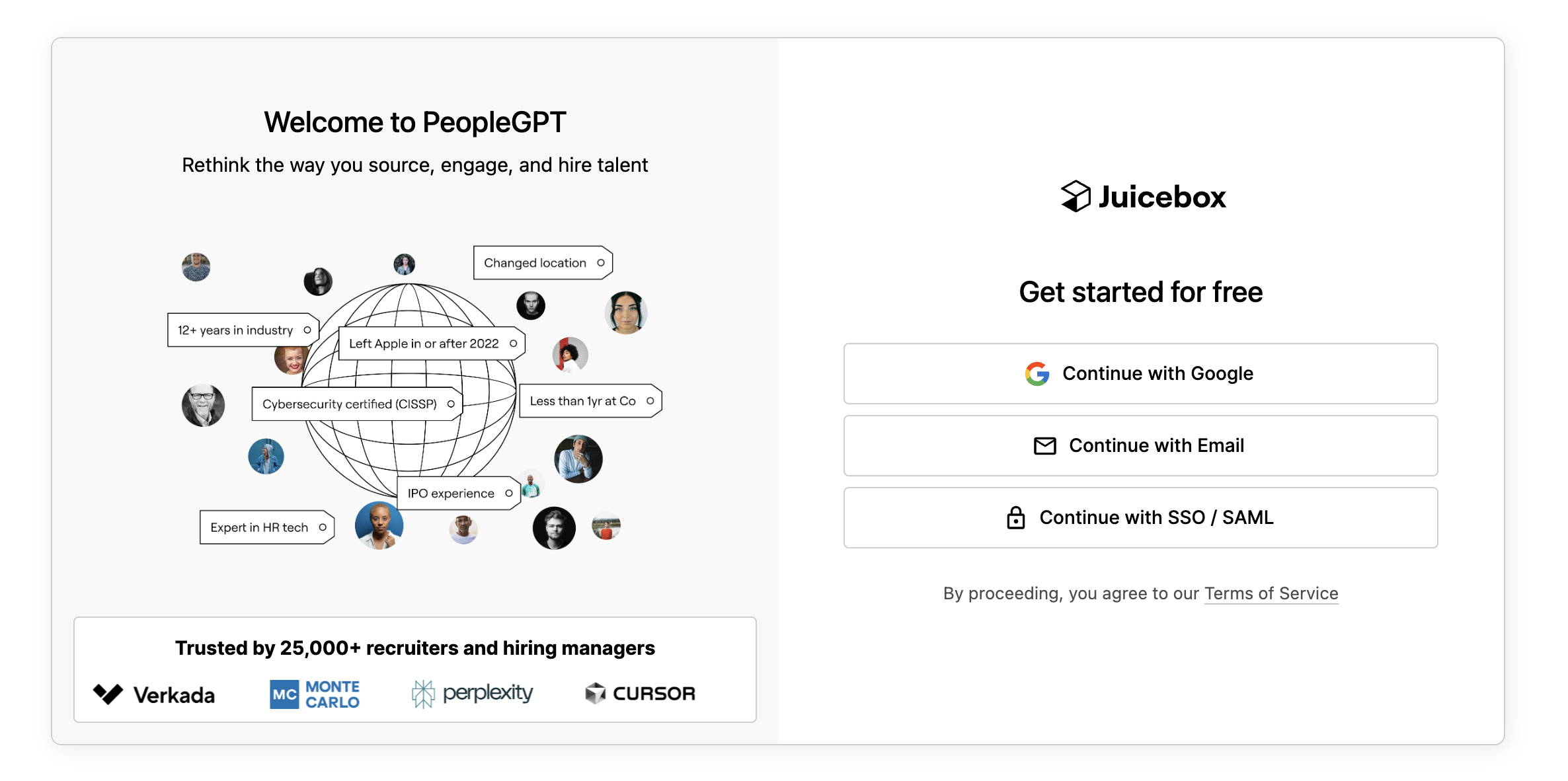
The first step to getting started with Juicebox is creating your account! To do so, click the Sign In button in the top right hand corner of the Juicebox.ai webpage. From there, you will have three different options to sign-in:- Continue with Google
- Continue with Email
- Continue with SSO / SAML*
Verify your email address
When creating an account, you will be prompted to confirm your email address. Head to your inbox and verify your email address by clicking on the link sent to you. If you are facing any issues with email verification, please contact support.Select your organization name
You will be prompted to choose your organization name. This is used internally, only. Most customers use the name of their company or team, for example Pied Piper or Pied Piper Recruiting. You can change your organization name later, too, so don’t worry if you’re unsure.Integrate your email
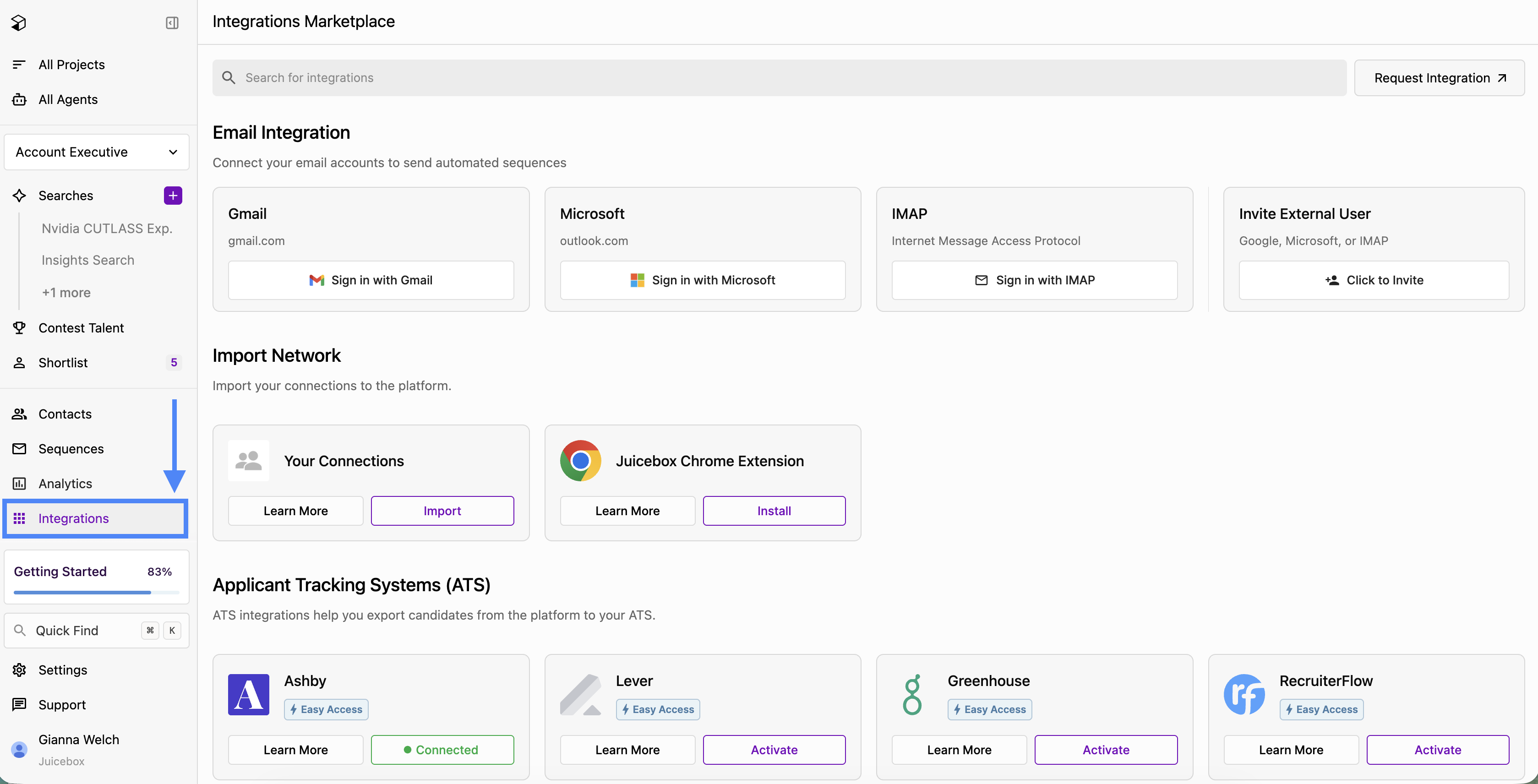
To access the entire Juicebox platform, integrate your email from the Integrations tab on the left-hand menu. Then sign in with your email provider, and once your email status says Connected, you are all good to go!