Welcome to Juicebox! Soon you’ll be ready to source and conduct outreach with better source data, search tools, and automations that help you work more quickly and partner more effectively with hiring managers and other stakeholders. There are tons of powerful features in Juicebox, but this guide will help you get started with the most essential ones, step by step. In this guide, you’ll learn how to:
  • Search for candidates using natural language instead of Boolean terms or keywords
  • Set filters for “must-haves” including many that aren’t available on other sourcing platforms
  • Set criteria for “nice-to-haves” to rank and evaluate candidates against your ideal profile
  • Review candidate profiles with rich information on their experience and employers
  • Shortlist the most relevant candidates to take action

Create your first project

From the Home screen, click Create new → Project.
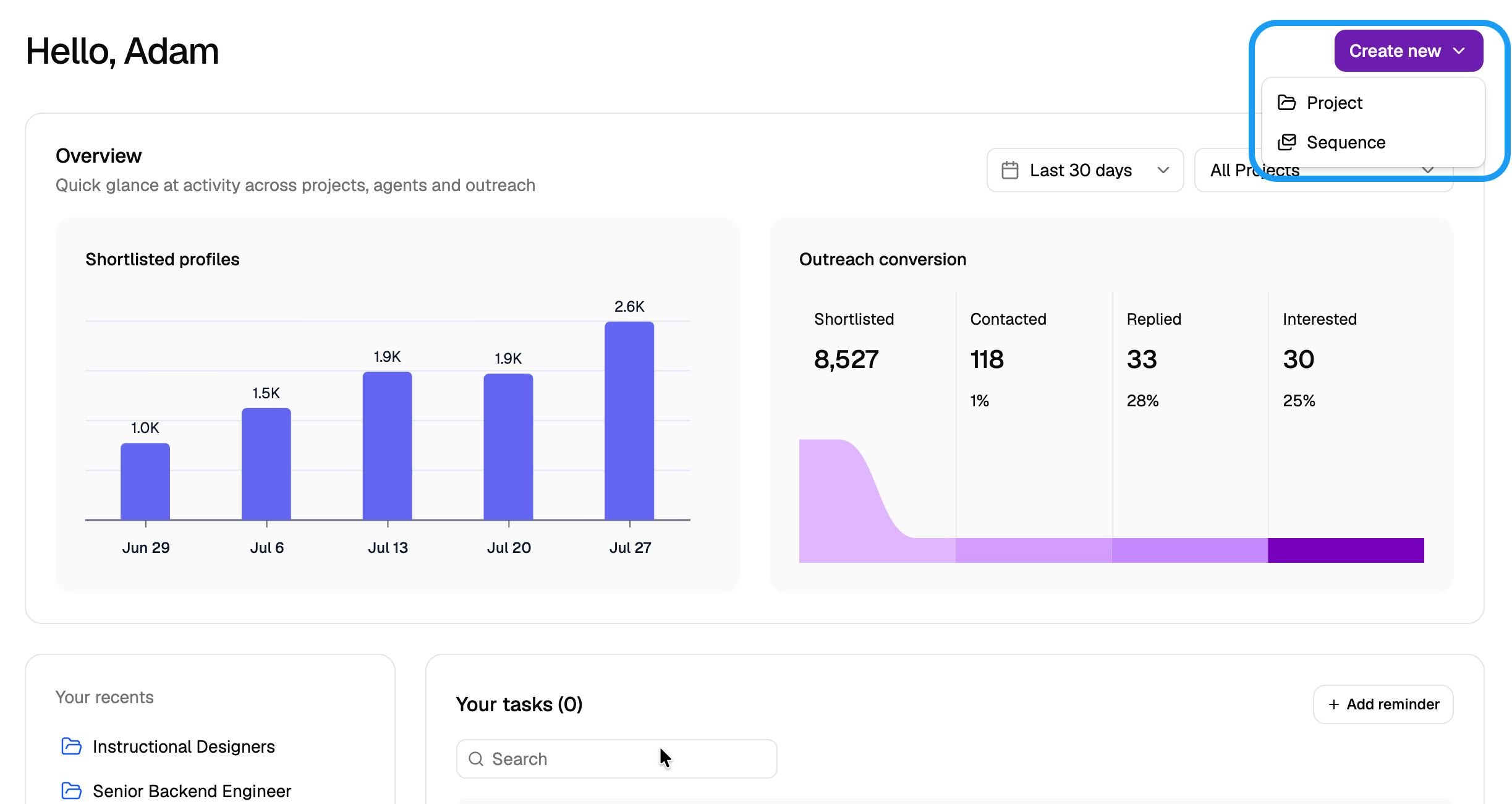
2026 07 31 11 49 50
Name your project after the role you’re hiring for.
Use a new project for each unique role or job description. This keeps you organized and lets you include the right hiring managers and sourcing partners for each role.
Want more help? Learn more about projects. Searching for candidates in Juicebox is powerful compared to other platforms you may have used. Why?
  • More data sources: We give you a 360-degree view of candidates from different sources and platforms. This helps you find more relevant candidates you may not find on other platforms, and you’re also not tied to the data from just one recruiting platform or site.
  • Natural language prompting: In Juicebox, you’re not tied to Boolean searches. You can describe your ideal candidate in plain words. You can also set up AI agents to do this work (we’ll cover that in a future guide).
  • Powerful filters and criteria: You can use nearly any attributes to find candidates, including ones for niche roles or specialized experience.
Start by describing the role with natural language. Describe the role the way you’d tell a colleague about it, or even using notes from the hiring manager kickoff. For example, try a search like software engineers located in the Bay area, B2B SaaS experience, with 5 yoe, and experience in python and node.js
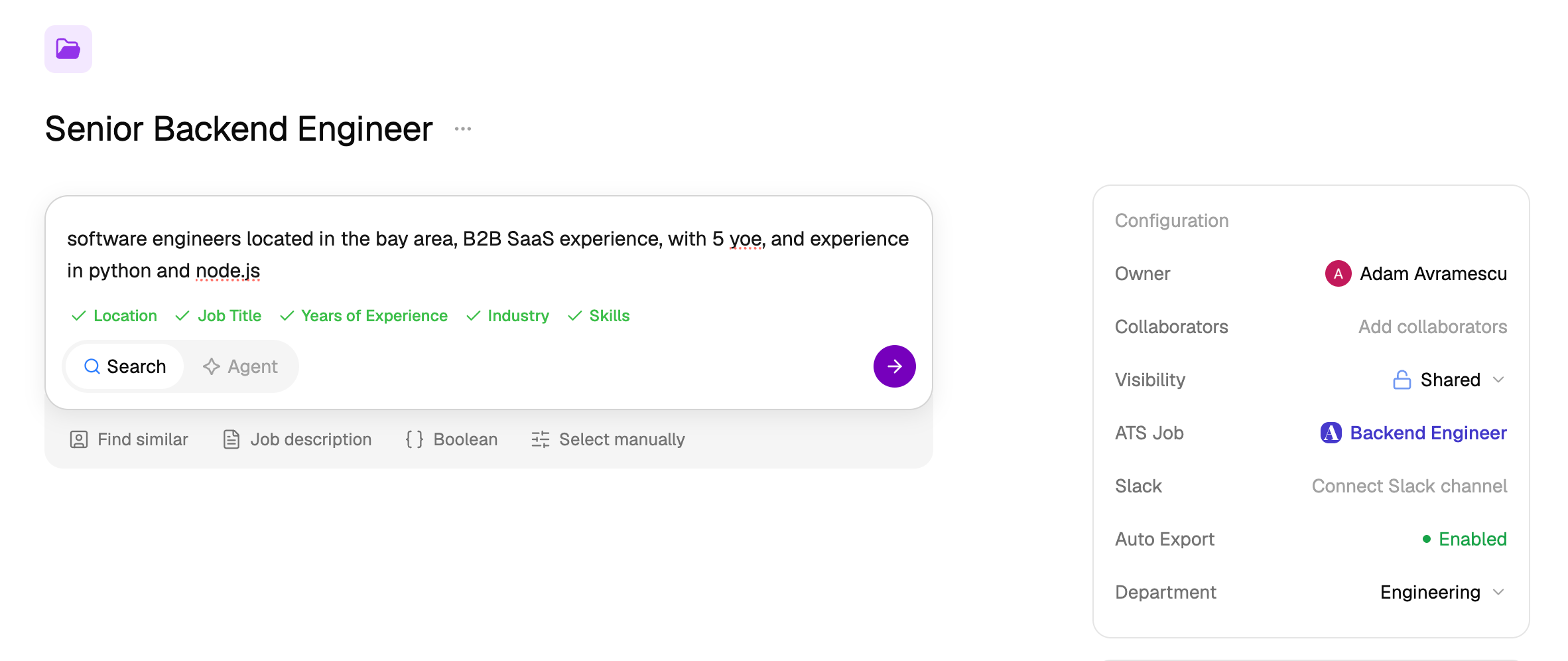
2026 07 31 12 01 57
You can also upload a job description or the profile of a top candidate using the Job Description or Find Similar buttons, but the best practice is to use natural language.
Want more help? Learn more about search, or see common tips and tricks.

Set filters and criteria

Now Juicebox will start creating filters and suggesting criteria automatically.
  • Think of filters as hard requirements. If candidates don’t match the filters, you won’t see them in Juicebox. Typically these will be things like location, years of experience, or must-have skills.
  • Think of criteria as softer requirements that determine how candidates are scored and ranked. If candidates don’t fully meet criteria, you’ll still see them in Juicebox, but they’ll be ranked lower than other candidates who fully meet the criteria.
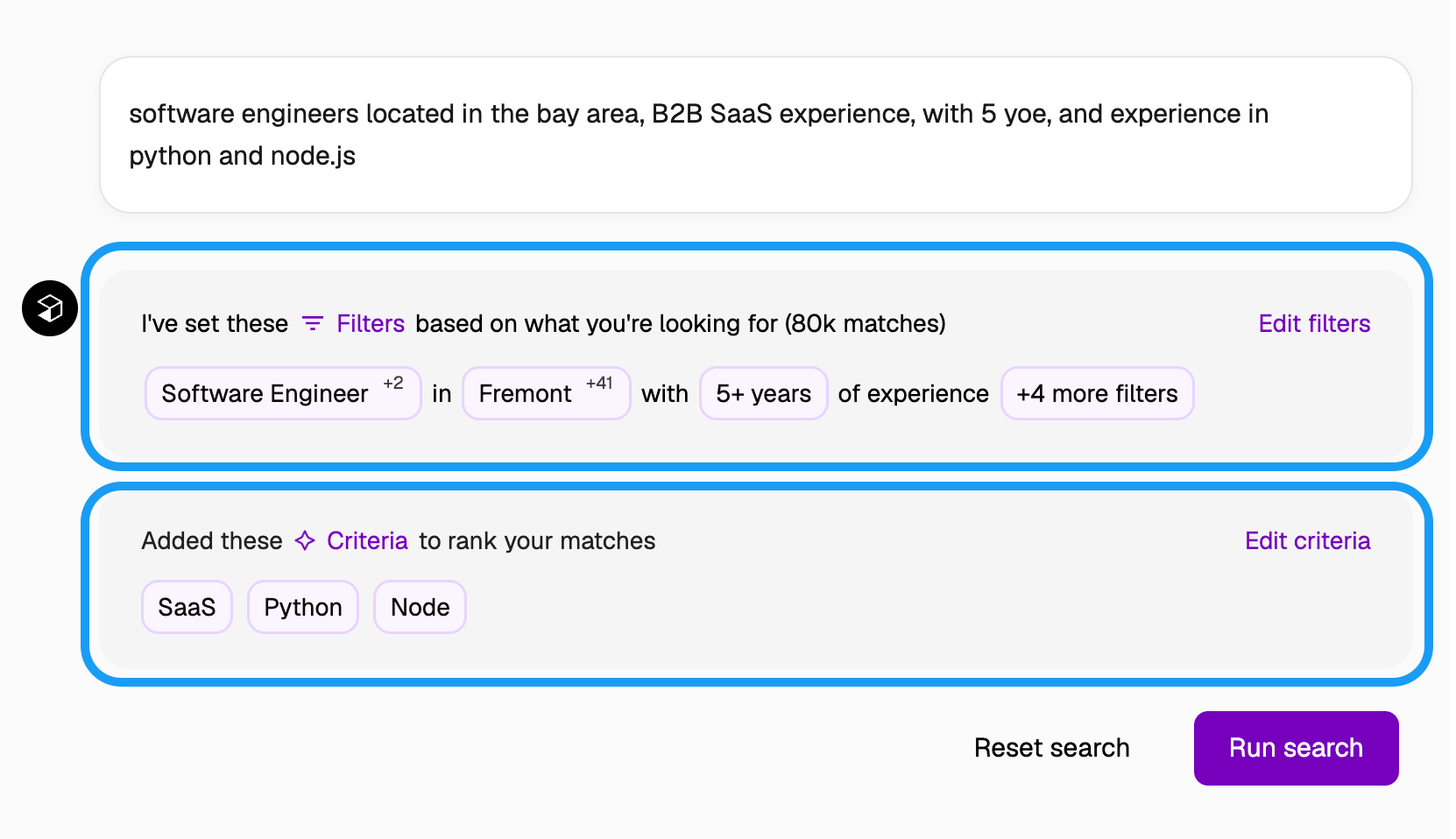
Use criteria instead of filters for soft requirements or nice-to-haves, to avoid losing near-fit candidates.
2026 07 31 12 02 45
From here, click Edit filters or Edit criteria to customize this search even more. Let’s look at some popular filters, including some that many other platforms don’t.
  • Min Experience (Years) and Max Experience (Years): We recommend setting one or the other, but not both.
  • Exclude Profiles: Lets you exclude candidates who have already been viewed, shortlisted, contacted, or hidden, so you can focus on net-new talent.
  • Location(s): Search for any city or region, including a certain distance from those locations, or even by time zone.

Job Titles: Search for current or past titles, or titles held at a specific company stage. Here you can also filter by Minimum Average Tenure.
You can include or exclude specific job levels. For example, to exclude candidates who held “senior” job titles, type senior into the Job Titles filter, then click the “no” 🚫 icon to exclude it.
2026 07 31 12 07 20
  • Companies: Source from specific companies or use natural language like find companies within the fintech industry to have Juicebox automatically create a list of target companies.
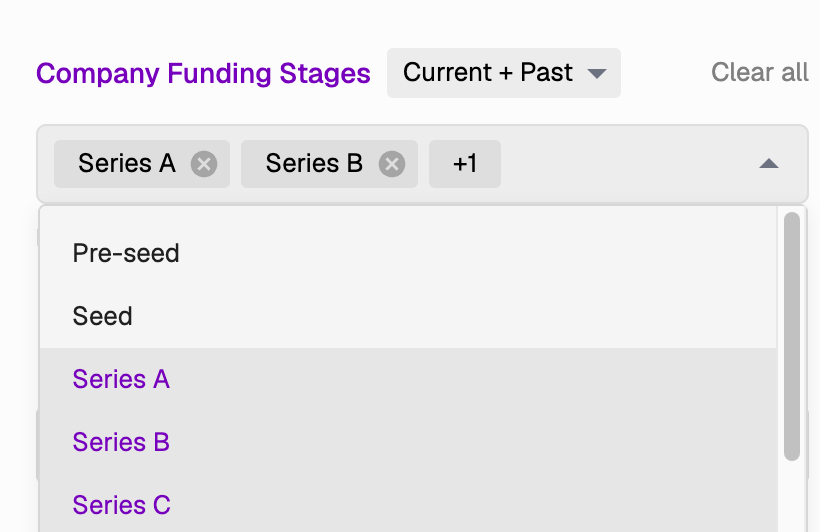
One of our customers’ favorite use cases for filters is to find candidates who worked at a certain company during a certain stage of growth. For example, a company that’s successful and stable today hires a different type of Account Executive role than they did for their first few hypergrowth sales hires. Try the Company Funding Stages filter to find candidates who worked at a successful company during its early stages.
2026 07 31 12 05 58
  • Skills or Keywords: Search specific skills, and use the pin icon to set certain skills as hard requirements (useful if you need to narrow your search pool)
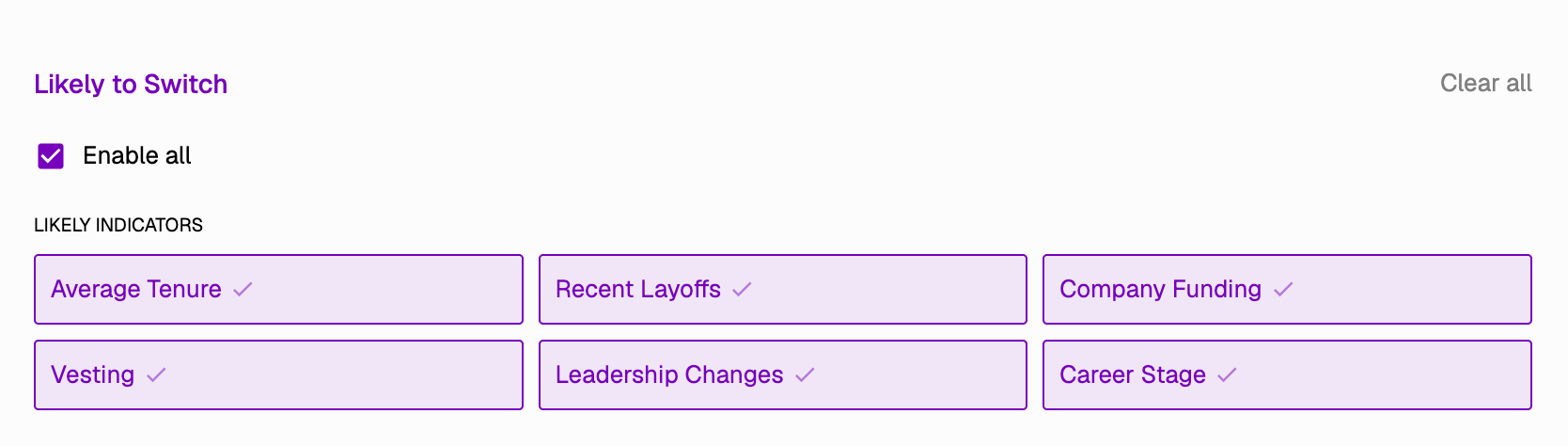
  • Likely to Switch: Our customers also find this filter popular, to find candidates who could be more likely to respond. We don’t rely on candidates indicating that they’re open to a new role; instead we look for data like their tenure, likely vesting schedules, layoffs and changes at their company, and other factors that will make them more likely to be open.
    2026 08 03 09 55 42 1
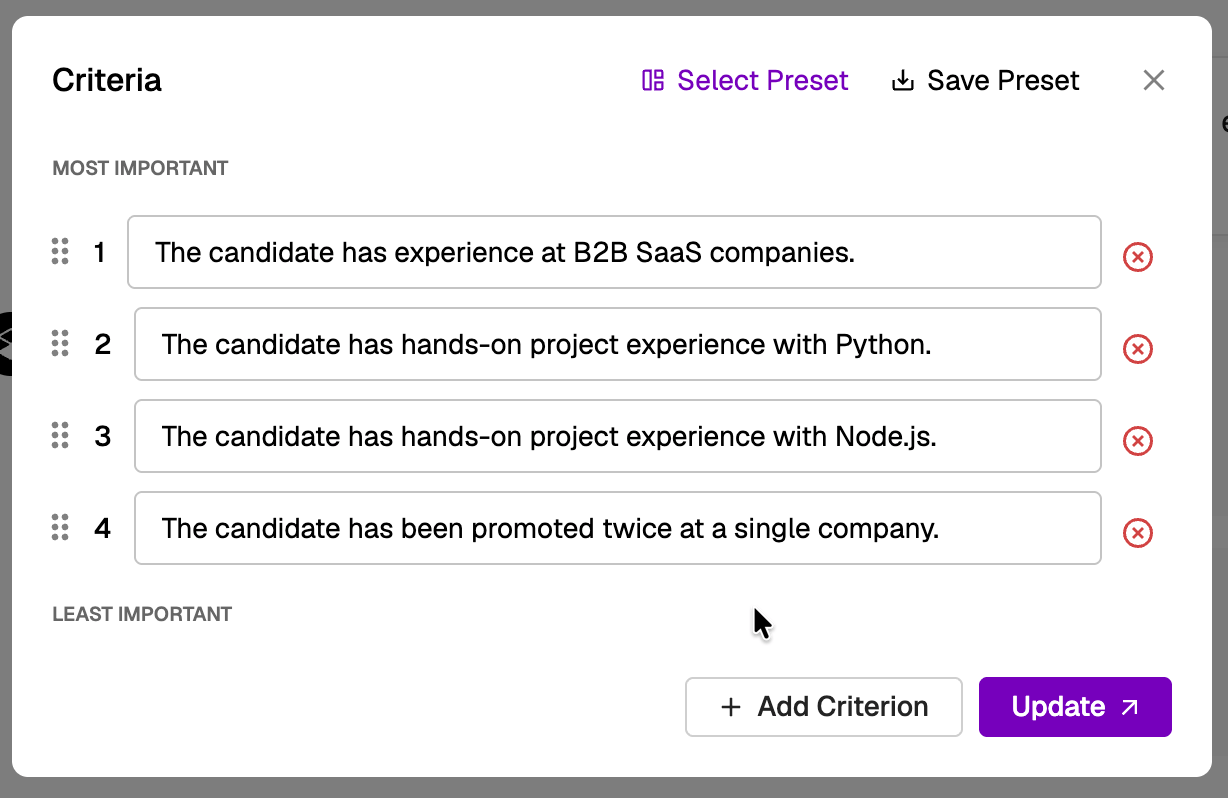
As for criteria, you can write those in natural language. For example: The candidate currently works at a manufacturing company or The candidate has been promoted twice at a single company. Remember, candidates who don’t completely match your criteria will still show up in the search results — they just won’t be ranked as highly.
2026 07 31 12 08 26 1
Once you’ve set your filters and criteria, click Run Search. Want more help? Learn more about filters, criteria, and when to use each.

View candidate profiles

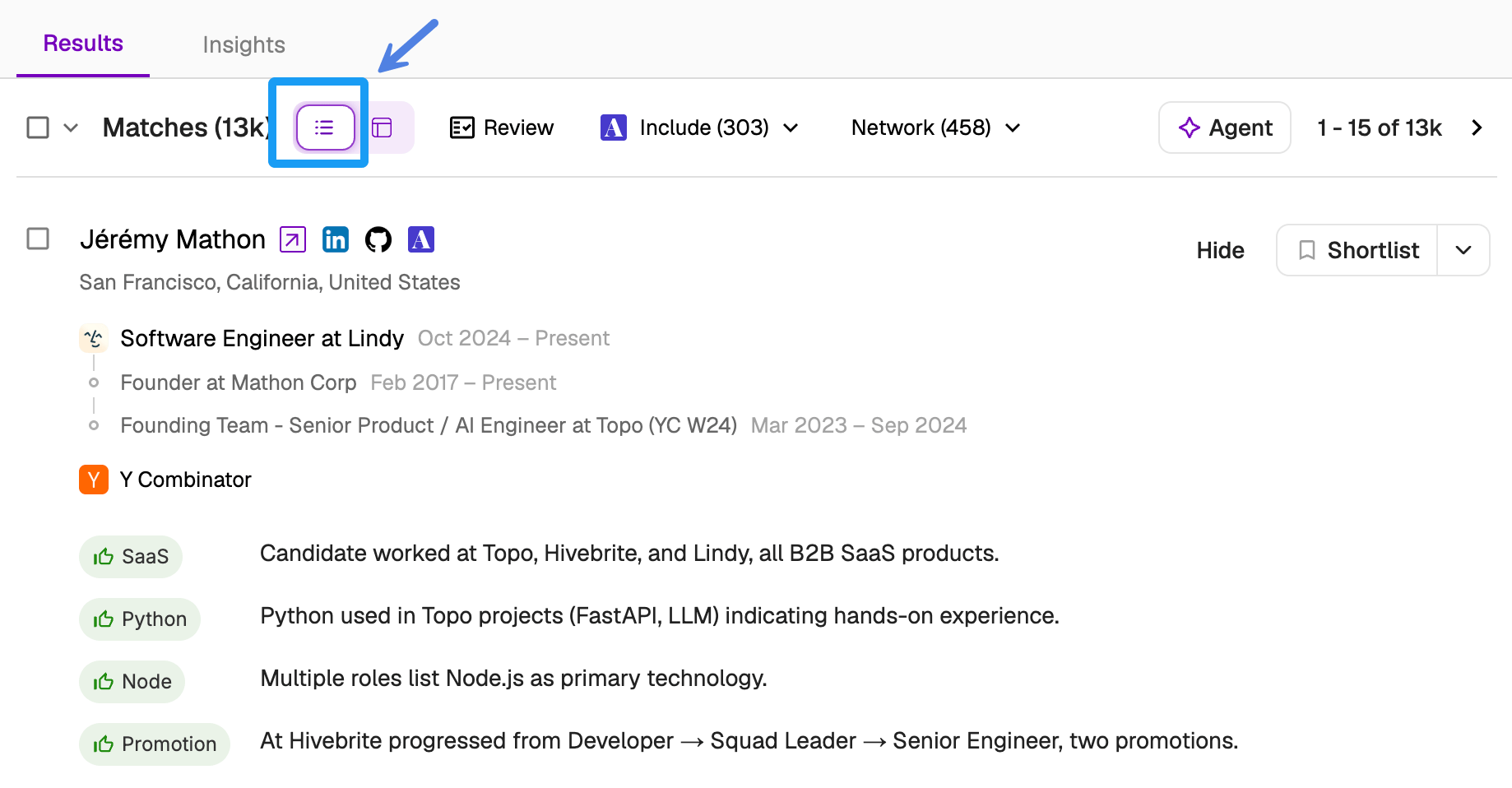
Once you run a search, you’ll see all relevant matches, ranked by the criteria you set. On this page, you’ll find three ways to get insights and work quickly. Results - Classic (List) View: This is what you see by default. You’ll see each candidate’s information with high-level notes.
2026 07 31 12 09 20
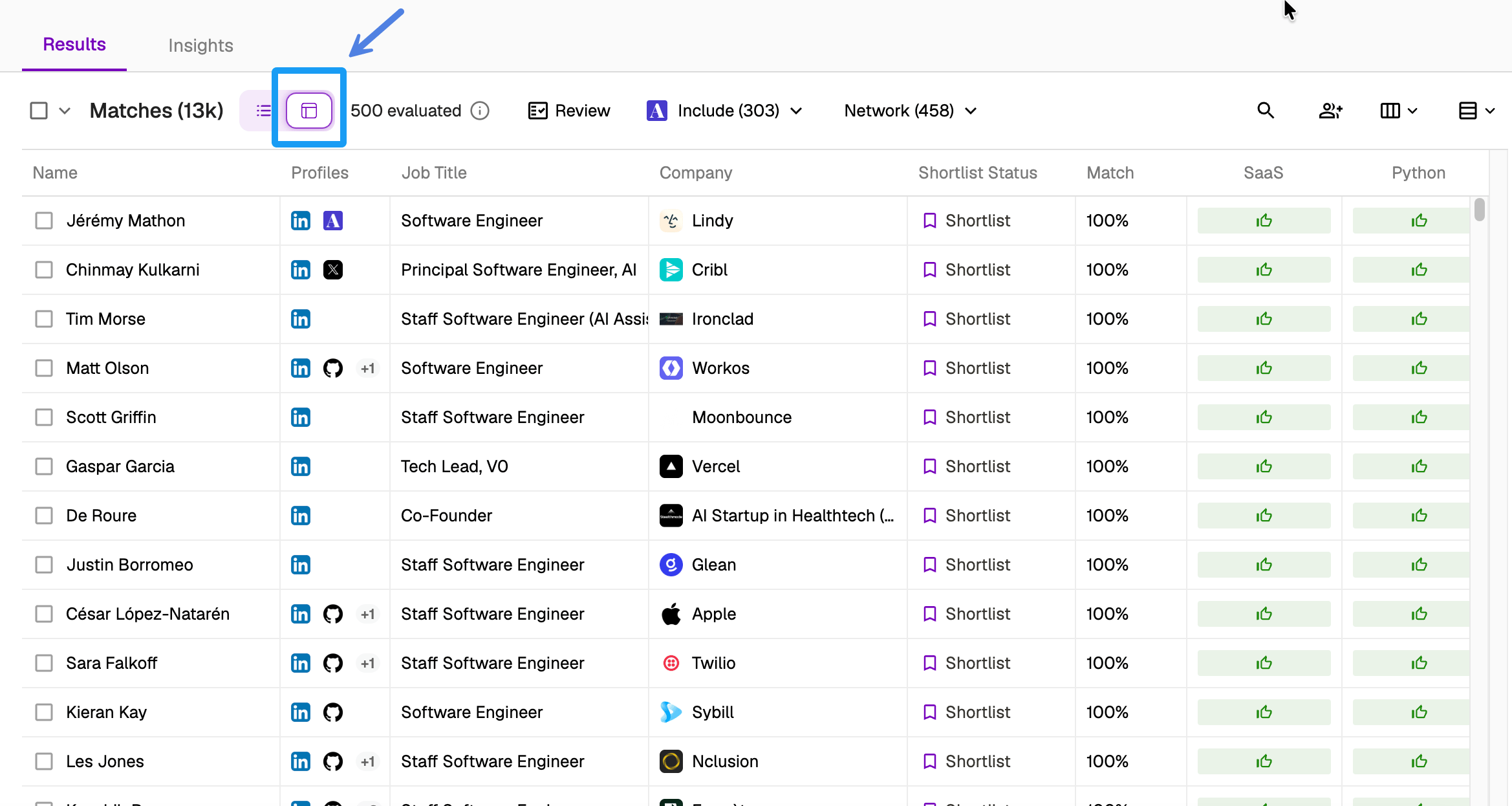
Results - Table View: A condensed view of all candidates with their match percentage and where they do or don’t align to the criteria you set.
2026 07 31 12 10 31
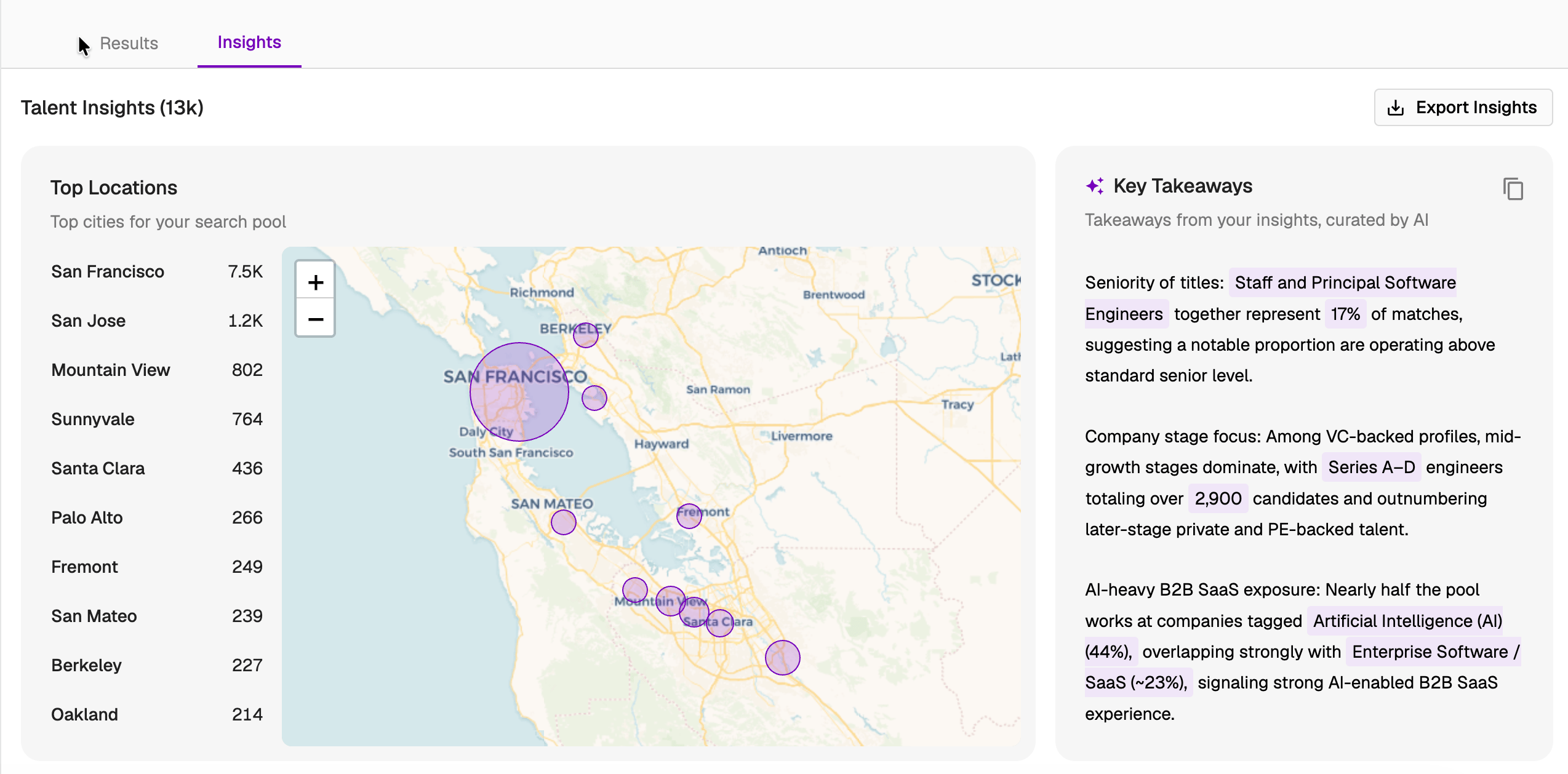
Insights: An interactive report breaking out candidates by locations, employers, years of experience, tenure, job titles, and other relevant information.
2026 07 31 12 11 25
The Insights report is a powerful way to partner strategically with hiring managers and other stakeholders. For example, this report can help a hiring manager understand how easy or hard a search will be. Click Export Insights to create a sharable version that you can use to strategize with your hiring managers and sourcing partners. We’ll cover it in more depth in a future guide.
Want more help? Learn more about search and Insights.

Review and shortlist candidates

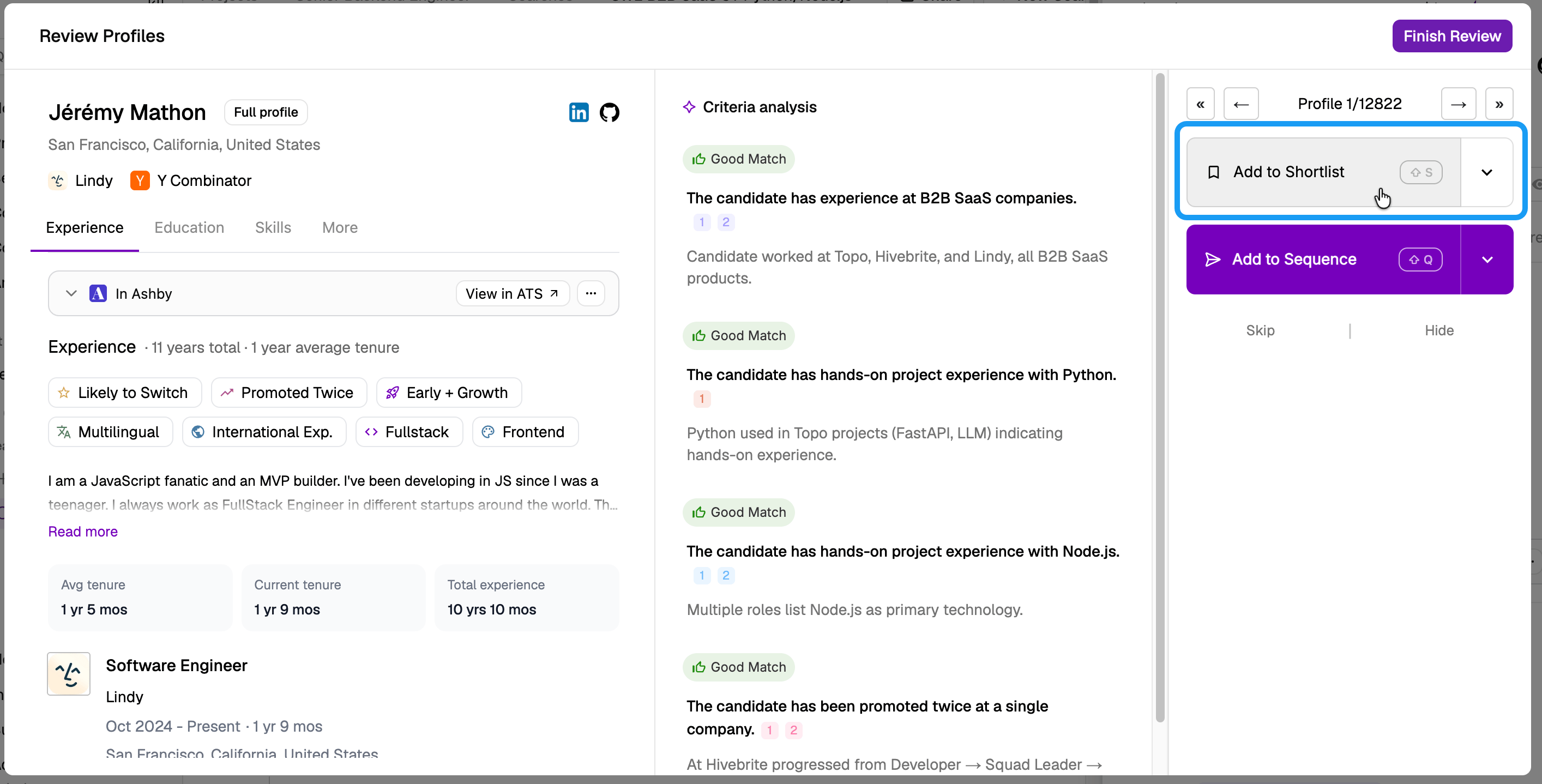
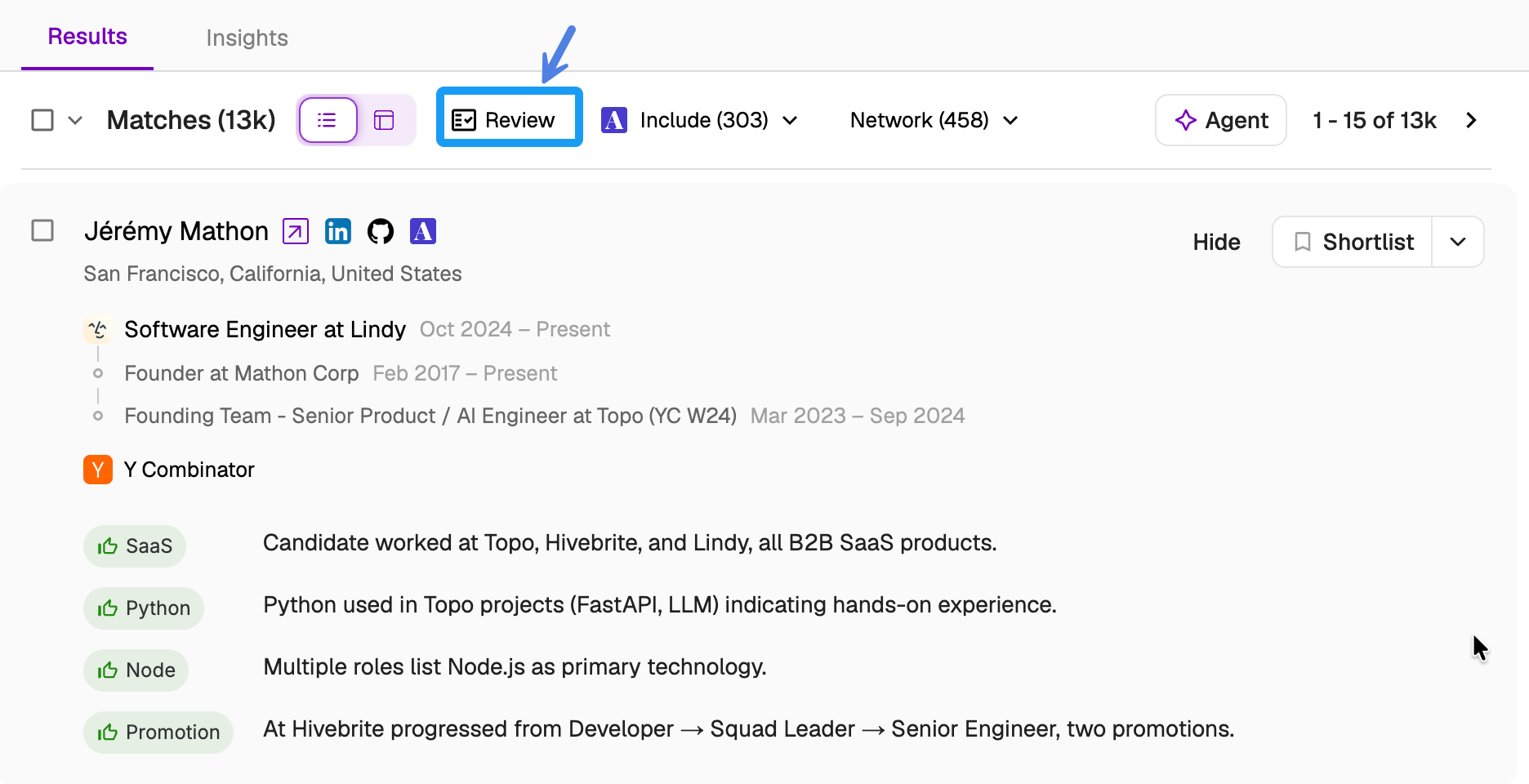
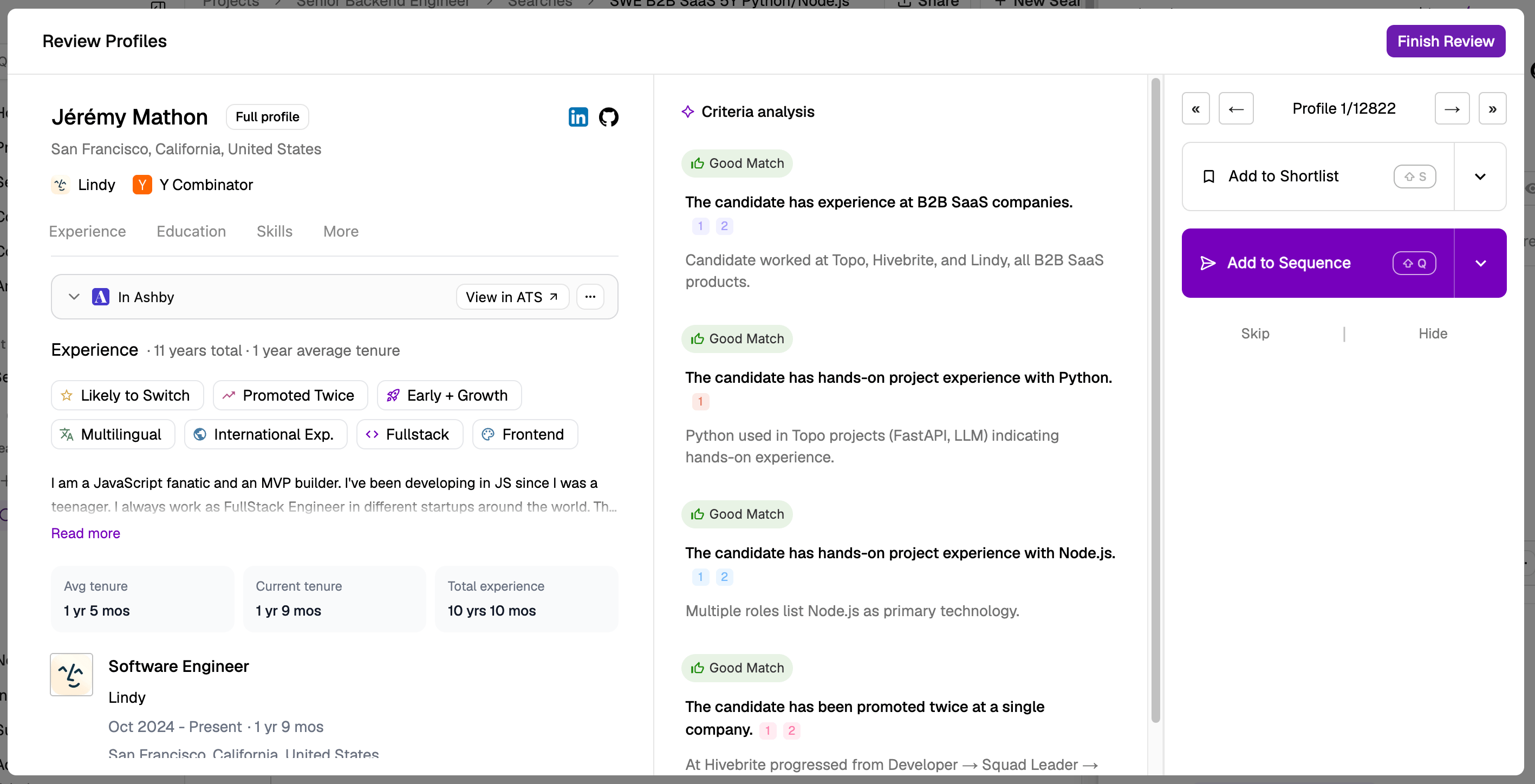
From the search results page, click Review to see the candidate’s profile side-by-side with our reasoning for why they are a match.
2026 07 31 12 12 55
2026 07 31 12 14 27
Click Full Profile to view all information, including all activity related to them. From the search results page, you can also click a candidate’s name to see their full profile.
You can click any of these reasons to see where the reasoning came from, so you can make data-backed decisions. Juicebox brings together many data sources to show you a rich candidate profile. You’ll see things like design portfolios, Github repos, certifications, publications, and patents — key for many specialized roles. Most importantly, you’ll be able to see contact information that isn’t readily available on other platforms.
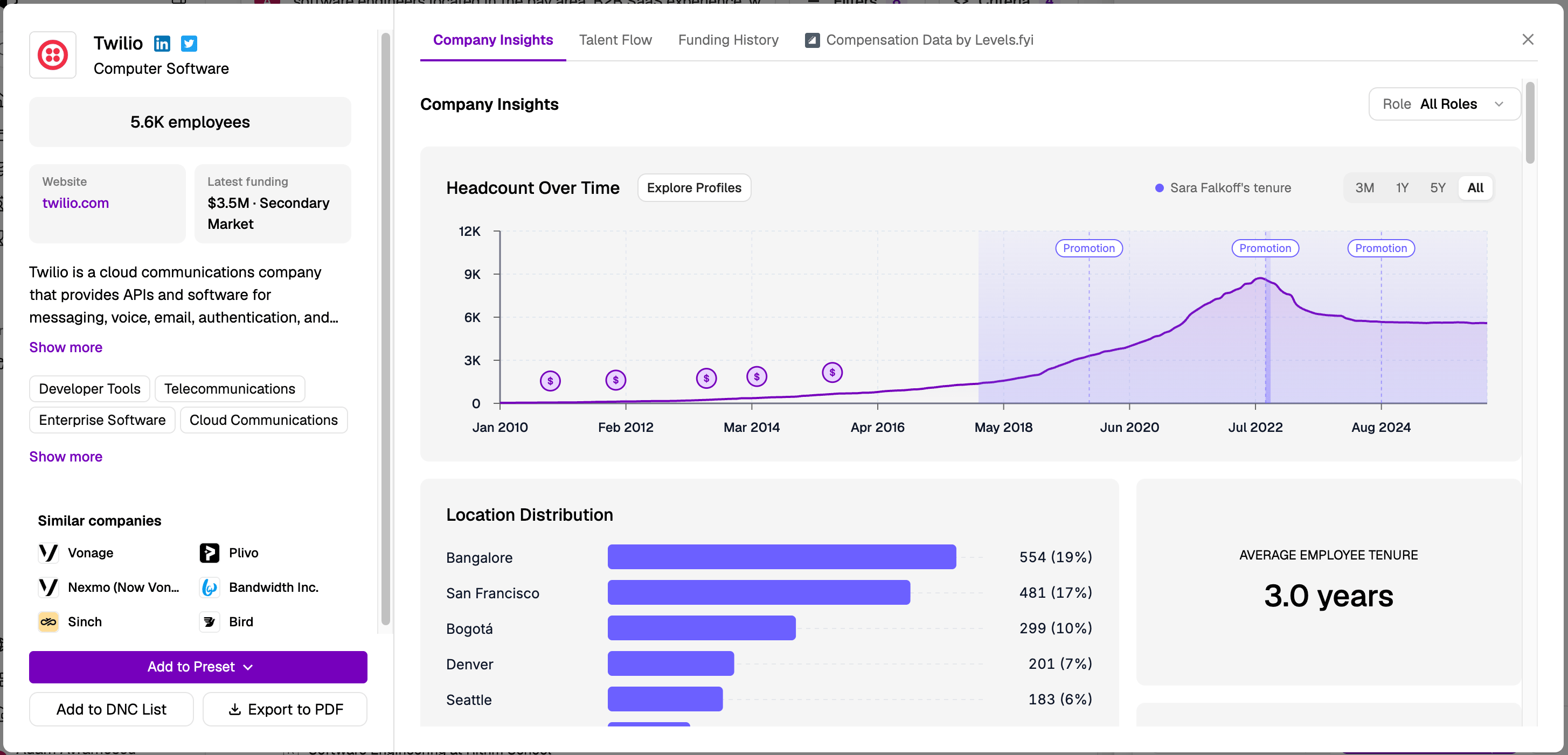
Hover over a company logo in the candidate’s profile, then click More Details to see more info on that company and candidate. Looking at the company’s growth trajectory, industry, and other information can help you decide if a company is worth targeting in this or future searches.
2026 07 31 12 18 41
Now ask yourself: is the candidate qualified? Would I want to take a call with them, based on their qualifications? If so, click Add to Shortlist. If not, click skip and move on.
2026 07 31 12 16 20
One final note: we showed you what an end-to-end sourcing process looks like in Juicebox, but we know you’ll still source candidates from other places. That’s why it’s handy to be able to see a candidate’s Juicebox profile, save notes, shortlist candidates, or add them to sequences directly from email or LinkedIn. To do this, install the Juicebox Chrome extension. The extension doesn’t take any automatic actions for you, but it makes it quicker for you to take action, wherever you are. Get the extension in the Chrome Store and click Add to Chrome. Want more help? Learn more about Profile View or shortlists.

What’s next?

Congratulations! By following this guide, you:
  • Used natural language to find relevant candidates
  • Set filters and criteria that let you target the right candidates
  • Reviewed their profile with rich information
  • Shortlisted the candidates who were most relevant
You’ve already seen how Juicebox can make sourcing more efficient and give you insights that would be hard to find otherwise. But what’s next?
In the next guide, we’ll show you how to take the candidates you shortlisted and run personalized outreach sequences to engage them.