


About the integration
Connect rexx systems to Juicebox to import jobs and start searches from their job descriptions. You can also export profiles with resumes to a selected job. This connector does not provide full-database candidate reading for rediscovery.Before you start
Find the URL that directly lists your company’s public jobs. Source configuration requires a rexx administrator. Open Integrations in Juicebox, select rexx systems, and choose Activate. Keep the connection window open while completing the steps below. If the integration is not visible, ask Juicebox Support to confirm access for your account.The screenshots show vendor settings or the connection window provided by Kombo. Use the credentials, source labels, permissions, and URLs from your own connection; screenshot values are examples.
Enter the public job-list URL
Paste the URL of the actual job-list page into Juicebox, rather than the careers homepage, and continue.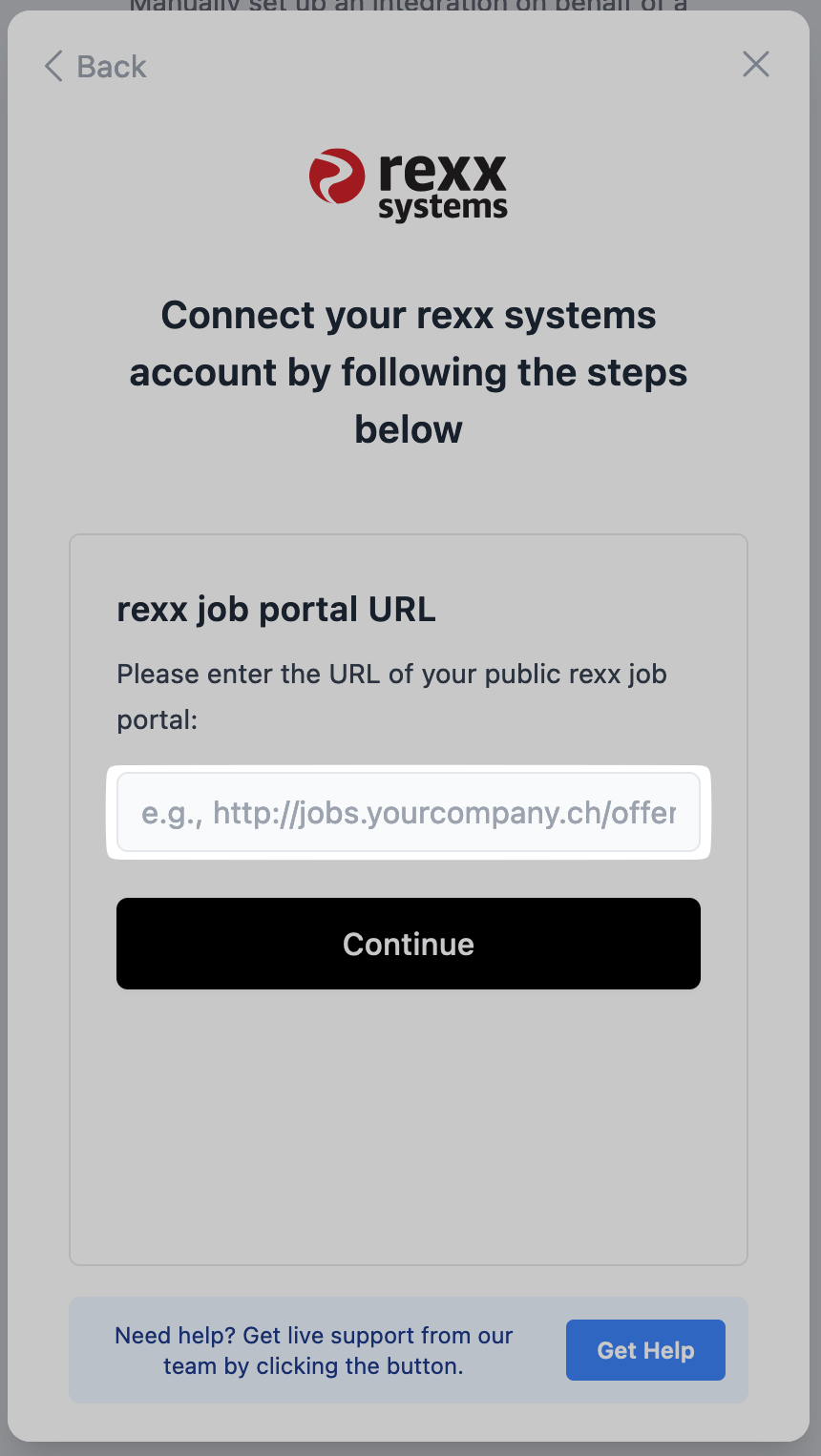
Use the public page that lists your jobs.
Create the candidate source
- Copy the source label displayed by your Juicebox connection window.
- In rexx, open Admin Services > Admin, Ticket and search for Wie haben Sie uns gefunden?.
- Open that setting, use its dropdown, and select Neu.
- Enter the copied label in Bezeichnung [de], set Art to intern, extern, and choose Speichern.
- Return to Juicebox and complete setup.

Create a new source value in rexx.
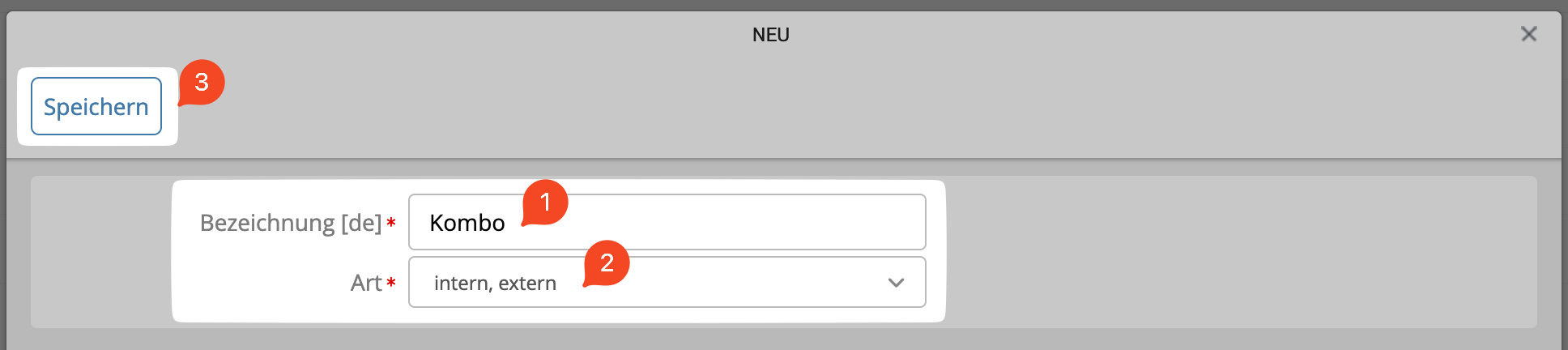
Enter the exact source label and select intern, extern.
Confirm the integration
Finish the connection window and return to Juicebox. Confirm that the connection has completed, then allow the initial sync to populate your data.- Check that the expected jobs appear in Juicebox.
- Export a test profile with a resume to a selected job, then verify the application in rexx systems.