


About the integration
This connection can read jobs and candidates. Creating new candidates is not available through the documented connector.Before you start
ADP API access is paid and requires an ADP statement of work and an assigned representative. Coordinate this setup with your ADP representative and technical administrator. Open Integrations in Juicebox, select ADP Workforce Now, and choose Activate. Keep the connection window open while completing the steps below. If the integration is not visible, ask Juicebox Support to confirm access for your account.The screenshots show vendor settings or the connection window provided by Kombo. Use the credentials, source labels, permissions, and URLs from your own connection; screenshot values are examples.
Arrange certificates and API credentials
- Start the Juicebox connection window and copy its requested scopes.
- Work with your ADP representative to provision Client ID, Client Secret, and the certificate material required for this connection. Follow ADP’s certificate-signing-request instructions.
- Use the current ADP provisioning process for exchanging certificate requests. Enter private-key material only in the secure connection field that requests it; do not copy it into support tickets.
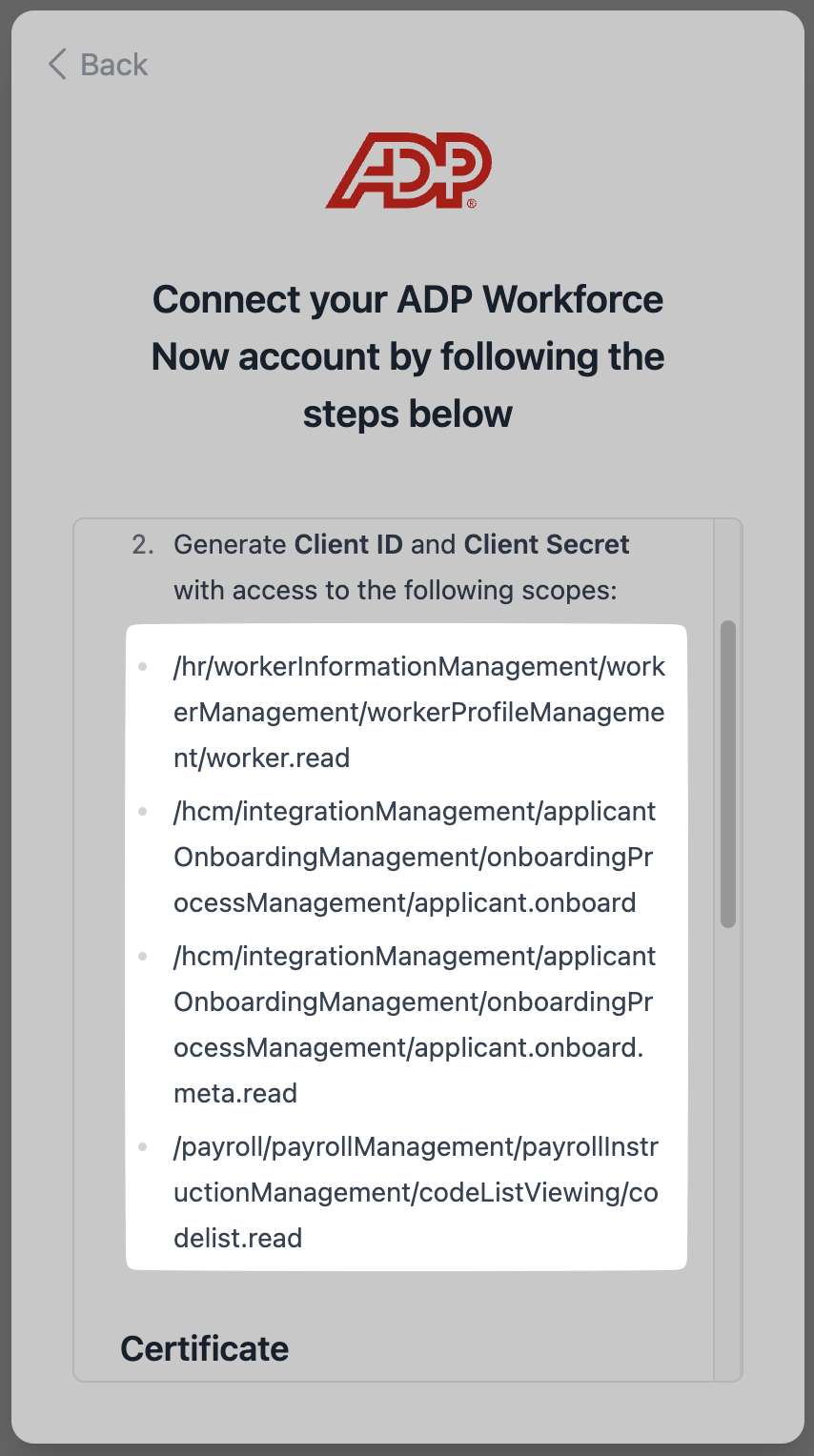
The scope list is specific to your connection; this screenshot is an example.
Complete the certificate connection
Enter the Client ID, Client Secret, certificate, and any key material requested by the connection window. Preserve the full certificate text, including its boundary lines. Complete the connection and ask your ADP representative to resolve certificate or scope errors.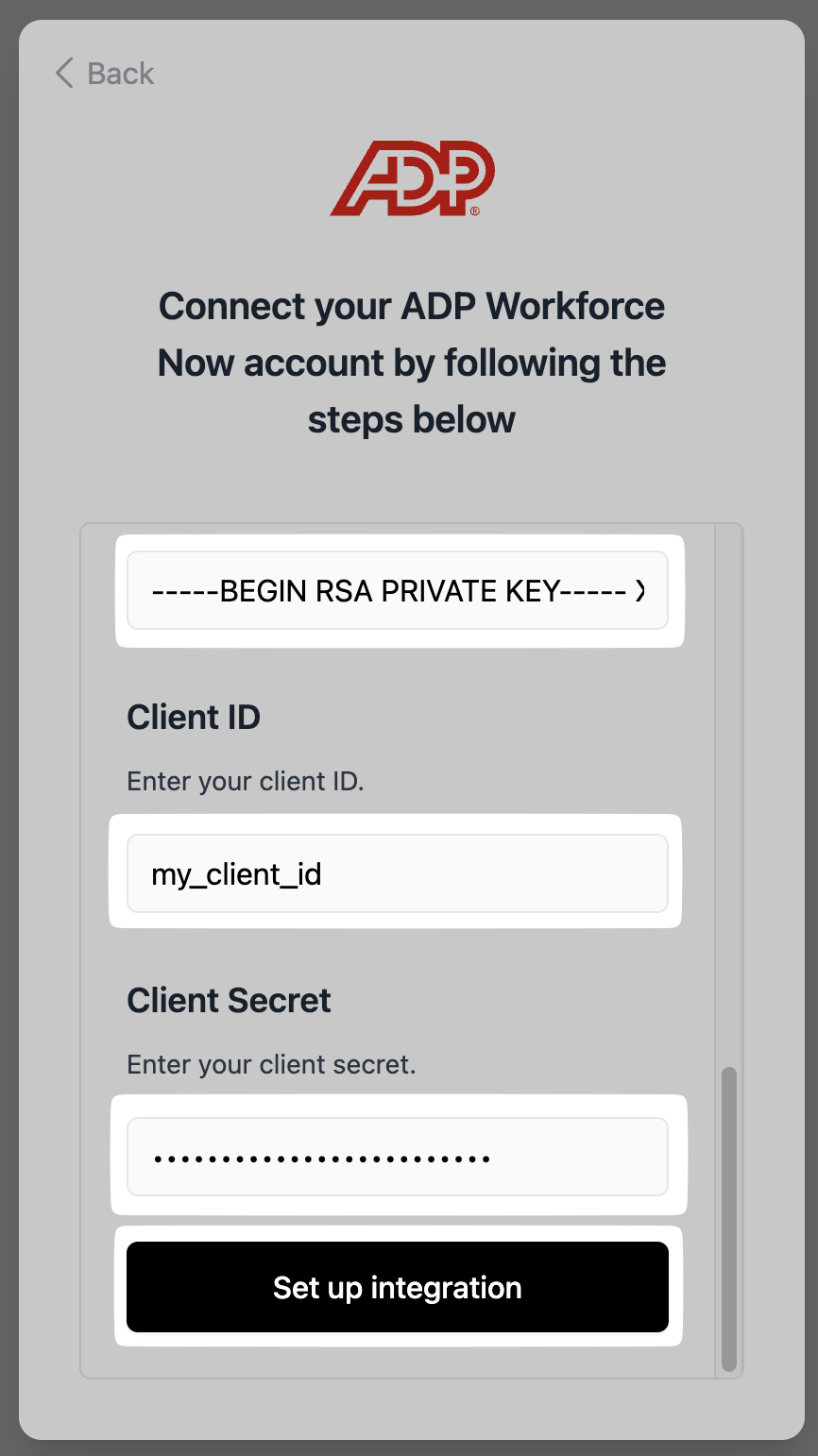
Enter the ADP credentials and certificate material in the connection window.
Confirm the integration
Finish the connection window and return to Juicebox. Confirm that the connection has completed, then allow the initial sync to populate your data.- Check that the expected jobs appear in Juicebox.
- Find a known candidate and confirm that the information available matches your configured access.