

About the integration
Juicebox’s integration with Phenom allows you to:- Export Profiles to Phenom: Save profiles directly into Phenom, including contact details, current company and job, profile URLs, and more.
- [Configurable] Auto-Export: Juicebox has the ability to auto-export profiles to your ATS with configurable triggers, including after shortlisting, after adding to a sequence, or after an interested response.
- Link Phenom Jobs to Juicebox
- Import Job Descriptions: Import a job description from Phenom into Juicebox to automatically kick off a search using the job description.
- Simplify Exports: When exporting a profile from Juicebox to the ATS, it will automatically be connected to the correct job in the ATS. More details here.
- View Profiles in Phenom: View profiles already in Phenom within Juicebox. Avoid reaching out to the same profile twice, and instantly view your relationship history.
Start a project via the Phenom integration
Open the projects page and select Import Job from ATS / CRM. You will then see your Phenom jobs and can select the corresponding option.Export profiles to Phenom
Follow the regular export steps and select Export to Phenom on either an individual profile or a bulk export. After exporting, you will see the profile created in your Phenom account.View profiles already in Phenom
Juicebox will tag profiles that already exist in Phenom. You will see the last modified date, as well as the option to view the profile directly in Phenom by clicking the View in ATS button.Before you start
Reach out toapi-management@phenom.com to obtain your API credentials. You can use this template:
Hi, We would like to set up an integration to automate reading jobs and creating applications within Phenom. We were told to reach out to you to gain access to the Phenom API. Could you go ahead and grant us access to the API, and let us know ourIf there are any questions, please let us know. Thanks in advance!
- Phenom User ID
- Login URL
- Client ID
- Client Secret
Setting up the integration
- Navigate to the Integrations tab on the Juicebox platform.
- Select Phenom and click Activate. You can also use the search bar at the top.
-
Once you have received your API credentials from Phenom, enter them into the connection pop-up and click the Set up integration button.
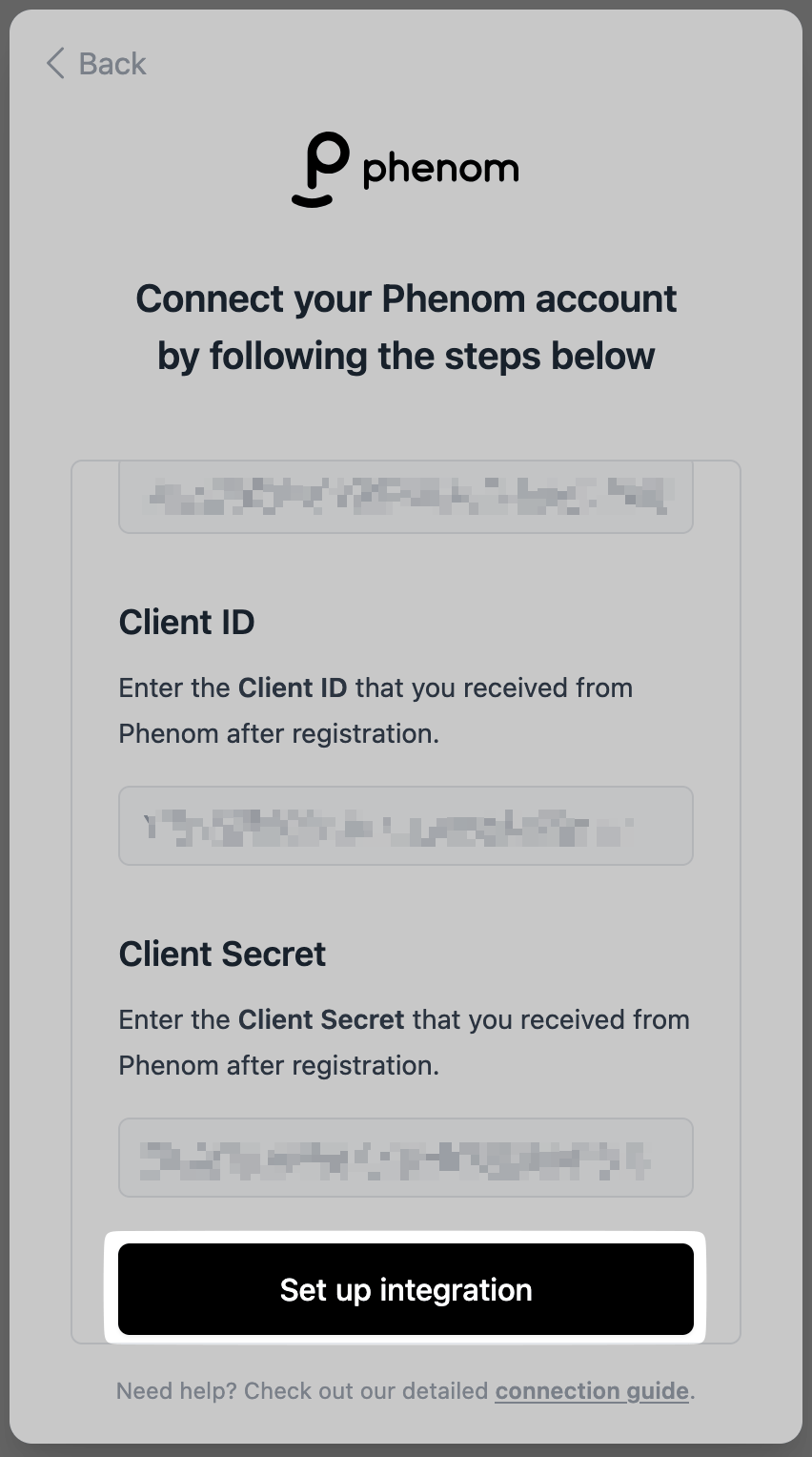
- After you have clicked through the remaining pages of the pop-up, the configuration will be completed. If successful, you will see a green Connected button in your Integrations marketplace.
It may take a few minutes for all data to sync between Juicebox and Phenom.