


About the integration
Connect Perview to Juicebox to import jobs and start searches from their job descriptions. You can also export profiles with resumes to a selected job. This connector does not provide full-database candidate reading for rediscovery.Before you start
Ask Perview to supply the Jobs API URL for public jobs and the username and API key for the Form API. An administrator must also configure candidate sources. Open Integrations in Juicebox, select Perview, and choose Activate. Keep the connection window open while completing the steps below. If the integration is not visible, ask Juicebox Support to confirm access for your account.The screenshots show vendor settings or the connection window provided by Kombo. Use the credentials, source labels, permissions, and URLs from your own connection; screenshot values are examples.
Enter the API details
Enter the Jobs API URL in Juicebox, then enter the Form API username and key when prompted.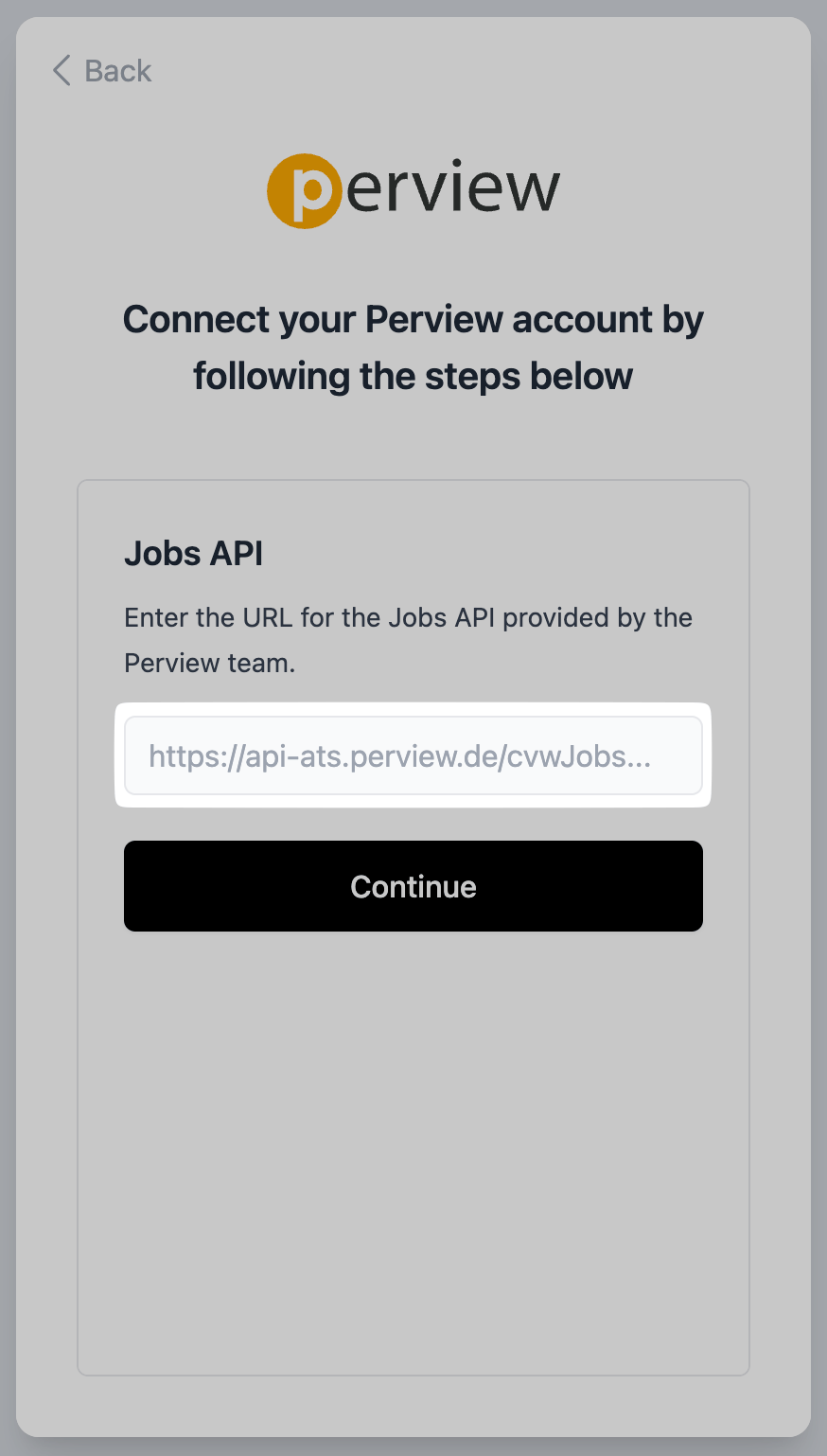
Enter the public Jobs API URL.
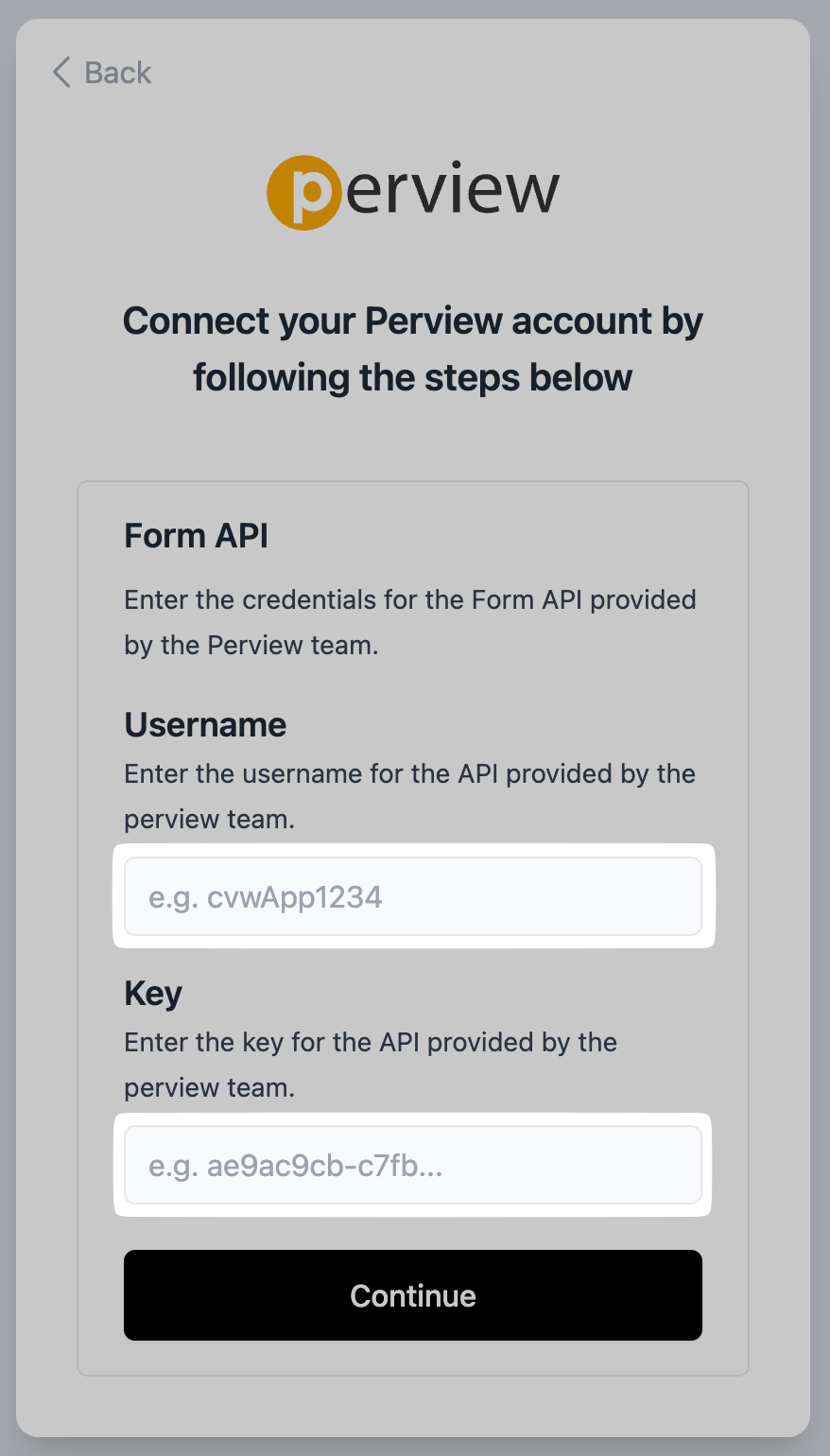
Enter the Form API credentials.
Create and activate the source
- Copy the source label from the connection window.
- In Perview, open My Company > Company > Add/Sort Sources.
- Add the label, move it into Active Sources, mark it as Default, and save.
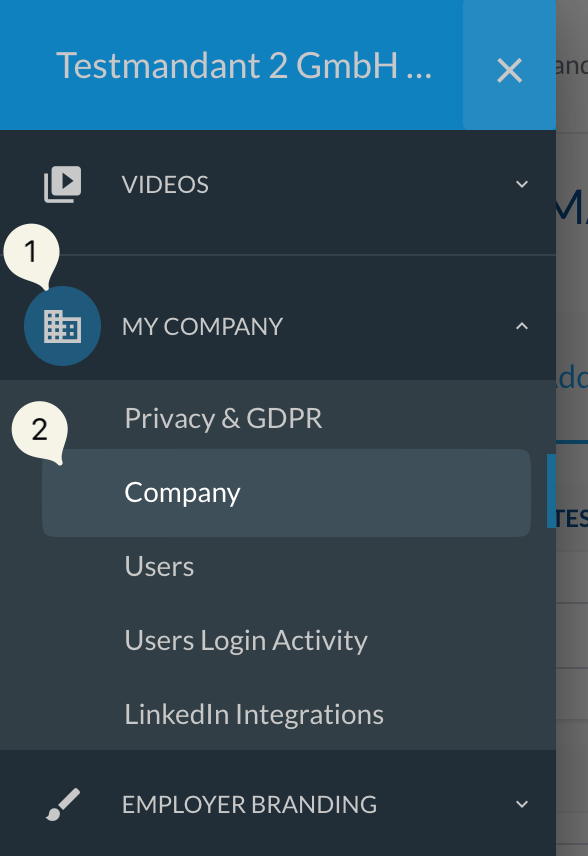
Open Add/Sort Sources in Perview.
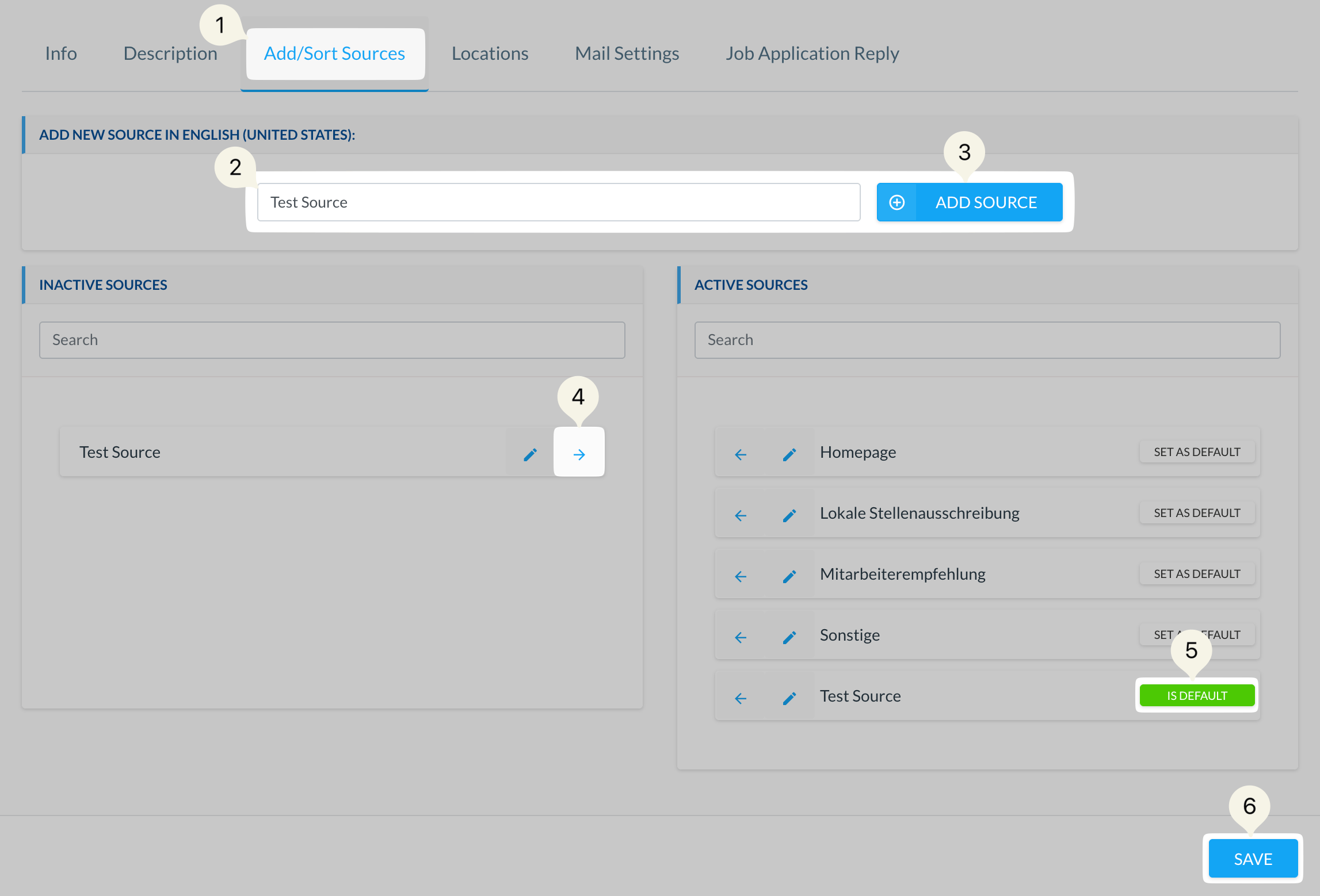
Activate the source and make it the default.
Add the source to existing jobs
For the job identified by the connection check, open Settings > Application Form > Sources > Add Source, select the new source, and save. Repeat for all existing jobs you will use. Setting the source as default applies it to future jobs, but does not update existing jobs. Finish setup in Juicebox.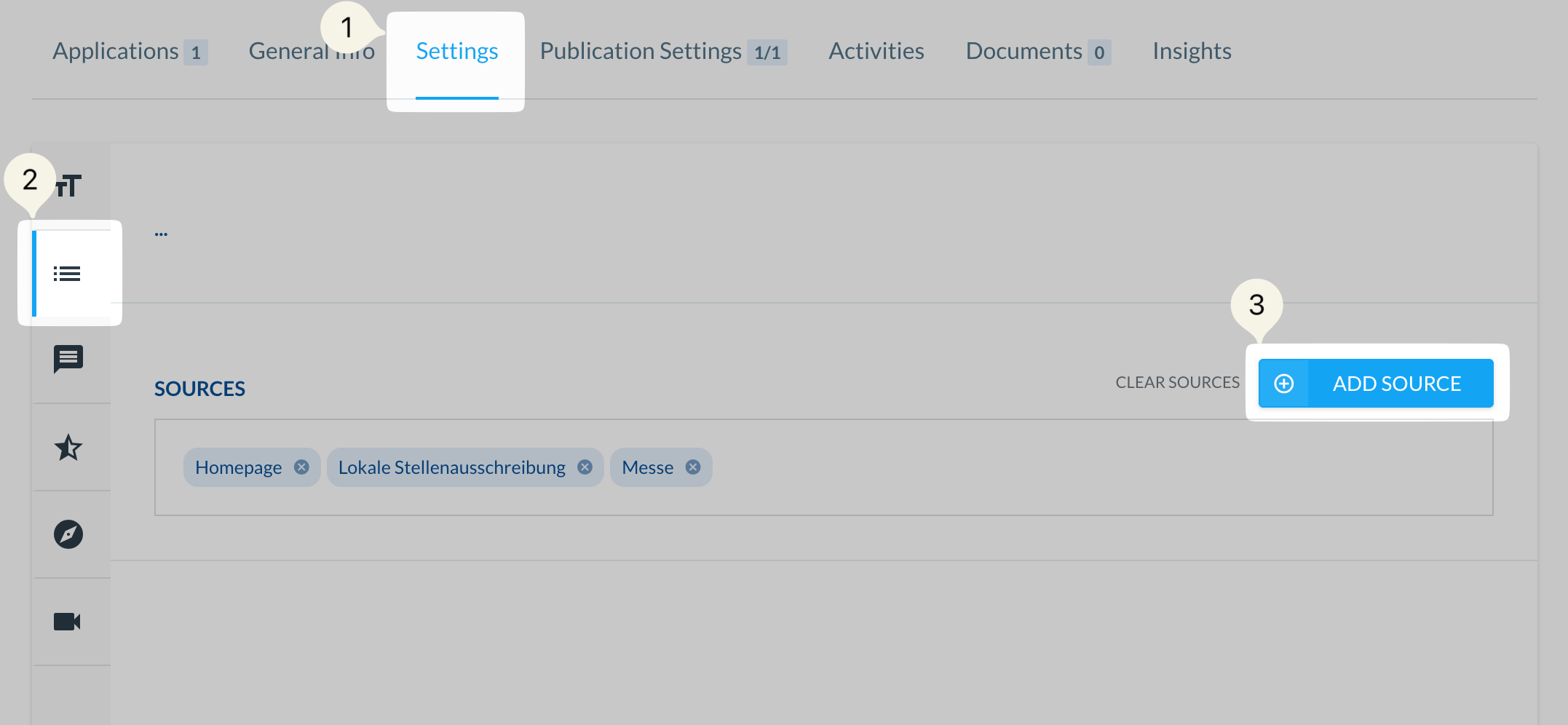
Add the new source to an existing job’s application form.
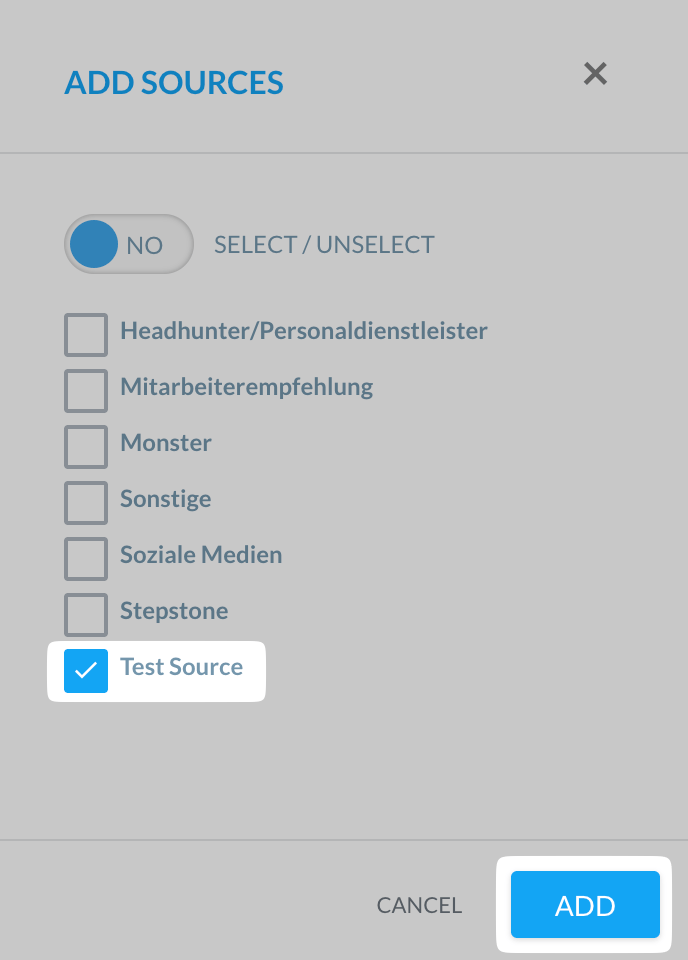
Select and save the source on the job.
Confirm the integration
Finish the connection window and return to Juicebox. Confirm that the connection has completed, then allow the initial sync to populate your data.- Check that the expected jobs appear in Juicebox.
- Export a test profile with a resume to a selected job, then verify the application in Perview.